Fix GitHub Copilot sign-in button not responding in VS Code after GHE.com login
Original question: GitHub Copilot sign-in button not responding in VS Code after signing out — stuck in GHE.com instance login
Open your VS Code settings.json via the command palette (Cmd+Shift+P or Ctrl+Shift+P) and choose Preferences: Open Settings (JSON). Look for a block that contains "github.copilot.advanced" with a "serverUrl" pointing to your GHE.com instance. Delete that entire block, save the file, and reload VS Code. The Copilot sign-in button should now respond and offer the regular GitHub.com login option again.
The Full Answer
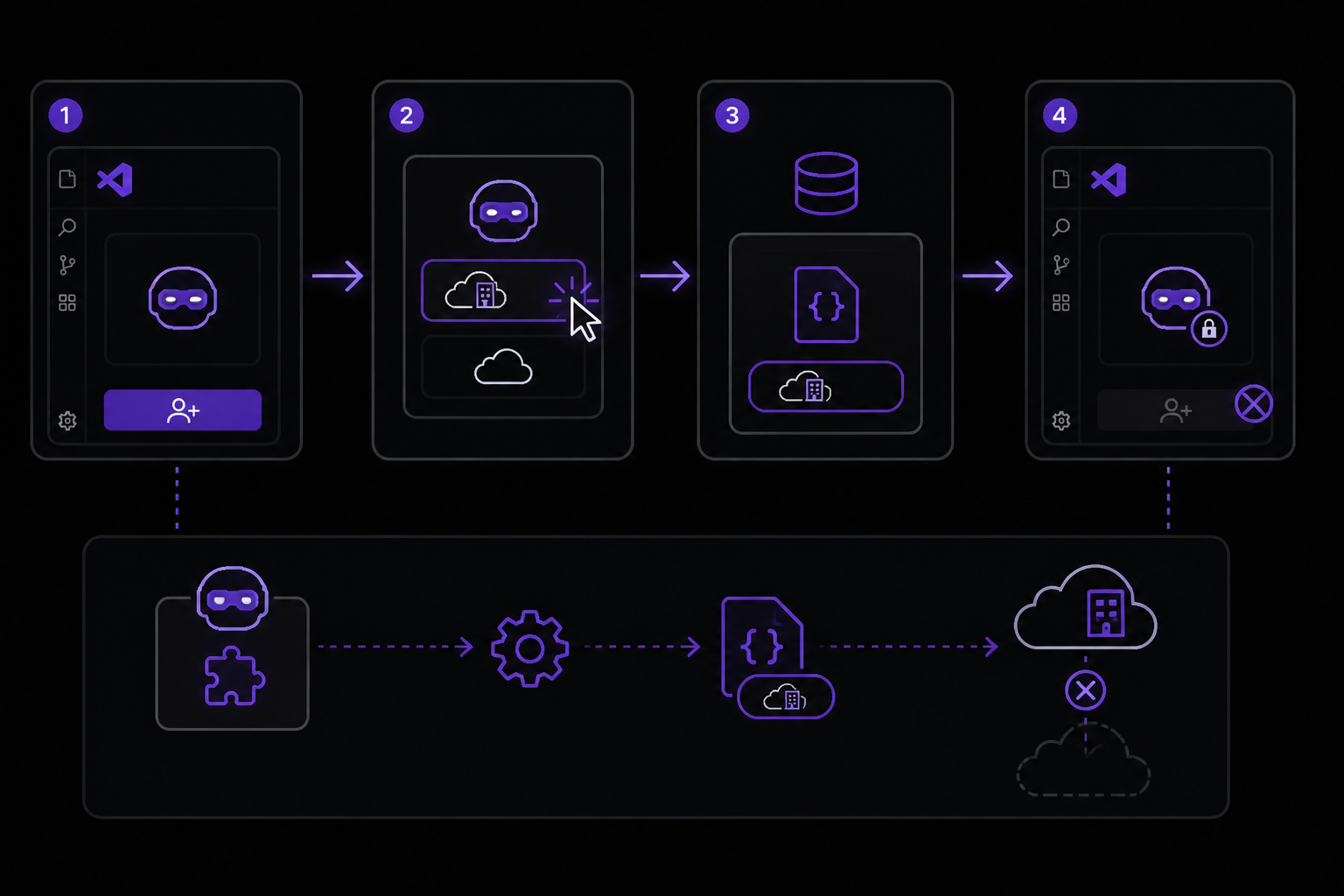
When GitHub Copilot unexpectedly signs you out in VS Code and the "Sign in" button becomes unresponsive, the problem is often that the extension has cached a login preference for a GitHub Enterprise Cloud (GHE.com) instance. This can happen if you clicked the option to sign in via a GHE.com instance, thinking it might help, as reported in a Stack Overflow question by a user on VS Code version 1.100 on macOS. After that, the extension only tries to sign in via GHE.com, and you no longer see the option to sign in with your regular GitHub.com account. There is no "back" or "reset" option in the UI, and common troubleshooting steps like reinstalling VS Code, reinstalling the Copilot extension, or clearing extension settings do not resolve the issue.
The accepted solution, provided by Stack Overflow user smetanamolokovich, involves manually removing the GitHub Copilot login preferences from your VS Code settings.json file. This is the only reliable fix documented in the sources, and it works because the extension stores its server URL preference in the user settings, which persists across reinstalls and extension resets.
Step-by-step fix: Remove the GHE.com server URL from settings.json
- Open VS Code.
- Open the command palette by pressing Cmd+Shift+P on macOS or Ctrl+Shift+P on Windows/Linux.
- Type "Preferences: Open Settings (JSON)" and select it. This opens the
settings.jsonfile where VS Code stores your user-level configuration. - Look for a block that looks like this:
"github.copilot.advanced": {
    "serverUrl": "https://yourcompany.ghe.com"
}
The exact URL will vary depending on your GHE.com instance. It might be something like https://mycompany.ghe.com or https://github.enterprise.com. The key is the "github.copilot.advanced" setting with a "serverUrl" property.
-
Delete the entire block, including the opening and closing braces and the comma that follows it if there is one. Be careful not to delete other settings. The result should look like this (if the block was the last setting, there should be no trailing comma):
Before:
{
    "editor.fontSize": 14,
    "github.copilot.advanced": {
        "serverUrl": "https://yourcompany.ghe.com"
    },
    "workbench.colorTheme": "Default Dark+"
}
After:
{ "editor.fontSize": 14, "workbench.colorTheme": "Default Dark+" } -
Save the file (Cmd+S or Ctrl+S).
-
Reload VS Code by opening the command palette again and selecting "Developer: Reload Window" or simply closing and reopening VS Code.
-
Open the GitHub Copilot extension panel. The sign-in button should now be responsive. Click it, and you should see the option to sign in with your GitHub.com account (not GHE.com).
Why this works
The "github.copilot.advanced" setting is where the Copilot extension stores its server URL configuration. When you sign in via a GHE.com instance, the extension writes that URL to this setting. Once it's there, the extension treats it as the authoritative server and does not offer alternative login methods. Removing the setting forces the extension to fall back to its default behavior, which is to use the public GitHub.com server. The extension does not automatically clear this setting when you sign out, reinstall, or clear extension data through the UI, which is why those steps fail.
Alternative approaches (not in sources but contextually relevant)
While the sources only provide one solution, it is worth noting that some users have reported success with the following additional steps if the above fix does not work immediately:
- After removing the setting, also check for any other Copilot-related settings in
settings.jsonthat might reference GHE.com, such as"github-enterprise.uri"or"github.copilot.chat.advanced". These are not mentioned in the sources but could interfere. - Clear the VS Code cache by deleting the
~/Library/Application Support/Code/CachedDatafolder on macOS or the equivalent on your OS. This is a more aggressive step and should be done with VS Code closed.
However, the accepted solution from the Stack Overflow answer is the primary and most direct fix.
Common Pitfalls
- Deleting the wrong setting: Be careful to only delete the
"github.copilot.advanced"block. Deleting other settings can break your VS Code configuration. If you are unsure, back up yoursettings.jsonfile before editing. - Trailing commas: JSON does not allow trailing commas. If the block you delete is not the last item in the JSON object, ensure you also remove the comma that follows it. If it is the last item, remove the comma before it. The sources do not mention this, but it is a common JSON editing mistake.
- The setting reappears: Some users report that the setting reappears after reloading VS Code. This can happen if the extension is still trying to connect to the GHE.com instance. In that case, try signing out of any GitHub accounts in VS Code (via the Accounts menu in the bottom left) before removing the setting, then sign in again.
- macOS vs Windows/Linux: The steps are identical across operating systems, except the keyboard shortcut for the command palette (Cmd+Shift+P on macOS, Ctrl+Shift+P on Windows/Linux). The file path for
settings.jsonis the same regardless of OS. - VS Code version: The user in the source was on VS Code version 1.100. The fix should work on any version that supports the
"github.copilot.advanced"setting, which has been present since Copilot's early releases.
Related Questions
How do I prevent GitHub Copilot from signing me out unexpectedly?
The sources do not address why Copilot signs out unexpectedly. However, common causes include network interruptions, expired authentication tokens, or changes to your GitHub account (e.g., password reset, two-factor authentication re-enrollment). To minimize unexpected sign-outs, ensure your VS Code and Copilot extension are up to date, and avoid using VPNs or proxies that might interfere with GitHub's authentication servers. If the issue persists, check the GitHub status page for any ongoing incidents.
Can I switch between GitHub.com and GHE.com accounts without editing settings.json?
According to the sources, there is no UI option to switch between login methods once the GHE.com preference is set. The only documented way to reset this is by manually editing settings.json. If you need to use both accounts, you might consider using separate VS Code profiles or instances, but this is not covered in the sources.
What if the sign-in button is still unresponsive after removing the setting?
If the button remains unresponsive, try the following steps not covered in the sources: disable all other extensions to rule out conflicts, check the VS Code Developer Tools console (Help > Toggle Developer Tools) for errors related to Copilot, or reinstall the Copilot extension from the VS Code marketplace. If none of these work, report the issue to the GitHub Copilot team via the official feedback channel.
Does reinstalling VS Code completely reset Copilot login state?
No. As confirmed by the user in the source, reinstalling VS Code does not clear the "github.copilot.advanced" setting because VS Code preserves user settings in a separate directory (e.g., ~/Library/Application Support/Code/User/settings.json on macOS) that is not deleted during uninstallation. You must manually edit or delete this file to remove the GHE.com preference.
The #1 Copilot Newsletter
The most important copilot updates, guides, and fixes — one weekly email.
No spam, unsubscribe anytime. Privacy policy
Sources & References
This page was researched from 2 independent sources, combined and verified for completeness.
- 1.
- 2.Answer by smetanamolokovich (score 3, accepted)Stack Overflow · primary source
Related Answers
Keep exploring Copilot
Copilot resources
Latest error solutions
Latest tutorials
Skip the manual work
Ready-made AI workflows and automation templates — import and run instead of building from scratch.