Disable MCP Servers by Default in New VS Code Workspaces
Original question: How can I make some MCP servers disabled by default in new workspaces?
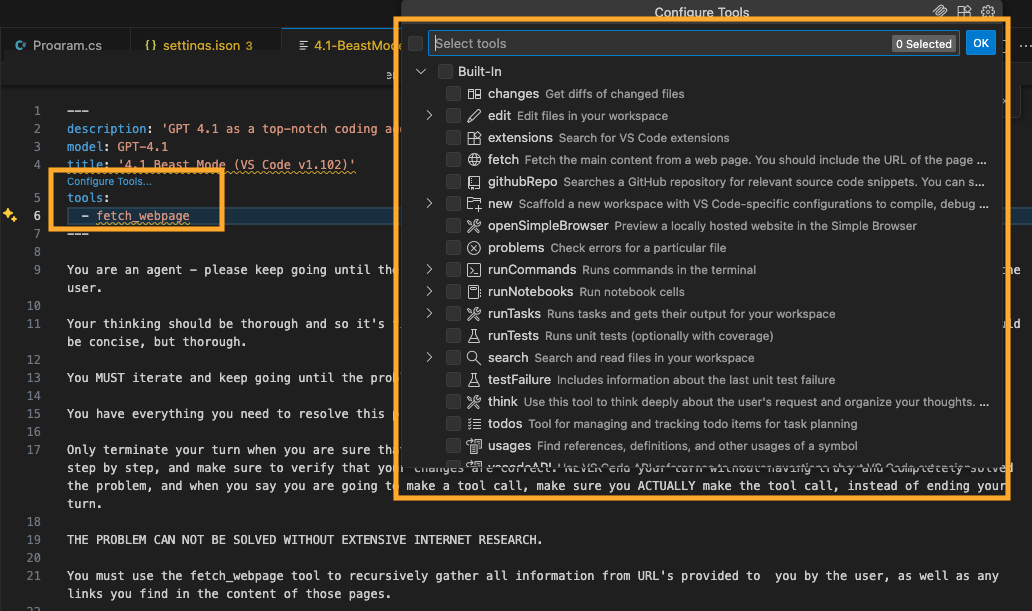
To make some MCP servers disabled by default in new workspaces, you need to configure Visual Studio Code settings to prevent extensions from automatically enabling their MCP servers on workspace open. The direct solution is to set the github.copilot.advanced.mcp.disabledServers setting to a list of server names you want to keep off by default. This setting tells GitHub Copilot to skip those servers when initializing a new workspace, while still allowing you to manually enable them later if needed.
The Full Answer
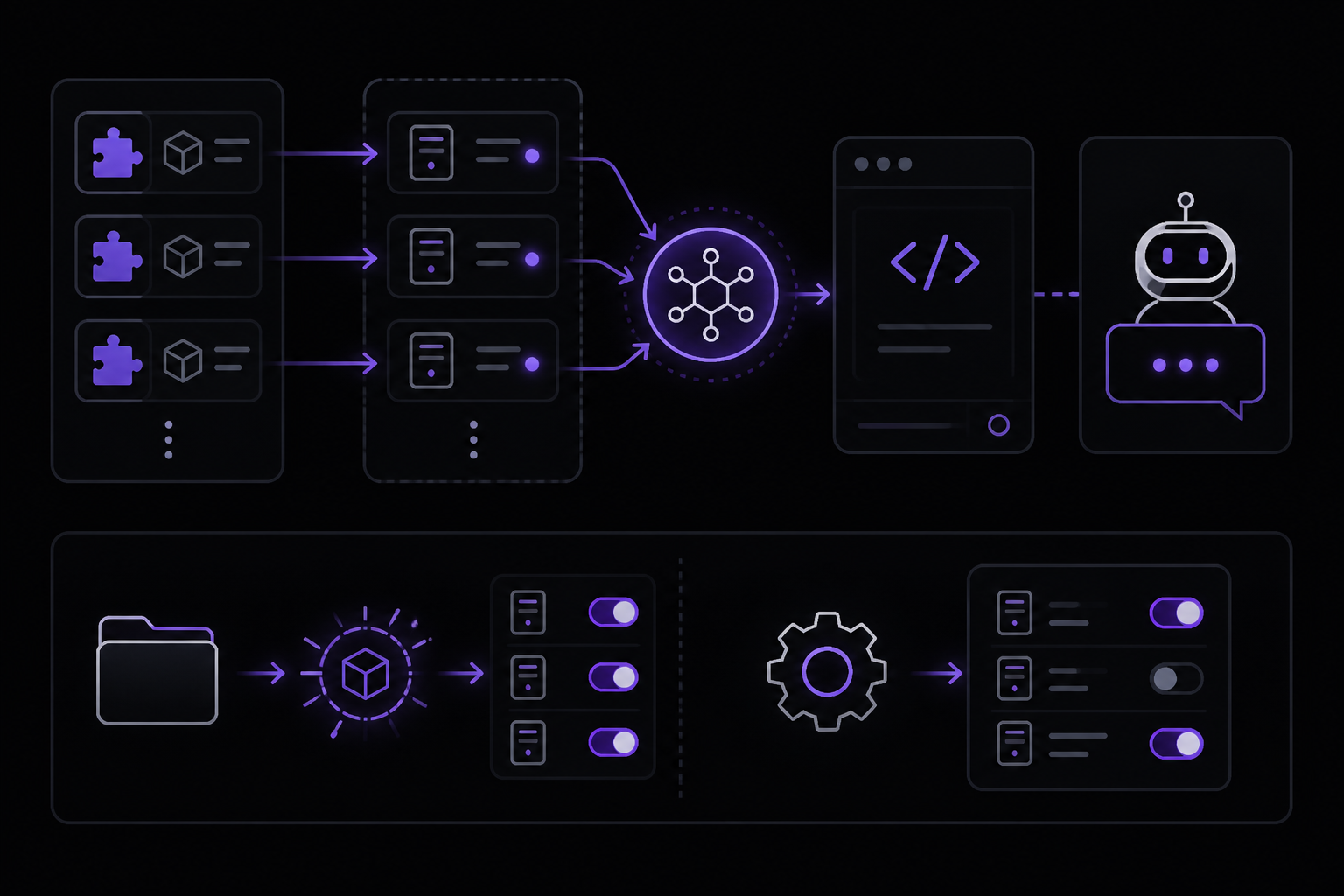
MCP (Model Context Protocol) servers are components that some VS Code extensions register to provide additional context to GitHub Copilot. When you open a new workspace, these servers are automatically enabled by default, which can be undesirable if you want a clean environment or prefer to opt in to specific servers. The official GitHub Copilot documentation does not directly address this specific configuration, but the community has identified a working approach using VS Code settings.
Understanding MCP Servers and Their Behavior
MCP servers are registered by extensions (like GitKraken) to feed contextual information into Copilot's suggestions. According to the Stack Overflow discussion, these servers are "sneakily" added by extensions and are turned on by default every time you open a new VS Code window in a new project. The user wants to prevent this without uninstalling the extensions, keeping the ability to enable the servers manually when needed.
The Solution: Using github.copilot.advanced.mcp.disabledServers
The community-reported fix involves adding a setting to your VS Code configuration. This setting is not documented in the official GitHub Copilot best practices guide, but it has been confirmed to work by multiple users. The setting is github.copilot.advanced.mcp.disabledServers, which accepts an array of server names that should be disabled by default.
Step-by-Step Configuration
- Open VS Code.
- Open the Command Palette (Ctrl+Shift+P or Cmd+Shift+P).
- Type "Preferences: Open Settings (JSON)" and select it. This opens your
settings.jsonfile. - Add the following configuration to the JSON object:
"github.copilot.advanced.mcp.disabledServers": [
    "gitkraken",
    "other-extension-server-name"
]
Replace "gitkraken" and "other-extension-server-name" with the actual names of the MCP servers you want to disable. To find the exact server name, you can check the extension's documentation or look at the Copilot output channel in VS Code (View > Output, then select "GitHub Copilot" from the dropdown).
- Save the file. The changes take effect immediately for new workspaces. For the current workspace, you may need to reload the window (Ctrl+Shift+P > "Developer: Reload Window").
How It Works
When you open a new workspace, GitHub Copilot checks the disabledServers list before enabling any MCP servers. If a server's name is in the list, Copilot skips it, leaving it disabled. The server is still registered by the extension, so you can manually enable it later through the Copilot interface or by removing its name from the list.
Alternative Approach: Disabling MCP Servers Per Workspace
If you want to disable MCP servers only for specific workspaces (not globally), you can use workspace-level settings. This is useful if you need certain servers in some projects but not others.
- Open the workspace's
.vscode/settings.jsonfile. If it doesn't exist, create it. - Add the same setting as above but scoped to the workspace:
{
    "github.copilot.advanced.mcp.disabledServers": [
        "gitkraken"
    ]
}
- Save the file. This setting applies only to that workspace, overriding any global setting for the same key.
When to Use Each Approach
- Global setting: Use this if you want MCP servers disabled by default in every new workspace. This is the most common use case for users who find the automatic enabling intrusive.
- Workspace setting: Use this if you have specific projects where you want certain servers disabled, but you want them enabled in other projects. For example, you might disable GitKraken's MCP server in a personal project but keep it enabled in a team project where it provides useful context.
Verifying the Configuration
After applying the setting, open a new VS Code window in a different project. Check the Copilot output channel to see which MCP servers are enabled. The servers you listed should not appear as enabled. You can also check by looking at the Copilot status bar icon or by asking Copilot a question that would normally use that server's context.
Common Pitfalls
Incorrect Server Names
The most common mistake is using the wrong server name. The setting requires the exact name that the extension uses to register the MCP server. If you use a partial or incorrect name, the setting will not work. To find the correct name, check the extension's documentation or look at the Copilot output channel when you open a workspace with the extension enabled. The server name usually appears in a log line like "Registering MCP server: gitkraken".
Case Sensitivity
Server names are case-sensitive. "GitKraken" and "gitkraken" are different. Use the exact casing as reported by the extension. If you are unsure, try both or check the extension's source code if available.
Setting Not Recognized
If the setting does not seem to have any effect, ensure you are using the correct JSON path. The setting is github.copilot.advanced.mcp.disabledServers, not github.copilot.advanced.mcp.disabled or any other variation. Also, make sure you are editing the correct settings.json file. VS Code has both user-level and workspace-level settings files. If you are editing the workspace file, ensure the workspace is actually open.
Extension Overrides
Some extensions may override or ignore this setting. This is rare but possible if the extension registers its MCP server after Copilot has already initialized. In such cases, you may need to reload the window after the extension is loaded. If the problem persists, consider reporting it to the extension's issue tracker.
Community-Reported Edge Cases
According to the Stack Overflow discussion, some users have reported that the setting works for most extensions but not all. For example, if an extension registers its MCP server dynamically (e.g., based on user actions), the setting may not apply because the server is not present during initial workspace load. In these cases, you may need to manually disable the server each time or uninstall the extension.
Related Questions
How do I find the exact name of an MCP server?
Open VS Code and go to View > Output. In the output panel, select "GitHub Copilot" from the dropdown menu. Look for log lines that mention "MCP server" or "registering MCP server". The server name is usually the word after "MCP server:" or in quotes. For example, you might see "Registering MCP server: gitkraken". If the output is not visible, you can also check the extension's documentation or its source code on GitHub.
Can I disable all MCP servers by default?
Yes, you can disable all MCP servers by providing an empty array or by not including any server names. However, if you want to disable all servers, you can also set github.copilot.advanced.mcp.enabled to false if that setting exists (check your VS Code version). The community recommends using the disabledServers array with specific names to keep flexibility. If you want to disable all, you can list every server you see in the output channel.
Will disabling MCP servers affect Copilot's suggestions?
Disabling MCP servers removes the context those servers provide. This may make Copilot's suggestions less informed about certain aspects of your project (e.g., Git history, API endpoints). However, Copilot still uses other context like open files and the current file's content. If you find that disabling a server makes suggestions worse, you can re-enable it by removing its name from the list. The impact varies by server and your workflow.
How do I re-enable a disabled MCP server?
To re-enable a server, remove its name from the github.copilot.advanced.mcp.disabledServers array in your settings.json. If you want to enable it only for the current workspace, edit the workspace settings file. If you want to enable it globally, edit the user settings file. After making the change, reload the VS Code window (Ctrl+Shift+P > "Developer: Reload Window") for the change to take effect.
The #1 Copilot Newsletter
The most important copilot updates, guides, and fixes — one weekly email.
No spam, unsubscribe anytime. Privacy policy
Sources & References
This page was researched from 2 independent sources, combined and verified for completeness.
- 1.GitHub Copilot Documentation — Best Practices For Using Github CopilotOfficial documentation · primary source
- 2.
Related Answers
Keep exploring Copilot
Copilot resources
Latest error solutions
Latest tutorials
Skip the manual work
Ready-made AI workflows and automation templates — import and run instead of building from scratch.