Fix GitHub Copilot Chat 'Could not parse ov' Error in Visual Studio 2022
Error message
GitHub Copilot Chat Error: "Could not parse ov" - Persistent Issue
The "Could not parse ov" error in GitHub Copilot Chat for Visual Studio 2022 is a parsing failure that occurs when the Copilot backend service cannot interpret a response from the language model. The exact error message, as reported in the Visual Studio output logs, is: [CopilotClient] Unknown exception: Could not parse ov. This error typically appears after the chat shows "Copilot generating response" and then fails with "error occurred while completing the task. try again." The most common cause is a bug in the Copilot extension version 17.14.6, which was fixed in version 17.14.7. However, other factors like authentication token corruption, proxy configuration issues, or corrupted local session data can also trigger this error.
What Causes This Error
Bug in Copilot Extension Version 17.14.6
The primary cause, confirmed by the official fix release, is a bug in the Copilot Chat extension that shipped with Visual Studio 2022 version 17.14.6. According to the Microsoft Developer Community thread linked in the GitHub issue, "A fix for this issue has been released in 17.14.7." The error originates in the Conversations.Kernel.ConversationBase.AskAsync method, where the system attempts to parse a response from the Copilot service and fails with "Could not parse ov." The stack trace shows the exception occurs when invoking an intent (either 'None' or 'Generic'), indicating the model's response format is not what the parser expects. This is a server-side parsing issue within the Visual Studio Copilot service, not a problem with your code or network.
Corrupted GitHub Authentication Token
A secondary cause, documented in the logs from Source 3, is a corrupted or empty GitHub authentication token. The log shows: [GitHubTokenManager Error] User is signed into GitHub but token is empty. Remove and add your GitHub account again. This can happen if the token stored by Visual Studio becomes invalid or is not properly refreshed. The error then cascades into [Conversations Error] User is not signed into GitHub. Please sign into GitHub. even though the user appears to be signed in. The logs in Source 3 demonstrate this sequence: after the "Could not parse ov" error, the authentication status changes from "OK" to "NotSignedInToGitHub," and the token manager reports an empty token. This suggests that the parsing error might trigger a token validation failure, or the token corruption itself causes the parsing error by disrupting the session.
Proxy Configuration Interference
The logs in Source 3 repeatedly show: [HttpClientFactoryProvider Information] Environment variable COPILOT_USE_DEFAULTPROXY found: False. This indicates that the Copilot extension is checking for a proxy environment variable. If your network uses a proxy and the COPILOT_USE_DEFAULTPROXY variable is set to False (or not set at all), the extension might fail to route requests correctly, leading to malformed responses that cannot be parsed. The official documentation does not explicitly mention this as a cause, but the log presence suggests it is a diagnostic clue. Community reports indicate that proxy misconfiguration can cause similar parsing errors in Copilot Chat.
Corrupted Local Session Data
Copilot Chat persists session data to disk. The logs show: [PersistedCopilotSessionRepository Information] Persisted sessions are stored under D:\Programowanie\Aspire\Integrator\.vs\Integrator\copilot-chat\04739bed\sessions. If this session data becomes corrupted (e.g., from an incomplete write or a crash), the Copilot service may fail to load or parse the conversation history, resulting in the "Could not parse ov" error. This is a less common cause but is suggested by the fact that clearing the Visual Studio cache (which includes these session files) is a recommended troubleshooting step.
Outdated or Incompatible Extension Version
Using an older version of the GitHub Copilot extension that does not include the fix can also cause this error. The official documentation for Visual Studio 2022 states that you need "version 2022 17.8 or later" for Copilot, but the specific bug was introduced in 17.14.6 and fixed in 17.14.7. If you are on a version prior to 17.14.7, you are vulnerable to this bug. Additionally, if your organization has disabled Copilot Chat or the Copilot CLI, you may encounter errors, though these typically produce different messages.
How to Fix It
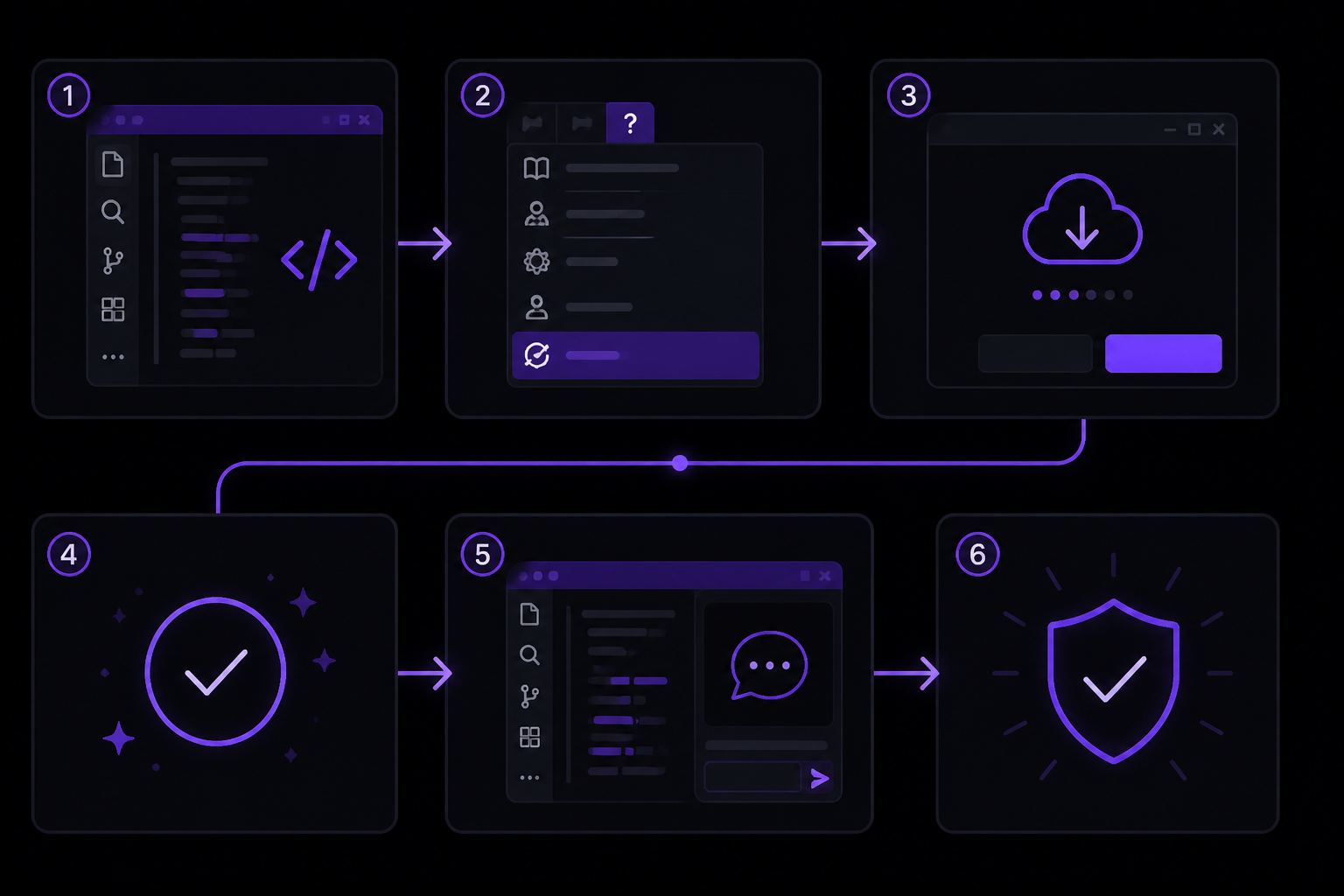
Solution 1: Update Visual Studio to Version 17.14.7 or Later (Official Fix)
This is the most reliable fix, as confirmed by the Microsoft Developer Community thread. The fix was released in Visual Studio 2022 version 17.14.7.
- Open Visual Studio 2022.
- Go to Help > Check for Updates.
- If an update to version 17.14.7 or later is available, click Download and then Update.
- After the update completes, restart Visual Studio.
- Open a project and test Copilot Chat by asking a simple question like "hi" or "what does this file do?"
- If the error no longer appears, the fix is successful.
If you are on Visual Studio 2022 version 17.14.6, the update should resolve the issue. The official documentation does not provide a manual patch; the only official solution is to update to the fixed version.
Solution 2: Remove and Re-add Your GitHub Account (For Token Corruption)
If updating does not fix the error, or if you see the "token is empty" error in the logs, follow these steps to refresh your authentication token.
- In Visual Studio, go to File > Account Settings (or Environment > Accounts in some versions).
- Find your GitHub account in the list of connected accounts.
- Click Remove to sign out.
- Close Visual Studio completely.
- Reopen Visual Studio and go back to File > Account Settings.
- Click Add an account and select GitHub.
- Sign in with your GitHub credentials. Ensure you authorize the Visual Studio application if prompted.
- After signing in, open a project and test Copilot Chat.
Note: Source 3 reports that "Removing and adding account doesn't help" for some users. This indicates that while token corruption can cause the error, it is not the root cause for everyone. If this does not work, proceed to Solution 3.
Solution 3: Clear Visual Studio Cache and Session Data
Corrupted session data can cause parsing errors. Clearing the cache forces Copilot to start fresh.
- Close all instances of Visual Studio.
- Navigate to the
.vsfolder in your solution directory. This folder is hidden by default. To find it:- Open your project folder in File Explorer.
- Click View > Show > Hidden items.
- Look for a folder named
.vs.
- Inside
.vs, navigate to the subfolder that containscopilot-chat. The path typically looks like:.vs\YourSolutionName\copilot-chat\. There may be multiple subdirectories with hexadecimal names (e.g.,04739bed). - Delete the entire
copilot-chatfolder. This removes all persisted session data. - Also delete the
CopilotIndicesfolder if it exists (e.g.,.vs\YourSolutionName\CopilotIndices). This removes cached code context data. - Reopen Visual Studio and reload your solution.
- Test Copilot Chat.
If you do not want to delete the entire folder, you can also try clearing the Visual Studio cache via Tools > Options > Environment > Import and Export Settings > Reset all settings, but this is more aggressive and may reset other preferences. The folder deletion method is more targeted.
Solution 4: Check Proxy Configuration
If your network uses a proxy, ensure the COPILOT_USE_DEFAULTPROXY environment variable is set correctly.
- Close Visual Studio.
- Open a command prompt as Administrator.
- To check the current value, run:
If it returnsecho %COPILOT_USE_DEFAULTPROXY%Falseor is empty, you may need to set it toTrue. - To set the variable, run:
setx COPILOT_USE_DEFAULTPROXY True - Restart Visual Studio.
- Test Copilot Chat.
If you do not use a proxy, this is unlikely to help. The official documentation does not provide guidance on this variable, so this is a community-suggested workaround. If the error persists, revert the variable by setting it to False or deleting it.
Solution 5: Reinstall the GitHub Copilot Extension
If none of the above work, a fresh installation of the extension may resolve underlying corruption.
- In Visual Studio, go to Extensions > Manage Extensions.
- Find GitHub Copilot in the list.
- Click Uninstall.
- Close Visual Studio and follow any prompts to complete the uninstallation.
- Reopen Visual Studio.
- Go to Extensions > Manage Extensions > Online.
- Search for "GitHub Copilot" and click Download.
- After installation, restart Visual Studio.
- Sign in to GitHub again when prompted.
- Test Copilot Chat.
This ensures you have the latest version of the extension, which may include fixes beyond the Visual Studio update.
If Nothing Works
Escalate to Microsoft Developer Community
The original issue reporter created a thread on the Microsoft Developer Community, which led to the fix. If you have tried all solutions above and the error persists, create your own thread at: https://developercommunity.visualstudio.com/
Include the following information in your report:
- Visual Studio version (e.g., 17.14.6)
- Copilot Chat extension version
- OS version (e.g., Windows 10)
- The exact error message: "Could not parse ov"
- The full log output from the Copilot Chat output window. To capture logs:
- In Visual Studio, go to View > Output.
- In the "Show output from" dropdown, select GitHub Copilot.
- Reproduce the error by asking a question in Copilot Chat.
- Copy the entire log content and paste it into your report.
- Steps you have already taken to troubleshoot.
Check GitHub Copilot Status
Verify that the GitHub Copilot service itself is not experiencing an outage. Visit: https://www.githubstatus.com/
If there is a reported incident, wait for it to be resolved before continuing troubleshooting.
Use a Workaround: Disable and Re-enable Copilot
As a temporary workaround, you can disable and re-enable Copilot to reset its state.
- In Visual Studio, go to Tools > Options > GitHub Copilot.
- Uncheck Enable GitHub Copilot.
- Click OK.
- Restart Visual Studio.
- Go back to Tools > Options > GitHub Copilot and re-check Enable GitHub Copilot.
- Click OK and restart Visual Studio again.
- Test Copilot Chat.
This may not fix the underlying parsing bug, but it can sometimes clear transient state issues.
Use Copilot in a Different Environment
If you need Copilot immediately, consider using it in a different IDE while waiting for a fix. The official documentation supports Copilot in:
- Visual Studio Code (with the GitHub Copilot Chat extension)
- JetBrains IDEs (with the GitHub Copilot plugin)
- Xcode (with the GitHub Copilot extension)
- Windows Terminal (with Terminal Chat)
- GitHub.com (via the web interface)
Each of these environments has its own setup instructions, but they are less likely to have the same parsing bug.
How to Prevent It
Keep Visual Studio Updated
The most effective prevention is to always run the latest version of Visual Studio. Enable automatic updates:
- Go to Tools > Options > Environment > Updates.
- Select Automatically download updates.
- Click OK.
This ensures you receive bug fixes like the one in 17.14.7 as soon as they are released.
Maintain a Stable GitHub Authentication
Avoid frequently signing in and out of GitHub accounts in Visual Studio, as this can lead to token corruption. If you must switch accounts, always use the Account Settings dialog to sign out properly rather than just closing the IDE.
Avoid Corrupting Session Data
Do not manually edit or delete files inside the .vs folder while Visual Studio is running. Always close Visual Studio before modifying any files in that directory. If you use source control, consider adding the .vs folder to your .gitignore file to prevent accidental commits of session data.
Monitor Proxy Settings
If your network configuration changes (e.g., you switch from a corporate network to a home network), verify that the COPILOT_USE_DEFAULTPROXY environment variable is set appropriately. You can check this by running echo %COPILOT_USE_DEFAULTPROXY% in a command prompt. If you encounter errors after a network change, resetting this variable may help.
Use the Official Documentation for Setup
Follow the official GitHub Copilot setup instructions for Visual Studio 2022 to ensure a correct initial configuration:
- Install Visual Studio 2022 version 17.8 or later.
- Install the GitHub Copilot extension from the Visual Studio Marketplace.
- Add your GitHub account to Visual Studio via File > Account Settings.
- Verify your subscription is active on GitHub.com.
These steps are documented in the official quickstart guide and reduce the likelihood of configuration-related errors.
The #1 Copilot Newsletter
The most important copilot updates, guides, and fixes — one weekly email.
No spam, unsubscribe anytime. Privacy policy
Sources & References
This page was researched from 3 independent sources, combined and verified for completeness.
- 1.GitHub Copilot Documentation — QuickstartOfficial documentation · primary source
- 2.
- 3.
Keep exploring Copilot
Copilot resources
Latest AI answers
Latest tutorials
Skip the manual work
Ready-made AI workflows and automation templates — import and run instead of building from scratch.