How to Automatically Approve GitHub Copilot Terminal Commands in VS Code
Original question: How to automatically approve/continue GitHub Copilot terminal commands in VS Code?
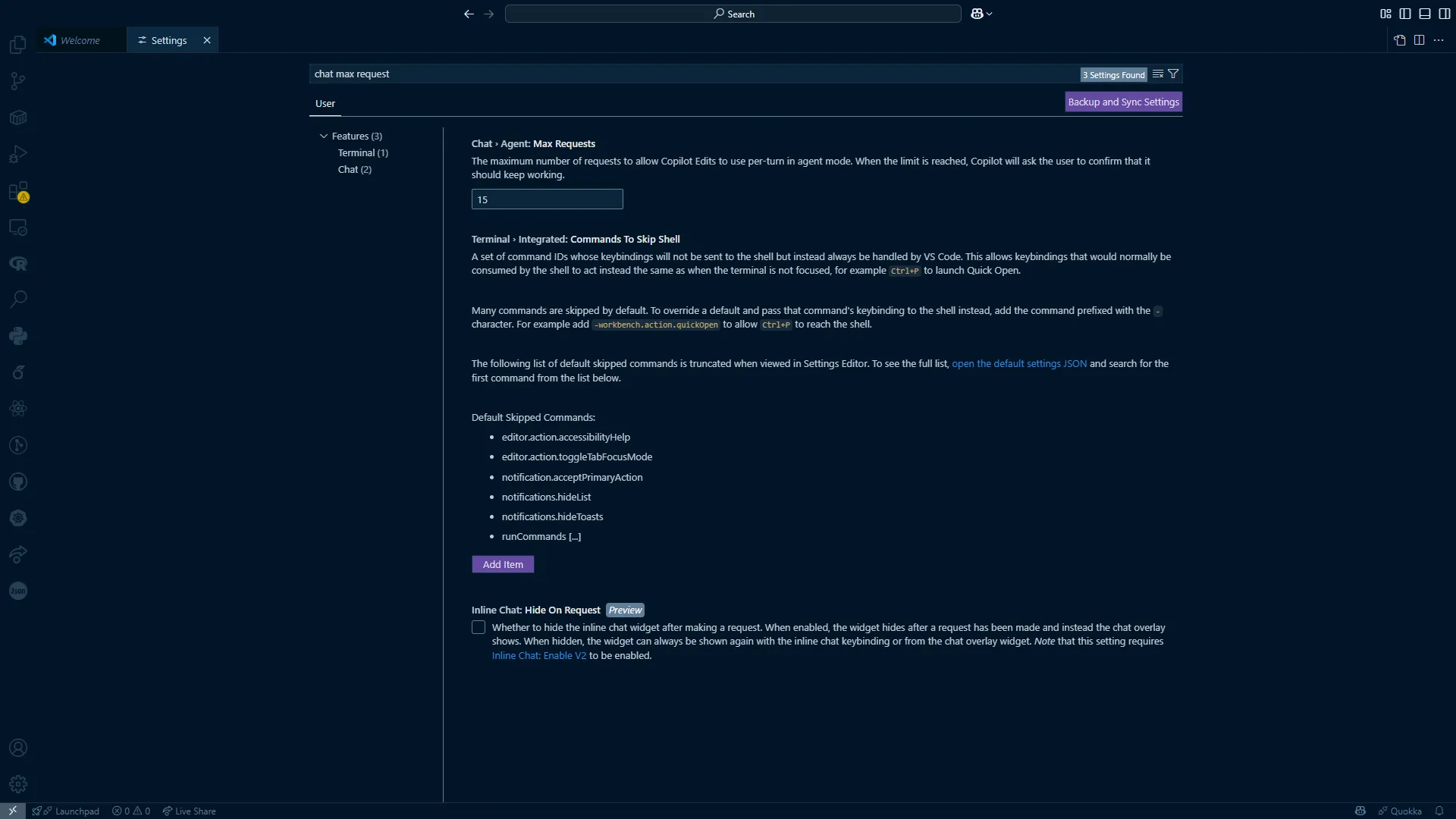
As of the latest available documentation and community reports, there is no built-in setting in VS Code or the GitHub Copilot extension to automatically approve terminal command execution or iteration continuation prompts. These confirmation dialogs are intentional security safeguards. The only supported workaround involves using the GitHub Copilot CLI extension (gh copilot) in combination with a terminal multiplexer or a script that pipes commands directly to the shell, bypassing the VS Code Chat interface entirely. This approach is community-reported and carries significant security risks.
The Full Answer
Understanding the Confirmation Dialogs
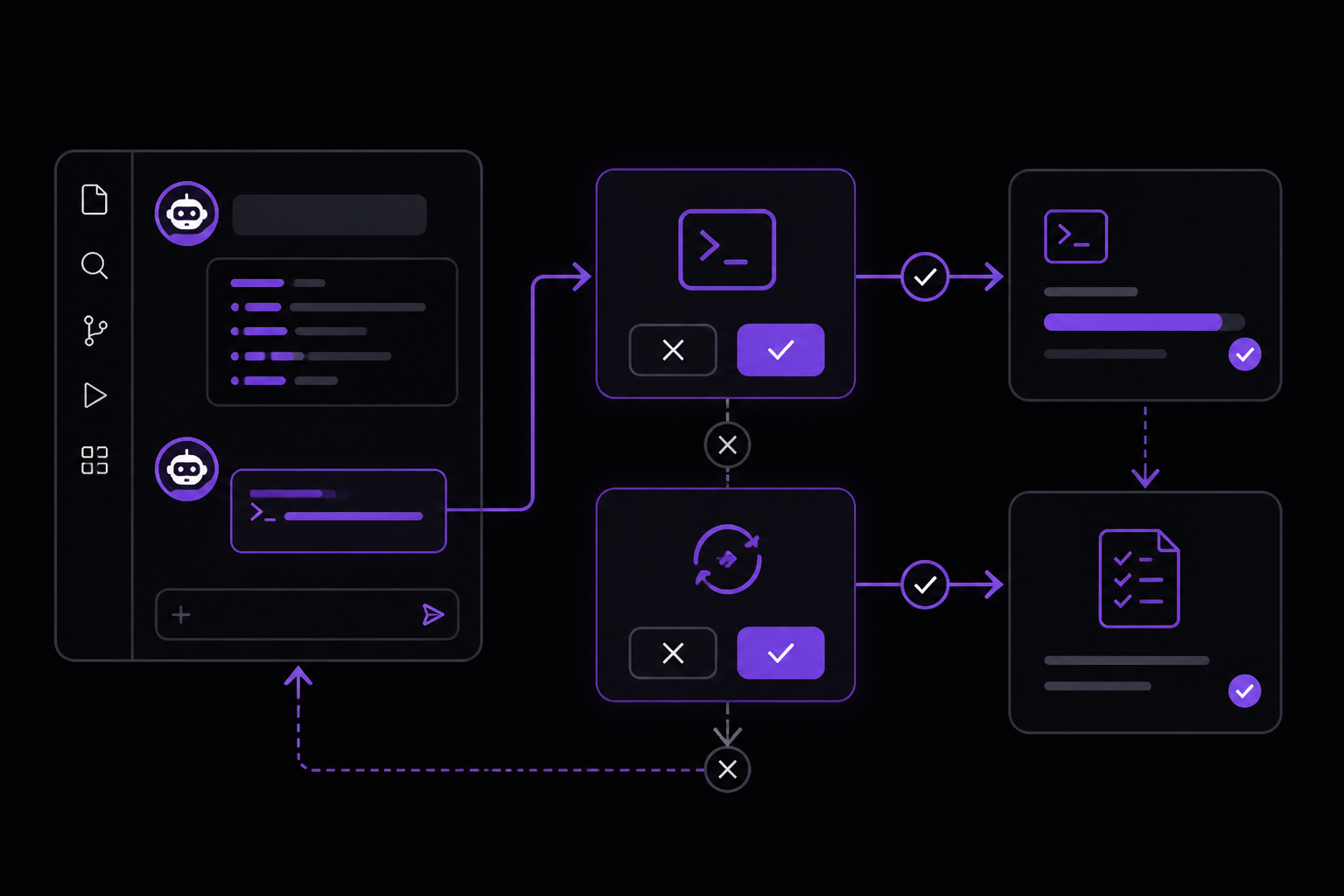
When you use GitHub Copilot in VS Code through the Chat view (opened by pressing Control+Command+i on Mac or Ctrl+Alt+i on Windows/Linux), the agent can suggest running terminal commands. For example, it might propose executing node server.js after generating a server file. Before the command actually runs, VS Code shows a dialog asking you to approve the execution. Similarly, when Copilot works on a multi-step problem, it periodically asks for permission to continue iterating.
These dialogs exist because GitHub Copilot operates with the same permissions as your user account. If it could run commands without confirmation, a malicious prompt or a compromised Copilot session could delete files, install unwanted software, or exfiltrate data. The official documentation from GitHub emphasizes that these safeguards are part of the responsible AI deployment strategy. As noted in the quickstart for VS Code, after generating files, you must "select Keep to accept all the changes." This manual approval step is by design.
Why There Is No Built-In Auto-Approval Setting
Searching through the VS Code settings (accessible via Command+, on Mac or Ctrl+, on Windows/Linux) for terms like "auto-approve," "auto-execute," or "terminal confirmation" yields no relevant results. The GitHub Copilot extension does not expose a configuration flag to disable these prompts. The official GitHub documentation for configuring Copilot in your environment covers enabling or disabling the extension, creating keyboard shortcuts, and managing organization-level policies, but it does not mention any setting for automatic command approval.
At the organization level, administrators can disable Copilot Chat entirely or restrict its capabilities through the GitHub organization settings under "Managing policies and features for GitHub Copilot in your organization." However, this is a binary on/off switch, not a granular permission system. There is no policy to allow automatic command execution while keeping other Copilot features active.
The Community-Reported Workaround: Using GitHub Copilot CLI
A workaround that has been discussed in the community involves using the GitHub Copilot CLI extension (gh copilot) instead of the VS Code Chat agent. The GitHub Copilot CLI is a command-line tool that lets you ask Copilot questions directly in your terminal. It can suggest commands, and critically, it can be configured to pipe those commands directly to your shell without an interactive confirmation dialog.
Prerequisites for the Workaround
- GitHub Copilot subscription: You need an active Copilot subscription (Free, Pro, Pro+, or Max). The CLI extension is available on all paid plans and Copilot Free.
- GitHub CLI (gh): You must have the GitHub CLI installed and authenticated. You can install it from https://cli.github.com/.
- GitHub Copilot CLI extension: Install it by running:
github extensions install github/gh-copilot
- Shell environment: This workaround works in any terminal that supports piping, such as bash, zsh, PowerShell, or fish.
How the Workaround Works
The core idea is to use gh copilot suggest with the --shell-out flag (or the equivalent -s flag) to tell Copilot to output the suggested command directly to stdout, and then pipe that output to your shell. This bypasses the VS Code Chat interface entirely, which is where the confirmation dialogs appear.
Step-by-step instructions:
- Open your terminal (not the VS Code integrated terminal, though that works too).
- Ask Copilot for a command using the CLI:
echo "How do I list all markdown files in my directory?" | gh copilot suggest -t shell
This will output a suggested command, like ls *.md, and ask you to confirm before executing it. The default behavior still requires a confirmation.
- To bypass the confirmation, you can use the
--shell-outflag combined with a pipe to your shell:
echo "How do I list all markdown files in my directory?" | gh copilot suggest -t shell -s | bash
Replace bash with your shell of choice: zsh, fish, pwsh, etc.
- For multi-step tasks, you can chain commands or use a script that repeatedly asks for suggestions and executes them. For example, a simple loop in bash:
while true; do
  read -p "Ask Copilot: " query
  echo "$query" | gh copilot suggest -t shell -s | bash
done
This loop reads a question from the user, passes it to Copilot, and automatically executes the suggested command. There is no confirmation dialog because the -s flag suppresses it.
When to Use This Workaround
This approach is appropriate when:
- You are working in a controlled, local environment where you trust the commands Copilot suggests.
- You are performing repetitive tasks and want to speed up your workflow.
- You understand the security implications and accept the risk.
It is not appropriate when:
- You are working with production systems or sensitive data.
- You are in a shared or multi-tenant environment.
- You are not fully confident in Copilot's suggestions (e.g., when working with unfamiliar tools or APIs).
Alternative Approach: Using Terminal Chat in Windows Terminal Canary
If you are on Windows, there is an experimental feature called Terminal Chat in Windows Terminal Canary. This allows you to use GitHub Copilot directly in the terminal without going through VS Code. The official documentation describes it as follows:
- Open Settings from the dropdown menu.
- Go to the Terminal Chat (Experimental) setting.
- Under Service Providers, select GitHub Copilot and Authenticate via GitHub to sign in.
- Open Terminal Chat (Experimental) in the dropdown menu.
- Type your question and press Enter. Copilot's answer is displayed below your question.
- Click on an answer to insert it to the command line.
Critically, Terminal Chat inserts the command into the command line but does not execute it automatically. You still need to press Enter to run it. This is not an auto-approval solution, but it reduces friction by avoiding the VS Code Chat dialog. The command is placed on your prompt, and you can review it before execution.
Detailed Explanation of the Confirmation Dialogs
To fully understand what you are trying to bypass, it helps to know the two types of dialogs:
Terminal command execution dialog: This appears when Copilot suggests running a command like npm install, git push, or rm -rf. The dialog shows the full command and asks you to confirm. It typically has two buttons: "Run" and "Cancel." There is no "Don't ask again" checkbox.
Iteration continuation dialog: This appears when Copilot is working on a complex problem that requires multiple steps. For example, if you ask Copilot to "Create a complete task manager web application," it might generate several files and then ask for permission to continue with the next step. The dialog says something like "Copilot wants to continue working on this problem. Allow?" with "Allow" and "Deny" buttons. Again, no option to auto-approve.
Both dialogs are implemented at the VS Code extension level, not in the Copilot backend. This means they cannot be bypassed by changing server-side settings. The extension code explicitly waits for user input before proceeding.
Community Discussion on Feature Requests
On the GitHub Copilot feedback forum and related Stack Overflow threads, users have requested an option to disable these confirmations. The official response from GitHub has been consistent: these prompts are security features, not bugs. There is no public roadmap indicating that an auto-approve setting will be added.
Some community members have suggested using UI automation tools like AutoHotkey (Windows) or AppleScript (Mac) to automatically click the "Run" or "Allow" button when the dialog appears. This is a fragile workaround because:
- The dialog's position and timing can vary.
- It may accidentally click other dialogs.
- It violates the VS Code extension's intended behavior and could lead to unintended command execution.
These automation scripts are not recommended and are not covered by any official support channel.
Security Considerations
Before implementing any workaround, you should understand the risks. GitHub Copilot generates code and commands based on patterns in its training data. While it is generally reliable, it can produce incorrect or dangerous commands, especially for:
- System administration tasks (e.g.,
rm,chmod,dd). - Database operations (e.g.,
DROP TABLE,DELETE FROM). - Network commands (e.g.,
curl,wgetwith untrusted URLs). - Package installation (e.g.,
npm install,pip installwith malicious packages).
If you auto-approve all commands, a single bad suggestion could cause data loss or security breaches. The official documentation states: "GitHub Copilot provides coding suggestions as you type in your editor. You can also ask Copilot coding-related questions." It does not guarantee that suggestions are safe or correct.
Step-by-Step: Setting Up the CLI Workaround
Here is a complete, copy-pasteable setup for the CLI workaround on macOS/Linux:
- Install GitHub CLI if not already installed:
# macOS
brew install gh

# Linux (Ubuntu/Debian)
sudo apt install gh

# Verify installation
gh --version
- Authenticate with GitHub:
gh auth login
Follow the prompts to authenticate via browser or token.
- Install the Copilot CLI extension:
gh extension install github/gh-copilot
- Test the extension with a simple query:
echo "how do i list all markdown files in my directory" | gh copilot suggest -t shell
You should see a suggested command and a prompt to confirm.
- Create an alias for auto-execution (optional, but convenient):
Add this to your .bashrc or .zshrc:
alias copilot-exec='echo "$1" | gh copilot suggest -t shell -s | bash'
Then use it like:
copilot-exec "how do i list all markdown files in my directory"
- For multi-step tasks, create a script file named
copilot-loop.sh:
#!/bin/bash
while true; do
  echo -n "Ask Copilot (or type 'exit' to quit): "
  read query
  if [ "$query" = "exit" ]; then
    break
  fi
  echo "$query" | gh copilot suggest -t shell -s | bash
done
Make it executable:
chmod +x copilot-loop.sh
./copilot-loop.sh
This script will keep asking for questions and executing the suggested commands without any confirmation.
What the Official Documentation Says
The official GitHub Copilot documentation for VS Code does not address automatic command approval. It covers:
- Getting code suggestions inline (press Tab to accept).
- Using Chat to ask questions (type in the Chat view).
- Configuring keyboard shortcuts.
- Enabling or disabling Copilot.
For the command line, the documentation points to "About GitHub Copilot CLI" and "Using the GitHub CLI Copilot extension." The CLI extension is the only official tool that can execute commands, and even then, it defaults to asking for confirmation. The -s flag is documented in the extension's help output (gh copilot suggest --help), but it is not prominently advertised as a way to bypass safety prompts.
Comparison of Approaches
| Approach | Auto-Approves Commands? | Works in VS Code? | Security Risk | Official Support |
|---|---|---|---|---|
| VS Code Chat (default) | No | Yes | Low | Full |
| Windows Terminal Chat | No (inserts command) | No | Low | Experimental |
CLI with -s flag | Yes | No (separate terminal) | High | Partial (flag exists) |
| UI automation scripts | Yes (fragile) | Yes | High | None |
When to Use Each Approach
Use the default VS Code Chat when you are learning Copilot, working on sensitive projects, or want to review every command before execution. The confirmation dialogs are a minor inconvenience that prevents major accidents.
Use Windows Terminal Chat if you are on Windows and want a slightly faster workflow without leaving the terminal. You still review commands before running them.
Use the CLI workaround only when you are in a safe, isolated environment (e.g., a local development VM, a Docker container, or a personal project with no critical data). You must be willing to accept the risk of automatic command execution.
Avoid UI automation scripts entirely. They are unreliable, unsupported, and could cause unexpected behavior.
Common Pitfalls
Pitfall 1: The CLI Workaround Does Not Work with VS Code Tasks
The CLI workaround runs commands in your current terminal shell. It does not integrate with VS Code's task runner or debugger. If you need Copilot to generate and run commands as part of a VS Code task (e.g., a build task), you will still see confirmation dialogs. There is no way to auto-approve those.
Pitfall 2: The -s Flag May Be Deprecated or Changed
Community reports indicate that the -s flag for gh copilot suggest is not officially documented in the GitHub Copilot CLI help pages. It may be an internal flag that could change or be removed in future updates. If it stops working, you will need to find an alternative workaround.
Pitfall 3: Piping to bash Can Cause Syntax Errors
If Copilot suggests a multi-line command or a command with special characters, piping it directly to bash may fail. For example, a command containing $ or backticks may be interpreted by the shell before being passed to Copilot. To avoid this, use single quotes around the query:
echo 'list all files with $ in their name' | gh copilot suggest -t shell -s | bash
Pitfall 4: Organization Policies Can Block CLI Usage
If your GitHub organization has disabled the GitHub Copilot CLI policy, you will not be able to use gh copilot at all. The error message will say something like "GitHub Copilot CLI is not available." In that case, the workaround is completely blocked. The official documentation notes: "If you have access to GitHub Copilot via your organization, you won't be able to use GitHub Copilot in Windows Terminal if your organization owner has disabled GitHub Copilot CLI."
Pitfall 5: The Loop Script Can Run Forever
If you use the loop script (copilot-loop.sh) and Copilot suggests a command that itself starts a long-running process (e.g., npm start), the script will hang until that process finishes. You will not be able to ask another question until you kill the process. To handle this, you can run long-running commands in the background by modifying the script:
echo "$query" | gh copilot suggest -t shell -s | bash &
But then you lose the ability to see the output in real-time.
Pitfall 6: Auto-Approval Does Not Apply to File Creation
The confirmation dialogs for terminal commands are separate from the "Keep" dialog that appears when Copilot creates or modifies files. Even if you bypass terminal command confirmation, you will still need to click "Keep" to accept file changes. The official VS Code quickstart says: "Review the generated files and select Keep to accept all the changes." There is no workaround for this.
Pitfall 7: The Workaround May Violate Your Organization's Security Policy
If you are using Copilot through a business or enterprise plan, automatically executing commands may violate your organization's acceptable use policy. The organization owner can audit Copilot usage, and automatic command execution could be flagged as a security incident. Always check with your IT department before implementing any workaround.
Related Questions
Can I disable the Copilot Chat confirmation dialogs in VS Code settings?
No. There is no VS Code setting to disable the confirmation dialogs for terminal command execution or iteration continuation. These dialogs are hardcoded into the GitHub Copilot extension and cannot be turned off through the settings UI or the settings.json file. The only way to avoid them is to use a different interface, such as the GitHub Copilot CLI, which has its own confirmation prompts that can be bypassed with the -s flag.
Is there a way to make Copilot run commands automatically in the VS Code integrated terminal?
Not through any supported configuration. The VS Code integrated terminal is a separate component from the Copilot Chat agent. When Copilot suggests a command, it does not directly interact with the integrated terminal's API. Instead, it shows a dialog that, when approved, pastes the command into the terminal or executes it via the VS Code command system. There is no API or setting to skip this dialog. The CLI workaround runs commands in your system shell, not the VS Code integrated terminal, though you can launch it from within VS Code's terminal pane.
What does the -s flag do in gh copilot suggest?
The -s flag (short for --shell-out) tells gh copilot suggest to output the suggested command directly to stdout without prompting for confirmation. When combined with piping to a shell (e.g., | bash), it effectively auto-executes the command. This flag is not prominently documented in the official GitHub Copilot CLI help, but it appears in the extension's source code and is used by community members to bypass the confirmation step. It may change or be removed in future versions of the extension.
Can I use AutoHotkey or AppleScript to automatically click the "Run" button?
Technically yes, but it is not recommended. You can write a script that waits for a dialog window with a specific title (e.g., "GitHub Copilot") and then sends a keystroke or mouse click to the "Run" or "Allow" button. However, this approach is fragile: the dialog's position, timing, and exact text can vary with VS Code updates. It may also accidentally interact with other dialogs. More importantly, it bypasses a security feature that exists to protect you. If you accidentally auto-approve a destructive command, you have no recourse. The official GitHub documentation does not support or endorse this method.
The #1 Copilot Newsletter
The most important copilot updates, guides, and fixes — one weekly email.
No spam, unsubscribe anytime. Privacy policy
Sources & References
This page was researched from 2 independent sources, combined and verified for completeness.
- 1.GitHub Copilot Documentation — QuickstartOfficial documentation · primary source
- 2.
Related Answers
Keep exploring Copilot
Copilot resources
Latest error solutions
Latest tutorials
Skip the manual work
Ready-made AI workflows and automation templates — import and run instead of building from scratch.