
Back to Guides features
 features
 features
 features
 getting-started
GitHub Copilot Code Review: Automated PR Feedback Setup Guide
Neura Market Research July 19, 2026
0 views
Learn how to set up and tune GitHub Copilot Code Review for automated PR feedback. Covers enabling the feature, writing custom instructions to reduce noise, and iterating on the setup for long-term value.
This guide covers how to set up and tune GitHub Copilot Code Review for automated pull request feedback. It is for developers and maintainers who want to reduce manual review workload without sacrificing quality. You will learn how to configure Copilot to review PRs, write custom instructions that match your project's standards, and iterate on the setup to keep noise low and value high.
What You Need
Before you start, make sure you have the following in place.
GitHub Account with Copilot Access
You need a personal GitHub account with an active Copilot subscription. According to the official documentation, you can start with Copilot Free to explore limited features without subscribing to a plan. You can upgrade to Copilot Pro, Copilot Pro+, or Copilot Max to unlock more features, models, and request limits. If you are using Copilot through an organization, your organization owner must have enabled Copilot Code Review in the organization's policy settings. The official documentation notes that starting April 22, 2026, new self-serve sign-ups for Copilot Business for organizations on GitHub Free and GitHub Team plans are temporarily paused.
Repository Access
You need write or admin access to the repository where you want to enable Copilot Code Review. The setup involves adding a configuration file to the repository, so you must be able to push commits.
Copilot Code Review Availability
Copilot Code Review is generally available as of April 2025, as confirmed in the GitHub changelog. It works on any public or private repository where Copilot is enabled. The feature is built into GitHub and does not require a separate extension or IDE plugin.
(Optional) IDE Setup for Testing
If you want to test prompts or review suggestions locally before applying them to PRs, you can use Copilot Chat in your IDE. The official documentation covers setup for Visual Studio Code, Visual Studio 2022 (version 17.8 or later), JetBrains IDEs, and Xcode. For VS Code, you need the latest version of Visual Studio Code and the GitHub Copilot Chat extension. For Visual Studio, you need version 2022 17.8 or later and the GitHub Copilot extension. For JetBrains IDEs, you need a compatible IDE and the latest GitHub Copilot plugin from the JetBrains Marketplace. For Xcode, you need the latest GitHub Copilot extension. In all cases, you must sign in to GitHub within the IDE.
How Copilot Code Review Works
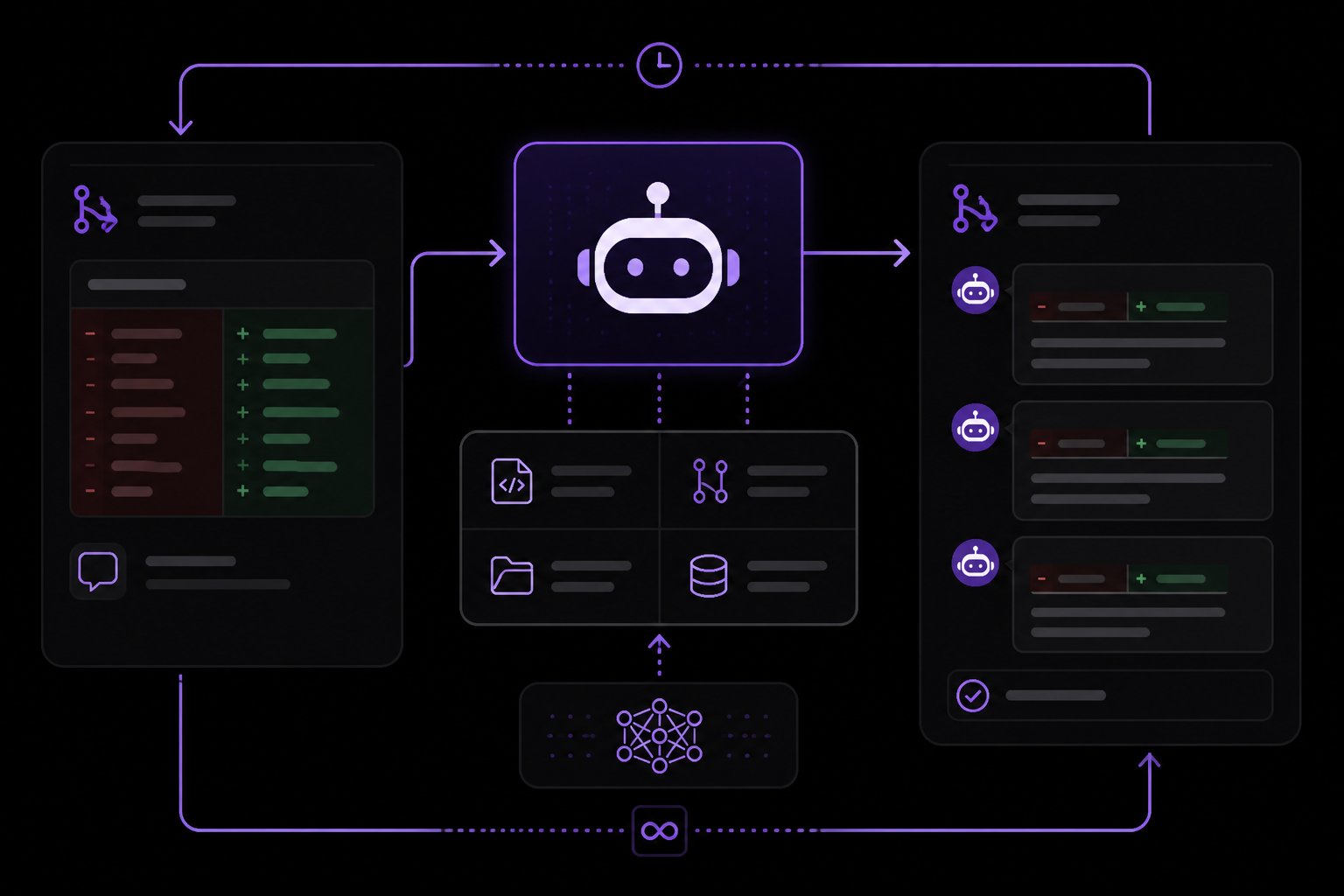
Copilot Code Review is an AI agent that automatically reviews pull requests when they are opened. It analyzes the diff, considers the repository context, and posts comments directly on the PR. The official documentation explains that Copilot is designed to help with writing tests, debugging, explaining code, and generating repetitive code. Code review falls under the category of explaining and analyzing code changes.
The review agent uses the same underlying model as Copilot Chat but operates autonomously. It does not require a human to trigger it. Once enabled, it reviews every new PR and leaves feedback as comments. The official documentation emphasizes that you should always validate the code Copilot suggests, and this applies equally to review comments. The agent can make mistakes, so you should treat its output as a first pass, not a final verdict.
What Copilot Code Review Can Do
Based on the official documentation and community experience, the agent can:
- Identify security vulnerabilities such as unsafe code blocks, command injection risks, path traversal, credential exposure, and missing input validation.
- Catch correctness issues like logic errors, race conditions, resource leaks, off-by-one errors, and improper error propagation.
- Flag architecture and pattern violations, such as code that does not follow existing patterns in the codebase, missing error handling, or async/await misuse.
- Suggest improvements to code readability and maintainability.
- Explain what a piece of code does, which can help reviewers understand unfamiliar changes.
What Copilot Code Review Should Not Do
The official documentation states that Copilot is not designed to replace your expertise and skills. It is a tool at your service. The community source reinforces this: the agent should not comment on style or formatting (that is what linters and formatters are for), it should not flag issues that CI already catches, and it should not make low-confidence suggestions. Without proper configuration, the agent tends to produce verbose, low-value comments. The community source reports that before tuning, only about 1 in 5 comments were actually useful.
Setting Up Copilot Code Review
Enabling Copilot Code Review is a two-step process: you turn on the feature in your repository settings, and then you configure its behavior with a custom instructions file.
Step 1: Enable Copilot Code Review
- Go to your repository on GitHub.
- Click the "Settings" tab.
- In the left sidebar, click "Code review" under the "Copilot" section.
- Click "Enable Copilot Code Review."
Once enabled, Copilot will automatically review every new pull request. It will post comments on the PR within a few seconds to a minute after the PR is opened. The official documentation does not specify a way to trigger a review on demand, but the community source confirms that it runs immediately when a PR is created.
Step 2: Create the Custom Instructions File
Copilot Code Review reads behavior instructions from a file named copilot-instructions.md located in the .github directory of your repository. The official documentation confirms that Copilot supports custom instructions through this file. The community source provides a detailed example of how to structure this file.
Create the file at .github/copilot-instructions.md in your repository. The file uses Markdown and supports headings, lists, and code blocks. Copilot parses this file and uses its contents to guide its review behavior.
File Structure and Sections
The community source recommends organizing the file into clear sections. Each section tells Copilot something specific about how to review code. Below is a breakdown of each section with explanations.
Review Philosophy
This section sets the overall tone and confidence level for comments. The community source uses this:
## Review Philosophy

* Only comment when you have HIGH CONFIDENCE (>80%) that an issue exists
* Be concise: one sentence per comment when possible
* Focus on actionable feedback, not observations
* When reviewing text, only comment on clarity issues if the text is genuinely confusing or could lead to errors.
Why this works: Without a confidence threshold, Copilot tends to comment on anything it is unsure about, which creates noise. By setting an 80% confidence bar, you force it to only speak up when it is reasonably certain. The conciseness rule reduces the length of each comment. The actionable feedback rule prevents it from making observations that do not require a change. The text clarity rule stops it from nitpicking documentation or comments that are technically correct.
Priority Areas
This section tells Copilot what to focus on. The community source provides a detailed list:
## Priority Areas (Review These)

### Security & Safety

* Unsafe code blocks without justification
* Command injection risks (shell commands, user input)
* Path traversal vulnerabilities
* Credential exposure or hardcoded secrets
* Missing input validation on external data
* Improper error handling that could leak sensitive info

### Correctness Issues

* Logic errors that could cause panics or incorrect behavior
* Race conditions in async code
* Resource leaks (files, connections, memory)
* Off-by-one errors or boundary conditions
* Incorrect error propagation (using `unwrap()` inappropriately)
* Optional types that don't need to be optional
* Booleans that should default to false but are set as optional
* Error context that doesn't add useful information
* Overly defensive code with unnecessary checks
* Unnecessary comments that restate obvious code behavior

### Architecture & Patterns

* Code that violates existing patterns in the codebase
* Missing error handling (should use `anyhow::Result`)
* Async/await misuse or blocking operations in async contexts
* Improper trait implementations
Why this works: Copilot does not know what your team cares about unless you tell it. By listing priority areas, you shift its attention from generic suggestions to specific, high-impact categories. The security section catches real vulnerabilities. The correctness section catches bugs. The architecture section ensures consistency. The community source notes that after adding this list, Copilot stopped nitpicking and started catching real problems.
Project-Specific Context
This section gives Copilot background about the project structure and conventions:
## Project-Specific Context

* This is a Rust project using cargo workspaces
* Core crates: `goose`, `goose-cli`, `goose-server`, `goose-mcp`
* Error handling: Use `anyhow::Result`, not `unwrap()` in production
* Async runtime: tokio
* See HOWTOAI.md for AI-assisted code standards
* MCP protocol implementations require extra scrutiny
Why this works: Copilot does not automatically know your tech stack or conventions. By telling it the language, framework, error handling pattern, and which files are most critical, you help it understand the context of each change. The community source emphasizes that this context helps the agent understand architecture and patterns that matter most.
CI Pipeline Context
This section tells Copilot what CI already checks so it does not duplicate that work:
## CI Pipeline Context

**Important**: You review PRs immediately, before CI completes. Do not flag issues that CI will catch.

### What Our CI Checks (`.github/workflows/ci.yml`)

**Rust checks:**

* cargo fmt --check
* cargo test --jobs 2
* ./scripts/clippy-lint.sh
* just check-openapi-schema

**Desktop app checks:**

* npm ci
* npm run lint:check
* npm run test:run

**Setup steps CI performs:**

* Installs system dependencies
* Activates hermit environment
* Caches Cargo and npm deps
* Runs npm ci before scripts

**Key insight**: Commands like `npx` check local node_modules first. Don't flag these as broken unless CI wouldn't handle it.
Why this works: Copilot reviews PRs immediately, before CI finishes. Without this context, it will comment on formatting issues, test failures, and missing dependencies that CI would catch anyway. By listing what CI covers, you prevent duplicate comments. The community source reports that this was one of the most effective noise-reduction measures.
Skip These (Low Value)
This section explicitly tells Copilot what not to comment on:
## Skip These (Low Value)

Do not comment on:

* Style/formatting (rustfmt, prettier)
* Clippy warnings
* Test failures
* Missing dependencies (npm ci covers this)
* Minor naming suggestions
* Suggestions to add comments
* Refactoring unless addressing a real bug
* Multiple issues in one comment
* Logging suggestions unless security-related
* Pedantic text accuracy unless it affects meaning
Why this works: This is the most direct way to eliminate noise. The community source notes that LLMs love to overshare, and this section acts as a filter. Each item on this list corresponds to a common type of low-value comment that Copilot tends to produce. By explicitly forbidding them, you force the agent to stay silent on those topics.
Response Format
This section tells Copilot how to structure each comment:
## Response Format

1. State the problem (1 sentence)
2. Why it matters (1 sentence, if needed)
3. Suggested fix (snippet or specific action)

Example:
This could panic if the vector is empty. Consider using `.get(0)` or adding a length check.
Why this works: Without a format, Copilot produces long, rambling comments. By enforcing a three-part structure, you get concise, actionable feedback. The example shows exactly what a good comment looks like. The community source reports that this format dramatically reduced comment length.
When to Stay Silent
This section reinforces the confidence threshold:
## When to Stay Silent

If you're uncertain whether something is an issue, don't comment.
Why this works: This is a simple but powerful instruction. It tells Copilot that silence is better than a low-confidence comment. The community source emphasizes that LLMs tend to overshare, and this rule helps counter that tendency.
Complete Example File
The community source provides a link to the actual file used in the goose repository. You can view it at https://github.com/block/goose/blob/main/.github/copilot-instructions.md. The file combines all the sections above into a single document. You should adapt it to your own project by replacing the project-specific details and priority areas.
Using Copilot Code Review
Once you have enabled the feature and added the custom instructions file, Copilot will automatically review every new pull request. Here is what to expect.
What Happens When a PR Is Opened
- A contributor opens a pull request.
- Within seconds to a minute, Copilot posts a review on the PR.
- The review appears as a series of comments on specific lines or as a summary comment.
- The comments follow the response format you specified in the custom instructions.
How to Interpret Copilot's Comments
Each comment should state the problem, why it matters, and a suggested fix. The community source provides an example: "This could panic if the vector is empty. Consider using .get(0) or adding a length check." This is a high-confidence, actionable comment. If you see comments that are vague, low-confidence, or outside the priority areas, that is a sign that your custom instructions need refinement.
How to Respond to Copilot's Comments
You can reply to Copilot's comments just like you would reply to a human reviewer. You can dismiss comments, request changes, or start a discussion. The official documentation recommends that you always validate the code Copilot suggests. If Copilot flags a false positive, you can dismiss the comment and optionally update your custom instructions to prevent similar false positives in the future.
Iterating on the Setup
The community source emphasizes that this is not a one-time fix. You need to observe how Copilot responds to PRs and refine the instructions over time. The author of the community source says: "As more PRs came in, I watched how Copilot responded and refined the instructions each time." This iterative process is key to getting long-term value from the feature.
Advanced Configuration
Using Multiple Instruction Files
The official documentation does not mention support for multiple instruction files. The community source uses a single .github/copilot-instructions.md file. If you need different behavior for different parts of your repository, you may need to use a single file that covers all cases, or explore whether Copilot supports file-level instructions (the sources do not cover this).
Combining with Other Copilot Features
Copilot Code Review works alongside other Copilot features. The official documentation explains that inline suggestions are best for completing code snippets and generating repetitive code, while Copilot Chat is best for answering questions and generating large sections of code. You can use Copilot Chat to ask questions about a PR before or after the automated review. The official documentation also mentions that you can use keywords and skills in Copilot Chat to focus on specific tasks, such as asking it to review code as a Senior C++ Developer.
Managing Copilot Policies
Organization owners can control whether Copilot Code Review is available to members. The official documentation states that if your organization owner has disabled chat or other Copilot features, you may not be able to use Copilot Code Review. The policy settings are in the organization's Copilot settings under "Policies and features." You can also manage suggestions matching public code from these settings if you want to avoid suggestions that are similar to existing public code.
Troubleshooting
Copilot Is Not Reviewing PRs
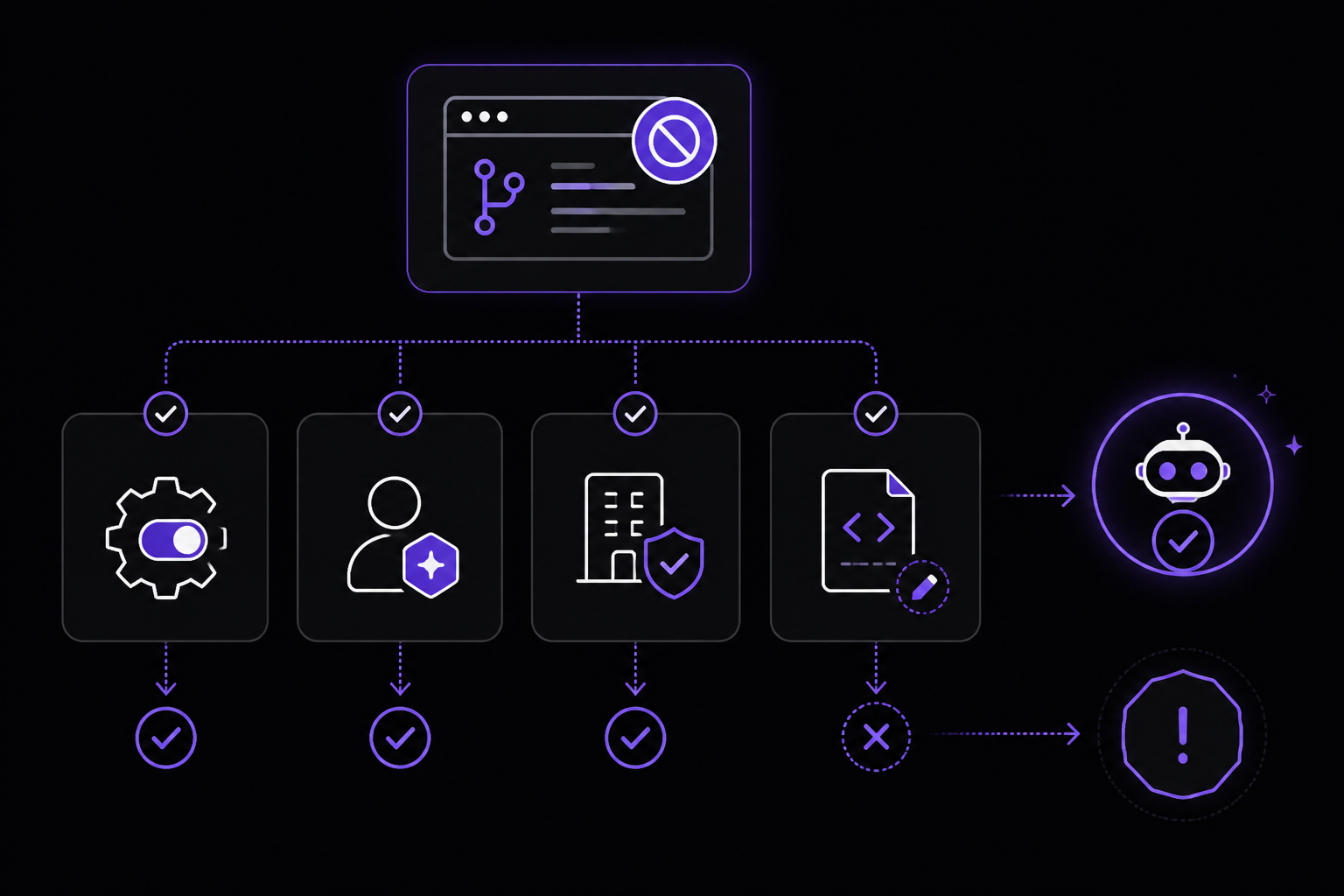
If Copilot is not reviewing PRs after you enabled the feature, check the following:
- Confirm that Copilot Code Review is enabled in the repository settings.
- Confirm that you have an active Copilot subscription. The official documentation states that you need a Copilot plan to use any Copilot feature.
- If you are using Copilot through an organization, confirm that your organization owner has not disabled Copilot Code Review. The official documentation notes that organization owners can disable chat and other features.
- Check that the PR is not a draft PR. The sources do not specify whether Copilot reviews draft PRs, but based on the community source, it reviews PRs as soon as they are opened, which typically means non-draft PRs.
Copilot Is Producing Too Many Low-Value Comments
This is the most common problem. The community source reports that before tuning, only about 1 in 5 comments were useful. The solution is to refine your custom instructions file. Specifically:
- Increase the confidence threshold in the Review Philosophy section.
- Add more items to the "Skip These" section.
- Ensure the CI Pipeline Context section is accurate and complete.
- Review the comments Copilot is making and add specific rules to prevent them.
The community source emphasizes that you should not disable the feature. Instead, tune it.
Copilot Is Missing Important Issues
If Copilot is not catching issues you expect it to catch, check your Priority Areas section. You may need to add more specific items. For example, if you are using a particular framework, add framework-specific rules. The community source also recommends including real examples from your codebase in the instructions to help Copilot understand what to look for.
Copilot Comments Are Too Long
If comments are still verbose after setting the response format, add a stricter rule. The community source uses "one sentence per comment when possible." You can also add a maximum word count per comment, though the sources do not provide an example of this.
Authentication Issues in IDE
If you are testing prompts in your IDE and encounter authentication issues, the official documentation points to the troubleshooting guide at "Troubleshooting common issues with GitHub Copilot." For VS Code, make sure you are signed in to GitHub. For Visual Studio, add your GitHub account to the Visual Studio keychain. For JetBrains IDEs, follow the authentication instructions in the extension installation guide. For Xcode, the same troubleshooting guide applies.
Going Further
Prompt Engineering for Copilot Chat
The official documentation recommends learning prompt engineering to get better results from Copilot Chat. This skill transfers directly to writing better custom instructions for Copilot Code Review. The documentation links to "Prompt engineering for GitHub Copilot Chat" for more details.
Staying Up-to-Date
New features are regularly added to Copilot. The official documentation recommends checking the changelog to stay informed about new abilities, improvements, and changes to existing features. This is especially important for Copilot Code Review, which is still evolving.
Community Best Practices
The community source provides five tips for making AI code review work:
- Be specific. Vague instructions lead to vague results.
- Set confidence thresholds to reduce noise.
- Tell it what CI already covers.
- Include real examples from your codebase.
- Iterate to keep improving results over time.
These tips apply to any project, regardless of language or framework.
Exploring Other Copilot Tools
The official documentation covers several other Copilot tools that complement Copilot Code Review:
- Copilot inline suggestions for writing code faster in your IDE.
- Copilot Chat for asking questions about code in natural language.
- Copilot CLI for command-line assistance.
- Copilot Mobile for asking questions on the go.
Each tool has its own strengths, and the official documentation provides guidance on when to use each one. For example, inline suggestions work best for completing code snippets, while Copilot Chat is better for generating large sections of code and iterating on them.
Configuring Copilot in Your Editor
You can enable or disable Copilot from within your editor and create custom keyboard shortcuts. The official documentation links to "Configuring GitHub Copilot in your environment" for instructions specific to each IDE. This is useful if you want to quickly toggle Copilot on or off during code review preparation.
Comments
More Guides
View allfeaturesGitHub Copilot Workspace: Issue-to-PR Workflows with Premium Requests
Learn how to use GitHub Copilot to convert issues into pull requests while managing premium request quotas. Covers model selection, step-by-step implementation, and community-tested workflow patterns.
N
Neura Market ResearchfeaturesGitHub Copilot CLI: Terminal Command Suggestions and Usage Guide
Learn how to use GitHub Copilot for terminal command suggestions, including setup in Windows Terminal and VS Code, custom keybindings for commit messages, usage tracking with community tools, and creative CLI projects.
N
Neura Market ResearchfeaturesGitHub Copilot Extensions: Building and Using Custom Instructions
Learn how to build and use GitHub Copilot custom instructions to make the AI behave predictably in your repos. Covers setup, writing techniques, three generation methods, and real-world troubleshooting.
N
Neura Market Researchgetting-startedGitHub Copilot Setup in VS Code, JetBrains, and Neovim: A Complete Guide
Learn how to set up GitHub Copilot in VS Code, JetBrains IDEs, and Neovim. This guide covers installation, authentication, inline suggestions, Copilot Chat, best practices, and advanced configuration with custom instructions for code review.
N
Neura Market ResearchAgent Mode
GitHub Copilot Agent Mode: Complete Guide 2026
Master Copilot Agent Mode with practical examples for multi-file editing, terminal commands, and autonomous coding workflows.
G
GitHub DocsExtensions
Copilot Extensions: Building Custom Tools and Integrations
Learn to build GitHub Copilot Extensions using the Extensions API to create custom chat participants, slash commands, and MCP integrations.
G
GitHub DocsReady-made automations for this
Workflows from the Neura Market marketplace related to this CoPilot resource
- Complete LAMP Stack (Linux, Apache, MySQL, PHP) Automated Server Setupn8n · $14.99 · Related topic
- Automated GitHub Scanner for Exposed AWS IAM Keysn8n · $14.99 · Related topic
- Send Automated Discount Vouchers to High-Value Magento 2 Customers via Gmailn8n · $9.99 · Related topic
- Automated Execution Cleanup System with n8n API and Custom Retention Rulesn8n · $9.99 · Related topic