
Back to Guides features
 features
 features
 features
 getting-started
GitHub Copilot CLI: Terminal Command Suggestions and Usage Guide
Neura Market Research July 19, 2026
0 views
Learn how to use GitHub Copilot for terminal command suggestions, including setup in Windows Terminal and VS Code, custom keybindings for commit messages, usage tracking with community tools, and creative CLI projects.
This guide covers everything you need to know about using GitHub Copilot on the command line, including terminal command suggestions, setup in Windows Terminal and VS Code, real-world usage tips from the community, and advanced features like custom keybindings and usage tracking. It is intended for developers who want to integrate Copilot into their terminal workflow to get command suggestions, generate commit messages, and monitor their Copilot usage without leaving the CLI.
What You Need
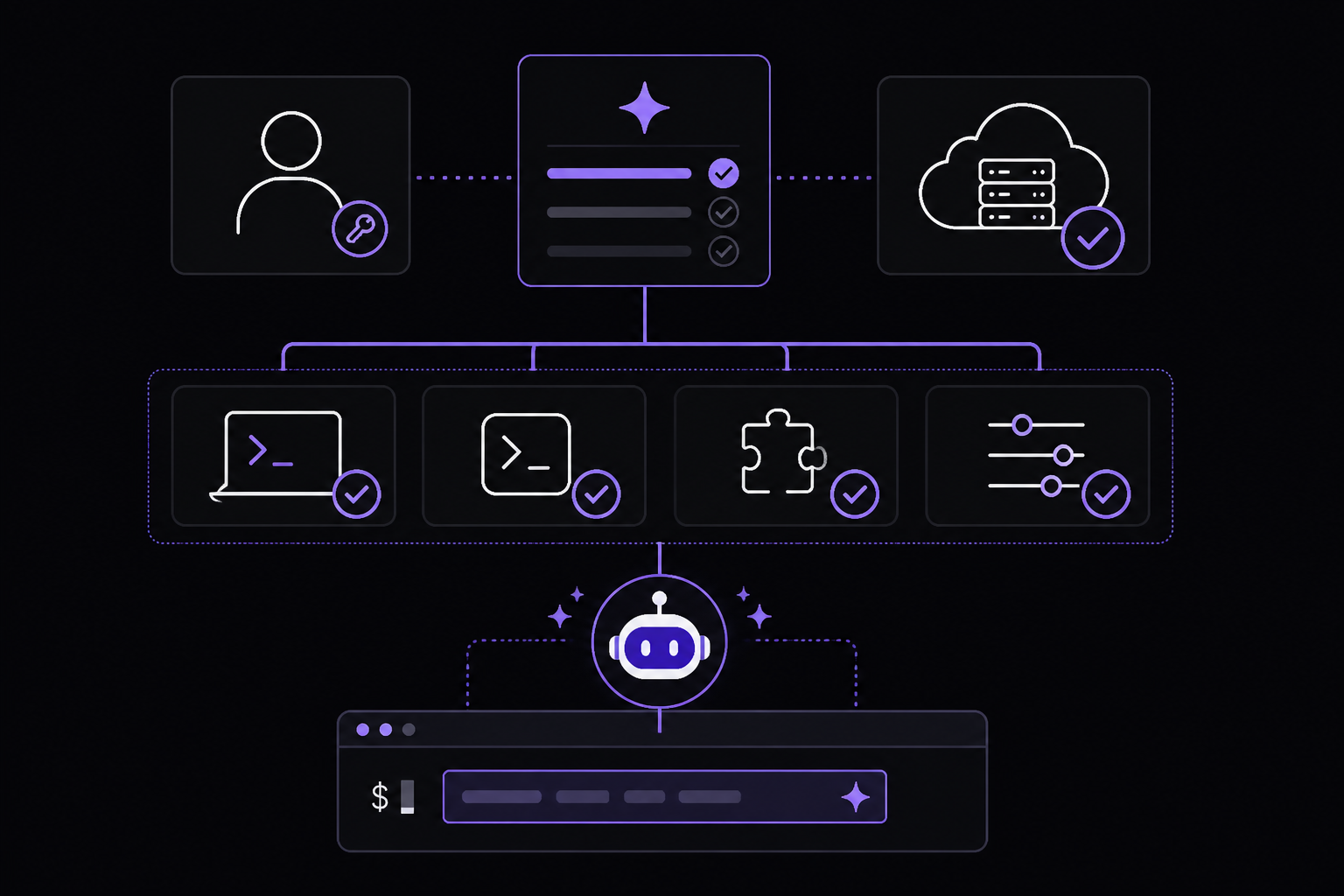
Before you can use GitHub Copilot for terminal command suggestions, you must meet the following prerequisites drawn from the official documentation and community sources.
GitHub Account and Copilot Subscription
You need a personal GitHub account with access to a Copilot plan. According to the official documentation, you can start with Copilot Free to explore limited features without subscribing to a plan, or upgrade to Copilot Pro, Copilot Pro+, or Copilot Max to unlock more features, models, and request limits. Important: Starting April 22, 2026, new self-serve sign-ups for Copilot Business for organizations on GitHub Free and GitHub Team plans are temporarily paused. For full details on plans, see Plans for GitHub Copilot.
Windows Terminal Canary (for Terminal Chat)
If you want to use Copilot in Windows Terminal, you must have Windows Terminal Canary installed. The official documentation states that Terminal Chat is only available in Windows Terminal Canary. After installation, you open Settings from the dropdown menu, go to the Terminal Chat (Experimental) setting, and under Service Providers, select GitHub Copilot and Authenticate via GitHub to sign in.
Visual Studio Code (for Chat and Inline Suggestions)
For using Copilot in VS Code, you need the latest version of Visual Studio Code and the GitHub Copilot Chat extension. You must sign in to GitHub in Visual Studio Code. If you experience authentication issues, see Troubleshooting common issues with GitHub Copilot.
Visual Studio 2022 (for Chat and Inline Suggestions)
For Visual Studio, you need version 2022 17.8 or later of Visual Studio for Windows, the GitHub Copilot extension for Visual Studio, and your GitHub account added to Visual Studio. See Install Visual Studio and Add your GitHub accounts to your Visual Studio keychain in the Microsoft documentation.
JetBrains IDEs (for Chat and Inline Suggestions)
For JetBrains IDEs, you need a compatible JetBrains IDE (a full list is available at Asking GitHub Copilot questions in your IDE), the latest version of the GitHub Copilot extension from the JetBrains Marketplace, and you must sign in to GitHub in your JetBrains IDE. See Installing the GitHub Copilot extension in your environment.
Xcode (for Chat)
For Xcode on macOS, you need the latest version of the GitHub Copilot extension and you must sign in to GitHub in Xcode. If you experience authentication issues, see Troubleshooting common issues with GitHub Copilot.
Organization Policies
If you have access to GitHub Copilot via your organization, you may not be able to use GitHub Copilot in Windows Terminal if your organization owner has disabled GitHub Copilot CLI. Similarly, you cannot use GitHub Copilot Chat in any IDE if your organization owner has disabled chat. See Managing policies and features for GitHub Copilot in your organization.
Understanding Copilot for the CLI
GitHub Copilot provides coding suggestions as you type in your editor. You can also ask Copilot coding-related questions, such as how best to code something, how to fix a bug, or how someone else's code works. For full details of what Copilot can do, see What is GitHub Copilot?.
Instructions for using Copilot differ depending on where you are using it. This guide focuses on the command line, but also covers the IDE integrations because they are often used together. The official documentation provides quickstarts for multiple environments: GitHub website, Windows Terminal, Visual Studio Code, Visual Studio, JetBrains IDEs, and Xcode.
What Copilot Can Do on the Command Line
According to the official documentation, you can use Copilot in Terminal Chat to ask command line-related questions. For example, you can type "how do i list all markdown files in my directory" and Copilot will display an answer below your question. You can then click on an answer to insert it to the command line.
Community sources expand on this. In the DEV.to submission by Cesar Castillo (Source 3), the author describes using GitHub Copilot CLI to build a Rust-based terminal UI tool. The author asked Copilot questions like "Best way to structure async TUI in Rust?" and "How to model TUI states without boolean flags?" and Copilot suggested patterns like tokio + mpsc channels + non-blocking event loop and an AppState enum with exhaustive match.
Another DEV.to submission by Gramli (Source 4) describes using GitHub Copilot CLI to create a Star Wars lightsaber duel animation in the terminal. The author used Copilot as a "Creative Director," asking for suggestions to improve the animation. Copilot responded with ideas like motion trails, gradient lighting, impact shockwaves, molten damage, and cinematic letterboxing.
Key Concepts
- Terminal Chat: A feature in Windows Terminal Canary that allows you to ask command line-related questions and get answers that you can insert into the command line.
- Inline Suggestions: In IDEs, Copilot provides grayed text suggestions as you type. You accept them by pressing Tab.
- Chat: In IDEs and on the GitHub website, you can ask Copilot questions about code, repositories, pull requests, issues, and commits.
- GitHub Copilot CLI: A separate extension that provides command-line access to Copilot features, including generating commit messages and answering questions.
Setting Up Copilot for the CLI
Windows Terminal Canary Setup
- Install Windows Terminal Canary from the Microsoft Store or GitHub releases.
- Open Settings from the dropdown menu.
- Go to the Terminal Chat (Experimental) setting.
- Under Service Providers, select GitHub Copilot.
- Click Authenticate via GitHub to sign in.
Once authenticated, you can open Terminal Chat (Experimental) from the dropdown menu and start asking questions.
VS Code Setup for Terminal Integration
While VS Code does not have a built-in Terminal Chat like Windows Terminal Canary, you can use the GitHub Copilot Chat extension to ask questions about terminal commands. The official documentation provides a quickstart for VS Code:
- Install the latest version of Visual Studio Code.
- Install the GitHub Copilot Chat extension.
- Sign in to GitHub in Visual Studio Code.
- Open the Chat view by pressing Control + Command + i (Mac) or Ctrl + Alt + i (Windows/Linux), or by selecting the chat icon in the VS Code title bar.
- Type your question in the chat input field.
GitHub Copilot CLI Extension
The official documentation mentions "About GitHub Copilot CLI" as a next step for all environments. This is a separate tool that provides command-line access to Copilot. To install it, you typically use npm:
npm install -g @githubnext/github-copilot-cli
After installation, you authenticate with GitHub and then you can use commands like gh copilot to ask questions or generate commands.
Using Copilot for Terminal Command Suggestions
Asking Questions in Terminal Chat (Windows Terminal Canary)
- Open Terminal Chat (Experimental) from the dropdown menu.
- In the chat window, type a question like "how do i list all markdown files in my directory" and press Enter.
- Copilot's answer is displayed below your question.
- Click on an answer to insert it to the command line.
Asking Questions in VS Code Chat
- Open the Chat view (Control + Command + i on Mac, Ctrl + Alt + i on Windows/Linux).
- Type a question like "Create a complete task manager web application with the ability to add, delete, and mark tasks as completed. Include modern CSS styling and make it responsive. Use semantic HTML and ensure it's accessible. Separate markup, styles, and scripts into their own files."
- Press Enter. The agent generates the necessary files and code.
- Review the generated files and select Keep to accept all the changes.
Getting Inline Suggestions in IDEs
The official documentation provides an example using JavaScript. In any supported IDE (VS Code, Visual Studio, JetBrains, Xcode), you can:
- Create a new JavaScript (.js) file.
- Type the following function header:
function calculateDaysBetweenDates(begin, end) {
- GitHub Copilot will automatically suggest an entire function body in grayed text. The exact suggestion may vary.
- To accept the suggestion, press Tab.
GitHub Copilot provides suggestions for numerous languages and a wide variety of frameworks, but works especially well for Python, JavaScript, TypeScript, Ruby, Go, C# and C++. It can also assist in query generation for databases, generating suggestions for APIs and frameworks, and can help with infrastructure as code development.
Asking Questions on the GitHub Website
- Navigate to a repository and open a file.
- Click the Copilot icon at the top right of the file view.
- Type a question in the "Ask Copilot" box at the bottom of the chat panel and press Enter. For example:
Explain this file.How could I improve this code?How can I test this code?
- Copilot responds in the panel. You can continue the conversation by asking a follow-up question, such as "tell me more" to get Copilot to expand on its last comment.
Other questions you can ask include:
- A general question about software development
- Exploratory questions about a repository
- Find out about the changes in a pull request
- Ask a question about a specific issue or commit
Advanced Features and Customization
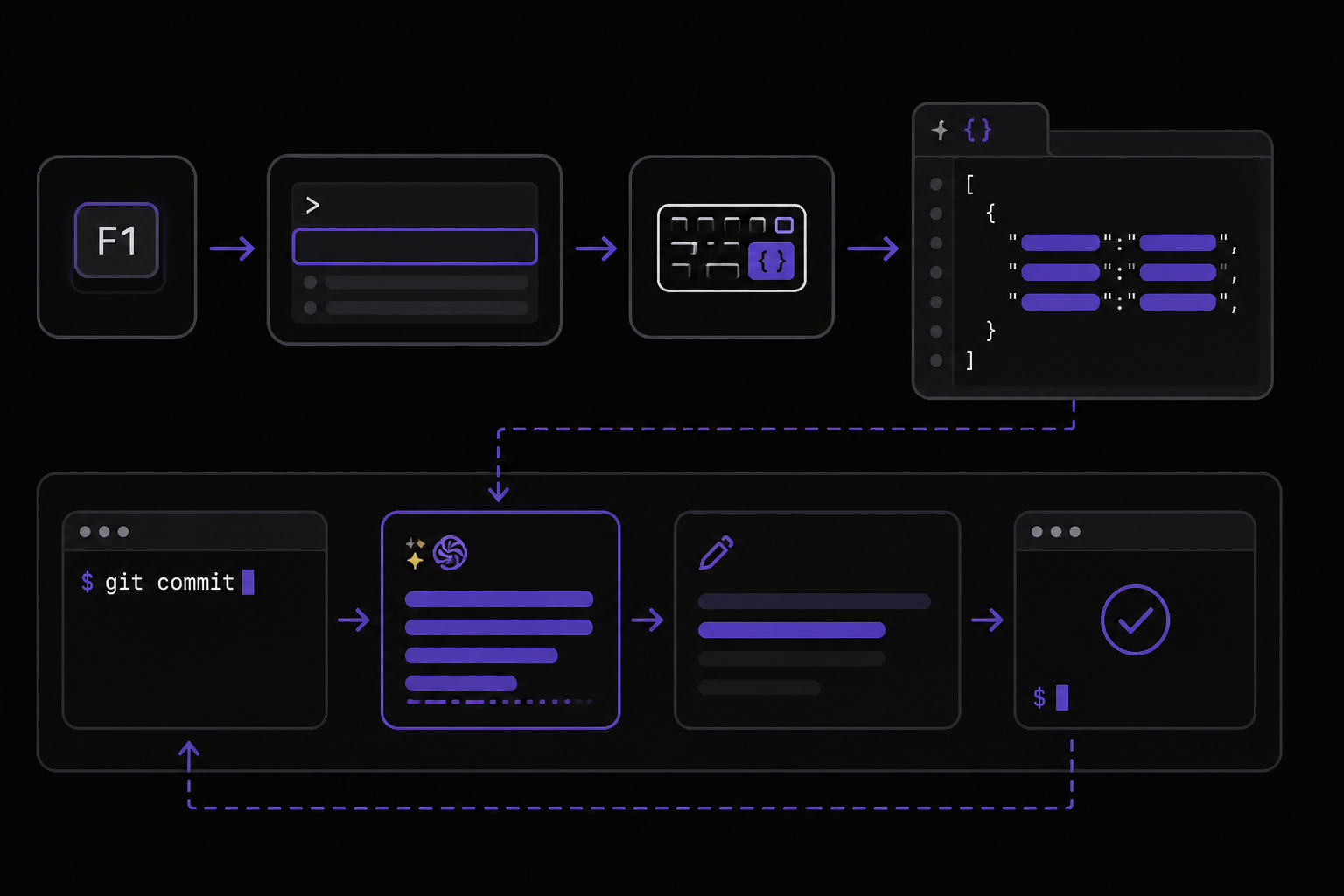
Custom Keybindings for Commit Messages (Community Solution)
A Stack Overflow answer (Source 2) provides a community-sourced solution for using Copilot to generate commit messages directly from the integrated terminal in VS Code. This is useful when you are staging commits in the integrated terminal and want Copilot to suggest the commit message, allow you to make edits, and then commit without needing the mouse.
To add this functionality:
-
In VS Code, open your keyboard shortcuts to add a new shortcut. Press F1 and then type
Preferences: Open Keyboard Shortcuts (JSON). This opens yourkeybindings.jsonfile. -
Paste these three new keybindings:
{
  "key": "ctrl+oem_1",
  "command": "runCommands",
  "args": {
    "commands": [
      "workbench.view.scm",
      "github.copilot.git.generateCommitMessage"
    ]
  }
},
{
  "key": "ctrl+oem_7",
  "command": "runCommands",
  "args": {
    "commands": [
      "git.commit",
      "workbench.action.focusActiveEditorGroup"
    ]
  },
  "when": "!terminalFocus"
},
{
  "key": "ctrl+oem_7",
  "command": "runCommands",
  "args": {
    "commands": [
      "git.commit",
      "workbench.action.terminal.focus"
    ]
  },
  "when": "terminalFocus"
}
Replace the "key" with the keyboard shortcut you want. For example, "key": "ctrl+m". Save keybindings.json.
How to use:
- Keybinding #1 (default Ctrl+;): Opens the source control view on the side and gets Copilot to fill in the suggested commit message in the box at the top.
- Keybinding #2 and #3 (default Ctrl+#): Commits the message currently in the box and returns focus either to the Integrated Terminal (if the shortcut was pressed while the focus was in the terminal) or to the Editor (the file currently open).
This community solution is not official GitHub documentation, but it has been accepted as a solution on Stack Overflow and provides a practical workflow for developers who want to stay keyboard-focused.
Tracking Copilot Usage from the Terminal (Community Tool)
A DEV.to submission by Cesar Castillo (Source 3) presents a community-built Rust-based CLI tool called copilot-usage that tracks GitHub Copilot Pro usage in real-time. This tool is not official GitHub software, but it demonstrates what is possible with the GitHub API and Copilot CLI.
Features:
- Real-time progress bars with color-coded zones (green to orange to red)
- Per-model usage breakdown (GPT-4, Claude 3.5, Gemini, etc.)
- 9 color themes: Dark, Nord, Monokai, Gruvbox, Catppuccin, OneDark, TokyoNight, Solarized, Kanagawa
- Async architecture with tokio async runtime
- Smooth spinner animations during API calls (20 FPS)
- Cancelable operations with Escape key
- Background refresh while you keep working
- Local cache with 5-minute TTL (configurable)
- Cache status indicator (Fresh/Expired/Missing)
- Manual refresh with 'r' key
- Automatic cache invalidation on
--refreshflag - Command menu (press
/) for quick actions - Theme selector with live preview
- Help dialog with all keybindings (press
?) - Error dialogs with debug mode toggle (press
d) - Cache info modal showing last update time
- JSON output for Waybar status bar
- Customizable format strings
- Interactive first-run wizard
- Automatic GitHub username detection
- Fine-grained PAT or classic token support
- XDG-compliant config directory
Installation (tested on Linux only):
git clone https://github.com/CGCM070/copilot-usage.git
cd copilot-usage/
./install.sh
Or manually:
cargo install --path . --force
Usage:
# First run - interactive setup
copilot-usage

# Dashboard (uses cache if available)
copilot-usage

# Force refresh from API
copilot-usage --refresh

# Waybar JSON output
copilot-usage --waybar

# Change theme temporarily
copilot-usage --theme nord

# Reconfigure token/theme
copilot-usage reconfigure

# Check cache status
copilot-usage --cache-status
Keybindings (in TUI):
| Key | Action |
|---|---|
r | Refresh data from API |
t | Open theme selector |
? | Show help dialog |
/ | Open command menu |
c | Show cache info |
q Esc | Quit / Close modal |
Configuration file: ~/.config/copilot-usage/config.toml
token = "ghp_..."
theme = "dark"
cache_ttl_minutes = 5
waybar_format = "{}"
username = "octocat"
Required GitHub Permissions:
- Fine-grained PAT with
Plan (Read)permission - Classic tokens need
read:userscope - NOT "Copilot Requests" - different permission!
The author notes that this project was built with extensive help from GitHub Copilot CLI, turning natural language into idiomatic Rust code. Copilot suggested the modular component pattern that made the codebase maintainable and testable, and handled edge cases like error handling, terminal cleanup on panic, and XDG directory resolution.
Creative Use of Copilot CLI (Community Example)
Another DEV.to submission by Gramli (Source 4) demonstrates a creative use of Copilot CLI: building a Star Wars lightsaber duel animation in the terminal. The author used Copilot as a "Creative Director," asking for suggestions to improve the animation. Copilot responded with ideas like motion trails for lightsabers, gradient lighting, shockwave effects, molten damage on walls, and cinematic letterboxing.
The author's experience highlights that Copilot can be used for non-practical, visual, and creative projects, not just productivity. The process of iterating with Copilot, refining prompts, and pushing for better results was described as "surprisingly fun."
One key learning from this project was that when a feature proved too complex (like a full Y-axis camera rotation), the author had to pivot. After many new sessions and repeatedly reworking prompts, they eventually experimented with X-axis rotation and a top-down view instead. This demonstrates that Copilot has limitations, especially with complex spatial reasoning, and that human judgment is still required.
Troubleshooting
Authentication Issues
If you experience authentication issues in VS Code or Xcode, the official documentation recommends seeing Troubleshooting common issues with GitHub Copilot. Common solutions include:
- Signing out and signing back in
- Checking that your GitHub account has an active Copilot subscription
- Ensuring your organization has not disabled Copilot for your account
Organization Policies Blocking Copilot
If you have access to GitHub Copilot via your organization, you may not be able to use GitHub Copilot in Windows Terminal if your organization owner has disabled GitHub Copilot CLI. Similarly, you cannot use GitHub Copilot Chat in any IDE if your organization owner has disabled chat. Check with your organization administrator or see Managing policies and features for GitHub Copilot in your organization.
Terminal Chat Not Available
Terminal Chat is only available in Windows Terminal Canary. If you are using the stable version of Windows Terminal, you will not see the Terminal Chat option. Install Windows Terminal Canary from the Microsoft Store or GitHub releases.
Copilot Not Suggesting Commands
If Copilot is not providing suggestions, check the following:
- Ensure you have an active Copilot subscription.
- Ensure you are signed in to GitHub in your environment.
- In IDEs, ensure the Copilot extension is installed and enabled.
- In Windows Terminal, ensure you have selected GitHub Copilot as the service provider under Terminal Chat settings.
Community-Reported Issues
From the community sources:
- The
copilot-usagetool is only tested on Linux. It may not work on macOS or Windows. - The Star Wars animation requires .NET 10 SDK and a font with good Unicode support (e.g., Cascadia Code). Running in classic cmd.exe or other limited terminals may break the animation.
- The custom keybindings for commit messages (Source 2) may conflict with existing keybindings. You may need to adjust the key combinations.
Going Further
After mastering the basics of Copilot for the CLI, you can explore the following topics, all drawn from the source material:
- Prompt Engineering: Learn how to write effective prompts for GitHub Copilot Chat. The official documentation links to Prompt engineering for GitHub Copilot Chat and Best practices for using GitHub Copilot in VS Code in the Visual Studio Code documentation.
- Inline Suggestions: Dive deeper into getting code suggestions in your IDE with GitHub Copilot. See Getting code suggestions in your IDE with GitHub Copilot.
- Next Edit Suggestions: In VS Code, get familiar with navigating and accepting next edit suggestions. See Navigating and accepting next edit suggestions.
- Mobile Usage: Use Copilot on your mobile device. See Asking GitHub Copilot questions in GitHub Mobile.
- Configuration: Enable or disable GitHub Copilot from within your editor, and create your own preferred keyboard shortcuts. See Configuring GitHub Copilot in your environment.
- GitHub Copilot CLI: Explore the full capabilities of the GitHub Copilot CLI extension. See About GitHub Copilot CLI.
- Community Tools: Explore community-built tools like
copilot-usagefor tracking your Copilot usage from the terminal. The repository is at https://github.com/CGCM070/copilot-usage_tui. - Creative Projects: Use Copilot CLI for non-practical projects to explore its creative potential. The Star Wars animation project is at https://github.com/Gramli/star-wars-animation.
By combining the official documentation with community solutions and tools, you can create a powerful terminal workflow that leverages Copilot for command suggestions, commit messages, usage tracking, and even creative projects.
Comments
More Guides
View allfeaturesGitHub Copilot Workspace: Issue-to-PR Workflows with Premium Requests
Learn how to use GitHub Copilot to convert issues into pull requests while managing premium request quotas. Covers model selection, step-by-step implementation, and community-tested workflow patterns.
N
Neura Market ResearchfeaturesGitHub Copilot Extensions: Building and Using Custom Instructions
Learn how to build and use GitHub Copilot custom instructions to make the AI behave predictably in your repos. Covers setup, writing techniques, three generation methods, and real-world troubleshooting.
N
Neura Market ResearchfeaturesGitHub Copilot Code Review: Automated PR Feedback Setup Guide
Learn how to set up and tune GitHub Copilot Code Review for automated PR feedback. Covers enabling the feature, writing custom instructions to reduce noise, and iterating on the setup for long-term value.
N
Neura Market Researchgetting-startedGitHub Copilot Setup in VS Code, JetBrains, and Neovim: A Complete Guide
Learn how to set up GitHub Copilot in VS Code, JetBrains IDEs, and Neovim. This guide covers installation, authentication, inline suggestions, Copilot Chat, best practices, and advanced configuration with custom instructions for code review.
N
Neura Market ResearchAgent Mode
GitHub Copilot Agent Mode: Complete Guide 2026
Master Copilot Agent Mode with practical examples for multi-file editing, terminal commands, and autonomous coding workflows.
G
GitHub DocsExtensions
Copilot Extensions: Building Custom Tools and Integrations
Learn to build GitHub Copilot Extensions using the Extensions API to create custom chat participants, slash commands, and MCP integrations.
G
GitHub DocsReady-made automations for this
Workflows from the Neura Market marketplace related to this CoPilot resource
- Trigger Mattermost Messages with Random Cocktail Suggestions via Webhookn8n · $3.99 · Related topic
- Sync Notion to Clockify Including Clients, Projects, and Tasksn8n · $24.99 · Related topic
- Track n8n Community Topics with Keywords and Save to Google Sheetsn8n · $9.99 · Related topic
- Analyze Browsing History and Generate Automation Suggestions with OpenRouter AI and Google Sheetsn8n · $9.99 · Related topic