
Claude system prompts: patterns that actually improve output
Learn how to write Claude system prompts that produce measurably better results using hooks, settings, CLAUDE.md files, and permission rules. Covers official Anthropic patterns and community-proven techniques.
This guide covers how to write Claude system prompts that produce measurably better results, drawing on official Anthropic documentation and community-proven patterns. You will learn the anatomy of an effective system prompt, how to structure instructions for reliability, and how to use hooks, settings, and Claude Code features to enforce behavior at scale. The material is for developers, technical writers, and AI practitioners who want to move beyond guesswork and apply repeatable, documented techniques.
What You Need
Before applying the patterns in this guide, ensure you have the following:
- A Claude API key or access to Claude Code (the CLI tool). The official documentation assumes you are using Claude Code v2.1.169 or later for features like managed settings tolerance and hook configuration. Earlier versions lack some capabilities described here.
- Claude Code installed and configured. If you are using the CLI, run
claude --versionto check your version. For hooks and settings, you need a project directory that is a git repository (hooks resolve relative to the repository root). - jq installed and on your PATH if you plan to write command hooks that parse JSON input from stdin. The official hook examples use
jqfor JSON extraction. - A text editor for editing JSON settings files. VS Code, Cursor, or any editor with JSON schema support is recommended because the
$schemafield enables autocomplete and inline validation. - Basic familiarity with JSON and shell scripting. The system prompt patterns described here are configured through
settings.jsonfiles, hook scripts, and CLAUDE.md files.
Understanding System Prompts in Claude
A system prompt is the set of instructions that defines how Claude should behave, what tools it can use, what constraints it must follow, and what context it should remember. Unlike a one-shot user prompt, the system prompt persists across the entire conversation or session. Getting it right is the single highest-use activity for improving output quality.
The Two Layers of System Prompt
Claude Code uses a two-layer system prompt architecture:
- The built-in system prompt that Anthropic provides. This is the default behavior you get out of the box. You cannot modify it directly, but you can override or extend it through settings and hooks.
- Your custom instructions injected via
CLAUDE.mdfiles, settings, hooks, and environment variables. These layer on top of the built-in prompt and can add, restrict, or redirect behavior.
According to the official settings documentation, Claude Code reads instructions from multiple sources and merges them in priority order: managed settings (highest), command line arguments, local settings, project settings, and user settings (lowest). Permission rules are an exception: they merge across scopes rather than override.
Why System Prompts Matter More Than User Prompts
A well-crafted system prompt does work that would otherwise require repeating instructions in every user prompt. It sets the default tone, the tool permissions, the output format, and the ethical boundaries. The official documentation emphasizes that hooks can enforce these constraints at specific lifecycle points, making the system prompt not just a static text but a dynamic, event-driven system.
Structuring a System Prompt for Reliability
The CLAUDE.md File
The primary mechanism for injecting custom instructions is the CLAUDE.md file. Claude Code reads this file at session start and whenever it is lazily loaded during a session. The InstructionsLoaded hook fires for each file loaded, giving you a way to react to instruction loading programmatically.
There are three levels of CLAUDE.md files:
- User level:
~/.claude/CLAUDE.mdapplies to all your projects. - Project level:
CLAUDE.mdor.claude/CLAUDE.mdin the repository root applies to that project and is shareable via git. - Local level:
CLAUDE.local.mdapplies only to your machine and is gitignored when Claude Code creates it.
A typical CLAUDE.md file looks like this:
# Project Guidelines

## Code Style
- Use TypeScript strict mode
- Prefer functional components over class components
- Run `npm run lint` before every commit

## Testing
- Write unit tests for all new functions
- Use Vitest as the test runner
- Aim for 80% coverage on new code

## Commands
- Build: `npm run build`
- Test: `npm run test`
- Lint: `npm run lint`
This file becomes part of the system prompt. Claude reads it and adjusts its behavior accordingly. The official documentation notes that CLAUDE.md instructions are loaded into context at session start and when files are lazily loaded, and the InstructionsLoaded hook can be used to log or validate what was loaded.
Permission Rules as System Prompt Constraints
Permission rules in settings.json act as hard constraints on what Claude can do. They are not soft suggestions; they are enforced at the tool call level. The official documentation shows this example:
{
  "permissions": {
    "allow": [
      "Bash(npm run lint)",
      "Bash(npm run test *)",
      "Read(~/.zshrc)"
    ],
    "deny": [
      "Bash(curl *)",
      "Read(./.env)",
      "Read(./.env.*)",
      "Read(./secrets/**)"
    ]
  }
}
These rules are part of the effective system prompt because they define the boundaries within which Claude operates. The allow list says which commands are always permitted without asking. The deny list says which commands are always blocked. Anything not in either list goes through the normal permission flow (ask or auto-classify).
According to the official documentation, permission rules merge across settings scopes. If your user settings allow Bash(git *) and your project settings deny Bash(git push), both rules apply: git push is denied, but other git commands are allowed. This merging behavior is unique to permission rules; other settings follow standard override priority.
Environment Variables as System Prompt Parameters
You can inject environment variables into the system prompt through the env key in settings.json:
{
  "env": {
    "CLAUDE_CODE_ENABLE_TELEMETRY": "1",
    "OTEL_METRICS_EXPORTER": "otlp"
  }
}
These variables are available to Claude during the session. They can control features like telemetry, auto-memory, and auto-updates. For example, setting CLAUDE_CODE_DISABLE_AUTO_MEMORY to 1 in env disables auto memory, which prevents Claude from reading or writing to the auto memory directory.
Using Hooks to Enforce System Prompt Behavior
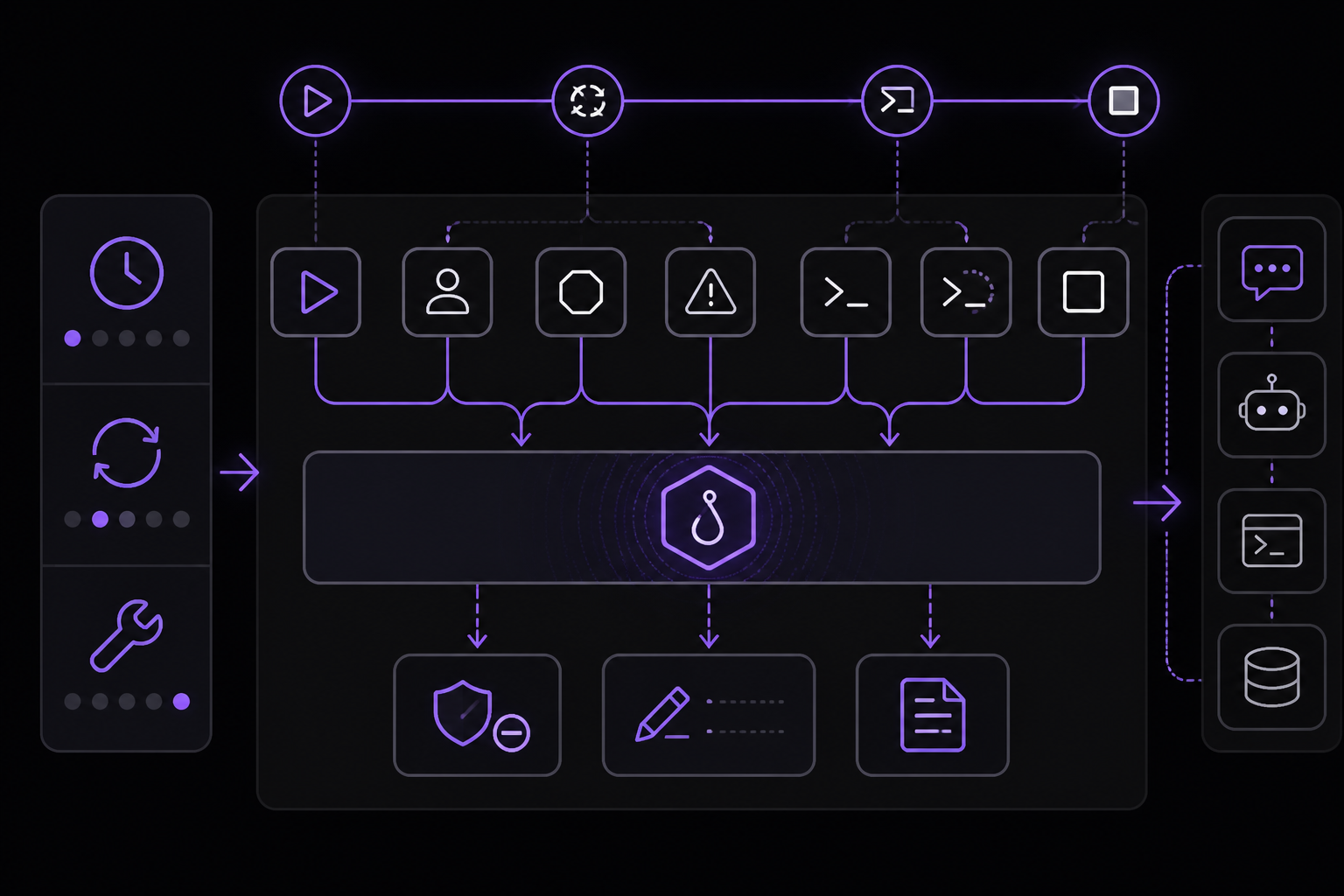
Hooks are the most powerful mechanism for enforcing system prompt behavior because they fire at specific lifecycle points and can block, modify, or log actions. The official hooks documentation describes five types of hooks: command, HTTP, MCP tool, prompt, and agent.
Hook Lifecycle and Events
Hooks fire at specific points during a Claude Code session. The events fall into three cadences:
- Once per session:
SessionStartandSessionEnd - Once per turn:
UserPromptSubmit,Stop, andStopFailure - On every tool call:
PreToolUseandPostToolUse(exceptEndConversationcalls)
Each event has a specific input schema. The hook receives JSON on stdin (for command hooks) or as the POST body (for HTTP hooks). The hook can inspect the input and optionally return a decision.
Blocking Destructive Commands with PreToolUse
The official documentation provides a complete example of a PreToolUse hook that blocks rm -rf commands. This is a system prompt enforcement pattern: you are telling Claude "you may not run this type of command" through a hook rather than through text instructions.
Configuration in .claude/settings.json:
{
  "hooks": {
    "PreToolUse": [
      {
        "matcher": "Bash",
        "hooks": [
          {
            "type": "command",
            "if": "Bash(rm *)",
            "command": "${CLAUDE_PROJECT_DIR}/.claude/hooks/block-rm.sh",
            "args": []
          }
        ]
      }
    ]
  }
}
The hook script at .claude/hooks/block-rm.sh:
#!/bin/bash
COMMAND=$(jq -r '.tool_input.command')

if echo "$COMMAND" | grep -q 'rm -rf'; then
  jq -n '{
    hookSpecificOutput: {
      hookEventName: "PreToolUse",
      permissionDecision: "deny",
      permissionDecisionReason: "Destructive command blocked by hook"
    }
  }'
else
  exit 0
fi
Here is what happens step by step:
- Claude decides to run
Bash "rm -rf /tmp/build". - The
PreToolUseevent fires. Claude Code sends the tool input as JSON on stdin to the hook. - The matcher
"Bash"matches the tool name, so this hook group activates. - The
ifcondition"Bash(rm *)"matches becauserm -rf /tmp/buildis a subcommand matchingrm *. - The script runs, inspects the command, finds
rm -rf, and prints a JSON decision to stdout withpermissionDecision: "deny". - Claude Code reads the JSON, blocks the tool call, and shows Claude the reason.
If the command had been rm file.txt (no -rf), the script would hit exit 0 instead. Exit code 0 with no output means the hook has no decision to report, so the tool call continues through the normal permission flow. The hook can deny the call, but staying silent does not approve it.
Matcher Patterns for Precise Filtering
The matcher field determines when a hook fires. The official documentation specifies three evaluation modes:
- Match all:
"*","", or omitted fires on every occurrence of the event. - Exact match: Strings containing only letters, digits,
_,-, spaces,,, and|are compared as exact strings or lists of exact strings separated by|or,. For example,"Bash"matches only the Bash tool;"Edit|Write"matches either tool exactly. - Regular expression: Any other character triggers JavaScript regex evaluation, unanchored. For example,
"^Notebook"matches any tool whose name starts withNotebook.
Each event type matches on a different field. For tool events (PreToolUse, PostToolUse, PostToolUseFailure, PermissionRequest, PermissionDenied), the matcher filters on tool_name. For SessionStart, it filters on how the session started (startup, resume, clear, compact, fork).
Matching MCP Tools
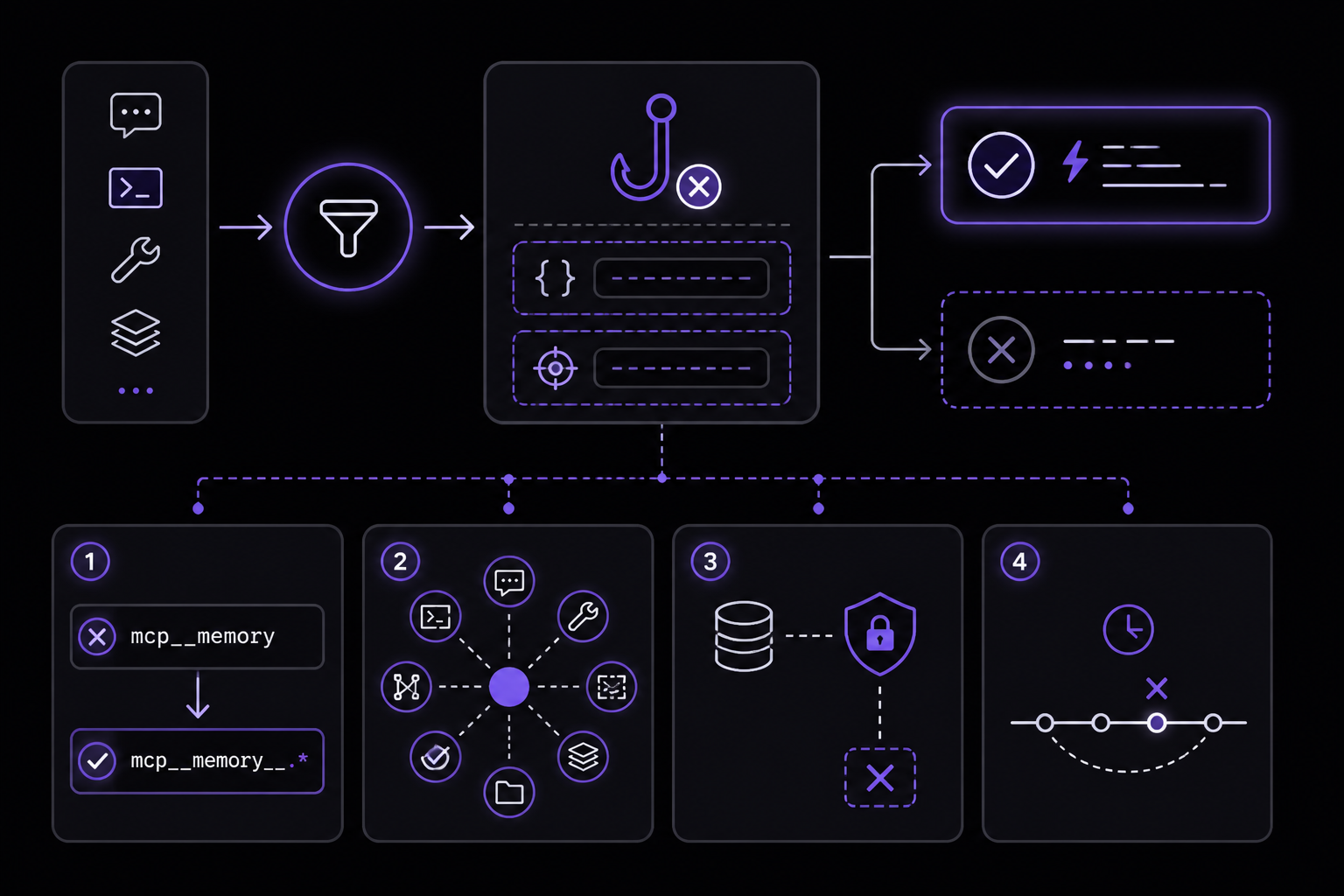
MCP server tools follow the naming pattern mcp__<server_name>__<tool_name>. To match every tool from a server, append .* to the server prefix:
{
  "hooks": {
    "PreToolUse": [
      {
        "matcher": "mcp__memory__.*",
        "hooks": [
          {
            "type": "command",
            "command": "echo 'Memory operation initiated' >> ~/mcp-operations.log"
          }
        ]
      },
      {
        "matcher": "mcp__.*__write.*",
        "hooks": [
          {
            "type": "command",
            "command": "/home/user/scripts/validate-mcp-write.py"
          }
        ]
      }
    ]
  }
}
The .* is required because a matcher like mcp__memory contains only exact-match characters and would be compared as an exact string, matching no tool. The form mcp__memory__.* works on all versions.
The if Field for Narrower Filtering
The if field on individual hook handlers uses permission rule syntax to match against the tool name and arguments together. This allows filtering beyond what the matcher provides:
"Bash(git *)"runs when any subcommand of the Bash input matchesgit *."Edit(*.ts)"runs only for TypeScript files.
According to the official documentation, the if field is only evaluated on tool events: PreToolUse, PostToolUse, PostToolUseFailure, PermissionRequest, and PermissionDenied. On other events, a hook with if set never runs.
For Bash patterns, leading VAR=value assignments are stripped before matching. Commands inside $() and backticks are also checked. The filter fails open: if the Bash command cannot be parsed, the hook runs regardless of the pattern. Because of this best-effort behavior, the documentation advises using the permission system rather than a hook to enforce a hard allow or deny.
Command Hook Fields
Command hooks accept these fields in addition to the common fields:
command(required): Shell command to execute. Withargs, the executable to spawn directly.args: Argument list. When present,commandis resolved as an executable and spawned directly withargsas the argument vector, with no shell involved.async: Iftrue, runs in the background without blocking.asyncRewake: Iftrue, runs in the background and wakes Claude on exit code 2. Impliesasync. The hook's stderr, or stdout if stderr is empty, is shown to Claude as a system reminder.shell: Shell to use for this hook. Accepts"bash"or"powershell". Defaults to"bash", or to"powershell"on Windows when Git Bash is not installed.timeout: Seconds before canceling. Defaults: 600 forcommand,http, andmcp_tool; 30 forprompt; 60 foragent.UserPromptSubmitlowers thecommand,http, andmcp_tooldefault to 30, andMessageDisplaylowers it to 10.statusMessage: Custom spinner message displayed while the hook runs.once: Iftrue, runs once per session then is removed. Only honored for hooks declared in skill frontmatter; ignored in settings files and agent frontmatter.
Exec Form vs Shell Form
A command hook runs as exec form when args is set, and shell form when args is omitted.
Exec form (with args): Claude Code resolves command as an executable on PATH and spawns it directly with args as the argument vector. There is no shell, so each args element is one argument exactly as written. Path placeholders like ${CLAUDE_PLUGIN_ROOT} are substituted into command and into each args element as plain strings. Special characters such as apostrophes, $, and backticks pass through verbatim.
{
  "type": "command",
  "command": "node",
  "args": [
    "${CLAUDE_PLUGIN_ROOT}/scripts/format.js",
    "--fix"
  ]
}
Shell form (without args): The command string is passed to a shell: sh -c on macOS and Linux, Git Bash on Windows, or PowerShell when Git Bash is not installed. The shell tokenizes the string, expands variables, and interprets pipes, &&, redirects, and globs.
{
  "type": "command",
  "command": "node \"${CLAUDE_PLUGIN_ROOT}/scripts/format.js\" --fix"
}
On Windows, exec form requires command to resolve to a real executable such as a .exe. The .cmd and .bat shims that npm, npx, eslint, and other tools install in node_modules/.bin are not executables and cannot be spawned without a shell. To run them in exec form, invoke the underlying script with node directly.
HTTP Hooks
HTTP hooks send the event's JSON input as an HTTP POST request to a URL. The endpoint communicates results back through the response body using the same JSON output format as command hooks. The allowedHttpHookUrls setting in managed settings can restrict which URLs HTTP hooks may target, using * as a wildcard.
Prompt Hooks
Prompt hooks send a prompt to a Claude model for single-turn evaluation. The model returns a yes/no decision as JSON. This is useful for complex validation that would be difficult to express in a shell script. The timeout defaults to 30 seconds.
Agent Hooks
Agent hooks are experimental and may change. They spawn a subagent that can use tools like Read, Grep, and Glob to verify conditions before returning a decision. The timeout defaults to 60 seconds.
Advanced System Prompt Patterns
Using the if Condition for File Type Filtering
The if field can filter by file extension. For example, to run a hook only when Claude edits TypeScript files:
{
  "hooks": {
    "PostToolUse": [
      {
        "matcher": "Edit|Write",
        "hooks": [
          {
            "type": "command",
            "if": "Edit(*.ts)",
            "command": "/path/to/lint-check.sh"
          }
        ]
      }
    ]
  }
}
In an if condition for a file tool, a single-segment directory pattern like "Edit(src/**)" matches only the src directory in the working directory and the files under it. To match a directory named src at any depth, write "Edit(**/src/**)". Before v2.1.214, "Edit(src/**)" matched a directory named src at any depth under the working directory.
Async Hooks for Non-Blocking Enforcement
Async hooks run in the background without blocking the main thread. This is useful for logging, metrics, or notifications that should not slow down the conversation. The asyncRewake variant wakes Claude on exit code 2, allowing a long-running background hook to signal failure.
{
  "type": "command",
  "command": "/path/to/background-logger.sh",
  "async": true,
  "asyncRewake": true
}
When asyncRewake is true, the hook's stderr (or stdout if stderr is empty) is shown to Claude as a system reminder, so it can react to a background failure.
Organization-Wide System Prompts with Managed Settings
For enterprise deployments, managed settings can enforce system prompt behavior across an entire organization. The claudeMd key in managed settings injects CLAUDE.md-style instructions as organization-managed memory:
{
  "claudeMd": "Always run make lint before committing."
}
This is only honored when set in managed or policy settings and is ignored in user, project, and local settings. It cannot be overridden.
Managed settings also support allowManagedHooksOnly, which blocks all non-managed hooks:
{
  "allowManagedHooksOnly": true
}
When this is set, only managed hooks, SDK hooks, and hooks from plugins force-enabled in managed settings enabledPlugins are loaded. User, project, and all other plugin hooks are blocked.
Auto Mode Configuration
The autoMode setting in settings.json customizes what the auto mode classifier blocks and allows. It contains environment, allow, soft_deny, and hard_deny arrays of prose rules. Include the literal string "$defaults" in an array to inherit the built-in rules at that position:
{
  "autoMode": {
    "soft_deny": ["$defaults", "Never run terraform apply"]
  }
}
This is read from user settings, the --settings flag, and managed settings only. It is ignored in project .claude/settings.json and local .claude/settings.local.json (before v2.1.207, local was also read).
The autoMode.classifyAllShell setting, when true, suspends every Bash and PowerShell allow rule while auto mode is active so all shell commands route through the classifier. This is useful when you want the classifier to evaluate every command, not just those matching arbitrary-code-execution patterns.
Company Announcements as System Prompt Reminders
The companyAnnouncements setting displays announcements to users at startup. If multiple announcements are provided, they are cycled through at random:
{
  "companyAnnouncements": [
    "Welcome to Acme Corp! Review our code guidelines at docs.acme.com",
    "Reminder: Code reviews required for all PRs",
    "New security policy in effect"
  ]
}
These announcements appear in the Claude Code interface and serve as persistent reminders of organizational policies, effectively acting as a dynamic part of the system prompt.
Settings Files: Where System Prompts Live
Scope Hierarchy
Settings files determine where system prompt components apply. The official documentation defines four scopes:
| Scope | Location | Who it affects | Shared with team? |
|---|---|---|---|
| Managed | Server-managed, plist/registry, or system-level | All organization members | Yes (deployed by IT) |
| User | ~/.claude/ directory | You, across all projects | No |
| Project | .claude/ in repository | All collaborators on this repository | Yes (committed to git) |
| Local | .claude/settings.local.json at the repository root | You, in this repository only | No (gitignored) |
Priority Order
When the same setting appears in multiple scopes, Claude Code applies them in priority order:
- Managed (highest): cannot be overridden by anything
- Command line arguments: temporary session overrides
- Local: overrides project and user settings
- Project: overrides user settings
- User (lowest): applies when nothing else specifies the setting
Permission rules are the exception: they merge across scopes rather than override. This means a deny rule in any scope applies, even if another scope allows the same command.
The $schema Field
Adding the $schema line to your settings.json enables autocomplete and inline validation in editors that support JSON schema:
{
  "$schema": "https://json.schemastore.org/claude-code-settings.json"
}
The published schema is updated periodically and may not include settings added in the most recent CLI releases, so a validation warning on a recently documented field does not necessarily mean your configuration is invalid.
When Edits Take Effect
Claude Code watches your settings files and reloads them when they change, so edits to most keys apply to the running session without a restart. This includes permissions, hooks, and credential helpers like apiKeyHelper. The reload covers user, project, local, and managed settings, and the ConfigChange hook fires for each detected change.
A few keys are read once at session start and apply on the next restart instead:
model: use/modelto switch mid-sessionoutputStyle: part of the system prompt, which is rebuilt on/clearor restart
Invalid Entries in Managed Settings
Managed settings parse tolerantly. When a managed configuration contains an entry that fails schema validation, Claude Code strips that entry, records a warning, and enforces every remaining valid policy. A single typo cannot disable the rest of your organization's policy. Run /doctor to list stripped entries with their source file and field.
This tolerance applies only to managed settings. User, project, and local settings files remain strict: a file that fails validation is rejected as a whole and reported.
Troubleshooting
Hook Not Firing
If a hook does not fire, check these possibilities:
- Matcher mismatch: Verify the matcher pattern. For MCP tools, remember that
mcp__memorywithout.*is an exact string match and will not match any tool. Usemcp__memory__.*instead. - Event not supported: Some events do not support matchers.
UserPromptSubmit,PostToolBatch,Stop,TeammateIdle,TaskCreated,TaskCompleted,WorktreeCreate,WorktreeRemove,MessageDisplay, andCwdChangedalways fire on every occurrence. If you add amatcherfield to these events, it is silently ignored. iffield on non-tool events: Theiffield is only evaluated on tool events (PreToolUse,PostToolUse,PostToolUseFailure,PermissionRequest,PermissionDenied). On other events, a hook withifset never runs.- Script not executable: Ensure the hook script has execute permissions (
chmod +x script.sh). - jq not installed: If your script uses
jqand it is not on PATH, the script will fail silently or produce no output. - Timeout: The default timeout for command hooks is 600 seconds, but
UserPromptSubmitlowers it to 30 seconds. If your hook takes longer than the timeout, it is canceled.
Hook Returns Unexpected Decision
- Exit code 0 with no output: This means the hook has no decision to report. The tool call continues through the normal permission flow. It does not approve the call.
- Exit code non-zero: Treated as an error. The hook output is ignored, and the tool call continues through the normal permission flow.
- Invalid JSON output: If the hook prints malformed JSON, Claude Code ignores it and continues through the normal permission flow.
Settings Not Loading
- Broken JSON: User, project, and local settings files that fail validation are rejected as a whole. Run
/statusinside Claude Code to confirm which settings sources are loaded. TheSetting sourcesline lists each settings source loaded for the current session; a source appears once it loads with at least one setting, so a file with broken JSON does not appear even if it contains settings. - Managed settings stripped entries: Run
/doctorto list stripped entries with their source file and field. - File in wrong location: Claude Code reads
.claude/settings.local.jsonat the root of the git repository, resolved through worktrees to the main checkout. Before v2.1.211, the file always lived in the starting directory. Claude Code still reads a.claude/settings.local.jsonthat an earlier version left there, but when both files set the same key, the repository root's value wins.
Permission Rules Not Applying
- Merge behavior: Permission rules merge across scopes. If a rule in one scope allows a command and a rule in another scope denies it, the deny takes effect because both rules apply.
- Workspace trust: Project
.claude/settings.jsonallow rules require workspace trust. Local.claude/settings.local.jsonallow rules do not require workspace trust because the file is yours rather than the repository's. - Auto mode: When
autoMode.classifyAllShellis true, all Bash and PowerShell allow rules are suspended while auto mode is active.
Going Further
Once you have mastered the patterns in this guide, explore these advanced topics from the official documentation:
- Prompt-based hooks: Use a Claude model for single-turn evaluation of conditions. This is useful for complex validation that would be difficult to express in a shell script. See the Prompt-based hooks section in the hooks reference.
- Agent-based hooks: Spawn a subagent that can use tools like Read, Grep, and Glob to verify conditions before returning a decision. These are experimental and may change, but they offer the most flexible enforcement mechanism.
- Managed settings deployment: If you are an enterprise administrator, study the managed settings delivery mechanisms: server-managed settings, MDM/OS-level policies (plist on macOS, registry on Windows), and file-based deployment. The official documentation includes starter deployment templates for Jamf, Iru (Kandji), Intune, and Group Policy.
- Plugin hooks: Hooks can be bundled with plugins in a
hooks/hooks.jsonfile. This allows distributing vetted hooks through an organization marketplace. Enterprise administrators can useallowManagedHooksOnlyto block non-managed hooks while exempting plugins force-enabled in managed settings. - The
FileChangedhook: Watch for file changes on disk and react to them. This is useful for reactive environment management with tools like direnv. Thematcherfield specifies which filenames to watch. - The
CwdChangedhook: React to directory changes, for example when Claude executes acdcommand. This always fires on every directory change and does not support matchers. - The
InstructionsLoadedhook: Log or validate what was loaded from CLAUDE.md files. This fires at session start and when files are lazily loaded during a session.
For the most up-to-date information, refer to the official Anthropic documentation on hooks and settings. The JSON schema at https://json.schemastore.org/claude-code-settings.json provides autocomplete and validation for your settings files.
Comments
More Guides
View all claude-code
Running Claude Code in CI Pipelines Without Interactive Prompts
Learn how to run Claude Code in CI/CD pipelines without interactive prompts. Covers authentication, permission configuration, GitHub Actions and GitLab CI integration, and troubleshooting common issues.
 agents
Claude Code Quickstart: Install, Setup, and Automate Desktop Tasks
Learn how to install, configure, and start using Claude Code to automate desktop tasks, fix bugs, manage Git workflows, and build features directly from your terminal, IDE, or desktop app.
 productivity
Claude Code: Complete Guide to Settings, Permissions, and Configuration
Complete guide to Claude Code settings, permissions, and configuration scopes. Learn how to manage user, project, local, and managed settings, use the /config command, and handle invalid entries.
 api
apiBatch Processing with the Claude Message Batches API
Learn to use the Claude Message Batches API for cost-effective, high-throughput processing of multiple prompts. Covers setup, batch creation, monitoring, result retrieval, and troubleshooting with practical examples.
 mcp
mcpConnecting Claude to Your Database with MCP: A Complete Guide
Learn how to connect Claude Code to your database using the Model Context Protocol (MCP). This guide covers setup, configuration, querying, and advanced usage with real-world examples.
 claude-code
Claude Code with GitHub Actions: Automated Code Review Setup Guide
Learn how to set up Claude Code with GitHub Actions for automated code review, issue triage, and CI/CD workflows. Covers workflow configuration, authentication, CLI flags, and best practices.