
Batch Processing with the Claude Message Batches API
Learn to use the Claude Message Batches API for cost-effective, high-throughput processing of multiple prompts. Covers setup, batch creation, monitoring, result retrieval, and troubleshooting with practical examples.
This guide covers batch processing with the Claude Message Batches API, a feature that allows you to send multiple requests to Claude in a single batch, reducing costs and improving throughput for large-scale tasks. It is intended for developers and AI practitioners who need to process high volumes of prompts efficiently, such as for data labeling, content generation, or evaluation pipelines. You will learn the core concepts, setup requirements, how to create and manage batches, interpret results, and handle errors, with practical examples and community-sourced tips.
What You Need
Before you start using the Claude Message Batches API, ensure you have the following prerequisites in place:
- Anthropic API Key: You need a valid API key from the Anthropic Console. This key must have access to the Messages API and the Batches API. If you are using a third-party provider, check their documentation for batch support.
- Claude Model Access: The Batches API works with Claude models, including Claude 3 Opus, Claude 3 Sonnet, and Claude 3 Haiku. Verify that your account has access to the model you intend to use. According to the official documentation, batch processing is available for all Claude models that support the Messages API.
- Programming Environment: You will need a tool to make HTTP requests, such as
curl, or a programming language with an HTTP client (e.g., Python withrequestsorhttpx). The examples in this guide usecurland Python. - Basic Understanding of the Messages API: Familiarity with the Messages API is helpful, as batch requests use the same message structure. If you are new to the API, review the Messages API documentation first.
- File Storage for Batch Input: Batch input is submitted as a JSONL (JSON Lines) file, where each line is a separate request. You will need a way to create and store this file, either locally or in cloud storage accessible via URL. The official documentation supports both direct file upload and URL-based submission.
Core Concepts
The Claude Message Batches API allows you to group multiple individual message requests into a single batch. Each request in the batch is processed independently, but the batch is submitted and managed as a single unit. This approach offers several advantages:
- Cost Reduction: Batch processing is priced at a 50% discount compared to individual API calls. According to the official documentation, this discount applies to both input and output tokens.
- Higher Throughput: Batches have higher rate limits than individual requests. The exact limits depend on your account tier, but batch processing is designed for large-scale workloads.
- Asynchronous Processing: Batches are processed asynchronously. You submit the batch, poll for its status, and retrieve results when processing is complete. This is ideal for jobs that do not require real-time responses.
- Simplified Management: Instead of managing hundreds or thousands of individual API calls, you manage a single batch. This reduces complexity in your application code.
Batch Lifecycle
A batch goes through several states during its lifecycle:
- Creating: The batch is being created and validated. This state is temporary.
- In Progress: The batch is being processed. Individual requests within the batch are being sent to the model.
- Completed: All requests in the batch have been processed successfully.
- Failed: The batch encountered an error during processing. This could be due to invalid input, rate limiting, or a system error.
- Expired: The batch was not processed within the time limit (typically 24 hours).
- Cancelled: The batch was manually cancelled by the user.
According to the official documentation, you can cancel a batch while it is in progress. Cancelled batches are not charged for any processing that has already occurred.
Batch Components
Each batch consists of the following components:
- Batch ID: A unique identifier for the batch, returned when the batch is created.
- Input File: A JSONL file containing the individual requests. Each line is a JSON object with a
custom_idand aparamsobject that mirrors the Messages API request body. - Output File: A JSONL file containing the results. Each line corresponds to a request in the input file, with the same
custom_idand aresponseobject containing the model's output. - Errors: If any requests in the batch fail, the errors are returned in a separate JSONL file.
- Request Counts: The batch includes counts of total, succeeded, failed, and pending requests.
Setting Up Your Environment
Before you can create batches, you need to set up your API credentials and install any necessary tools.
Obtaining an API Key
- Log in to the Anthropic Console.
- Navigate to the API Keys section.
- Click "Create Key" and give it a descriptive name (e.g., "batch-processing-key").
- Copy the key and store it securely. You will need it for all API requests.
Installing Tools
For this guide, we will use curl and Python. If you do not have Python installed, download it from python.org. You will also need the requests library:
pip install requests
Setting Environment Variables
Set your API key as an environment variable to avoid hardcoding it in scripts:
export ANTHROPIC_API_KEY="your-api-key-here"
On Windows (PowerShell):
$env:ANTHROPIC_API_KEY="your-api-key-here"
Creating a Batch
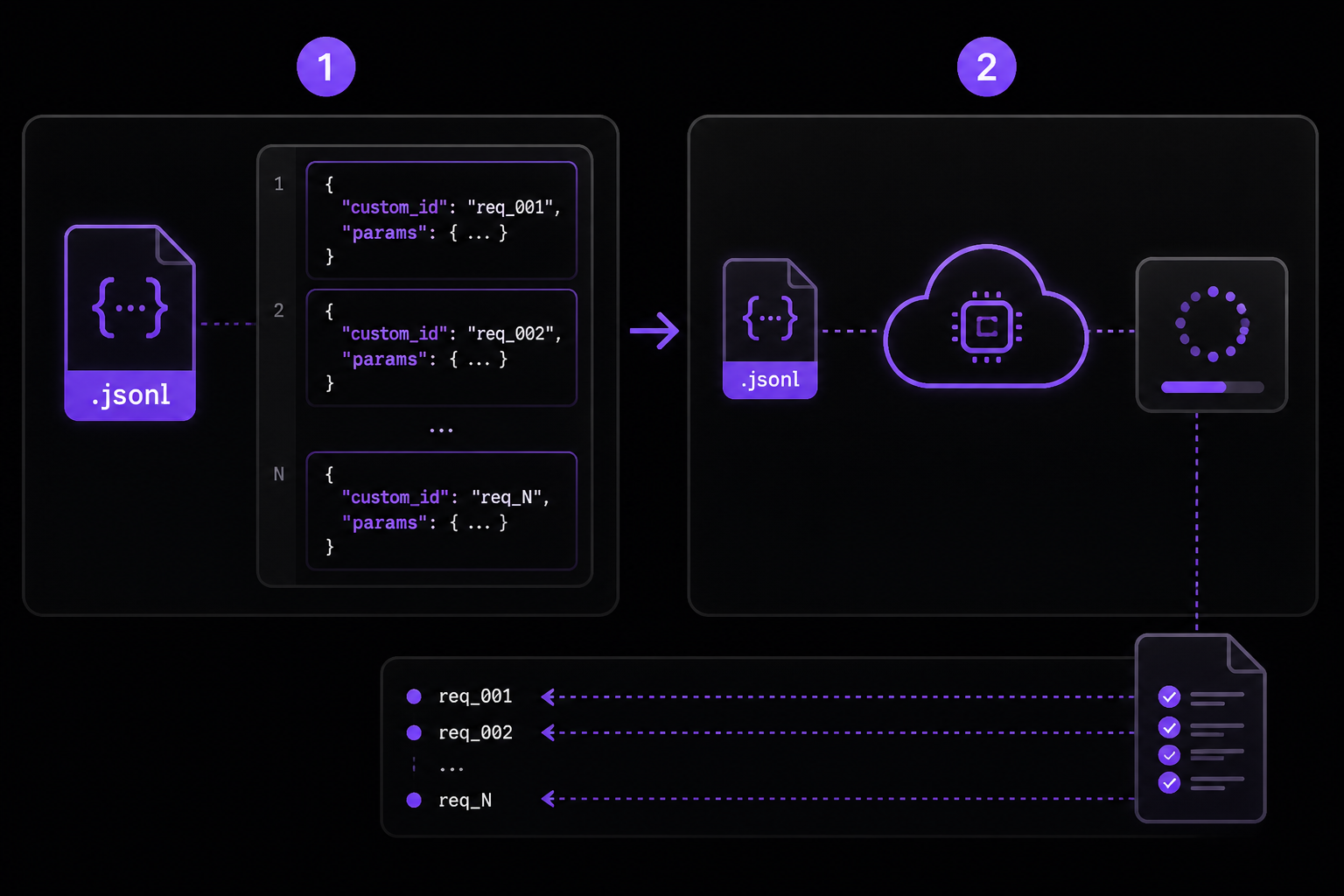
Creating a batch involves two steps: preparing the input file and submitting it to the API.
Preparing the Input File
The input file must be in JSONL format. Each line is a JSON object with two required fields:
custom_id: A unique identifier for the request. This can be any string, but it must be unique within the batch. It is used to map results back to requests.params: An object containing the parameters for the Messages API request. This includesmodel,messages,max_tokens, and optional fields likesystem,temperature,stop_sequences, andmetadata.
Here is an example input file with two requests:
{"custom_id": "request-1", "params": {"model": "claude-3-opus-20240229", "messages": [{"role": "user", "content": "What is the capital of France?"}], "max_tokens": 100}}
{"custom_id": "request-2", "params": {"model": "claude-3-opus-20240229", "messages": [{"role": "user", "content": "Explain the theory of relativity in simple terms."}], "max_tokens": 200}}
Save this content to a file named batch_input.jsonl.
Important Notes:
- The
custom_idmust be unique within the batch. If you have duplicate IDs, the batch creation will fail. - The
paramsobject must be a valid Messages API request. All required fields (model,messages,max_tokens) must be present. - The file must be valid JSONL. Each line must be a complete JSON object, and there must be no trailing commas or extra whitespace.
- The file size limit for batch input is 100 MB according to the official documentation. For larger workloads, split your data into multiple batches.
Submitting the Batch
You can submit the batch using the Batches API endpoint. The endpoint is:
POST https://api.anthropic.com/v1/messages/batches
You need to upload the input file first, then reference it in the batch creation request. The official documentation supports two methods for file upload: direct upload via multipart/form-data, or providing a URL to a publicly accessible file.
Method 1: Direct Upload
Using curl:
curl -X POST https://api.anthropic.com/v1/messages/batches \
  -H "x-api-key: $ANTHROPIC_API_KEY" \
  -H "anthropic-version: 2023-06-01" \
  -F "file=@batch_input.jsonl" \
  -F "metadata={\"description\":\"My first batch\"}"
This command does the following:
-F "file=@batch_input.jsonl": Uploads the local filebatch_input.jsonlas the batch input.-F "metadata=...": Attaches optional metadata, such as a description.
The response will include the batch ID and initial status:
{
  "id": "batch_abc123",
  "type": "batch",
  "status": "creating",
  "processing_status": {
    "total": 2,
    "succeeded": 0,
    "failed": 0,
    "pending": 2
  },
  "request_counts": {
    "total": 2,
    "succeeded": 0,
    "failed": 0,
    "pending": 2
  },
  "created_at": "2024-01-01T00:00:00Z",
  "updated_at": "2024-01-01T00:00:00Z",
  "metadata": {
    "description": "My first batch"
  }
}
Method 2: URL-based Upload
If your input file is already hosted at a publicly accessible URL, you can submit it directly:
curl -X POST https://api.anthropic.com/v1/messages/batches \
  -H "x-api-key: $ANTHROPIC_API_KEY" \
  -H "anthropic-version: 2023-06-01" \
  -H "Content-Type: application/json" \
  -d '{
    "input_file_url": "https://example.com/batch_input.jsonl",
    "metadata": {
      "description": "My first batch"
    }
  }'
Community Tip: According to community discussions, URL-based upload is more reliable for large files because it avoids potential timeouts during the upload process. Ensure the URL is accessible from Anthropic's servers and does not require authentication.
Python Example
Here is a Python script to create a batch using direct upload:
import requests
import os

api_key = os.environ["ANTHROPIC_API_KEY"]
url = "https://api.anthropic.com/v1/messages/batches"

headers = {
    "x-api-key": api_key,
    "anthropic-version": "2023-06-01"
}

files = {
    "file": ("batch_input.jsonl", open("batch_input.jsonl", "rb"), "application/jsonl")
}

data = {
    "metadata": '{"description": "My first batch"}'
}

response = requests.post(url, headers=headers, files=files, data=data)
print(response.json())
This script uploads the file and prints the batch creation response. The metadata field is passed as a string because the API expects it as a JSON-encoded string in the multipart form data.
Monitoring Batch Status
After creating a batch, you can poll its status to know when processing is complete. The endpoint is:
GET https://api.anthropic.com/v1/messages/batches/{batch_id}
Using curl:
curl -X GET https://api.anthropic.com/v1/messages/batches/batch_abc123 \
  -H "x-api-key: $ANTHROPIC_API_KEY" \
  -H "anthropic-version: 2023-06-01"
The response includes the current status and request counts:
{
  "id": "batch_abc123",
  "type": "batch",
  "status": "in_progress",
  "processing_status": {
    "total": 2,
    "succeeded": 1,
    "failed": 0,
    "pending": 1
  },
  "request_counts": {
    "total": 2,
    "succeeded": 1,
    "failed": 0,
    "pending": 1
  },
  "created_at": "2024-01-01T00:00:00Z",
  "updated_at": "2024-01-01T00:05:00Z",
  "metadata": {
    "description": "My first batch"
  }
}
Polling Strategy: The official documentation recommends polling every 30 seconds for small batches and every 60 seconds for larger batches. Avoid polling more frequently than every 10 seconds to prevent rate limiting. Use exponential backoff if you encounter rate limit errors.
Python Polling Example
import requests
import os
import time

api_key = os.environ["ANTHROPIC_API_KEY"]
batch_id = "batch_abc123"
url = f"https://api.anthropic.com/v1/messages/batches/{batch_id}"

headers = {
    "x-api-key": api_key,
    "anthropic-version": "2023-06-01"
}

while True:
    response = requests.get(url, headers=headers)
    data = response.json()
    status = data["status"]
    print(f"Status: {status}, Succeeded: {data['request_counts']['succeeded']}, Failed: {data['request_counts']['failed']}")

    if status in ["completed", "failed", "expired", "cancelled"]:
        break

    time.sleep(30)
This script polls the batch status every 30 seconds until the batch reaches a terminal state.
Retrieving Results
Once the batch status is completed, you can retrieve the results. The results are stored in an output file that you can download.
Getting the Output File URL
The batch response includes an output_file_url field when the batch is completed. You can get this by retrieving the batch status:
curl -X GET https://api.anthropic.com/v1/messages/batches/batch_abc123 \
  -H "x-api-key: $ANTHROPIC_API_KEY" \
  -H "anthropic-version: 2023-06-01"
Look for the output_file_url field in the response:
{
  "id": "batch_abc123",
  "status": "completed",
  "output_file_url": "https://api.anthropic.com/v1/messages/batches/batch_abc123/output",
  ...
}
Downloading the Output File
Download the output file using the URL:
curl -X GET https://api.anthropic.com/v1/messages/batches/batch_abc123/output \
  -H "x-api-key: $ANTHROPIC_API_KEY" \
  -H "anthropic-version: 2023-06-01" \
  -o batch_output.jsonl
The output file is in JSONL format. Each line corresponds to a request in the input file, with the same custom_id. The structure of each line is:
{
  "custom_id": "request-1",
  "response": {
    "id": "msg_abc123",
    "type": "message",
    "role": "assistant",
    "content": [
      {
        "type": "text",
        "text": "The capital of France is Paris."
      }
    ],
    "model": "claude-3-opus-20240229",
    "stop_reason": "end_turn",
    "stop_sequence": null,
    "usage": {
      "input_tokens": 14,
      "output_tokens": 8
    }
  }
}
Handling Errors
If any requests in the batch failed, the batch response will include an error_file_url field. Download this file to see the errors:
curl -X GET https://api.anthropic.com/v1/messages/batches/batch_abc123/errors \
  -H "x-api-key: $ANTHROPIC_API_KEY" \
  -H "anthropic-version: 2023-06-01" \
  -o batch_errors.jsonl
The error file format is:
{
  "custom_id": "request-3",
  "error": {
    "type": "invalid_request_error",
    "message": "Invalid messages: content must be a string or array of content blocks."
  }
}
Common error types include:
invalid_request_error: The request parameters are invalid (e.g., missing required fields, invalid message format).rate_limit_error: The request was rate limited. This can happen if your batch exceeds the rate limit for the model.server_error: An internal server error occurred. Retry the batch.authentication_error: The API key is invalid or does not have access to the model.
Community Tip: According to community discussions, rate limit errors are more common with larger batches. To mitigate this, consider spreading your requests across multiple batches or using a model with higher rate limits, such as Claude 3 Haiku.
Advanced Features
Batch Metadata
You can attach metadata to your batch when creating it. This metadata is returned in the batch status response and can be used for tracking, filtering, or organizing batches. The metadata field is a JSON object with up to 16 key-value pairs, and each value must be a string.
Example with metadata:
curl -X POST https://api.anthropic.com/v1/messages/batches \
  -H "x-api-key: $ANTHROPIC_API_KEY" \
  -H "anthropic-version: 2023-06-01" \
  -F "file=@batch_input.jsonl" \
  -F 'metadata={"project": "data-labeling", "task": "sentiment-analysis", "batch_number": "42"}'
Cancelling a Batch
You can cancel a batch that is in progress. Cancelled batches are not charged for any processing that has already occurred. The endpoint is:
POST https://api.anthropic.com/v1/messages/batches/{batch_id}/cancel
Using curl:
curl -X POST https://api.anthropic.com/v1/messages/batches/batch_abc123/cancel \
  -H "x-api-key: $ANTHROPIC_API_KEY" \
  -H "anthropic-version: 2023-06-01"
The response will show the batch status as cancelled.
Listing Batches
You can list all batches associated with your account. The endpoint is:
GET https://api.anthropic.com/v1/messages/batches
Using curl:
curl -X GET "https://api.anthropic.com/v1/messages/batches?limit=20&status=completed" \
  -H "x-api-key: $ANTHROPIC_API_KEY" \
  -H "anthropic-version: 2023-06-01"
This endpoint supports pagination with limit (default 20, max 100) and after_id for cursor-based pagination. You can also filter by status (e.g., completed, in_progress, failed).
Batch with System Prompts and Other Parameters
The params object in each request can include all the parameters supported by the Messages API, including system, temperature, top_p, stop_sequences, and metadata. Here is an example:
{"custom_id": "request-1", "params": {"model": "claude-3-opus-20240229", "messages": [{"role": "user", "content": "Translate to French: Hello, how are you?"}], "max_tokens": 100, "system": "You are a professional translator. Translate the user's text to French.", "temperature": 0.3}}
Using Different Models in a Single Batch
You can use different models for different requests within the same batch. This is useful for tasks that require different capabilities or cost profiles. For example:
{"custom_id": "request-1", "params": {"model": "claude-3-opus-20240229", "messages": [{"role": "user", "content": "Write a complex essay on quantum mechanics."}], "max_tokens": 1000}}
{"custom_id": "request-2", "params": {"model": "claude-3-haiku-20240307", "messages": [{"role": "user", "content": "What is 2+2?"}], "max_tokens": 50}}
Community Tip: According to community discussions, mixing models in a single batch can complicate cost tracking and rate limit management. It is often simpler to create separate batches for each model.
Performance and Best Practices
Batch Size
The optimal batch size depends on your workload and rate limits. The official documentation does not specify a maximum number of requests per batch, but the input file size limit is 100 MB. Community members report successful batches with up to 50,000 requests.
Community Recommendations:
- Start with smaller batches (100-1000 requests) to test your workflow.
- For production workloads, aim for batches of 10,000-50,000 requests to maximize throughput while staying within file size limits.
- If you have more than 50,000 requests, split them into multiple batches and submit them sequentially or in parallel.
Rate Limits
Batch processing has higher rate limits than individual requests, but limits still apply. The exact limits depend on your account tier and the model being used. According to the official documentation, batch rate limits are typically 10x higher than individual request limits.
Community Tip: If you encounter rate limit errors, reduce the batch size or spread requests across multiple batches with a delay between submissions.
Cost Optimization
Batch processing is priced at a 50% discount. To maximize cost savings:
- Use the cheapest model that meets your requirements. For simple tasks, Claude 3 Haiku is more cost-effective than Claude 3 Opus.
- Set
max_tokensto the minimum value needed for your task. Unnecessary tokens increase costs. - Use short, concise prompts to reduce input token counts.
Error Handling
Not all requests in a batch may succeed. The official documentation recommends:
- Always check the error file after a batch completes.
- Retry failed requests in a new batch. Common transient errors like rate limits and server errors often succeed on retry.
- For invalid request errors, fix the input data and resubmit.
Troubleshooting
Batch Creation Fails
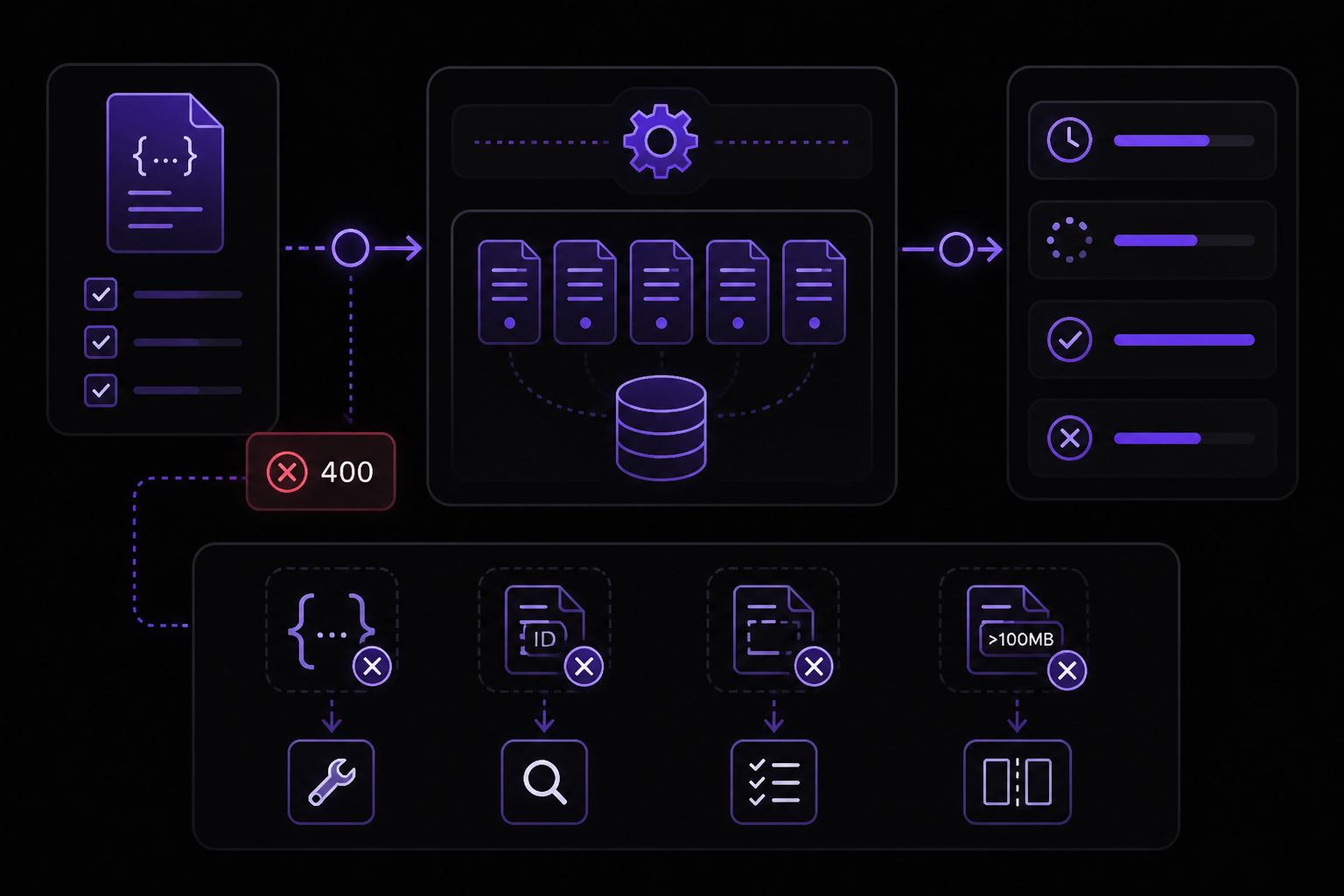
Symptom: The batch creation request returns a 400 error.
Possible Causes and Solutions:
- Invalid JSONL format: Ensure each line is a valid JSON object. Use a JSON validator to check your file.
- Duplicate custom_id: Ensure all
custom_idvalues are unique within the batch. - Missing required fields: Each
paramsobject must includemodel,messages, andmax_tokens. - File too large: The input file must be under 100 MB. Split your data into multiple batches if necessary.
Batch Stays in "in_progress" Status
Symptom: The batch status does not change from in_progress for an extended period.
Possible Causes and Solutions:
- Large batch: Large batches can take hours to process. Check the
updated_atfield to see if progress is being made. Ifupdated_atis not changing, the batch may be stuck. - System issues: Rarely, the batch processing system may experience delays. Contact Anthropic support if the batch has been
in_progressfor more than 24 hours. - Rate limiting: The batch may be rate limited internally. This is usually temporary and the batch will resume processing.
Community Tip: According to community discussions, batches with more than 10,000 requests can take 30-60 minutes to process. Plan your workflow accordingly.
Batch Fails with "expired" Status
Symptom: The batch status becomes expired.
Cause: The batch was not processed within the 24-hour time limit. This can happen if the batch is very large or if there are system issues.
Solution: Split the batch into smaller batches and resubmit. Ensure your input file is valid.
Individual Requests Fail
Symptom: The batch completes, but some requests have errors.
Possible Causes and Solutions:
- Invalid request parameters: Check the error message and fix the request parameters. Common issues include invalid message formats, unsupported model names, or excessive
max_tokens. - Rate limit errors: Retry the failed requests in a new batch. If rate limits persist, reduce the batch size.
- Server errors: Retry the failed requests. Server errors are usually transient.
Output File is Missing or Incomplete
Symptom: The output_file_url is not present in the batch response, or the output file contains fewer lines than expected.
Possible Causes and Solutions:
- Batch not completed: The batch must be in
completedstatus for the output file to be available. Check the batch status. - Batch failed: If the batch status is
failed, there will be no output file. Check the error file for details. - Partial completion: If some requests failed, the output file will only contain successful results. The number of lines in the output file should match the
succeededcount in the batch response.
Going Further
Once you have mastered the basics of batch processing, explore these advanced topics:
- Streaming with Batches: The Batches API does not support streaming. For real-time applications, use the standard Messages API with streaming. For high-volume, non-real-time workloads, batches are the better choice.
- Multi-turn Conversations: Batch processing is designed for single-turn requests. For multi-turn conversations, you need to manage conversation state externally and include the full conversation history in each request.
- Integration with CI/CD: Automate batch processing as part of your CI/CD pipeline. For example, run a batch of evaluation prompts after each model deployment to verify quality.
- Monitoring and Logging: Set up monitoring for batch processing using the list batches endpoint. Log batch IDs, statuses, and error counts for auditing and debugging.
- Advanced Error Recovery: Implement a retry mechanism that automatically resubmits failed requests. Use exponential backoff and jitter to avoid overwhelming the API.
- Cost Tracking: Use the
usageinformation in the output file to track token consumption and costs per batch. This is useful for budgeting and optimization. - Community Resources: Join the Anthropic community forums or Discord to share tips and learn from other developers using the Batches API.
Comments
More Guides
View all claude-code
Running Claude Code in CI Pipelines Without Interactive Prompts
Learn how to run Claude Code in CI/CD pipelines without interactive prompts. Covers authentication, permission configuration, GitHub Actions and GitLab CI integration, and troubleshooting common issues.
 agents
Claude Code Quickstart: Install, Setup, and Automate Desktop Tasks
Learn how to install, configure, and start using Claude Code to automate desktop tasks, fix bugs, manage Git workflows, and build features directly from your terminal, IDE, or desktop app.
 productivity
Claude Code: Complete Guide to Settings, Permissions, and Configuration
Complete guide to Claude Code settings, permissions, and configuration scopes. Learn how to manage user, project, local, and managed settings, use the /config command, and handle invalid entries.
 mcp
mcpConnecting Claude to Your Database with MCP: A Complete Guide
Learn how to connect Claude Code to your database using the Model Context Protocol (MCP). This guide covers setup, configuration, querying, and advanced usage with real-world examples.
 claude-code
Claude Code with GitHub Actions: Automated Code Review Setup Guide
Learn how to set up Claude Code with GitHub Actions for automated code review, issue triage, and CI/CD workflows. Covers workflow configuration, authentication, CLI flags, and best practices.
 prompting
Claude system prompts: patterns that actually improve output
Learn how to write Claude system prompts that produce measurably better results using hooks, settings, CLAUDE.md files, and permission rules. Covers official Anthropic patterns and community-proven techniques.