
Claude Code: Complete Guide to Settings, Permissions, and Configuration
Complete guide to Claude Code settings, permissions, and configuration scopes. Learn how to manage user, project, local, and managed settings, use the /config command, and handle invalid entries.
This guide covers everything you need to configure Claude Code for personal use, team collaboration, or enterprise deployment. It is written for developers, team leads, and IT administrators who want to understand how settings, permissions, and environment variables work across different scopes, how to manage them via files or the /config command, and how to handle edge cases like managed settings, invalid entries, and multi-source conflicts.
What You Need
Before you begin configuring Claude Code, make sure you have:
- A terminal or command prompt open. If you have never used the terminal before, check out the terminal guide.
- A code project to work with.
- A Claude subscription (Pro, Max, Team, or Enterprise), a Claude Console account, or access through a supported cloud provider (Amazon Bedrock, Google Cloud's Agent Platform, or Microsoft Foundry).
- Claude Code installed. See the quickstart guide for installation instructions.
- Basic familiarity with JSON syntax, as most configuration files use JSON.
Understanding Configuration Scopes
Claude Code uses a scope system to determine where configurations apply and who they are shared with. Understanding scopes helps you decide how to configure Claude Code for personal use, team collaboration, or enterprise deployment.
Available Scopes
| Scope | Location | Who it affects | Shared with team? |
|---|---|---|---|
| Managed | Server-managed settings, plist/registry, or system-level managed-settings.json | All organization members for server-managed delivery; all users on the machine for plist, HKLM registry, and file delivery; the current user for HKCU registry delivery | Yes (deployed by IT) |
| User | ~/.claude/ directory | You, across all projects | No |
| Project | .claude/ in repository | All collaborators on this repository | Yes (committed to git) |
| Local | .claude/settings.local.json at the repository root | You, in this repository only | No (gitignored when Claude Code creates it) |
When to Use Each Scope
Managed scope is for:
- Security policies that must be enforced organization-wide.
- Compliance requirements that cannot be overridden.
- Standardized configurations deployed by IT/DevOps.
User scope is best for:
- Personal preferences you want everywhere (themes, editor settings).
- Tools and plugins you use across all projects.
- API keys and authentication (stored securely).
Project scope is best for:
- Team-shared settings (permissions, hooks, MCP servers).
- Plugins the whole team should have.
- Standardizing tooling across collaborators.
Local scope is best for:
- Personal overrides for a specific project.
- Testing configurations before sharing with the team.
- Machine-specific settings that will not work for others.
How Scopes Interact
When the same setting appears in multiple scopes, Claude Code applies them in priority order:
- Managed (highest): cannot be overridden by anything.
- Command line arguments: temporary session overrides.
- Local: overrides project and user settings.
- Project: overrides user settings.
- User (lowest): applies when nothing else specifies the setting.
For example, if your user settings set spinnerTipsEnabled to true and project settings set it to false, the project value applies. Permission rules behave differently because they merge across scopes rather than override. See Settings precedence for details.
What Uses Scopes
Scopes apply to many Claude Code features:
| Feature | User location | Project location | Local location |
|---|---|---|---|
| Settings | ~/.claude/settings.json | .claude/settings.json | .claude/settings.local.json |
| Subagents | ~/.claude/agents/ | .claude/agents/ | None |
| MCP servers | ~/.claude.json | .mcp.json | ~/.claude.json (per-project) |
| Plugins | ~/.claude/settings.json | .claude/settings.json | .claude/settings.local.json |
| CLAUDE.md | ~/.claude/CLAUDE.md | CLAUDE.md or .claude/CLAUDE.md | CLAUDE.local.md |
On Windows, paths shown as ~/.claude resolve to %USERPROFILE%\.claude.
Settings Files
The settings.json file is the official mechanism for configuring Claude Code through hierarchical settings.
User Settings
User settings are defined in ~/.claude/settings.json and apply to all projects. This file lives in your home directory rather than in any project, so Claude Code reads it in every session regardless of which project you open.
Project Settings
Project settings are saved in your project directory:
.claude/settings.jsonfor settings that are checked into source control and shared with your team..claude/settings.local.jsonfor settings that are not checked in, useful for personal preferences and experimentation.
When Claude Code creates .claude/settings.local.json, it configures git to ignore the file. If you create the file yourself, add it to your gitignore manually.
Claude Code reads and writes this file at the root of the git repository, resolved through worktrees to the main checkout, so one file covers sessions started in any subdirectory or worktree of the repository. The file stays in the directory you start Claude Code from in three cases: outside a git repository, when the repository root is your home directory, and in Agent SDK sessions.
Before v2.1.211, the file always lived in the starting directory. Claude Code still reads a .claude/settings.local.json that an earlier version left there. When both files set the same key, the repository root's value wins, except that permission rules from both files stay in effect.
Claude Code also saves permanent "don't ask again" permission approvals, such as Bash command approvals, to this file. Because this file is yours rather than the repository's, its permission allow rules take effect without the workspace trust step that .claude/settings.json allow rules require. If the repository supplies the file, for example by committing it, workspace trust still applies.
Managed Settings
For organizations that need centralized control, Claude Code supports multiple delivery mechanisms for managed settings. All use the same JSON format and cannot be overridden by user or project settings.
Server-managed settings: delivered remotely at sign-in, either from Anthropic's servers via the claude.ai admin console or from a self-hosted Claude apps gateway. See server-managed settings.
MDM/OS-level policies: delivered through native device management on macOS and Windows:
- macOS:
com.anthropic.claudecodemanaged preferences domain. The plist's top-level keys mirrormanaged-settings.json, with nested settings as dictionaries and arrays as plist arrays. Deploy via configuration profiles in Jamf, Iru (Kandji), or similar MDM tools. - Windows:
HKLM\SOFTWARE\Policies\ClaudeCoderegistry key with aSettingsvalue (REG_SZ or REG_EXPAND_SZ) containing JSON (deployed via Group Policy or Intune). - Windows (user-level):
HKCU\SOFTWARE\Policies\ClaudeCode(lowest policy priority, only used when no admin-level source exists).
File-based: managed-settings.json and managed-mcp.json deployed to system directories:
- macOS:
/Library/Application Support/ClaudeCode/ - Linux and WSL:
/etc/claude-code/ - Windows:
C:\Program Files\ClaudeCode\
The legacy Windows path C:\ProgramData\ClaudeCode\managed-settings.json is no longer supported as of v2.1.75. Administrators who deployed settings to that location must migrate files to C:\Program Files\ClaudeCode\managed-settings.json.
File-based managed settings also support a drop-in directory at managed-settings.d/ in the same system directory alongside managed-settings.json. This lets separate teams deploy independent policy fragments without coordinating edits to a single file. Following the systemd convention, managed-settings.json is merged first as the base, then all *.json files in the drop-in directory are sorted alphabetically and merged on top. Later files override earlier ones for scalar values, arrays are concatenated and de-duplicated, and objects are deep-merged. Hidden files starting with . are ignored. Use numeric prefixes to control merge order, for example 10-telemetry.json and 20-security.json.
Managed deployments can also restrict plugin marketplace additions using strictKnownMarketplaces. For more information, see Managed marketplace restrictions.
Other Configuration Files
Other configuration is stored in ~/.claude.json. This file contains your OAuth session, MCP server configurations for user and local scopes, per-project state (allowed tools, trust settings), and various caches. Project-scoped MCP servers are stored separately in .mcp.json.
Claude Code automatically creates timestamped backups of configuration files and retains the five most recent backups to prevent data loss.
Example settings.json
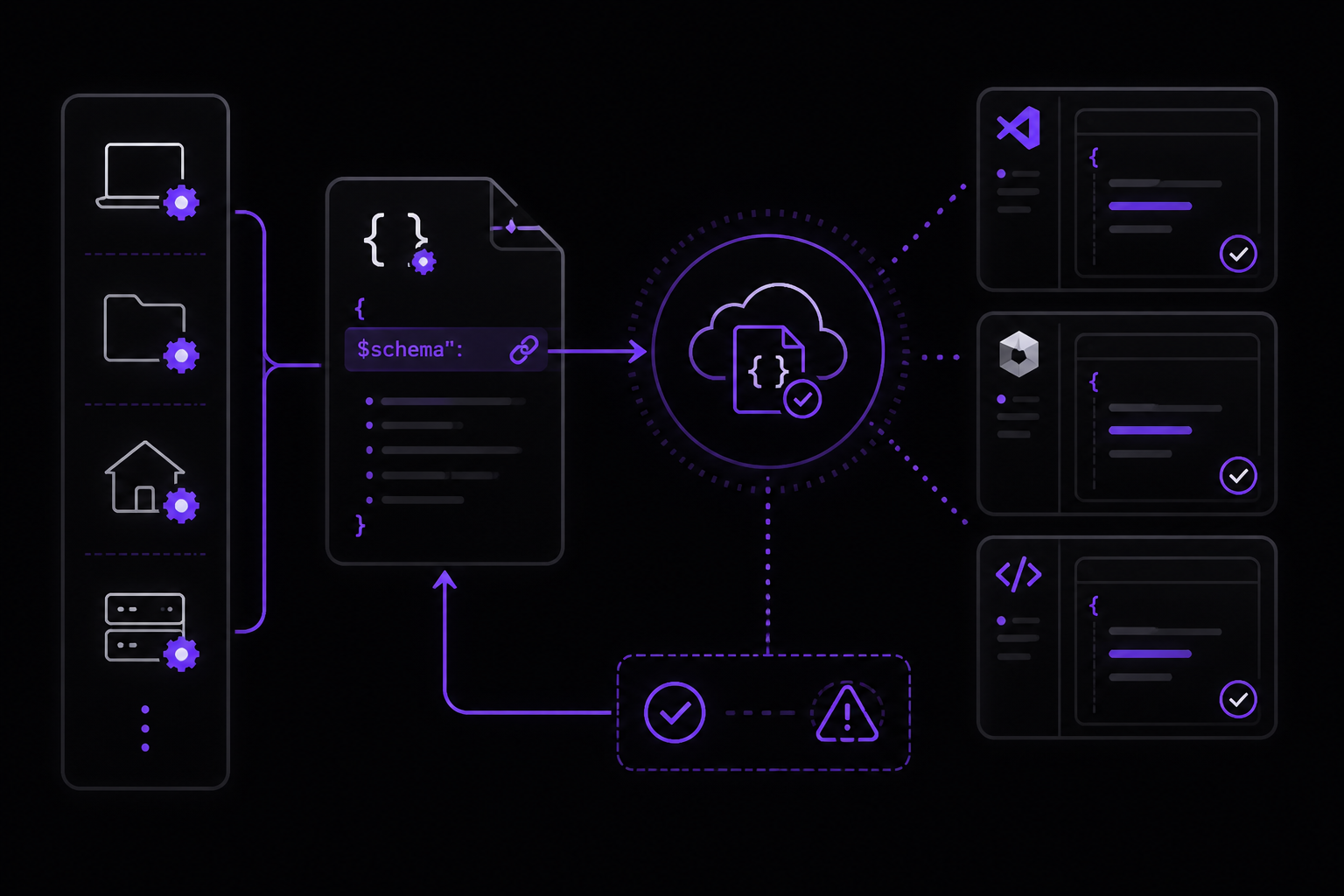
The following example works in any of the settings file locations above. Where you save the file determines where it applies:
{
  "$schema": "https://json.schemastore.org/claude-code-settings.json",
  "permissions": {
    "allow": [
      "Bash(npm run lint)",
      "Bash(npm run test *)",
      "Read(~/.zshrc)"
    ],
    "deny": [
      "Bash(curl *)",
      "Read(./.env)",
      "Read(./.env.*)",
      "Read(./secrets/**)"
    ]
  },
  "env": {
    "CLAUDE_CODE_ENABLE_TELEMETRY": "1",
    "OTEL_METRICS_EXPORTER": "otlp"
  },
  "companyAnnouncements": [
    "Welcome to Acme Corp! Review our code guidelines at docs.acme.com",
    "Reminder: Code reviews required for all PRs",
    "New security policy in effect"
  ]
}
The $schema line in the example above points to the official JSON schema for Claude Code settings. Adding it to your settings.json enables autocomplete and inline validation in VS Code, Cursor, and any other editor that supports JSON schema validation. The published schema is updated periodically and may not include settings added in the most recent CLI releases, so a validation warning on a recently documented field does not necessarily mean your configuration is invalid.
After you edit a settings file, run /status inside Claude Code to confirm it was loaded. The Setting sources line lists each settings source loaded for the current session; a source appears once it loads with at least one setting, so a file with broken JSON does not appear even if it contains settings.
When Edits Take Effect
Claude Code watches your settings files and reloads them when they change, so edits to most keys apply to the running session without a restart. This includes permissions, hooks, and credential helpers like apiKeyHelper. The reload covers user, project, local, and managed settings, and the ConfigChange hook fires for each detected change.
A few keys are read once at session start and apply on the next restart instead:
model: use/modelto switch mid-session.outputStyle: part of the system prompt, which is rebuilt on/clearor restart.
Invalid Entries in Managed Settings
Managed settings parse tolerantly. When a managed configuration contains an entry that fails schema validation, Claude Code strips that entry, records a warning, and enforces every remaining valid policy. A single typo cannot disable the rest of your organization's policy. Run /doctor to list stripped entries with their source file and field. This behavior is consistent across all three delivery mechanisms: server-managed settings, plist and registry policies deployed through MDM, and managed-settings.json files. Requires Claude Code v2.1.169 or later.
Security-enforcement fields are handled per field instead of being stripped wholesale when they are present but invalid:
| Field | Behavior when present but invalid |
|---|---|
allowedMcpServers | Enforced as an empty allowlist, so no MCP servers are admitted until the value is fixed. An individual invalid entry is stripped and the valid subset is enforced. |
allowManagedMcpServersOnly | Treated as true. |
availableModels | Enforced as an empty allowlist, so only the Default model is available until the value is fixed. An individual non-string entry is stripped and the valid subset is enforced. Applies in v2.1.175 and later. |
enforceAvailableModels | Treated as true. Applies in v2.1.175 and later. |
forceLoginOrgUUID | No organization is permitted to log in until the value is fixed. |
deniedMcpServers | An individual invalid entry is stripped and the valid subset is enforced. A wholly invalid value is dropped with a warning, since denying every server would block servers the policy never named. |
sandbox.credentials | An individual invalid entry in files or envVars is stripped with a warning and the valid subset is enforced. A wholly invalid credentials value is dropped with a warning while the rest of sandbox still applies. Applies in v2.1.191 and later. |
requiredMinimumVersion and requiredMaximumVersion | Fail open by design: an invalid value is stripped rather than enforced, so a bad policy push cannot prevent Claude Code from starting. |
Validation errors surface in three places:
- Interactive sessions show a dialog at startup listing the invalid entries.
- Headless runs with
-pprint a summary to stderr. claude doctorlists each invalid entry with its source and field.
Validate policy changes by running claude doctor on a test machine before deploying them fleet-wide.
This tolerance applies only to managed settings. User, project, and local settings files remain strict: a file that fails validation is rejected as a whole and reported.
Available Settings
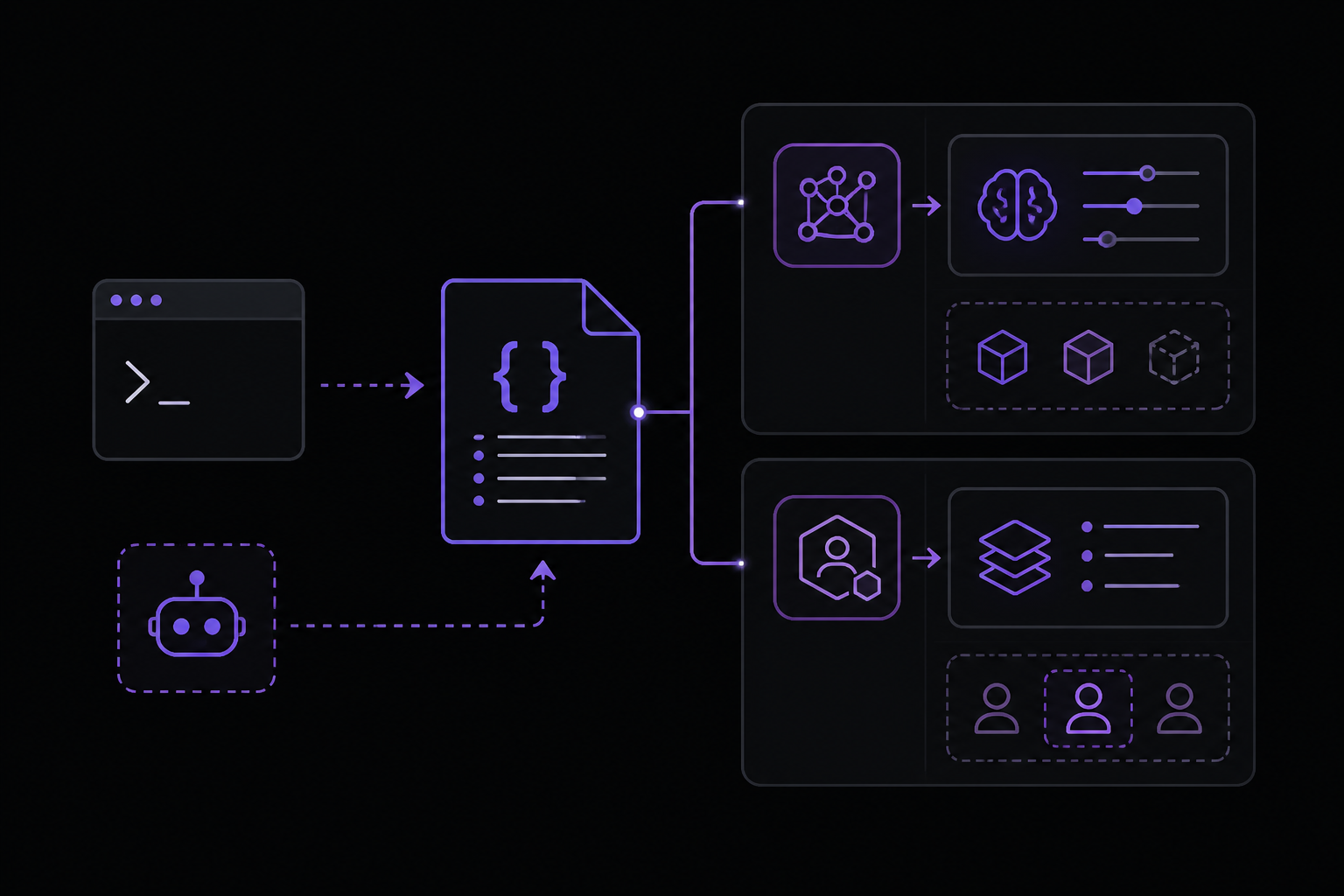
settings.json supports a number of options. Below is a comprehensive list of every documented setting, with descriptions and examples.
Model and Agent Settings
advisorModel: Model for the server-side advisor tool. Accepts the model aliases"opus"and"sonnet", or a full model ID. Written automatically when you run/advisor. Unset to disable the advisor. Claude Code does not offer Fable 5 as the advisor: a saved"fable"value attaches no advisor and raises no error. Example:"opus"agent: Run the main thread as a named subagent, and set the default agent for sessions dispatched fromclaude agents. Applies that subagent's system prompt, tool restrictions, and model. Example:"code-reviewer"availableModels: Restrict which models users can select for the main session, subagents, skills, and the advisor. Does not affect the Default option unlessenforceAvailableModelsis also set. Example:["sonnet", "haiku"]alwaysThinkingEnabled: Enable extended thinking by default for all sessions. Typically configured via the/configcommand rather than editing directly. To force thinking off regardless of this setting, setMAX_THINKING_TOKENS=0inenv, which disables thinking on the Anthropic API except on Fable 5, which cannot have thinking turned off. On third-party providers this omits thethinkingparameter instead, and adaptive-reasoning models may still think. Example:true
Permission and Security Settings
permissions.allow: Array of permission patterns that are automatically allowed without prompting. Patterns use the formatToolName(pattern). Example:["Bash(npm run lint)", "Read(~/.zshrc)"]permissions.deny: Array of permission patterns that are automatically denied. Example:["Bash(curl *)", "Read(./.env)"]allowedHttpHookUrls: Allowlist of URL patterns that HTTP hooks may target. Supports*as a wildcard. When set, hooks with non-matching URLs are blocked. Undefined = no restrictions, empty array = block all HTTP hooks. Arrays merge across settings sources. Example:["https://hooks.example.com/*"]allowedMcpServers: When set in managed-settings.json, allowlist of MCP servers users can configure. Undefined = no restrictions, empty array = lockdown. Applies to all scopes. Denylist takes precedence. Example:[{"serverName": "github"}]allowManagedHooksOnly: (Managed settings only) Only managed hooks, SDK hooks, and hooks from plugins force-enabled in managed settingsenabledPluginsare loaded. User, project, and all other plugin hooks are blocked. Example:trueallowManagedMcpServersOnly: (Managed settings only) OnlyallowedMcpServersfrom managed settings are respected.deniedMcpServersstill merges from all sources. Users can still add MCP servers, but only the admin-defined allowlist applies. Example:trueallowManagedPermissionRulesOnly: (Managed settings only) Prevent user and project settings from definingallow,ask, ordenypermission rules. Only rules in managed settings apply. Example:truedeniedMcpServers: When set in managed-settings.json, denylist of MCP servers that are explicitly blocked. Applies to all scopes including managed servers. Denylist takes precedence over allowlist. Example:[{"serverName": "filesystem"}]blockedMarketplaces: (Managed settings only) Blocklist of marketplace sources. Enforced on marketplace add and on plugin install, update, refresh, and auto-update, so a marketplace added before the policy was set cannot be used to fetch plugins. Blocked sources are checked before downloading, so they never touch the filesystem. Example:[{"source": "github", "repo": "untrusted/plugins"}]browserExternalPageTools: (Managed settings only) Set to"disabled"to prevent Claude from using tools to read or act on external pages in the desktop app's Browser pane. Users can still navigate to external sites themselves, and local dev server previews are unaffected. Example:"disabled"channelsEnabled: (Managed settings only) Allow channels for the organization. On claude.ai Team and Enterprise plans, channels are blocked when this is unset orfalse. For Anthropic Console accounts using API key authentication, channels are allowed by default unless your organization deploys managed settings, in which case this key must be set totrue. Example:trueallowedChannelPlugins: (Managed settings only) Allowlist of channel plugins that may push messages. Replaces the default Anthropic allowlist when set. Undefined = fall back to the default, empty array = block all channel plugins. RequireschannelsEnabled: true. Example:[{"marketplace": "claude-plugins-official", "plugin": "telegram"}]
Environment and API Settings
env: Object of environment variables to set for the Claude Code process. These are passed to subprocesses and tools. Example:{"CLAUDE_CODE_ENABLE_TELEMETRY": "1", "OTEL_METRICS_EXPORTER": "otlp"}apiKeyHelper: Custom command, run through the system shell (/bin/shon macOS and Linux,cmdon Windows), to generate an auth value. This value will be sent asX-Api-KeyandAuthorization: Bearerheaders for model requests. Set the refresh interval withCLAUDE_CODE_API_KEY_HELPER_TTL_MS. Example:/bin/generate_temp_api_key.shawsAuthRefresh: Custom script that modifies the.awsdirectory. Example:aws sso login --profile myprofileawsCredentialExport: Custom script that outputs JSON with AWS credentials. Example:/bin/generate_aws_grant.sh
User Interface and Behavior Settings
agentPushNotifEnabled: Default:false. When Remote Control is connected, allow Claude to send proactive push notifications to your phone, for example when a long task finishes. Appears in/configas "Push when Claude decides". Requires Claude Code v2.1.119 or later. Example:trueaskUserQuestionTimeout: Default:"never". Idle time before an unansweredAskUserQuestiondialog auto-continues with whatever options you had already selected. Accepts"60s","5m","10m", or"never". With the default, questions wait until you answer them. Appears in/configas "Question auto-continue timeout", which writes this key to user settings. Not read from project or local settings. Requires Claude Code v2.1.200 or later. Example:"5m"attribution: Customize attribution for git commits and pull requests. Example:{"commit": "🤖 Generated with Claude Code", "pr": ""}autoCompactEnabled: Default:true. Automatically compact the conversation when context approaches the limit. Appears in/configas "Auto-compact". To disable via environment variable, setDISABLE_AUTO_COMPACTinenv. Example:falseautoMemoryDirectory: Custom directory for auto memory storage. Accepts an absolute path or a~/-prefixed path. From project or local settings, this is honored only after you accept the workspace trust dialog, since a cloned repository can supply this file. Example:"~/my-memory-dir"autoMemoryEnabled: Default:true. Enable auto memory. Whenfalse, Claude does not read from or write to the auto memory directory. You can also toggle this with/memoryduring a session. To disable via environment variable, setCLAUDE_CODE_DISABLE_AUTO_MEMORYinenv. Example:falseautoMode: Customize what the auto mode classifier blocks and allows. Containsenvironment,allow,soft_deny, andhard_denyarrays of prose rules. Include the literal string"$defaults"in an array to inherit the built-in rules at that position. Read from user settings, the--settingsflag, and managed settings only. Ignored in project.claude/settings.jsonand local.claude/settings.local.json. Before v2.1.207,.claude/settings.local.jsonwas also read. Example:{"soft_deny": ["$defaults", "Never run terraform apply"]}autoMode.classifyAllShell: Default:false. Whentrue, suspends every Bash and PowerShell allow rule while auto mode is active so all shell commands route through the classifier, not only rules that match arbitrary-code-execution patterns. Requires Claude Code v2.1.193 or later. Example:trueautoScrollEnabled: Default:true. In fullscreen rendering, follow new output to the bottom of the conversation. Appears in/configas "Auto-scroll". Permission prompts still scroll into view when this is off. Example:falseautoUpdatesChannel: Default:"latest". Release channel to follow for updates. Use"stable"for a version that is typically about one week old and skips versions with major regressions, or"latest"for the most recent release. To disable auto-updates entirely, setDISABLE_AUTOUPDATERinenv. Example:"stable"awaySummaryEnabled: Show a one-line session recap when you return to the terminal after a few minutes away. Set tofalseor turn off "Session recap" in/configto disable. Same asCLAUDE_CODE_ENABLE_AWAY_SUMMARY. Example:trueaxScreenReader: Render screen-reader friendly output: flat text without decorative borders or animations. Screen-reader mode uses the classic renderer, so thetuisetting has no effect while it is active; attached background sessions still render fullscreen. TheCLAUDE_AX_SCREEN_READERenvironment variable and the--ax-screen-readerflag take precedence. Requires Claude Code v2.1.181 or later. Example:trueclaudeMd: (Managed settings only) CLAUDE.md-style instructions injected as organization-managed memory. Only honored when set in managed or policy settings and ignored in user, project, and local settings. Example:"Always run make lint before committing."claudeMdExcludes: Glob patterns or absolute paths ofCLAUDE.mdfiles to skip when loading memory. Patterns match against absolute file paths. Only applies to user, project, and local memory; managed policy files cannot be excluded. Example:["**/vendor/**/CLAUDE.md"]cleanupPeriodDays: Default:30days, minimum1. Claude Code deletes session files and other application data older than this period at startup. Setting0fails with a validation error. The same age cutoff applies to automatic removal of orphaned worktrees at startup. If Claude Code cannot read or parse a settings file, it pauses the retention cleanup sweep and shows a warning in/statusuntil you fix the file, unless managed settings providecleanupPeriodDays, in which case the sweep runs at the managed value. Before v2.1.203, cleanup ran at the 30-day default in that state and could delete transcripts a longercleanupPeriodDayswas meant to keep; files newer than 30 days were never removed. To disable transcript writes entirely, set theCLAUDE_CODE_SKIP_PROMPT_HISTORYenvironment variable. In non-interactive mode, pass--no-session-persistencealongside-por setpersistSession: falsein the Agent SDK. Example:20companyAnnouncements: Announcement to display to users at startup. If multiple announcements are provided, they will be cycled through at random. Example:["Welcome to Acme Corp! Review our code guidelines at docs.acme.com"]defaultShell: Default:"bash", or"powershell"on Windows when Bash is not available. Default shell for input-box!commands. Accepts"bash"or"powershell". Setting"powershell"routes interactive!commands through PowerShell when the PowerShell tool is enabled: it is on by default on Windows without Git Bash, andCLAUDE_CODE_USE_POWERSHELL_TOOL=1enables it elsewhere. Example:"powershell"disableAgentView: Set totrueto turn off background agents and agent view:claude agents,--bg,/background, and the on-demand supervisor. Typically set in managed settings. Equivalent to settingCLAUDE_CODE_DISABLE_AGENT_VIEWto1. Example:truedisableAllHooks: Disable all hooks. Example:true
Using the /config Command
From v2.1.181, you can change a single option without opening the interface by passing key=value to /config. For example:
/config verbose=true
This sets the verbose setting to true without opening the tabbed interface. You can also run /config without arguments to open the full Settings interface where you can view status information and modify configuration options.
Permission Modes
Claude Code uses permission modes to control whether it asks for approval before making changes. Press Shift+Tab to cycle through modes:
- Default mode: Claude asks for approval before each change.
acceptEdits: Auto-approves file edits.plan: Claude proposes changes without editing.auto: Runs a background safety check and blocks risky actions, returning to prompts only after repeated blocks. Some accounts have this mode available.
Troubleshooting
Settings Not Loading
If you edit a settings file and changes do not appear, run /status inside Claude Code. The Setting sources line lists each settings source loaded for the current session. A source appears once it loads with at least one setting, so a file with broken JSON does not appear even if it contains settings. Check your JSON syntax and ensure the file is valid.
Invalid Managed Settings
If managed settings contain invalid entries, run claude doctor to list each invalid entry with its source and field. Interactive sessions show a dialog at startup listing the invalid entries. Headless runs with -p print a summary to stderr. Validate policy changes by running claude doctor on a test machine before deploying them fleet-wide.
Permission Rules Not Working
Permission rules merge across scopes rather than override. If you have an allow rule in user settings and a deny rule in project settings for the same tool, both may apply depending on the pattern. Use /status to see which settings are active.
Cleanup Not Running
If Claude Code cannot read or parse a settings file, it pauses the retention cleanup sweep and shows a warning in /status until you fix the file, unless managed settings provide cleanupPeriodDays, in which case the sweep runs at the managed value. Before v2.1.203, cleanup ran at the 30-day default in that state and could delete transcripts a longer cleanupPeriodDays was meant to keep; files newer than 30 days were never removed.
Going Further
Now that you understand how to configure Claude Code, explore more advanced features:
- How Claude Code works: Understand the agentic loop, built-in tools, and how Claude Code interacts with your project.
- Best practices: Get better results with effective prompting and project setup.
- Common workflows: Step-by-step guides for common tasks.
- Extend Claude Code: Customize with CLAUDE.md, skills, hooks, MCP, and more.
- Managed settings: Learn about server-managed settings and MDM/OS-level policies for enterprise deployment.
- CLI reference: See the complete list of shell commands and session commands.
- Credential management: Learn how to manage OAuth sessions and API keys.
For help, type /help inside Claude Code or ask "how do I..." Browse other guides in the documentation or join the Discord community for tips and support.
Comments
More Guides
View all claude-code
Running Claude Code in CI Pipelines Without Interactive Prompts
Learn how to run Claude Code in CI/CD pipelines without interactive prompts. Covers authentication, permission configuration, GitHub Actions and GitLab CI integration, and troubleshooting common issues.
 agents
Claude Code Quickstart: Install, Setup, and Automate Desktop Tasks
Learn how to install, configure, and start using Claude Code to automate desktop tasks, fix bugs, manage Git workflows, and build features directly from your terminal, IDE, or desktop app.
 api
apiBatch Processing with the Claude Message Batches API
Learn to use the Claude Message Batches API for cost-effective, high-throughput processing of multiple prompts. Covers setup, batch creation, monitoring, result retrieval, and troubleshooting with practical examples.
 mcp
mcpConnecting Claude to Your Database with MCP: A Complete Guide
Learn how to connect Claude Code to your database using the Model Context Protocol (MCP). This guide covers setup, configuration, querying, and advanced usage with real-world examples.
 claude-code
Claude Code with GitHub Actions: Automated Code Review Setup Guide
Learn how to set up Claude Code with GitHub Actions for automated code review, issue triage, and CI/CD workflows. Covers workflow configuration, authentication, CLI flags, and best practices.
 prompting
Claude system prompts: patterns that actually improve output
Learn how to write Claude system prompts that produce measurably better results using hooks, settings, CLAUDE.md files, and permission rules. Covers official Anthropic patterns and community-proven techniques.