How to use Claude Code with an existing Anthropic API key
Original question: How do I use Claude Code with an existing Anthropic API Key?
Yes, you can use Claude Code with an existing Anthropic API key instead of authenticating through the Claude console. The official mechanism is the apiKeyHelper setting in your Claude Code configuration. You set this to a shell command that outputs your API key, and Claude Code uses that value for authentication. This approach works for private projects, CI/CD pipelines, and any scenario where you want to avoid the /login flow. The key detail is that you never put the key directly into a settings file. Instead, you point Claude Code to a secure source like an environment variable or a secret manager.
The Full Answer
Claude Code normally authenticates by having you log in through the Claude console with the /login command. That flow generates an API key on your behalf and stores it in ~/.claude.json. But if you already have an Anthropic API key, or if you need to use a key from a third-party provider, you can bypass the console login entirely. The solution is the apiKeyHelper setting, which is documented in the official Claude Code settings reference.
What apiKeyHelper does
The apiKeyHelper setting accepts a shell command string. Claude Code runs this command through the system shell (/bin/sh on macOS and Linux, cmd on Windows) and reads the output as the authentication value. That value is sent as both the X-Api-Key header and the Authorization: Bearer header for model requests. This means you can pull your key from an environment variable, a secrets manager, a hardware token, or any other source that can produce a string on stdout.
Prerequisites
Before you configure apiKeyHelper, make sure you have:
- Claude Code installed. On macOS, Linux, or WSL, run
curl -fsSL https://claude.ai/install.sh | bash. On Windows PowerShell, runirm https://claude.ai/install.ps1 | iex. On Windows CMD, runcurl -fsSL https://claude.ai/install.cmd -o install.cmd && install.cmd && del install.cmd. - An existing Anthropic API key. You can create one at the Anthropic Console.
- A project directory where you will use Claude Code.
Approach 1: apiKeyHelper with a .env file (recommended for most users)
This is the approach confirmed by the community and documented in the official settings reference. It keeps your API key out of your settings files and out of version control.
Step 1: Create a .env file in your project root.
ANTHROPIC_API_KEY=sk-ant-...
Replace sk-ant-... with your actual API key. The .env file is a standard convention for environment variables and is typically listed in .gitignore so you never commit secrets.
Step 2: Create or edit the project-level settings file.
Create the directory and file if they do not exist:
mkdir -p .claude
Then create .claude/settings.json with the following content:
{
  "apiKeyHelper": "source .env && echo $ANTHROPIC_API_KEY"
}
This command sources the .env file into the current shell environment and then echoes the value of ANTHROPIC_API_KEY to stdout. Claude Code captures that output and uses it as the authentication token.
Step 3: Start Claude Code in the project root.
cd your-project
claude
Step 4: Verify the configuration.
Inside the Claude Code session, run:
/status
You should see output similar to:
Claude Code v1.0.85
Session ID: 69...
...
Account
  Auth Token: apiKeyHelper
  API Key: apiKeyHelper
The presence of apiKeyHelper under Account confirms that Claude Code is using your custom authentication method rather than the default OAuth token.
Why this works
The apiKeyHelper command runs through /bin/sh on macOS and Linux. The source command reads the .env file and loads the variables into the shell session. The echo $ANTHROPIC_API_KEY then prints the key value. Claude Code reads stdout from the command and uses the trimmed output as the API key.
Fixing the "source: not found" error
If you see this error:
Error getting API key from apiKeyHelper (in settings or ~/.claude.json): /bin/sh: 1: source: not found
This happens because /bin/sh on some systems (notably Debian and Ubuntu) is actually dash, not bash. The source command is a Bash built-in and is not available in POSIX sh. The fix is to explicitly invoke Bash:
{
  "apiKeyHelper": "bash -c 'source .env && echo $ANTHROPIC_API_KEY'"
}
This forces the command to run under Bash, where source is available. The -c flag tells Bash to execute the following string as a command.
Approach 2: apiKeyHelper with an environment variable (simpler, no .env file)
If you already have ANTHROPIC_API_KEY set in your shell environment (for example, in your ~/.bashrc, ~/.zshrc, or systemd user session), you can skip the .env file entirely.
Step 1: Ensure the environment variable is set.
export ANTHROPIC_API_KEY=sk-ant-...
Add this line to your shell profile file (~/.bashrc, ~/.zshrc, etc.) to make it persistent.
Step 2: Configure apiKeyHelper to read the environment variable directly.
{
  "apiKeyHelper": "echo $ANTHROPIC_API_KEY"
}
This works because Claude Code runs the command in a subprocess that inherits your shell environment. If the variable is exported in your shell, the subprocess can read it.
Step 3: Verify with /status as described in Approach 1.
This approach is simpler but requires that the environment variable be set before you launch Claude Code. If you switch between projects that use different API keys, the .env approach (Approach 1) is more flexible.
Approach 3: apiKeyHelper with a custom script (for secrets managers)
For production or team environments, you might want to pull the API key from a secrets manager like AWS Secrets Manager, HashiCorp Vault, or 1Password CLI. The apiKeyHelper can run any executable or script.
Example using 1Password CLI:
{
  "apiKeyHelper": "op read op://vault/item/credential --no-newline"
}
Example using a custom script:
{
  "apiKeyHelper": "/path/to/generate_temp_api_key.sh"
}
The script must output the API key to stdout and nothing else. Claude Code reads the entire stdout and trims whitespace.
Approach 4: Set the ANTHROPIC_API_KEY environment variable directly (no apiKeyHelper)
Claude Code also respects the ANTHROPIC_API_KEY environment variable directly in some configurations, particularly when using third-party providers. The official documentation mentions that environment variables can be set in the env key of settings.json:
{
  "env": {
    "ANTHROPIC_API_KEY": "sk-ant-..."
  }
}
However, this puts the key in a settings file, which is less secure than using apiKeyHelper with a .env file. The apiKeyHelper approach is the recommended method because it keeps the key out of configuration files that might be committed to version control.
Where to put the settings file
Claude Code uses a scope system for settings. The apiKeyHelper setting can be placed in any of these locations, depending on your needs:
- User scope (
~/.claude/settings.json): Applies to all projects. Use this if you want to use the same API key everywhere. - Project scope (
.claude/settings.jsonin the project root): Applies only to the current project. This is the recommended location forapiKeyHelperbecause different projects may use different API keys. - Local scope (
.claude/settings.local.jsonin the project root): Applies only to the current project and is gitignored by default when Claude Code creates it. If you create this file manually, add it to.gitignore.
When the same setting appears in multiple scopes, the priority order is: managed (highest) > command line arguments > local > project > user (lowest). So if you set apiKeyHelper in both user and project scopes, the project value wins.
Verifying the configuration
After configuring apiKeyHelper, always verify that Claude Code is using your API key correctly. Run /status inside a Claude Code session. Look for the Account section. If it shows Auth Token: apiKeyHelper and API Key: apiKeyHelper, your configuration is active.
You can also run /doctor to check for configuration issues. This command lists any invalid entries in your settings files.
How it works under the hood
When Claude Code starts a session, it reads the settings files in priority order. If apiKeyHelper is present, Claude Code runs the specified command through the system shell. The stdout of the command is captured, trimmed, and used as the value for the X-Api-Key and Authorization: Bearer headers on every API request to the model provider. This means the key is never stored in a settings file (unless you put it there via the env key) and is fetched fresh each time Claude Code needs to authenticate.
The apiKeyHelper command is run each time a new API request is made, not just at session start. This allows for short-lived credentials: if your helper script generates a temporary API key, Claude Code will get a fresh one for each request. You can control the refresh interval by setting the CLAUDE_CODE_API_KEY_HELPER_TTL_MS environment variable in the env settings key.
Using with third-party providers
Claude Code supports third-party providers for model access. When using a third-party provider, you may need to set additional environment variables or use a different authentication header. The apiKeyHelper setting always sends the output as both X-Api-Key and Authorization: Bearer, so it works with any provider that accepts one of these headers. For providers that require a different authentication mechanism, you may need to configure provider-specific settings in addition to or instead of apiKeyHelper.
Common Pitfalls
1. The "source: not found" error (community-reported)
As noted in Approach 1, this error occurs when /bin/sh is not Bash. The fix is to wrap the command in bash -c '...'. This is a common issue on Debian, Ubuntu, and other systems where /bin/sh is dash.
2. The .env file is not found (community-reported)
If you use a relative path like source .env, the command runs from the directory where you started Claude Code. If you start Claude Code from a subdirectory, the .env file might not be found. Use an absolute path or ensure the .env file is in the directory where you run claude.
{
  "apiKeyHelper": "bash -c 'source /absolute/path/to/.env && echo $ANTHROPIC_API_KEY'"
}
3. The API key contains special characters (community-reported)
If your API key contains characters that have special meaning in shell (like $, !, or backticks), the echo command might interpret them. Use double quotes around the variable expansion:
{
  "apiKeyHelper": "bash -c 'source .env && echo \"$ANTHROPIC_API_KEY\"'"
}
4. The settings file is not being read (documented behavior)
Claude Code watches settings files and reloads them when they change. However, some settings are read only at session start. The apiKeyHelper setting is one that takes effect immediately, but if you edit the file while a session is running, the change applies to the next API request, not retroactively. If you are not seeing your changes, run /status to confirm the settings file is being loaded. The Setting sources line in /status output lists each settings source loaded for the current session. A source appears only if it loads with at least one valid setting. A file with broken JSON does not appear.
5. Permission denied on the helper script (community-reported)
If you use a custom script for apiKeyHelper, ensure it is executable:
chmod +x /path/to/script.sh
6. The API key is rejected (general troubleshooting)
If Claude Code reports authentication errors after configuration, check:
- The API key is valid and not expired. You can test it with
curl:
curl -H "x-api-key: $ANTHROPIC_API_KEY" \
     -H "anthropic-version: 2023-06-01" \
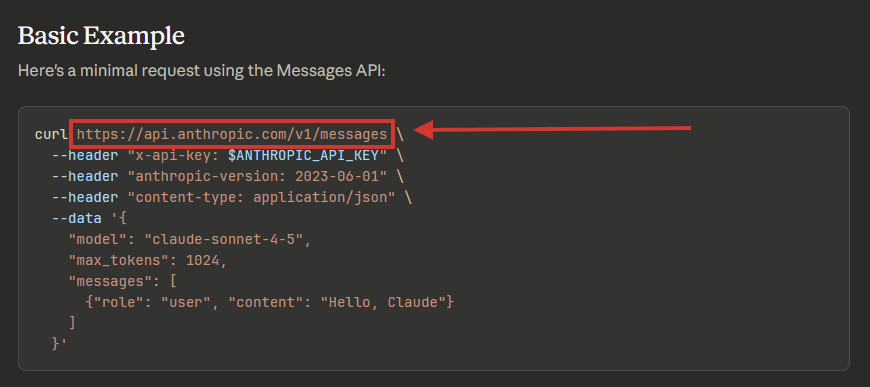
     https://api.anthropic.com/v1/messages \
     -d '{"model": "claude-sonnet-4-20250514", "max_tokens": 10, "messages": [{"role": "user", "content": "hi"}]}'
- The API key has the correct permissions. The key must have access to the models you are trying to use. If you see an error about insufficient permissions, check your Anthropic Console.
- The
apiKeyHelpercommand is outputting the key correctly. Run the command manually in your terminal to verify:
bash -c 'source .env && echo $ANTHROPIC_API_KEY'
If this outputs nothing or the wrong value, the issue is in your .env file or environment variable setup.
7. Using apiKeyHelper with managed settings (documented behavior)
In organizations that use managed settings, the apiKeyHelper setting can be configured at the managed scope. Managed settings are deployed through server-managed delivery, MDM/OS-level policies (plist on macOS, registry on Windows), or a managed-settings.json file in system directories. When set at the managed scope, apiKeyHelper cannot be overridden by user or project settings. This allows IT administrators to enforce a specific authentication method across the organization.
8. The settings file has invalid JSON (documented behavior)
If your settings.json file has invalid JSON, Claude Code rejects the entire file and reports the error. This is different from managed settings, which parse tolerantly and strip invalid entries. For user, project, and local settings, the file must be valid JSON. Use a JSON validator or an editor with JSON support to check your file.
9. The apiKeyHelper command times out (documented behavior)
If your apiKeyHelper command takes too long to execute (for example, if it makes a network call to a secrets manager that is unreachable), Claude Code may time out waiting for the output. Ensure the command completes quickly, typically within a few seconds. If you need to handle network latency, consider caching the key and refreshing it periodically using the CLAUDE_CODE_API_KEY_HELPER_TTL_MS environment variable.
10. Switching between API key and OAuth authentication (documented behavior)
If you have previously authenticated with /login, Claude Code stores the OAuth session in ~/.claude.json. When you configure apiKeyHelper, Claude Code uses the helper output instead of the stored OAuth token. If you want to switch back to OAuth, remove or comment out the apiKeyHelper setting and restart Claude Code. You can have both configured, but apiKeyHelper takes precedence for authentication.
Related Questions
How do I use Claude Code with a third-party API provider?
Claude Code supports third-party providers for model access. To use a provider other than Anthropic, you typically set the ANTHROPIC_BASE_URL environment variable to the provider's endpoint and configure apiKeyHelper to output the appropriate API key for that provider. The exact configuration depends on the provider's authentication requirements. Some providers may require additional headers or a different base URL format. Check the provider's documentation for the correct endpoint and authentication method. Claude Code sends the apiKeyHelper output as both X-Api-Key and Authorization: Bearer, so it works with providers that accept either header.
How do I set up Claude Code for CI/CD pipelines?
For CI/CD pipelines, you typically use the -p flag to run Claude Code in non-interactive mode. Set the ANTHROPIC_API_KEY environment variable in your CI/CD system's secrets store and configure apiKeyHelper to read it. For example, in a GitHub Actions workflow, you would set ANTHROPIC_API_KEY as a repository secret and then configure apiKeyHelper to echo that variable. You can also use the --no-session-persistence flag alongside -p to avoid writing session files in CI environments. For automated code review, Claude Code integrates with GitHub Actions and GitLab CI/CD.
How do I use multiple API keys for different projects?
Use project-scoped settings to assign different API keys to different projects. Create a .claude/settings.json file in each project with the appropriate apiKeyHelper configuration pointing to a project-specific .env file or environment variable. For example, Project A might have .claude/settings.json with "apiKeyHelper": "source .env && echo $ANTHROPIC_API_KEY" and Project B might have a different .env file with a different key. When you run claude in each project directory, Claude Code reads the project-level settings and uses the corresponding API key.
How do I troubleshoot when Claude Code cannot authenticate?
First, verify that your API key is valid by testing it with a direct API call using curl. If the key works with curl but not with Claude Code, check your apiKeyHelper configuration. Run the helper command manually in your terminal to ensure it outputs the correct key. Check that the settings file is valid JSON and is being loaded by running /status inside Claude Code. If you see Auth Token: apiKeyHelper but still get authentication errors, the helper command may be outputting extra whitespace or characters. Ensure the command outputs only the key with no trailing newline or extra text. You can use echo -n or pipe through tr -d '\n' to strip newlines.
The #1 Claude Newsletter
The most important claude updates, guides, and fixes — one weekly email.
No spam, unsubscribe anytime. Privacy policy
Sources & References
This page was researched from 4 independent sources, combined and verified for completeness.
- 1.Anthropic Documentation — SettingsOfficial documentation · primary source
- 2.Anthropic Documentation — OverviewOfficial documentation
- 3.Answer by ImBIOS (score 24, accepted)Stack Overflow
- 4.
Related Answers
Keep exploring Claude
Claude resources
Latest error solutions
Skip the manual work
Ready-made AI workflows and automation templates — import and run instead of building from scratch.