Google Sheets Automation Workflows
3,632 ready-made Google Sheets workflows for n8n, Make, Zapier, Activepieces, and Pipedream. Spreadsheet-driven automations: logging, reporting, syncing rows to and from every tool in your stack.
Automate LinkedIn Outreach with Unipile and Google Sheets
Streamline your LinkedIn outreach by automating contact requests and follow-up icebreakers using Unipile and Google Sheets.
n8n$19.99YouTube Comment Sentiment Analysis with Google Gemini AI and Google Sheets
This workflow automatically **collects all comments from a specified YouTube video and analyzes the sentiment of each comment using an AI model** (e.g., GPT, Claude, or Gemini). The sentiment (**Positive, Neutral, or Negative**), its strength, and confidence score are extracted and saved into a connected **Google Sheet** for easy access, reporting, and visualization. --- ### **Advantages:** **AI-Powered Sentiment Analysis** * Uses modern language models (LLMs) to categorize comments with high accuracy. **Ideal for YouTube Creators & Marketers** * Provides insights into audience perception of videos, campaigns, or products. **Real-Time Feedback Monitoring** * Quickly identify trends in viewer sentiment across large comment volumes. **Automatic Reporting** * Saves results in Google Sheets for easy sharing or dashboard integration. **Handles Pagination** * Automatically fetches all comments, even from multi-page videos. **No-Code Customization** * Easily adaptable to other platforms (e.g., TikTok, Instagram) or data sources. **Simple Setup** * Requires just a YouTube video ID and API key - no coding needed. **Loop and Update Logic** * Continuously updates sheet with new results, avoiding duplicate processing. **Modular Design** * Easy to expand (e.g., reply classification, toxic comment detection, translation). **Multi-Language Compatibility** * AI can be configured to analyze comments in different languages with minimal setup. 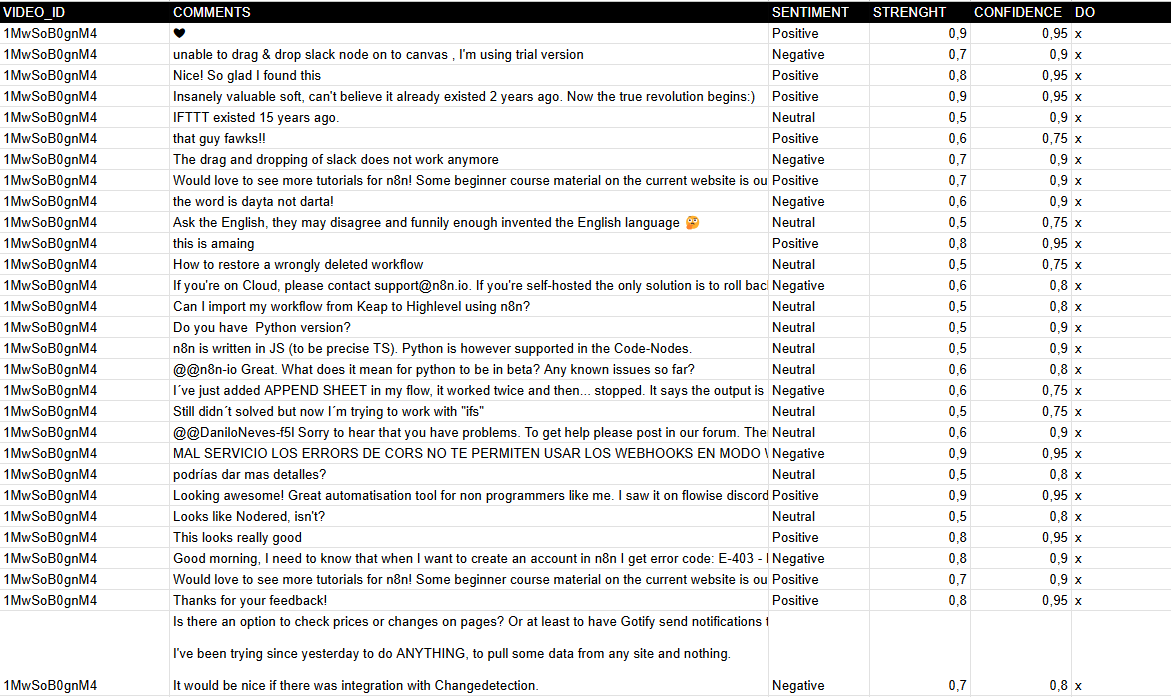 --- ### **How It Works** 1. **Trigger**: The workflow starts manually (When clicking "Test workflow") or can be scheduled. 2. **Fetch Comments**: The Get API Comments node retrieves comments from a YouTube video using the YouTube API. 3. **Process Comments**: - Extracts comments and replies via the Comments node. - Splits them into individual entries (Split comments). - Saves raw comments to Google Sheets (Save comments). 4. **Sentiment Analysis**: - Uses **Google Gemini AI** (or another model) to classify each comment as **Positive, Neutral, or Negative**. - Captures **strength** and **confidence** metrics for deeper insights. 5. **Update Results**: The Update sentiment node writes the analysis back to Google Sheets, marking processed rows. 6. **Pagination Handling**: Checks for multiple pages of comments (Multipage?) and loops until all are processed. --- ### **Set Up Steps** 1. **Prepare Google Sheet**: - Clone the template: [YouTube Comments Sheet](https://docs.google.com/spreadsheets/d/14lAY5CjoYHqqFODiLGg636Gqw4JwWqb2CX10E8ZS6Uo/edit). - Ensure columns exist: `VIDEO_ID`, `COMMENTS`, `SENTIMENT`, `STRENGTH`, `CONFIDENCE`, and `DONE` (tracking column). 2. **Configure YouTube API**: - Obtain a **YouTube API key** from [Google Developers Console](https://developers.google.com/youtube/registering_an_application). - Add it to the Get API Comments node under **Youtube Query Auth** (parameter: `key`). 3. **Set Video ID**: - Replace the default `xxxxxxxx` in the ID Video node with your target YouTube video ID. 4. **AI Integration**: - Ensure **Google Gemini API** credentials are configured in the Google Gemini node. 5. **Run the Workflow**: - Test manually or automate execution (e.g., hourly/daily) to analyze new comments. **Output**: A Google Sheet with categorized sentiments, enabling **trend analysis and audience engagement tracking**. --- ### **Need help customizing?** [Contact me](mailto:info@n3w.it) for consulting and support or add me on [Linkedin](https://www.linkedin.com/in/davideboizza/).
n8n$9.99Generate Multispeaker Podcasts with AI Natural-Sounding Voices & Google Sheets
This workflow automates the generation of multi-speaker podcasts using AI-powered text-to-speech technology. It starts by retrieving a podcast script from a Google Sheets document, where each speaker's lines are clearly defined. The workflow then processes the script, generates a natural-sounding audio file with different voices for each speaker, and stores the final audio file in Google Drive. The workflow is designed to save time and resources by automating the podcast production process, making it ideal for content creators, marketers, and businesses that need to produce high-quality audio content regularly. ### **How It Works** 1. **Triggering the Workflow**: - The workflow starts with the **When clicking the 'Test workflow'** node, which can be triggered manually to begin the process. 2. **Data Retrieval**: - The **Get Podcast Text** node retrieves data from a Google Sheets document containing the podcast script. The document includes columns for the speaker's name and the corresponding text. 3. **Data Aggregation**: - The **Get All Rows** node aggregates the data from the Google Sheets document, combining the speaker names and their respective text into a single dataset. 4. **Text Formatting**: - The **Full Podcast Text** node processes the aggregated data, formatting it into a single string where each speaker's text is prefixed with their name. 5. **Audio Generation**: - The **Create Audio** node sends a request to the API to generate a multi-speaker podcast audio file. The request includes the formatted text and specifies the voices for each speaker. When you register for the API service, you will get $1 for free. For continuous work, add API credits to your account. 6. **Status Check**: - The **Get Status** node checks the status of the audio generation request. If the status is COMPLETED, the workflow proceeds; otherwise, it waits again. 7. **Audio Retrieval**: - The **Get URL Audio** node retrieves the URL of the generated audio file. - The **Get File Audio** node downloads the audio file from the provided URL. 8. **Audio Storage**: - The **Upload Audio** node uploads the generated audio file to a specified Google Drive folder for storage. --- ### **Key Features** - **Multi-Speaker Support**: Generates podcasts with different voices for each speaker, creating a more dynamic and engaging listening experience. - **Google Sheets Integration**: Retrieves podcast scripts from a Google Sheets document, making it easy to manage and update content. - **AI-Powered Text-to-Speech**: Uses advanced AI models to generate natural-sounding audio from text. - **Automated Audio Generation**: Streamlines the process of creating podcast audio files, reducing the need for manual recording and editing. - **Google Drive Storage**: Automatically uploads the generated audio files to Google Drive for easy access and sharing. This workflow is ideal for businesses and content creators looking to automate the production of multi-speaker podcasts. It leverages AI to handle the complex task of generating natural-sounding audio, allowing users to focus on creating compelling content.
n8n$9.99Track Crypto Prices, New Listings & Transactions with CoinGecko & Google Sheets
# How It Works This workflow is a **comprehensive crypto automation system** that combines three critical functions for traders and investors into one powerful tool: ## Price Monitor - A `Cron` trigger runs on a schedule (e.g., every minute). - A `HTTP Request` node checks the cryptocurrency's price. - An `If` node compares the price against a defined threshold. - If the condition is met, a `Telegram` node sends an alert. ## New Listing Notifier - An `RSS Feed Trigger` monitors exchange announcements. - When a new listing is published, a `Telegram` node sends a real-time notification. ## Automated Crypto Transaction Logger - A second `Cron` trigger runs daily (or as scheduled). - A `HTTP Request` node fetches trade history from your exchange's API. - A `Code` node formats the transaction data. - A `Google Sheets` node logs it in your spreadsheet. --- # How to Set Up ## 1. Configure Credentials You will need credentials for: - **Telegram**: To send alerts and notifications. - **Google Sheets**: To log transaction history. - **Exchange API** (e.g., Binance): To fetch your trade history. ## 2. Customize the Price Monitor - **Node 2**: `HTTP Request (Check BTC Price)` Change the `url` to monitor a different crypto (e.g., Ethereum). - **Node 3**: `If (Price > $50k)` Adjust `rightValue` to set your target price threshold. - **Node 4**: `Telegram (Send Alert)` Replace `[YOUR TELEGRAM CHAT ID]` with your actual ID. ## 3. Customize the Listing Notifier - **Node 1**: `RSS Feed (New Listing Trigger)` Replace `feedUrl` with your preferred exchange's RSS feed. - **Node 2**: `Telegram (Listing Notif)` Replace `[YOUR TELEGRAM CHAT ID]` with your actual ID. ## 4. Customize the Transaction Logger - **Node 2**: `HTTP Request (Get Binance Trades)` Set the `url` to your exchange's trade history endpoint. Configure `headerParameters` for Authorization with your API key. - **Node 4**: `Google Sheets (Log Transactions)` Replace `[YOUR SPREADSHEET ID]` and `[YOUR SHEET NAME]` accordingly. ## 5. Final Activation Once credentials and parameters are configured: - “Save the workflow - Activate it! --- Ready to give this a visual punch with icons or a mini preview for the n8n template gallery? I can help dress it up in seconds!
n8n$14.99Automate Property Link Shortening & QR Code Generation with Google Sheets and Bitly
### How It Works This workflow automatically takes a long property URL from your Google Sheet, shortens it, generates a QR code, and then updates your sheet with the new links. 1. **Google Sheets (New/Updated Row Trigger):** The workflow starts by constantly monitoring a specified Google Sheet. It triggers when a new property listing row is added, or when an existing row's Property Link column is updated. 2. **Shorten URL (HTTP Request - Bitly):** This node takes the long property URL from the Google Sheet. It then makes an API call to a URL shortening service (like Bitly) to generate a much shorter, shareable URL. 3. **Generate QR Code (HTTP Request - QR Code API):** Using the shortened URL from the previous step, this node makes another API call to a QR code generation service. It generates an image link for a QR code that, when scanned, directs users to your property. 4. **Update Google Sheet (Update Row):** Finally, this node takes the newly generated short URL and the QR code image link and writes them back into the corresponding row in your Google Sheet. This centralizes all the necessary links for your property listings. ### How to Set Up Follow these steps carefully to get your Property Link Shortener & QR Code Generator workflow up and running in n8n: 1. **Import Workflow JSON:** - Open your n8n instance. - Click on Workflows in the left sidebar. - Click the + button or New to create a new workflow. - Click the ... (More Options) icon in the top right. - Select Import from JSON and paste the entire JSON code for this workflow. 2. **Prepare your Google Sheet:** - Create a Google Sheet with columns for your property listings. - **Crucially**, ensure you have a column for the **original long property URL** (e.g., `Property Link`), a column for the **shortened URL** (e.g., `Short URL`), a column for the **QR code image URL** (e.g., `QR Code URL`), and a **unique identifier** for each row (e.g., `Property ID`). 3. **Configure Google Sheets (New/Updated Row Trigger):** - Locate the Google Sheets (New/Updated Row Trigger) node. - **Credentials:** Select your existing Google Sheets OAuth2 credential or click Create New to set one up. - **Spreadsheet ID:** **Replace `YOUR_SPREADSHEET_ID`** with the ID of your Google Sheet. You can find this ID in the Google Sheets URL. - **Sheet Name:** Enter the exact name of the sheet (tab) within your spreadsheet (e.g., `Listings` or `Properties`). - **Trigger On:** Choose `Updated Row` and select the column where your original long property link is located (e.g., `Property Link`). This ensures the workflow runs when you add or update a property link. 4. **Configure Shorten URL (HTTP Request - Bitly):** - Locate the Shorten URL (HTTP Request - Bitly) node. - **Method:** Set to `POST`. - **URL:** `https://api-ssl.bitly.com/v4/shorten` - **Headers:** - Add `Authorization` with value `Bearer YOUR_BITLY_ACCESS_TOKEN`. (You'll need to generate a Generic Access Token from your Bitly account settings > Generic Access Token). - Add `Content-Type` with value `application/json`. - **Body:** Select `Raw` and `JSON`. - In the JSON body, enter: `{long_url: {{ $json["Property Link"] }}}`. **Ensure `Property Link` exactly matches your Google Sheet column header for the original URL.** - **Response Format:** Set to `JSON`. 5. **Configure Generate QR Code (HTTP Request - QR Code API):** - Locate the Generate QR Code (HTTP Request - QR Code API) node. - **Method:** Set to `GET`. - **URL:** `https://api.qrserver.com/v1/create-qr-code/?size=150x150&data={{ encodeURIComponent($(1. Shorten URL (HTTP Request - Bitly)).item.json.link) }}` - Here, `{{ $(1. Shorten URL (HTTP Request - Bitly)).item.json.link }}` refers to the output of the previous Bitly node. - You can adjust `size=150x150` as needed. - `encodeURIComponent` is important to handle special characters in the URL. - **Response Format:** Set to `Binary`. (This API directly returns the image, but we just need its URL which is in the `url` property of the response). 6. **Configure Update Google Sheet (Update Row):** - Locate the Update Google Sheet (Update Row) node. - **Credentials:** Select the same Google Sheets OAuth2 credential as in step 3. - **Spreadsheet ID:** Use the same `YOUR_SPREADSHEET_ID`. - **Sheet Name:** Use the same `YOUR_SHEET_NAME_E.G._Listings`. - **Key Column:** Set this to a unique identifier for your rows, e.g., `Property ID` (assuming you have one in your sheet). - **Key Column Value:** `={{ $json["Property ID"] }}`. **Make sure this matches your unique ID column from the Google Sheet.** - **Update Columns:** - Add an entry: - **Column:** `Short URL` (exact name of your short URL column in Google Sheet)
n8n$4.99Verifying Email Deliverability Using Google Sheets and Effibotics API
This workflow helps marketers verify and update data using EffiBotics Email Verifier API. Copy and create a list with emails as on this one: https://docs.google.com/spreadsheets/d/1rzuojNGaBvaUEON6cakQRDva3ueGg5kNu9v12aaSP4/edit#gid=0 The trigger checks for any updates in the number of rows that are present in a sheet and updates the verified emails on Google Sheets. Once you update a new cell, the new data is read, and the email is checked for its validity before. The results are then updated in real-time on the sheet. Happy Emailing!
n8n$4.99Filter the Feedback from Typeform and Store in Google Sheets
This workflow allows you to filter positive and negative feedback received from a Typeform and insert the data into Google Sheets.  **Typeform Trigger node:** Start the workflow when a new form is submitted via Typeform. **Set node:** Extract the information submitted in Typeform. **IF node:** Filter positive and negative reviews (i.e., ratings above or below 3 out of 5). **Google Sheets node:** Store the positive and negative reviews and ratings in two different sheets for each case.
n8n$4.99Collect and Label Images and Send to Google Sheets
This workflow collects images from a web search on a specific query, detects labels in them, and stores this information in a Google Sheet. 
n8n$4.99Template for TikTok, RapidAPI, and Google Sheets Services
### TikTok Account Monitoring Automation This n8n workflow automates the daily process of fetching TikTok account analytics using the [**TikTok API**](https://rapidapi.com/skdeveloper/api/tiktok-api42) and logging the results to **Google Sheets**. It helps marketing teams, social media managers, and influencer agencies track video performance and audience growth across multiple TikTok usernames without manual effort. --- ## Workflow Summary 1. **Trigger via Schedule** - The workflow runs automatically every day (or any custom interval), ensuring data is consistently updated without manual input. 2. **Sheet 1 - Read TikTok Usernames** - A Google Sheet stores the list of TikTok usernames you want to monitor. - Example Columns: - `username` - `category` - `priority` - `notes` 3. **Loop Through Each Username** - Each username is processed individually in a loop to make separate API calls and avoid data conflicts. 4. **Fetch Analytics via RapidAPI** - The following [**TikTok API**](https://rapidapi.com/skdeveloper/api/tiktok-api42) endpoint is used: [**`POST https://tiktok-api42.p.rapidapi.com/videos_view_count.php`**](https://rapidapi.com/skdeveloper/api/tiktok-api42) - You get per-user stats like: - Number of videos - Total views - Recent video views - This endpoint is highly stable and works without TikTok login or auth. 5. **Sheet 2 - Append Analytics Results** - Fetched data is logged in another Google Sheet for performance tracking. - Example Columns: - `username` - `total_videos` - `total_views` - `average_views` - `fetch_date` - `category` 6. **Sheet 3 - Log API History or Errors** - A third sheet stores logs of API fetch status, failures, or skipped usernames for debugging. - Example Columns: - `username` - `status` (e.g., success, failed, skipped) - `message` - `timestamp` --- ## RapidAPI Notes - You must have an API key from [**TikTok API**](https://rapidapi.com/skdeveloper/api/tiktok-api42) - All requests are made to [**`https://tiktok-api42.p.rapidapi.com`**](https://rapidapi.com/skdeveloper/api/tiktok-api42) - The main endpoint in use is: [**`POST https://tiktok-api42.p.rapidapi.com/videos_view_count.php`**](https://rapidapi.com/skdeveloper/api/tiktok-api42) - Each request uses `POST` with params like `username`, `region`, `number` - The response is JSON and easy to parse in n8n workflows --- ## Optional Extensions (Same API, More Insights) This same [**TikTok API**](https://rapidapi.com/skdeveloper/api/tiktok-api42) also supports other advanced endpoints that can be added to enrich your workflow: | Endpoint Name | Functionality | |------------------------|------------------------------------------------------------| | **User Profile Data** | Get bio, profile image, followers, likes, etc. | | **User Account Stats** | Extract detailed user metrics (likes, comments, shares) | | **User Audience Stats**| Know where their followers are from and gender split | | **Historical Data** | Track historical performance trends (useful for growth charts) | | **Hashtags Scraper** | Find trending or related hashtags used by the user | | **Related User Info** | Suggest accounts similar to the one queried | | **Videos Views Counts**| Already used to get view stats for multiple videos | Each of these can be added using **`HTTP Request`** nodes in n8n and plugged into the same sheet or separate ones. --- ## Benefits - **Fully Automated**: No manual copy-paste or login required - **Centralized Analytics**: Track all creators or clients in one dashboard - **Performance Insights**: Daily growth visibility with historical tracking - **Data Export Ready**: Stored in Google Sheets for easy share/report/export - **Scalable & Flexible**: Add hashtags, followers, or audience demographics --- ## Use Cases - **Influencer Agencies** tracking clients' TikTok growth daily - **Brands running UGC Campaigns** who want to monitor video traction - **Analysts** building dashboards from Sheet-to-DataStudio/Looker - **Marketers** analyzing viral trends or creators across niches --- ## Final Note This workflow is extendable. You can: - Merge multiple endpoints per user - Schedule it weekly or monthly - Send email summaries - Push to Slack or Google Data Studio > API Used in this workflow: > [**TikTok API**](https://rapidapi.com/skdeveloper/api/tiktok-api42)
n8n$9.99Validate & Enrich Phone Numbers in Google Sheets with RapidAPI
### Phone Number Validator with Google Sheets Validate and enrich phone numbers from Google Sheets using the [`phone number validator`](https://rapidapi.com/skdeveloper/api/phone-number-validator11) API. --- ## Use Case: Contact Validation & Enrichment Automatically check if phone numbers are valid and enrich them with metadata (country, location, timezone). Ideal for CRMs, lead management, and contact cleanup workflows. --- ## Google Sheets Columns | Column Name | Description | |-------------|-------------| | `phone` | The original phone number to validate (input column). | | `is_valid` | Result from API indicating if the phone number is valid (`true` / `false`). | | `country` | Country where the phone number is registered (e.g., US). | | `location` | More specific location info, such as city or region. | | `timezone` | The primary timezone associated with the phone number. | --- ## Benefits - **Accurate Contact Data** - Identify invalid or fake phone numbers automatically. - **Geolocation Enrichment** - Add country, location, and timezone for better segmentation. - **Full Automation** - No manual lookups or copying data between tools. - **Live Google Sheets Sync** - Enriched data is updated directly into your spreadsheet. --- ## Workflow Nodes Explained | Node | Purpose | |------|---------| | **Manual Trigger** | Starts the workflow manually from n8n. | | **Google Sheets (Read)** | Fetches phone numbers from your spreadsheet using a Service Account. | | **Split In Batches** | Loops over each row one at a time to handle individual API requests. | | **HTTP Request** | Sends phone number to [`phone number validator`](https://rapidapi.com/skdeveloper/api/phone-number-validator11) via RapidAPI and receives validation + metadata. | | **Google Sheets (Update)** | Writes the response back into the matching row using the `phone` field. | --- ## API Used: `phone number validator` We use the [`phone number validator`](https://rapidapi.com/skdeveloper/api/phone-number-validator11) API from RapidAPI to: - Validate phone numbers (real or fake?) - Identify the **country**, **location**, and **timezone** > It's fast, reliable, and great for cleaning large datasets or qualifying leads before outreach. --- ## Prerequisites - A Google Sheet with a column named `phone` - RapidAPI key with access to `phone number validator` - Google Service Account credentials set up in n8n --- ## How to Use 1. Link your Google Sheet and configure authentication 2. Add your RapidAPI key in the HTTP node headers 3. Click Execute Workflow 4. Each phone number is validated and enriched 5. Results are written back to your Google Sheet --- ## Tags `phone validation`, `rapidapi`, `google sheets`, `data enrichment`, `phone number validator`, `crm automation`, `lead cleaning`, `timezone lookup`
n8n$9.99Auto-Classify Security Incidents with GP-4 and Google Sheets for SOC Teams
## ☀ Who it's for Blue team leads, SOC analysts, and IR responders looking to automatically classify security alerts using AI-driven logic and asset-based risk signals. Ideal for teams already scoring threats via CyberScan or BlueOps Module 3, and needing to prioritize next steps across Monitor / Investigate / Isolate / Escalate playbooks. ## ℹ How it works / What it does - Reads recent endpoint alerts from Google Sheets - Sends alert data (hostname, IP, risk score) to OpenAI GP model - GP returns structured JSON with: - severity tag (Low / Medium / High / Critical) - action recommendation (Monitor / Investigate / Isolate / Escalate) - Logs the full result to a centralized incident sheet - Can be expanded to trigger automated EDR actions or email alerts ## ⚙ How to set up - Insert OpenAI API Key - Replace placeholder with your actual OpenAI secret in the HTTP Request node - Connect Sheets - Use your OAuth2 credentials to access the alerts input + classified log sheet - Tune GP Prompt - Adjust language or risk thresholds inside the Classify Incident (GP) node - Automation - Add a Cron node or Webhook to run every X minutes/hours ## 📋 Requirements - OpenAI API key (GP-4 or GP-3.5 supported) - Google Sheets (or similar DB with alerts) - n8n credentials for Sheets access - Optional: Connected playbook actions or EDR endpoint logic ## © How to customize the workflow - Swap GP with Claude, Gemini, or local LLM via API - Replace Google Sheets with Supabase or Airtable - Add a playbook router for Notify / Isolate logic - Integrate email or ticketing notification step ## ✨ This is a production-grade, AI-powered classification engine. All inputs and tags are configurable. Safe placeholders are marked clearly. ## ✨ This module is part of the CYBERPULSE BlueOps Pro automation suite. Explore the full set at ☀️🌐 cyberpulsesolutions.com/blueops
n8n$4.99Discord Channel Creation from Google Sheets with Member Notifications
# Discord Channel Creation Automation - n8n Workflow A comprehensive n8n automation that monitors Google Sheets for new project entries, automatically creates dedicated Discord channels, and sends formatted member notifications with all essential project details. ## Overview This workflow provides an automated Discord channel creation solution that eliminates manual channel setup and ensures consistent team communication. Perfect for agencies, development teams, and project-based organizations that need to streamline their Discord workspace management. ## Key Features - **Automated Monitoring:** Continuously watches Google Sheets for new entries requiring Discord channels - **Discord Integration:** Creates dedicated channels using Discord API for organized communication - **Smart Filtering:** Only processes valid entries without existing Discord channels - **Member Notifications:** Sends formatted announcements with key project details - **Status Tracking:** Updates Google Sheets with Discord channel IDs and completion status - **Sequential Processing:** Handles multiple channel requests with proper workflow sequencing - **Error Handling:** Built-in validation and error management - **Customizable Messages:** Flexible Discord notification templates ## What This Workflow Does ### Input - **Sheet Data:** New entries in Google Sheets requiring Discord channels - **Discord Configuration:** Server and category settings for channel creation - **Notification Settings:** Member notification preferences and mentions ### Processing 1. **Monitor Trigger:** Watches Google Sheets for new row additions 2. **Data Validation:** Filters entries that need Discord channel creation 3. **Channel Creation:** Creates new Discord channel with specified naming convention 4. **Sheet Update:** Records Discord channel ID and status in Google Sheets 5. **Status Check:** Verifies successful channel creation before messaging 6. **Member Notification:** Sends formatted announcement to Discord channel 7. **Additional Details:** Sends follow-up message with supplementary information 8. **Completion Tracking:** Marks channel creation process as complete ### Output Data Points | Field | Description | Example | |-------|-------------|---------| | Entry ID | Unique identifier for the entry | ENTRY-2025-001 | | Title/Name | Name or title from the sheet entry | New Marketing Campaign | | Category/Type | Category or type of entry | Marketing Project | | Discord Channel ID | ID of created Discord channel | 123456789012345678 | | Channel URL | Direct link to Discord channel | https://discord.com/channels/... | | Creation Status | Current status of channel creation process | Discord Created, Message Sent | | Timestamp | When the channel creation was completed | 2025-06-06 09:00:00Z | ## Setup Instructions ### Prerequisites - n8n instance (self-hosted or cloud) - Google account with Sheets access - Discord server with bot permissions - 10-15 minutes for setup ### Step 1: Import the Workflow 1. Copy the JSON workflow code from the provided file 2. In n8n: **Workflows** → **+ Add workflow** → **Import from JSON** 3. Paste JSON and click **Import** ### Step 2: Configure Discord Integration 1. **Create Discord Bot:** - Go to Discord Developer Portal - Create new application and bot - Copy bot token for credentials - Add bot to your Discord server with proper permissions 2. **Set up Discord credentials:** - In n8n: **Credentials** → **+ Add credential** → **Discord Bot API** - Enter your Discord bot token - Test the connection 3. **Configure Discord settings:** - Note your Discord server (guild) ID - Create or identify the category for new project channels - Update guild ID and category ID in workflow nodes ### Step 3: Configure Google Sheets Integration 1. **Create Channel Request Sheet:** - Go to Google Sheets - Create new spreadsheet named Discord Channel Requests or similar - Copy the Sheet ID from URL: `https://docs.google.com/spreadsheets/d/SHEET_ID_HERE/edit` 2. **Set up Google Sheets credentials:** - In n8n: **Credentials** → **+ Add credential** → **Google Sheets OAuth2 API** - Complete OAuth setup and test connection 3. **Prepare your data sheet with required columns:** - **Column A:** Timestamp (auto-filled by form) - **Column B:** Entry Name/Title - **Column C:** Category/Type - **Column D:** Description - **Column E:** Contact/Owner Information - **Column F:** Entry ID - **Column G:** Discord ID (will be auto-filled) - **Column H:** Discord Channel Creation Status (will be auto-filled) ### Step 4: Update Workflow Settings 1. **Update Google Sheets nodes:** - Open Monitor New Project Entries node - Replace document ID with your Sheet ID - Select your Google Sheets credential - Choose the correct sheet/tab name 2. **Update Discord nodes:** - Open all Discord nodes - Replace guild ID with your Discord server ID
n8n$9.99Automated Stale User Re-Engagement System with Supabase, Google Sheets, & Gmail
Built this workflow because most of our users signed up, then vanished after ~30 days. It runs daily, grabs those stale users from Supabase, updates a Google Sheet for tracking, and automatically sends each one a personalized HTML email through Gmail to bring them back. All fully automated - so once it's set up, it quietly does its job in the background. Currently, it only supports Supabase, but the concept should work with any DB or API if you swap out the request node.
n8n$9.99YouTube Comment Sentiment Analyzer with Google Sheets & OpenAI
# YouTube Comment Sentiment Analyzer with Google Sheets & OpenAI --- ### Who Should Use This? Influencers, marketers, and data teams who need **instant insights** into audience sentiment without manual exports or scattered tools. --- ### The Challenge - **Manual exports** from YouTube Studio - **Time-consuming** sentiment tagging - **Data scattered** across multiple platforms Our workflow automates **everything**: from fetching comments to logging analysis—so you can focus on insights, not spreadsheets. --- ### What You'll Get 1. **Dynamic Input** Read a list of YouTube URLs from your Google Sheet. 2. **Full Comment Harvest** Pull **all** top-level comments (handles pagination 100/page). 3. **Deep Sentiment Scan** Classify each comment as **Positive**, **Neutral**, or **Negative** using OpenAI. 4. **Smart Formatting** Capture metadata (author, likes, timestamp) alongside sentiment. 5. **Seamless Storage** Append or update rows in your Google Sheet—ready for reporting. --- ### Easy Setup 1. **Prepare Google Sheet** - Create a sheet with a `video_urls` column (full YouTube links). - Add and authorize a Google Sheets OAuth or service-account credential in n8n. 2. **Enable YouTube API** - Activate Data API v3 in Google Cloud, grab an API key, and save as an HTTP credential in n8n. 3. **Configure OpenAI** - Enter your API key under the “OpenAI Chat” credential in n8n. 4. **Import the Workflow** - Paste the provided JSON into n8n. 5. **Run Manually** - Use the **Manual Trigger** node to start fetching and analyzing comments on demand. --- ### Customize to Your Needs - **Filter Comments**: Add an IF node to process only comments with specific keywords or minimum likes. - **Automate Schedule**: Swap the Manual Trigger for a Cron node if you later want periodic runs. - **Extended Analysis**: Swap sentiment classification for topic extraction, summarization, or translation by tweaking the LLM prompt. - **Alternate Destinations**: Replace Google Sheets with Airtable, Notion, or any database node. --- ### Tags ``YouTube`` ``Google Sheets`` ``OpenAI`` ``Sentiment Analysis`` ``n8n`` ``Manual Trigger``
n8n$14.99Track n8n Community Topics with Keywords and Save to Google Sheets
This template is designed for community managers, developers, and enthusiasts who want to monitor and capture discussions on the n8n community forum by specific keywords. By tracking new topics that match your provided keyword, the workflow automatically logs them into a Google Sheet, helping you keep a pulse on trending discussions and manage community insights effortlessly. ### How it Works **Keyword Monitoring:** The workflow continuously monitors the n8n community forum for new topics containing your specified keyword. **Data Extraction:** When a matching topic is found, relevant details such as id, title, URL, and posting time are extracted. **Google Sheets Integration:** The extracted information is automatically appended as a new row in your Google Sheet, providing an organized log of community discussions. **Alert Option:** Optionally, you can add notifications (e.g., Slack messages or emails) to alert you when a new topic is captured, ensuring you never miss an important update. ### Set Up Steps **Import the Workflow:** Download and import the workflow into your n8n instance. **Configure Keyword Monitoring:** In the HTTP Request node, set your desired keyword to filter the n8n community topics. **Set Up Google Sheets:** Connect your Google Sheets account and specify the target sheet where the new topics should be logged. **Customize Data Fields:** Adjust the data extraction node parameters if you wish to capture additional details from each topic. **Deploy and Test:** Deploy the workflow and perform a test run to confirm that new topics matching the keyword are correctly added to your Google Sheet. **Set Up Messaging Channels (Optional):** Connect to Slack, Email, or other providers to get instant messages when new topics are added into your Google Sheet. This template streamlines the process of tracking community discussions, ensuring you have timely and organized insights to enhance your community engagement and strategic decision-making. Enjoy seamless monitoring and easy data management with this ready-to-use n8n workflow template!
n8n$9.99Summarize Google Sheets Form Feedback via OpenAI's GPT-4
This n8n workflow was developed to collect and summarize feedback from an event that was collected via a Google Form and saved in a Google Sheets document. The workflow is triggered manually by clicking on the **Test workflow** button. The Google Sheets node retrieves the responses from the feedback form. The Aggregate node then combines all responses for each question into arrays and prepares the data for analysis. The OpenAI node processes the aggregated feedback data. System Prompt instructs the model to analyze the responses and generate a summary report that includes the overall sentiment regarding the event and constructive suggestions for improvement. The Markdown node converts the summary report, which is in Markdown format, into HTML. Finally, the Gmail node sends an HTML-formatted email to the specified email address.
n8n$9.99Automate Support QA Reviews with Intercom, GPT, and Google Sheets
## How it works This workflow automates QA review of Intercom support conversations by: - Triggering on `conversation.admin.closed` events via a webhook - Fetching full conversation data using Intercom API - Structuring and summarizing the conversation into a readable transcript - Using GPT to evaluate: - Response time - Clarity - Tone & behavior - Urgency handling - Ownership & resolution - Logging structured QA scores in a Google Sheet - Providing coaching-style feedback if the rating is 3 or below --- ## Setup steps - Configure your Intercom and OpenAI credentials in n8n - Set up the webhook in Intercom to post on conversation close - Use your OpenAI API key for the GPT-based nodes - Connect your Google Sheet (or replace with another data sink) - Add your own filtering logic for spam/promotional tickets if needed *Note: This workflow contains sticky notes to explain each step inside the n8n canvas.*
n8n$14.99Automate Technology Stack Data Transfer from BuiltWith to Google Sheets
Streamline the process of exporting technology stack data from BuiltWith to Google Sheets for efficient analysis and collaboration. This workflow automates data extraction, organization, and updates, supporting multiple company tracking.
n8n$9.99Analyze BeyondPresence Video Calls with GP-40-mini and Google Sheets
Transform your [BeyondPresence](https://app.bey.chat/settings) video agent conversations into comprehensive insights by automatically analyzing each call with AI and organizing 35+ data points in Google Sheets. This template helps customer success, support, and training teams save 30+ minutes per call on documentation while ensuring no critical action items or insights are missed. ## How it works - **Webhook receives** completed call data from BeyondPresence including full transcript - **Data validation** ensures quality and adds enriched metadata (duration, time calculations) - **AI analysis** (GPT-4) extracts action items, sentiment, decisions, and recommendations - **Parse response** handles the AI output and structures it for sheets - **Auto-append** to Google Sheets with 35+ insights per call organized beautifully ## Set up steps 1. **Copy our Google Sheets template** - One click! Get pre-formatted sheet: [BeyondPresence Call Analytics Template](https://docs.google.com/spreadsheets/d/1O6-jkCtoSFNLJObtN0UyklgdUd3ZxEnUaNvUaBjpvo/copy) 2. **Connect accounts** - Add OpenAI API key and Google Sheets OAuth2 3. **Configure webhook** - Copy URL from n8n to [BeyondPresence Settings](https://app.bey.chat/settings) → Webhooks 4. **Customize AI prompt** (optional) - Adjust analysis focus for your use case 5. **Test with a call** - Make a test call and watch insights appear! **Setup time**: 5-10 minutes **Requirements**: BeyondPresence account, OpenAI API key, Google account
n8n$9.99Automate Company Research Using ProspectLens and Google Sheets
This n8n workflow automates the process of researching companies by gathering relevant data such as traffic volume, foundation details, funding information, founders, and more. The workflow leverages the [ProspectLens API](https://prospectlens.net), which is particularly useful for researching companies commonly found on Crunchbase and LinkedIn. **ProspectLens** is an API that provides very detailed company data. All you need to do is supply the company's domain name. You can obtain your ProspectLens API key here: [https://apiroad.net/marketplace/apis/prospectlens](https://apiroad.net/marketplace/apis/prospectlens) In n8n, create a new HTTP Header credential. Set `x-apiroad-key` as the Name and enter your APIRoad API key as the Value. Use this credential in the HTTP Request node of the workflow. 
n8n$4.99Add Google Sheets Data to the Mautic Contact
Automatically import the name and email from Google Sheets to the Mautic contact each time the lead is added to the sheet.
n8n$4.99Convert Google Sheets Text to Audio Files and Save to Google Drive
Automatically transform text from new Google Sheets rows into audio files using Google Text-to-Speech and store them in Google Drive.
Make$3.99Automate Google Search Rank Tracking with Bright Data, Google Sheets, and Gmail
This workflow automates the process of tracking keyword rankings on Google Search using Bright Data's SERP API. Results are logged in Google Sheets and emailed via Gmail, providing a seamless solution for SEO monitoring.
n8n$9.99Create an Invoice in Google Sheets Based on Typeform Submission
This n8n workflow triggers when a new Typeform submission is received. It extracts the data, creates a formatted invoice row in Google Sheets, and optionally sends a notification via Slack or an email. Conditional logic ensures only complete submissions are processed. Ideal for freelancers or small businesses needing to automate order-to-invoice steps without manual entry.
n8n$4.99
More integrations
Custom AI Systems & Services
Our team of experienced AI builders will help build custom AI systems, workflows, and solutions.
Request Custom Work