OpenAI Automation Workflows
899 ready-made OpenAI workflows for n8n, Make, Zapier, Activepieces, and Pipedream. GPT-powered enrichment, generation, and classification inside your automations.
n8n Documentation: Expert Chatbot with OpenAI RAG Pipeline
# How It Works This template is a complete, hands-on tutorial for building a **RAG (Retrieval-Augmented Generation)** pipeline. In simple terms, you'll teach an AI to become an expert on a specific topic—in this case, the official **n8n documentation**—and then build a chatbot to ask it questions. Think of it like this: instead of a general-knowledge AI, you're building an **expert librarian**. --- ## Workflow Overview The workflow is split into two main parts: ### Part 1: Indexing the Knowledge (Building the Library) This is a **one-time process** you run manually. The workflow will: - Automatically scrape all pages of the **n8n documentation**. - Break them down into small, digestible chunks. - Use an AI model to create a numerical representation (an **embedding**) for each chunk. - Store these embeddings in **n8n's built-in Simple Vector Store**. > This is like a librarian reading every book and creating a hyper-detailed index card for every paragraph. > **Important:** This in-memory knowledge base is **temporary**. It will be erased if you restart your n8n instance. You'll need to run the indexing process again in that case. --- ### Part 2: The AI Agent (The Expert Librarian) This is the **chat interface**. When you ask a question: 1. The AI agent **doesn't guess** the answer. 2. It searches the knowledge base to find the most relevant "index cards" (chunks). 3. It feeds those chunks to a language model (**Gemini**) with strict instructions: > "Answer the user's question using ONLY this information." This ensures answers are accurate, factual, and grounded in your documents. --- ## Setup Steps > **Total setup time**: ~2 minutes > **Indexing time**: ~15-20 minutes This template uses **n8n's built-in tools**, so no external database is needed. ### 1. Configure OpenAI Credentials - You'll need an **OpenAI API key** (for GPT models). - In your n8n workflow: - Go to any of the three OpenAI nodes (e.g., `OpenAI Chat Model`). - Click the **Credential** dropdown → `+ Create New Credential`. - Enter your OpenAI API key and **save**. ### 2. Apply Credentials to All Nodes - Your new credential is now saved. - Go to the other two OpenAI nodes (e.g., `OpenAI Embeddings`) and select the newly created credential from the dropdown. ### 3. Build the Knowledge Base - Find the **Start Indexing** manual trigger node (top-left of the workflow). - Click the **Execute Workflow** button to start indexing. > **Be patient**: This takes 15-20 minutes to scrape and process the full documentation. > You only need to do this **once per n8n session**. ### 4. Chat With Your Expert Agent - After indexing completes, **activate** the entire workflow (toggle at the top). - Open the **RAG Chatbot** chat trigger node (bottom-left). - Copy its **Public URL**. - Open it in a new tab and ask questions about n8n! Example questions: - How does the IF node work? - What is a sub-workflow? --- ## Credits All credits go to **Lucas Peyrin** — [lucaspeyrin on n8n.io](https://n8n.io/creators/lucaspeyrin/)
n8n$24.99Automated AI Degree Audit Using Google Sheets and OpenAI
This workflow automates the degree audit process for senior students by leveraging AI to evaluate completed courses against program requirements, providing a comprehensive summary of remaining credits and courses directly in Google Sheets.
n8n$9.99Integrate Custom Knowledge into AI Agents Using RAG and OpenAI
This workflow demonstrates how to integrate custom knowledge into AI agents using Retrieval-Augmented Generation (RAG) with OpenAI in n8n. Upload your documents to create a knowledge base that enhances your AI's capabilities.
n8n$9.99Automate Instagram Image Analysis with Apify, OpenAI, and Google Sheets
This workflow automates the process of analyzing Instagram images using Apify for scraping, OpenAI for visual analysis, and Google Sheets for data management, all within n8n.
n8n$9.99Automate Blog Post Creation from Keywords Using Dumpling AI, OpenAI, and Google Docs
Effortlessly transform keywords into complete blog posts by automating the research, content generation, and formatting processes with Dumpling AI, OpenAI, and Google Docs.
n8n$14.99Summarize Content from URLs, Text & PDFs Using OpenAI
# AI Content Summarizer Suite This n8n template collection demonstrates how to build a comprehensive AI-powered content summarization system that handles multiple input types: URLs, raw text, and PDF files. Built as 4 separate workflows for maximum flexibility. Use cases include research workflows, content curation, document processing, meeting prep, social media content creation, or integrating smart summarization into any app or platform. ## How it works - Multi-input handling: Separate workflows for URLs (web scraping), direct text input, and PDF file processing. - Smart PDF processing: Attempts text extraction first, falls back to OCR.Space for image-based PDFs. - AI summarization: Uses OpenAI's GPT-4.1-mini with customizable length (brief/standard/detailed) and focus areas (key points/numbers/conclusions/action items). - Language support: Multi-language summaries with automatic language detection. - Flexible output: Returns clean markdown-formatted summaries via webhook responses. - Unified option: The all-in-one workflow automatically detects input type and routes accordingly. ## How to use 1. Replace webhook triggers with your preferred method (manual, form, API endpoint). 2. Each workflow accepts different parameters: URL, text content, or file upload. 3. Customize summary length and focus in the AI prompt nodes. Authentication is optional - switch to none if running internally. 4. Perfect for integration with Bubble, Zapier, or any platform that can make HTTP requests. ## Requirements - OpenAI API key or OpenRouter Keys. - OCR.Space API key (for PDF fallback processing). - n8n instance (cloud or self-hosted). - Any platform that can make HTTP requests. ## Setup Steps 1. Replace Dummy OpenAI with your OpenAI credentials. 2. Add your OCR.Space API key in the OCR nodes. It is not mandatory. 3. Update webhook authentication as needed. 4. Test each workflow path individually.
n8n$24.99Automate Cold Calling Pipeline with Apify, OpenAI, and WhatsApp
This workflow automates the cold calling process by integrating web scraping, AI-driven research, and WhatsApp messaging to create personalized outreach campaigns.
n8n$19.99Build an OpenAI RAG system with document upload, semantic search and caching
## Overview This workflow implements a complete Retrieval-Augmented Generation (RAG) system for document ingestion and intelligent querying. It allows users to upload documents, convert them into vector embeddings, and query them using natural language. The system retrieves relevant document context and generates accurate AI responses while using caching to improve performance and reduce costs. This workflow is ideal for building AI knowledge bases, document assistants, and internal search systems. --- ## How It Works ### 1. Input & Configuration - Receives requests via webhook (`rag-system`) - Supports two actions: - `upload` → process documents - `query` → answer questions - Defines: - Chunk size & overlap - TopK retrieval count - Database table names --- ### Document Upload Flow 2. **Text Extraction** - Extracts text from uploaded PDF documents 3. **Text Chunking** - Splits text into overlapping chunks for better retrieval accuracy 4. **Document Structuring** - Converts chunks into structured documents 5. **Embedding Generation** - Generates vector embeddings using OpenAI 6. **Vector Storage** - Stores embeddings in PGVector (Postgres) 7. **Upload Logging** - Logs document metadata (user, filename, timestamp) 8. **Response** - Returns success message via webhook --- ### Query Flow 9. **Cache Check** - Checks if query result exists in cache (last 1 hour) 10. **Cache Routing** - If cached → return cached response - If not → proceed to retrieval --- ### Cache Hit Flow 11. **Format Cached Response** - Standardizes cached output format 12. **Respond to User** - Returns cached answer with `cached: true` --- ### Cache Miss Flow 13. **Vector Retrieval** - Retrieves top relevant document chunks from PGVector 14. **AI Answer Generation** - Uses LLM with retrieved context - Generates accurate, context-based answer 15. **Cache Storage** - Saves query + response in database for reuse 16. **Response** - Returns generated answer with `cached: false` --- ## Setup Instructions 1. **Webhook Setup** - Configure endpoint (`rag-system`) - Send payload with: - `action`: upload / query - `user_id` - `document` or `query` 2. **OpenAI Setup** - Add API credentials for: - Embeddings - Chat model 3. **Postgres + PGVector** - Enable PGVector extension - Create tables: - `documents` - `query_cache` - `upload_log` 4. **Configure Parameters** - Adjust: - Chunk size (e.g., 1000) - Overlap (e.g., 200) - TopK (e.g., 5) 5. **Optional Enhancements** - Add authentication layer - Add multi-tenant filtering (user_id) --- ## Use Cases - AI document search systems - Internal knowledge base assistants - Customer support knowledge retrieval - Legal or compliance document analysis - SaaS AI chat with custom data --- ## Requirements - OpenAI API key - Postgres database with PGVector - n8n instance (cloud or self-hosted) --- ## Key Features - Full RAG architecture (upload + query) - PDF document ingestion pipeline - Semantic search with vector embeddings - Context-aware AI responses - Query caching for performance optimization - Multi-user support via metadata filtering - Scalable and modular design --- ## Summary A complete RAG-based AI system that enables document ingestion, semantic search, and intelligent query answering. It combines vector databases, LLMs, and caching to deliver fast, accurate, and scalable AI-powered knowledge retrieval.
n8n$24.99Optimize and Generate AI System Prompts with OpenAI in n8n
This workflow refines draft prompts into optimized system prompts and suggests the best OpenAI model based on specific needs, enhancing clarity and actionability.
n8n$4.99Automate Your Personalized Tech Newsletter with RSS, OpenAI, and Gmail
This n8n workflow automates the creation of a personalized tech newsletter by collecting, summarizing, and emailing top tech news from RSS feeds using OpenAI and Gmail.
n8n$14.99AI-Powered Short-Form Video Generator with OpenAI, Flux, Kling, and ElevenLabs
## Who is this for? Content creators, digital marketers, and social media managers who want to automate the creation of short-form videos for platforms like TikTok, YouTube Shorts, and Instagram Reels without extensive video editing skills. ## What problem does this workflow solve? Creating engaging short-form videos consistently is time-consuming and requires multiple tools and skills. This workflow automates the entire process from ideation to publishing, significantly reducing the manual effort needed while maintaining content quality. ## What this workflow does This all-in-one solution transforms ideas into fully produced short-form videos through a 5-step process: 1. **Generate video captions** from ideas stored in a Google Sheet 2. **Create AI-generated images** using Flux and the OpenAI API 3. **Convert images to videos** using Kling's API 4. **Add voice-overs** to your content with Eleven Labs 5. **Complete the video production** with Creatomate by adding templates, transitions, and combining all elements The workflow handles everything from sourcing content ideas to rendering the final video, and even notifies you on Discord when videos are ready. ## Setup (Est. time: 20-30 minutes) Before getting started, you'll need: - [n8n installation](https://n8n.partnerlinks.io/n8nVideoGenemplate) (tested on version 1.81.4) - [OpenAI API Key](https://platform.openai.com/api-keys) (free trial credits available) - [PiAPI](https://piapi.ai/?via=n8n) (free trial credits available) - [Eleven Labs](https://try.elevenlabs.io/n8n) (free account) - [Creatomate API Key](https://creatomate.com/) (free trial credits available) - Google Sheets API enabled in [Google Cloud Console](https://console.cloud.google.com/apis/api/sheets.googleapis.com/overview) - Google Drive API enabled in [Google Cloud Console](https://console.cloud.google.com/apis/api/drive.googleapis.com/overview) - OAuth 2.0 Client ID and Client Secret from your [Google Cloud Console Credentials](https://console.cloud.google.com/apis/credentials) ## How to customize this workflow to your needs - Adjust the Google Sheet structure to include additional data like video length, duration, style, etc. - Modify the prompt templates for each AI service to match your brand voice and content style - Update the Creatomate template to reflect your visual branding - Configure notification preferences in Discord to manage your workflow This workflow combines multiple AI technologies to create a seamless content production pipeline, saving you hours of work per video and allowing you to focus on strategy rather than production.
n8n$24.99Scrape Business Leads from Google Maps Using OpenAI and Google Sheets
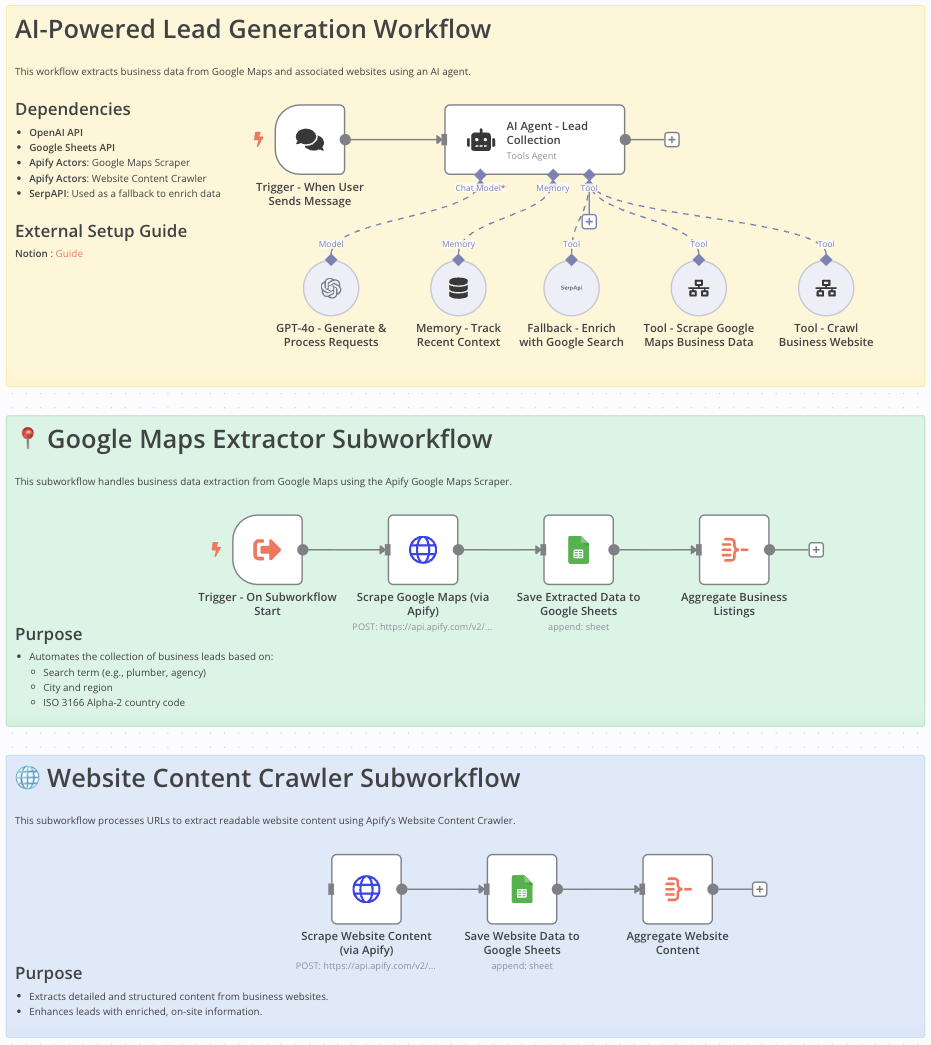 # Google Maps Data Extraction Workflow for Lead Generation This workflow is ideal for **sales teams, marketers, entrepreneurs, and researchers** looking to efficiently gather detailed business information from Google Maps for: - Lead generation - Market analysis - Competitive research --- # Who Is This Workflow For? - **Sales professionals** aiming to build targeted contact lists - **Marketers** looking for localized business data - **Researchers** needing organized, comprehensive business information --- # Problem This Workflow Solves Manually gathering business contact details from Google Maps is: - Tedious - Error-prone - Time-consuming This workflow **automates** data extraction to **increase efficiency, accuracy, and productivity**. --- # What This Workflow Does - Automates extraction of business data (name, address, phone, email, website) from **Google Maps** - Crawls and extracts **additional website content** - Integrates **OpenAI** to enhance data processing - Stores structured results in **Google Sheets** for easy access and analysis - Uses **Google Search API** to fill in missing information --- # Setup 1. **Import** the provided n8n workflow JSON into your **n8n instance**. 2. Set your **OpenAI** and **Google Sheets API** credentials. 3. Provide your **Google Maps Scraper** and **Website Content Crawler** API keys. 4. Ensure **SerpAPI** is configured to enhance data completeness. --- # Customizing This Workflow to Your Needs - Adjust scraping parameters: - Location - Business category - Country code - Customize **Google Sheets output format** to fit your current data structure - Integrate additional **AI processing steps or APIs** for richer data enrichment --- # Final Notes This structured approach ensures: - **Accurate and compliant data extraction** from Google Maps - Streamlined **lead generation** - Actionable and well-organized data ready for business use ➜ **Documentation**: [Notion Guide](https://automatisation.notion.site/GOOGLE-MAPS-SCRAPER-1cc3d6550fd98005a99cea02986e7b05?pvs=4) ## Demo Video Watch the full tutorial here: [YouTube Demo](https://www.youtube.com/watch?v=DoBRufiwElU)
n8n$14.99Automate Multilingual News Summarization with NewsAPI, OpenAI, and Google Sheets
This workflow automatically gathers the latest news articles from English and Japanese sources using NewsAPI, summarizes them with OpenAI, and stores the results in Google Sheets. It provides concise summaries in Japanese, facilitating quick review of news highlights.
n8n$14.99Index Legal Documents for Hybrid Search Using Qdrant, OpenAI, and BM25
Transform and index a legal dataset into Qdrant for hybrid retrieval, combining dense and sparse vectors for semantic and keyword-based searches.
n8n$19.99AI-Generated LinkedIn Posts with OpenAI, Google Sheets, & Email Approval Workflow
### How it works This workflow automates the process of creating, approving, and optionally posting LinkedIn content from a Google Sheet. Here's a high-level overview: 1. **Scheduled Trigger**: Runs automatically based on your defined time interval (daily, weekly, etc.). 2. **Fetch Data from Google Sheets**: Pulls the first row from your sheet where Status is marked as Pending. 3. **Generate LinkedIn Post Content**: Uses OpenAI to create a professional LinkedIn post using the Post Description and Instructions from the sheet. 4. **Format & Prepare Data**: Formats the generated content along with the original instruction and post description for email. 5. **Send for Approval**: Sends an email to a predefined user (e.g., marketing team) with a custom form for approval, including a dropdown to accept/reject and an optional field for edits. 6. **(Optional) Image Fetch**: Downloads an image from a URL (if provided in the sheet) for future use in post visuals. ### Set up steps You'll need the following before you start: - A Google Sheet with the following columns: Post Description, Instructions, Image (URL), Status - Access to an OpenAI API key - A connected Gmail account for sending approval emails - Your own Google Sheets and Gmail credentials added in n8n ### Steps: 1. **Google Sheet Preparation**: - Create a new Google Sheet with the mentioned columns (Post Description, Instructions, Image, Status, Output, Post Link). - Add a row with test data and set Status to Pending. 2. **Credentials**: - In n8n, create OAuth2 credentials for: a. Google Sheets b. Gmail c. OpenAI (API Key) - Assign these credentials to the respective nodes in the JSON. 3. **OpenAI Model**: - Choose a model like gpt-4o-mini (used here) or any other available in your plan. - Adjust the prompt in the Generate Post Content node if needed. 4. **Email Configuration**: - In the Gmail node, set the recipient email to your own or your team's address. - Customize the email message template if necessary. 5. **Schedule the Workflow**: - Set the trigger interval (e.g., every morning at 9 AM). 6. **Testing**: - Run the workflow manually first to confirm everything works. - Check Gmail for the approval form, respond, and verify the results.
n8n$14.99Automate Competitor Pricing Monitoring with Bright Data and OpenAI in n8n
This workflow automates the monitoring of competitor pricing changes using Bright Data for web scraping and OpenAI for intelligent data extraction, updating Google Sheets only when changes are detected.
n8n$14.99Automate Content Marketing Insights with OpenAI and Multi-Platform Integration
Enhance your content strategy with automated competitor intelligence and AI-driven recommendations. This workflow monitors competitor content, tracks trending keywords, extracts audience insights, and generates strategic recommendations, integrating seamlessly with Airtable, Notion, and Slack.
n8n$14.99Automate Self-Updating RAG System with OpenAI, Google Drive, and Qdrant
This workflow automates a Retrieval-Augmented Generation (RAG) system, integrating Google Drive, Qdrant, and AI models to maintain a self-updating knowledge base for precise, context-aware responses.
n8n$19.99Daily News Digest: Summarize RSS Feeds with OpenAI and Deliver to WhatsApp
This n8n workflow collects and summarizes news from multiple RSS feeds, using OpenAI to generate a concise summary that can be sent to WhatsApp or other destinations. Perfect for automating your daily news digest. **Workflow Breakdown:** - **Schedule Trigger** - Start the workflow on your desired schedule (daily, hourly, etc.). Note: Set the trigger however you wish. - **RSS Feeds (My RSS 01-04)** - Fetches articles from four different RSS sources. Note: You can add as many RSS feeds as you want. - **Edit Fields (Edit Fields 1-3)** - Normalizes RSS fields (title, link, etc.) to ensure consistency across different sources. - **Merge (append mode)** - Combines the RSS items into a single unified list. - **Filter** - Optionally filter articles by keywords, date, or categories. - **Limit** - Limits the analysis to the 10 most recent articles. Note: This keeps the result concise and avoids overloading the summary. - **Aggregate** - Prepares the selected news for summarization by combining them into a single content block. - **OpenAI (Message Assistant)** - Summarizes the aggregated news items in a clean and readable format using AI. - **Send Summary to WhatsApp** - Sends the AI-generated summary to a WhatsApp endpoint via webhook (yoururlapi.com). You can replace this with an email service, Google Drive, or any other destination. Note: You can send it to your WhatsApp API, email, drive, etc. - **No Operation (End)** - Final placeholder to safely close the workflow. You may expand from here if needed.
n8n$14.99Automate Cinematic Video Creation from Text Prompts Using n8n, OpenAI, and Fal.AI
This n8n workflow transforms text prompts into multi-scene cinematic videos using OpenAI and Fal.AI. Ideal for content creators and educators, it automates the generation of AI-driven videos with ambient sound, ready for platforms like YouTube.
n8n$24.99AI-Powered Cold Call Machine with LinkedIn, OpenAI & Sales Navigator
# AI-Powered Cold Call Machine ## Purpose The **AI-Powered Cold Call Machine** is a fully automated workflow designed to generate **qualified leads from LinkedIn**, evaluate them using **AI-based scoring**, identify key decision-makers, and generate **personalized cold call scripts**. All results are saved to a Google Sheet-based CRM. --- ## How It Works ### 1. **Initialization** - Triggered either **manually** or via **schedule**. - Pulls configuration from a Google Sheets **Settings** tab (e.g., target product, keywords, company size, API key). ### 2. **Company Search on LinkedIn** - Uses the **Ghost Genius API** to search for companies based on cleaned, relevant keywords extracted by **OpenAI**. - Handles pagination, up to **1000 companies per batch**. ### 3. **Company Filtering** Each company goes through: - Data enrichment via Ghost Genius (website, size, followers, etc.). - Filtering: - Must have a **LinkedIn page with a website**. - Must have **200+ followers**. - Deduplication: checks if the company already exists in the CRM. ### 4. **AI-Based Company Scoring** - A specialized **AI model scores each company** from 0 to 10 based on: - Industry fit. - Size/location alignment. - Potential pain points that match your offering. - If the company is **new and relevant (score ≥ 7)**, it is saved in the **Companies** sheet. ### 5. **Decision Maker Identification** - Uses **Sales Navigator API** (via Ghost Genius) to find employees with targeted job titles. - For each matching profile: - Enriches contact data (title, bio, etc.). - Retrieves phone number (if available). - Generates a **20-second personalized cold call script** using OpenAI, based on company and profile data. - Saves all information in the **Leads** tab of the CRM. - If no decision maker is found, the company status is marked accordingly. --- ## Outcome - A fully enriched, **qualified lead database**. - **Custom cold call scripts** ready to be used by SDRs or founders. - Zero manual work - from search to lead generation, everything is **automated**. --- ## Use Case Perfect for SDRs, founders, or growth marketers looking to **scale cold outreach** without sacrificing personalization or running into LinkedIn scraping limits. ---
n8n$24.99Build a WhatsApp AI Chatbot with Supabase, OpenAI, and Gemini 2.5 Flash
Create a WhatsApp-based AI chatbot using document retrieval with Supabase, OpenAI embeddings for semantic search, and Gemini 2.5 Flash for generating responses.
n8n$14.99Beginner's Outlook Calendar Summary with OpenAI
A step-by-step demo that shows **how to pull your Outlook calendar events for the week and ask GP-4o to write a short summary**. Along the way, you'll practice basic data-transform nodes (Code, Filter, Aggregate) and see where to attach the required API credentials. --- ## 1. Manual Trigger - *Run Workflow* | Why | Lets you click “Execute” in the n8n editor so you can test each change. | | --- | --- | --- ## 2. Get Outlook Events - *Get many events* 1. **Node type:** `Microsoft Outlook – Event – Get All` 2. **Fields selected:** `subject`, `start` 3. **API setup (inside this node):** - Click **Credentials – Microsoft Outlook OAuth2 API** - If you haven't connected before: 1. Choose **“Microsoft Outlook OAuth2 API” – “Create New”**. 2. Sign in and grant the **Calendars.Read** permission. 3. Save the credential (e.g., **“Microsoft Outlook account”**). 4. **Output:** A list of events with the raw ISO start time. > **Teaching moment:** Outlook returns a full `datetime` string. We'll normalize it next so it's easy to filter. --- ## 3. Normalize Dates - *Convert to Date Format* ```js // Code node contents return $input.all().map(item => { const startDatetime = new Date(item.json.start.datetime); const formattedDate = startDatetime.toISOString().split('T')[0]; // YYYY-MM-DD return { json: { ...item.json, startDateFormatted: formattedDate } }; }); ``` ### 4. Filter the Events Down to This Week After we've normalized the `start` date-time into a simple `YYYY-MM-DD` string, we drop in a **Filter** node. Add one rule for every day you want to keep—for example `2025-08-07` **or** `2025-08-08`. Rows that match any of those dates will continue through the workflow; everything else is quietly discarded. *Why we're doing this:* we only want to summarize tomorrow's and the following day's meetings, not the entire calendar. --- ### 5. Roll All Subjects Into a Single Item Next comes an **Aggregate** node. Tell it to aggregate the `subject` field and choose the option *“Only aggregated fields.”* The result is one clean item whose `subject` property is now a tidy list of every meeting title. It's far easier (and cheaper) to pass one prompt to GP than dozens of small ones. --- ### 6. Turn That List Into Plain Text Insert a small **Code** node right after the aggregation: ```js return [{ json: { text: items .map(item => JSON.stringify(item.json)) .join('\n') } }]; ``` Need a Hand? I'm always happy to chat about automation, n8n, or Outlook API quirks. Robert Breen - Automation Consultant & n8n Instructor - robert@ynteractive.com | LinkedIn
n8n$9.99AI-Powered Zendesk Support Responses with RAG, OpenAI, and Supabase Knowledge Base
How it works This workflow automates first responses to new Zendesk tickets with the help of AI and your internal knowledge base. - Webhook trigger fires whenever a new ticket is created in Zendesk. - Ticket details (subject, description, requester info) are extracted. - Knowledge base retrieval - the workflow searches a Supabase vector store (with OpenAI embeddings) for the most relevant KB articles. - AI assistant (RAG agent) drafts a professional reply using the retrieved KB and conversation memory stored in Postgres. **Decision logic:** - If no relevant KB info is found (or if it's a sensitive query like KYC, refunds, or account deletion), the workflow sends a fallback response and tags the ticket for human review. - Otherwise, it posts the AI-generated reply and tags the ticket with ai_reply. Logging & context memory ensure future ticket updates are aware of past interactions. --- **Set up steps** This workflow takes about 15-30 minutes to set up. 1. Connect credentials for Zendesk, OpenAI, Supabase, and Postgres. 2. Prepare your knowledge base: store support content in Supabase (documents table) and embed it using the provided Embeddings node. 3. Set up Postgres memory table (zendesk_ticket_histories) to store conversation history. 4. Update your Zendesk domain in the HTTP Request nodes (<YOUR_ZENDESK_DOMAIN>). 5. Deploy the webhook URL in Zendesk triggers so new tickets flow into n8n. 6. Test by creating a sample ticket and verifying: - AI replies appear in Zendesk - Correct tags (ai_reply or human_requested) are applied - Logs are written to Postgres
n8n$9.99
More integrations
Need a custom OpenAI workflow?
Our automation experts build tailored OpenAI integrations for your exact stack.
Request a Custom Workflow