Google Sheets Automation Workflows
3,632 ready-made Google Sheets workflows for n8n, Make, Zapier, Activepieces, and Pipedream. Spreadsheet-driven automations: logging, reporting, syncing rows to and from every tool in your stack.
Extract Business Data from Google Maps via Chat to Excel and Google Sheets
## Who is this for This workflow is designed for marketers, researchers, and business owners who need to quickly find and export company data from Google Maps into a structured table format. ## What problem is this workflow solving Manually collecting business contact information from Google Maps is time-consuming and error-prone. This workflow automates the process, allowing users to instantly extract company data and export it to Excel or Google Sheets for further use. For example, title, rating, reviews, address, operating hours, phone, website, type, GPS coordinates. ## What this workflow does - Takes a user's search query via chat - Scrapes company data from Google Maps based on that query - Returns the results in a downloadable Excel file - Saves the same data to a connected Google Sheets document for easy access and sharing ## Setup 1. Add your credentials: - Google Sheets API - Google Maps API 2. Run the workflow and enter your search request in the chat interface 3. Retrieve your results from either: - The Get XLSX node as an Excel file - The linked Google Sheets file
n8n$9.99Create a Context-Aware Slack Assistant with Google Sheets, Pinecone & GPT-4
This advanced n8n automation template empowers your Slack bot to act as an intelligent assistant: when a user asks a question or requests a suggestion (by mentioning the bot), it automatically retrieves the user's historical data and previous interactions from both Google Sheets and Pinecone. Using GP-4o, the bot analyzes past updates, status reports, and context to generate a personalized, context-aware response directly in Slack. Perfect for teams seeking instant, data-driven support, this workflow transforms your Slack bot into a smart knowledge assistant that references your own organizational history to provide relevant answers and suggestions. **What This Template Does (Step-by-Step)** **Slack Bot Mention Trigger** - Listens for message or app_mention events where a user asks a question or requests a suggestion. - Captures the message body and user ID. **User Profile & Data Fetch** - Uses the Slack API to retrieve the user's profile. - Queries Google Sheets and Pinecone to collect the user's historical updates and interactions. **Contextual AI Lookup** - GP-4o reviews the user's past status reports, messages, and activity. - Synthesizes a contextually relevant answer or suggestion based on prior data. **Personalized Response Generation** - The bot replies in Slack with a tailored answer, referencing the user's previous updates and current context. **Auto-Fix & Schema Validation** - Ensures the generated response is well-structured and matches your organization's data schema. **Document Update (Optional)** - Optionally logs the new interaction or suggestion back to Pinecone for future reference. **Required Integrations** - Slack Bot with channels:history, app_mentions:read, and users.profile:read - Google Sheets OAuth2 (for lead or user status records) - Pinecone Vector Store (for storing user status documents) - Azure OpenAI or OpenAI GP-4o (for document generation and merging) - Cohere API (optional) for reranking relevance in vector search **Ideal For** - Remote teams running async daily standups - People ops tracking onboarding or churn signals - Founders building internal GP-powered tools - Managers consolidating Slack-based updates across teams - Teams wanting a Slack bot that provides personalized answers and suggestions based on past activity - Managers and team members seeking quick, AI-powered support and insights from their own work history - Organizations aiming to leverage internal data for smarter, context-aware assistance in Slack
n8n$14.99Import Google Keep Notes to Google Sheets Using OpenAI and Google Drive
This n8n workflow automates the import of your Google Keep notes into a structured Google Sheet, using Google Drive, OpenAI for AI-powered processing, and JSON file extraction. It's perfect for users who want to turn exported Keep notes into a searchable, filterable spreadsheet - optionally enhanced by AI summarization or transformation. ## Who is this for? - Researchers, knowledge workers, and digital minimalists who rely on Google Keep and want to better organize or analyze their notes. - Anyone who regularly exports Google Keep notes and wants a clean, automated workflow to store them in Google Sheets. - Users looking to apply AI to process, summarize, or extract insights from raw notes. ## What problem is this workflow solving? Exporting Google Keep notes via Google Takeout gives you unstructured .json files that are hard to read and manage. This workflow solves that by: - Filtering relevant .json files - Extracting note content - (Optionally) applying AI to analyze or summarize each note - Writing the result into a structured Google Sheet ## What this workflow does 1. Google Drive Search: Looks for .json files inside a specified Keep folder. 2. Loop: Processes files in batches of 10. 3. File Filtering: Filters by .json extension. 4. Download + Extract: Downloads each file and extracts note content from JSON. 5. Optional Filtering: Only keeps non-archived notes or those meeting content criteria. 6. AI Processing (optional): Uses OpenAI to summarize or transform the note content. 7. Prepare for Export: Maps note fields to be written. 8. Google Sheets: Appends or updates the target sheet with the note data. ## Setup - Export your Google Keep notes using Google Takeout: - Deselect all, then choose only Google Keep. - Choose "Send download link via email". - Unzip the downloaded archive and upload the .json files to your Google Drive. - Connect Google Drive, OpenAI, and Google Sheets in n8n. - Set the correct folder path for your notes in the “Search in ‘Keep’ folder” node. - Point the Google Sheet node to your spreadsheet ## How to customize this workflow to your needs Skip AI processing: If you don't need summaries or transformations, remove or disable the OpenAI Chat Model node. Filter criteria: Customize the Filter node to extract only recent notes, or those containing specific keywords. AI prompts: Edit the Tools Agent or Chat Model node to instruct the AI to summarize, extract tasks, categorize notes, etc. Field mapping: Adjust the “Set fields for export” node to control what gets written to the spreadsheet. Use this template to build a powerful knowledge extraction tool from your Google Keep archive - ideal for backups, audits, or data-driven insights.
n8n$14.99"Blog Image SEO & Size Auditor with Ghost and Google Sheets"
**Tags**: Ghost CMS, SEO Audit, Image Optimization, Alt Text, Google Sheets, Automation ### Context Hi! I'm Samir - a Supply Chain Engineer and Data Scientist based in Paris, and founder of [LogiGreen Consulting](https://logi-green.com). I help companies and content creators use automation and analytics to **improve visibility**, **enhance performance**, and **reduce manual work**. > Let's use n8n to automate SEO audits to increase your traffic! For business inquiries, feel free to connect on [LinkedIn](https://www.linkedin.com/in/samir-saci) ### Who is this template for? This workflow is perfect for **bloggers, marketers, or content teams** using **Ghost CMS** who want to: - Extract and review **all images** from articles - Detect missing or short **alt texts** - Check image **file size** and **filename SEO compliance** - Push the audit results into a **Google Sheet** 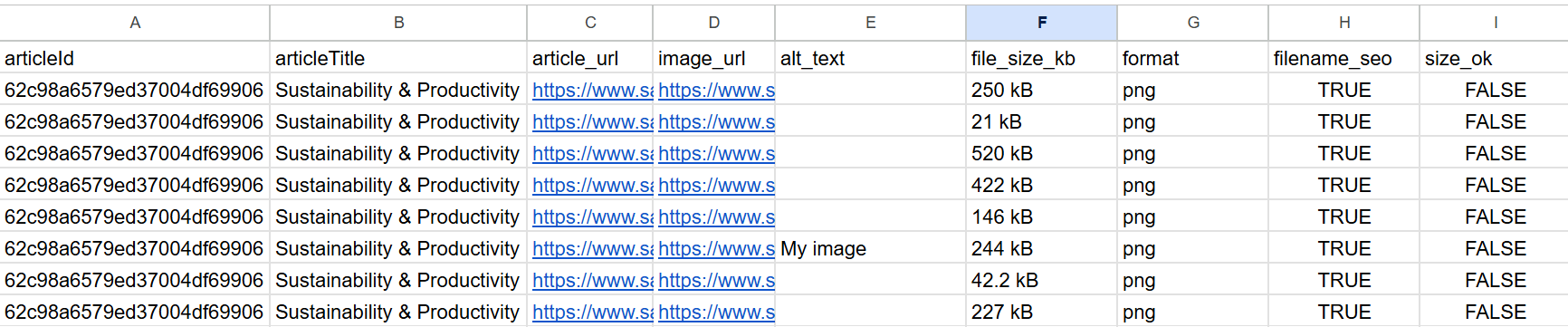 ### How does it work? This n8n workflow extracts all blog posts from Ghost CMS, scans the HTML to collect all embedded images, then evaluates each image for: - Presence and length of `alt text` - File size in kilobytes - Filename SEO quality (e.g., lowercase, hyphenated, no special chars) All findings are written to Google Sheets for **further analysis** or **manual cleanup**. ### Workflow Steps: 1. Trigger the workflow manually or on schedule 2. Extract blog post content from Ghost CMS 3. Parse all `<img>` tags with `src` and `alt` attributes 4. Store image metadata in a Google Sheet (step 1) 5. Download each image using HTTP request 6. Extract file size, extension, and filename SEO flag 7. Update the audit sheet with size and format insights 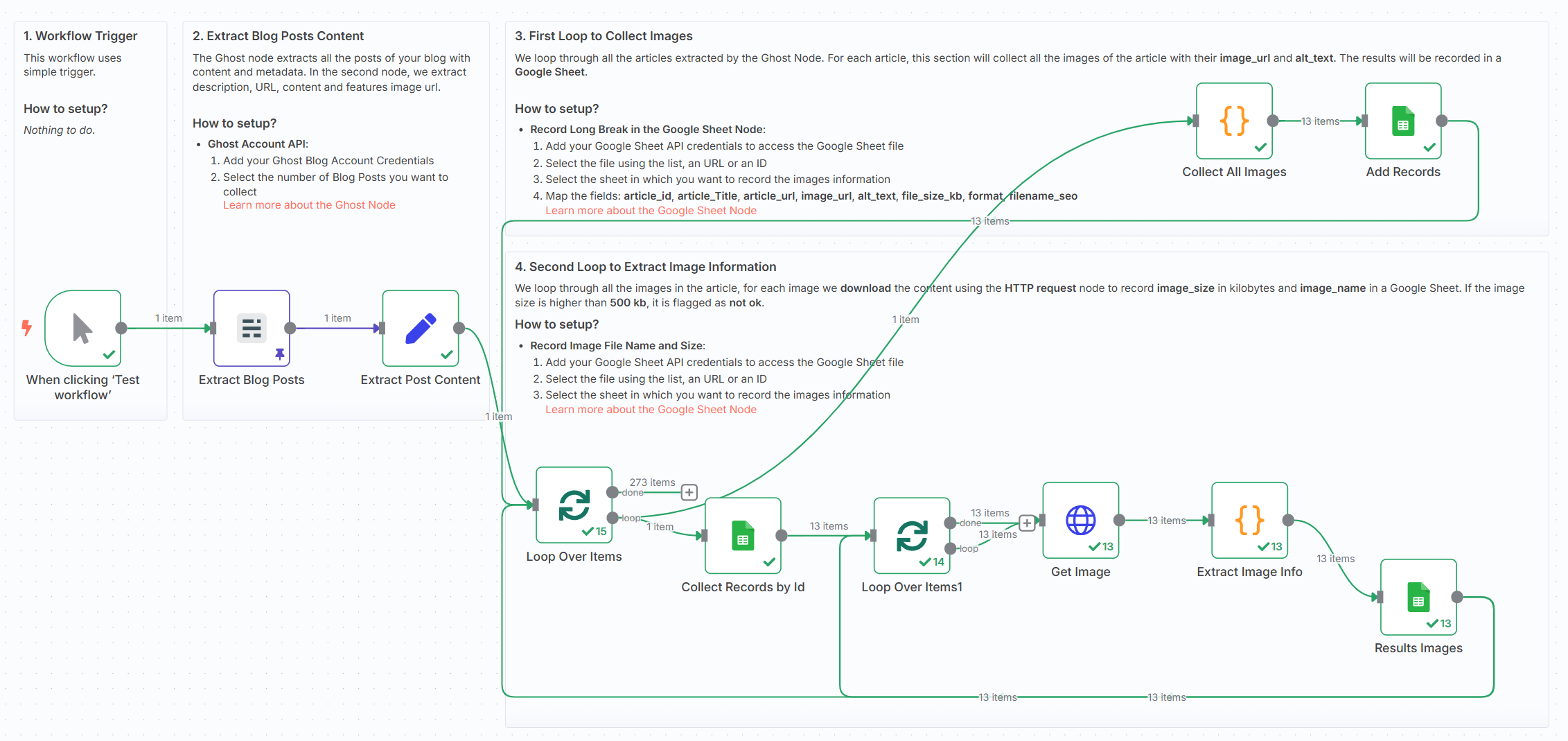 ### What do I need to get started? This workflow requires: - A **Ghost Content API key** - A **Google Sheet** (to log audit results) - No AI or external APIs required - works fully with built-in nodes ### Next Steps Follow the sticky notes inside the workflow to: - Plug in your Ghost blog credentials - Select or create a Google Sheet - Run the audit and start improving your SEO! This template was built using n8n v1.93.0 Submitted: June 8, 2025
n8n$9.99Custom Pomodoro Tracker using Telegram and Google Sheets
**Tags**: Productivity, Pomodoro, Organization ### Context Hey! I'm Samir, a Supply Chain Engineer and Data Scientist from Paris, founder of [LogiGreen Consulting](https://logi-green.com). A significant improvement in my productivity came from following the **Pomodoro Technique**. ### What is the Pomodoro Technique? The Pomodoro Technique is a time management method that breaks your workday into 25-minute focus intervals followed by short breaks. After 4 cycles, you take a longer break to recharge. It helps maintain concentration while preventing burnout. 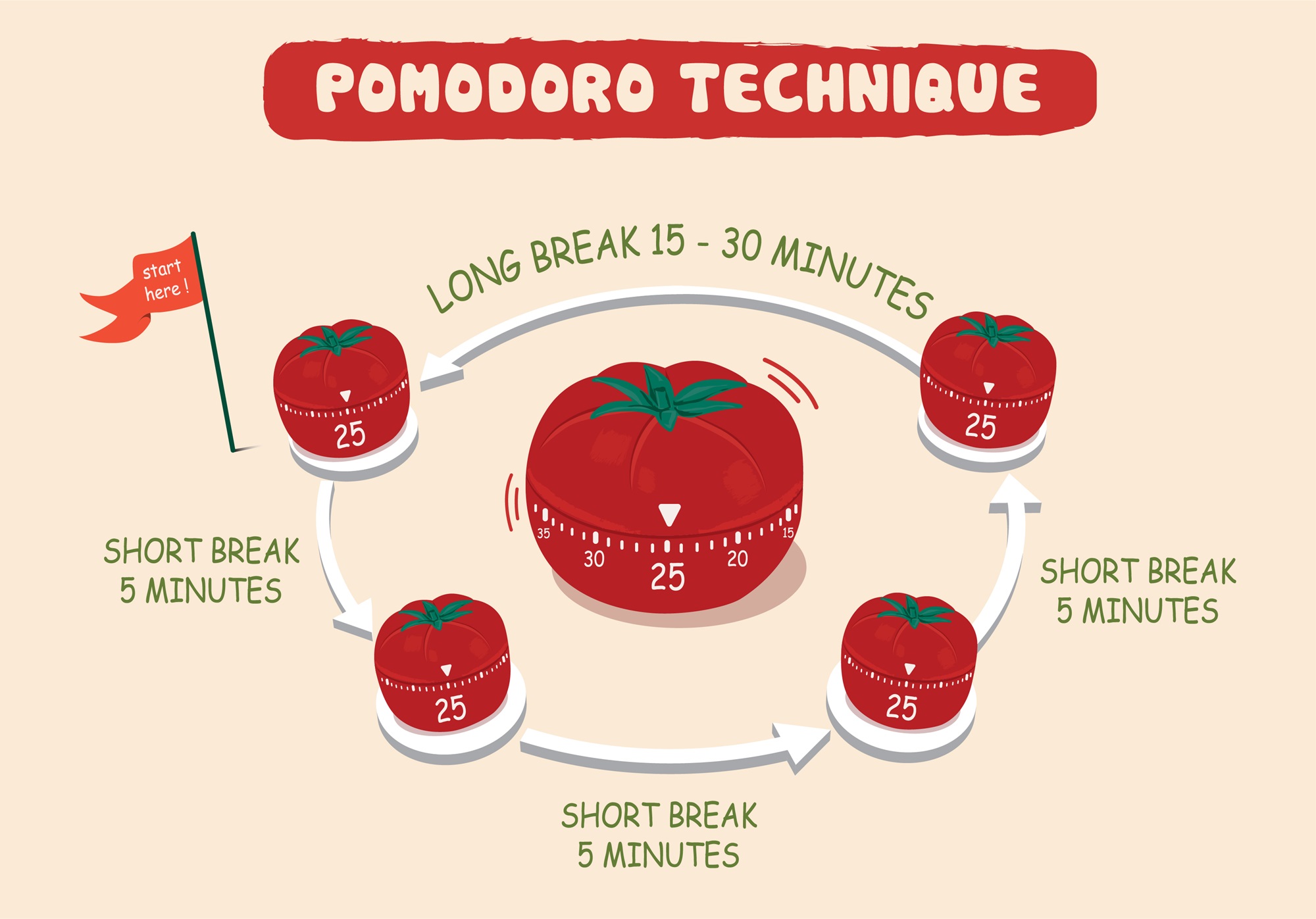 I've used this technique with web apps to receive break/work notifications. But I always wished I had a way to **track my sessions** for self-assessment. > Let's use **n8n** to boost our productivity and log our deep work sessions automatically! For business inquiries, you can add me on [Here](https://www.linkedin.com/in/samir-saci) ### Who Is This Template For? I built this workflow for creators, freelancers, students, and professionals who love the Pomodoro technique but want more than just timers - they want data. This template helps you: - Track every deep work session automatically - Store logs in Google Sheets for later analysis - Stay in control via Telegram commands - There is no need to pay for premium apps. It's all **free** and powered by **n8n**. ### How Does It Work? This Telegram bot tracks your Pomodoro sessions and sends you alerts during the process. **Here's what happens:** 1. A user sends `/start` to the bot. 2. It launches a 25-minute deep work timer. 3. After 25 minutes, the bot sends a break reminder. 4. **After four cycles**, a long break is triggered and the session is logged. 5. The session is **automatically recorded to Google Sheets** with (Date & Time, User ID, Pomodoro count, Session ID, Duration of focus and breaks) 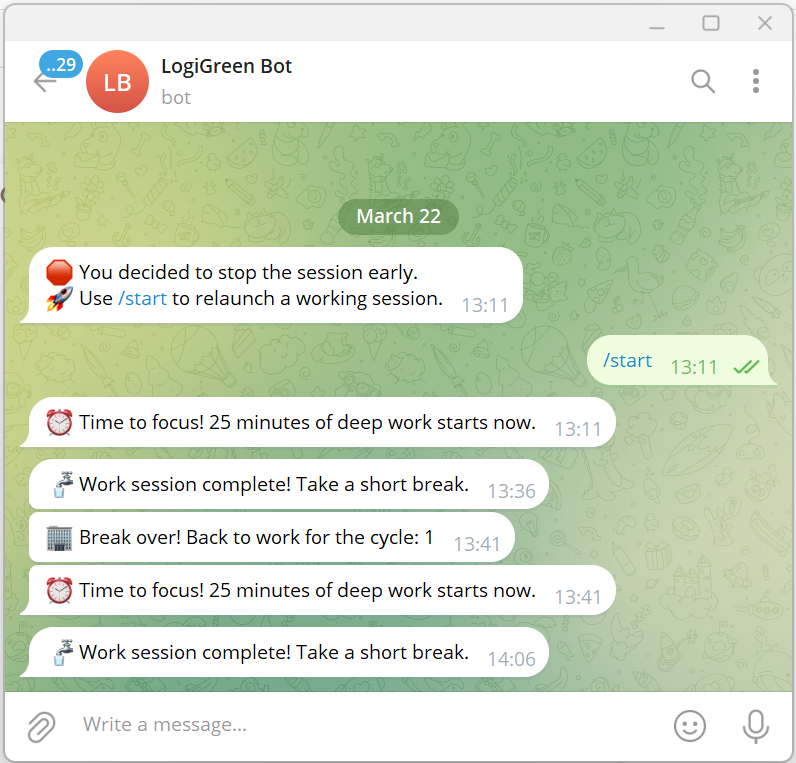 ### What Gets Tracked? | Field | Description | |-------------------|-----------------------------------| | Date & Time | When the session was logged | | User ID | Your Telegram ID | | Block Type | Deep Work or Short Break | | Pomodoro Count | Number of cycles completed | | Working Session ID| Unique ID for each session | | Focus Duration | Length of each deep work session | | Break Duration | Short or long break info | You can use this workflow as a base to bring additional features like: - Connecting with tasks from **Google Tasks** - Send automated productivity reports to monitor your activity - Link a Pomodoro with a task using **Google Calendar** ### What Do I Need to Start? This workflow is beginner-friendly - **no coding required**. - **Google Drive API** and **Google Sheets API** credentials - A Google Sheet set up to log sessions (with the columns of the table above) - API Credentials: - **Google Sheets API** (OAuth2) - **Telegram Bot Token** - Telegram app to chat with the bot > The template is plug-and-play. Just follow the sticky notes in the n8n editor to configure it. ### Next Steps Follow the sticky notes in the n8n workflow editor to: - Set your credentials - Connect your Google Sheet - Initialize the static data - Launch your first `/start` command on Telegram  [**Watch My Tutorial**](https://www.youtube.com/watch?v=ztMMrmbgGEo) Curious how n8n can supercharge **productivity and learning skills?** Let's connect on [**LinkedIn**](https://www.linkedin.com/in/samir-saci) This workflow has been created with N8N 1.82.1 Submitted: March 24th, 2025
n8n$14.99Automate Google Business Profile Posts with GP-4 and Google Sheets
This powerful n8n workflow automatically generates and publishes Google Business Profile (GMB) posts using topics listed in a Google Sheet. It uses **OpenAI** to write SEO-optimized post descriptions and generate **AI images** based on the topic, then posts them directly to your **GMB profile** and marks them as published in the sheet. --- ## Use Case Perfect for: - Digital marketers managing local SEO - Agencies automating content for clients - Businesses regularly posting to GMB - Teams managing editorial calendars via Google Sheets --- ## Workflow Overview | Node | Purpose | |-------------------------------|------------| | **Schedule Trigger** | Runs daily at 9AM (configurable) | | **Get Unpublished Row** | Reads a row from Google Sheet where Status is not marked Published | | **Generate Post Text** | Uses OpenAI (GPT-4) to write a compelling, local-business optimized post | | **Generate Post Image** | Uses DALL·E or similar to create an image matching the topic | | **Post to GMB** | Publishes the generated content to your Google Business Profile | | **Update Sheet** | Marks the status as Published in the Google Sheet | --- ## Google Sheet Format | Column Name | Description | |-------------|-------------| | Topic | The subject or idea for the GMB post | | Status | Should be blank or Unpublished to trigger the flow | | Date | (Optional) Posting schedule or note | | Notes | (Optional) Internal info - not used in the automation | --- ## Google My Business API Setup ### 1. Google Cloud Configuration - Go to [Google Cloud Console](https://console.cloud.google.com/) - Enable the **Google My Business API** - Create **OAuth2 Client ID** and **Client Secret** - Add this required scope: ``` ### 2. Request for GMB Quota - You need to request for GMB (Google Business Profile) API Quota from here, because by default it sets to zero: https://support.google.com/business/contact/api_default ``` ### 3. n8n Credential Setup - In n8n, go to **Credentials > Google OAuth2** - Use your **Client ID** and **Client Secret** - Use this credential in GMB-related nodes --- ## OpenAI Prompt Customization Modify the prompt in the OpenAI node to match your brand's voice: ### Example Prompt ```text Write a short, engaging Google Business Post about: {{ $json.topic }}. Make it suitable for a local audience and include a subtle call to action. ``` --- ## Optional Enhancements - Add **If** node to delay publishing on certain days - Use **Slack or Email** notifications to alert before/after posting - Use **Multiple Businesses** by adding a Router or Switch node per GMB account --- ## Benefits - Fully automated GMB posting - SEO-optimized, AI-written content - Matching images for visual engagement - Maintains a content log via Google Sheets - Easily customizable prompt logic and schedule
n8n$4.99Automate Website Tool Analysis with Telegram, Apify, AI & Google Sheets
#### Description This powerful workflow automates the evaluation of new digital tools, websites, or platforms with the goal of assessing their potential impact on your business. By leveraging Telegram for user input, Apify for deep content extraction, advanced AI for contextual analysis, and Google Sheets for personalized data integration and record-keeping, this tool delivers clear, actionable verdicts that help you determine whether a tool is worth adopting or exploring further. #### Key Features and Workflow User-Friendly Input: Submit URLs of tools or websites directly through Telegram for quick and easy evaluation requests. - Dynamic Content Extraction: The workflow retrieves detailed content from the submitted URLs using the Apify web crawler, capturing rich data for analysis. - AI-Powered Cleaning & Analysis: Sophisticated AI models filter out noise, distill meaningful insights, and contextualize findings based on your business profile and goals stored in Google Sheets. - Personalized Business Context: Integration with Google Sheets brings in your company's specialization, current focus, and strategic objectives to tailor the analysis specifically to your needs. - Structured Analysis Output: Receive a thorough, structured report including concise summaries, key considerations, business impact, benefits, risks, actionable insights, and an easy-to-understand final verdict on the tool's relevance. - Decision Support: The tool estimates effort, time to value, urgency, and confidence levels, enabling informed prioritization and strategic decision-making. - Seamless Communication: Results are sent back via Telegram, ensuring you get timely and direct feedback without needing to leave your messaging app. - Record Keeping & Tracking: All analyses and decisions are logged automatically into Google Sheets, creating a searchable knowledge base for ongoing reference and reporting. #### Setup Instructions for Key Nodes Telegram Trigger Node: 1. Configure your Telegram bot API credentials here. 2. Link the bot to your Telegram account to receive messages for URL submissions. URL Extraction Node: No credentials needed. This node extracts URLs from incoming messages for processing. Apify Web Crawler Node Setup Guide: Go to Apify's website, sign up for an account if you don't have one, and get your API token from your profile's API tokens section. Then, paste this token into the Apify Node's API Key field in n8n. AI Cleaning and Analysis Nodes: 1. Configure OpenAI or compatible AI service API keys for content processing. 2. Customize prompts or models if desired to align analysis style. Google Sheets Nodes: 1. Connect using your Google account and provide access to the specified Google Sheet. 2. Ensure sheets for Company Details and Analysis Results exist with proper columns as per this workflow. Telegram Reply Node: Use the Telegram bot API credentials to send analysis summaries and verdicts back to users. ###### Access and Edit the Google Sheet You can access the Google Sheet used by this workflow here: [Access the Google Sheet here](https://docs.google.com/spreadsheets/d/1RCMapKv9IPdwNz4Rp-Ma2iKzdWDEbxggYrq9K2_pU-w/edit?usp=sharing) Please make a copy of the sheet to your own Google Drive before connecting it with this workflow. This allows you to customize the sheets, update company information, and manage analysis results securely without affecting the original template. #### Extendibility Beyond manual URL submissions, you can enhance this workflow by scheduling automated daily checks of new product launches from platforms like Product Hunt. The system can proactively analyze emerging tools and deliver timely updates via Telegram, email, or other channels, helping you stay ahead of innovation effortlessly.
n8n$14.99Extract Pay Slip Data with LINE Chatbot and Geminio to Google Sheets
## Workflow Overview: Extracting text from an image using AI is worthwhile because it requires no code. It incorporates the Google Gemini 2.0 Flash model for important text extraction from images. If you code without AI, you have to use multiple conditions and may cause a lot of bugs, but with Google Gemini, you don't need any coding, and if the Pay Slip is different, Gemini will extract it automatically. ## Workflow Description: 1. The user uses the Line Messaging API to send a Pay Slip image or message to the chatbot. Create a Line Business ID from here: [Line Business](https://account.line.biz/login). 2. Classify the message as either an image or text. 3. If the message is a Pay Slip image, it will be processed using Gemini 2.0 Flash EXP and extract important information and respond in JSON format without coding by using the following prompt: Analyze the image and then return in JSON Response that has the only following values: **Status, From, To, Date, Amount**.  To get the Google AI Studio API Key, you can find it from the following link: [Google AI Studio API Key](https://aistudio.google.com/apikey). 4. Create Google Sheets which include the fields **(Status, From, To, Date, Amount)** that we have created related to the AI prompt [Google Sheets](http://docs.google.com/spreadsheets) as the following example:  5. If the message is text, it will process using the Gemini 2.0 Flash EXP model as the AI Assistant; else if the message is an image, it will extract the important fields, then reply to the user and insert into Google Sheets. ## Key Features: * **Extract text from image with No Code** - Without N8N, we have to write code to extract text from an image, but with N8N and Google Gemini 2.0 Flash EXP together, we don't need to code, and it will process all slip vendors or other document vendors. * **Multipurpose Chatbot** - This chatbot accepts both text and image, so we don't have to create many chatbot accounts. * **Reduce human error** - This workflow lets any officer verify document status when the job ends. **Note:** You can change the information by changing your prompt and also Google Sheets Column names relatively.
n8n$14.99Extract Email Addresses from Websites with EmailListVerify API and Google Sheets
## How to Scrape Emails from Websites This workflow will: - Try to find emails by scraping the website via HTTP request. - If no result is found, it will use the [EmailListVerify email finder API](https://emaillistverify.com/email-finder-api) to guess an email address. Scraping email via HTTP request is a cost-effective way to find email addresses, so it can save you a few bucks to use it before calling any email finder API. ## Who is it for This workflow will help you transform a list of websites into a list of leads with email addresses. This is a handy workflow for any lead generation specialist. Pay attention that this workflow will usually return only generic emails like contact@. Those generic emails are useful when you target small businesses; the owner usually monitors those emails. However, I don't advise this workflow to target enterprise customers. ## Requirements In order to use this workflow, you will need: - To copy [this Google sheet template](https://docs.google.com/spreadsheets/d/1VOFM8UeWHhJbtBM7SRca6vsVJlRUXzX71kjJ8n2jUY/edit?gid=1538095319#gid=1538095319). - Get an API key for [EmailListVerify](https://emaillistverify.com/). You then need to edit the setup of the 3 stages highlighted with a yellow sticky note, and you will be good to go.
n8n$14.99Track Amazon Product Prices with ScrapeOps API & Google Sheets Alerts
# Amazon Product Price Tracker This workflow automatically monitors Amazon product prices, tracks price changes, and sends alerts when significant price fluctuations occur. Built with ScrapeOps structured data API, it provides a reliable, maintenance-free solution for price tracking without worrying about anti-bot measures or complex selectors. ## What This Workflow Does - Monitors multiple Amazon products simultaneously using their ASINs - Calculates both absolute and percentage price changes - Sends customizable email alerts when prices cross defined thresholds - Maintains a historical record of all price data for trend analysis - Updates a Google Sheets with the latest price information ## Prerequisites - A ScrapeOps API key (register at https://scrapeops.io) - Google account for Google Sheets integration - SMTP email configuration for alerts ## Setup Instructions 1. **Spreadsheet Setup** - Make a copy of the template spreadsheet: https://docs.google.com/spreadsheets/d/1hRv-BXrpN6rkIU65WorttNHt-IPWas_An0sF4Of39U - Add your Amazon product ASINs in the Products to Monitor sheet - Set your desired alert thresholds for price increases/decreases 2. **Workflow Configuration** - Add your ScrapeOps API key to the Setup node - Update the spreadsheet URL in the Setup node with YOUR copy - Configure your email settings for notifications - Adjust the schedule frequency as needed (default: hourly) ## How It Works The workflow reads product ASINs from your Google Sheet, fetches current pricing data via ScrapeOps Amazon Product API, calculates price changes, updates your spreadsheet, and sends alerts when price movements exceed your defined thresholds. Unlike traditional web scrapers that break when websites change, this solution uses ScrapeOps reliable API that handles all the complexity of Amazon data extraction, ensuring consistent results without maintenance. ## Additional Notes - This workflow is ideal for deal hunters, price comparison services, and e-commerce analytics - The alerting system can be extended to additional channels like Slack or Telegram - ScrapeOps handles all anti-bot measures, proxy management, and parsing complexities
n8n$14.99Analyze Browsing History and Generate Automation Suggestions with OpenRouter AI and Google Sheets
# Browsing History Automation Analyzer - Automation Toolkit (Google Sheets + AI) This **n8n workflow** analyzes your browsing history to identify opportunities for automation. It reads history from a Google Sheet, groups visits by domain, filters out irrelevant entries, and uses AI to recommend what can be automated - including how and why. --- ## What It Does - **Reads** your browsing history from Google Sheets - **Groups** history by domain - **Filters out** common non-actionable domains (e.g., YouTube, Google) - **Uses AI** to analyze whether your activity on each site is automatable - **Provides suggestions** including what to automate, how to do it, and which tools to use - **Saves results** into a new tab in the same Google Sheet - **Searches for n8n workflow templates** related to the suggested automation --- ## Demo Sheet Input + output are handled via the following Google Sheet: **Spreadsheet**: [View on Google Sheets](https://docs.google.com/spreadsheets/d/1V26KDJLBZno6e_VxaBqhsK_JOOOn_5N6uww2apcAeoc/edit?usp=drivesdk) - **Sheet: `history`** - Input browsing history - **Sheet: `automations`** - Output AI automation suggestions --- ## AI Analysis Logic The AI agent receives each domain's browsing history and responds with: - `domain`: The website domain - `automatable`: true/false - `what_to_automate`: Specific actions that can be automated - `reason`: Why it's suitable (or not) for automation - `tool`: Suggested automation tool (e.g., n8n, Apify) - `automation_rating`: High, Medium, Low, or Not Automatable - `n8n_template`: Relevant automation template (if found) --- ## Technologies Used | Tool | Purpose | |------------------------|--------------------------------| | **n8n** | Workflow automation | | **LangChain AI Agent** | AI-based analysis | | **Google Sheets Node** | Input/output data handling | | **OpenRouter (LLM)** | Language model for intelligent reasoning | | **JavaScript Code Node** | Grouping and formatting logic | | **Filter Node** | Remove unwanted domains | | **HTTP Request Node** | Search n8n.io templates | --- ## Chrome History Export You can use this Chrome extension to export your browsing history in a format compatible with the workflow: [Export Chrome History Extension](https://chromewebstore.google.com/detail/export-chrome-history/dihloblpkeiddiaojbagoecedbfpifdj?pli=1) --- ## Want Personalized Automation Advice? If you'd like **personalized automation recommendations** based on your browsing history - just like what this workflow provides - feel free to contact me directly: > **msaidwolfltd@gmail.com** I'll help you discover what tasks you can automate to save time and boost productivity. --- ## Example Use Cases - Automate daily logins to dashboards - Auto-fill forms on repetitive websites - Schedule data exports from web portals - Trigger reminders based on recurring visits - Discover opportunities for scraping and integration --- ## License This workflow is provided as-is for educational and personal use. For commercial or customized use, contact the author. ---
n8n$9.99Automated Email Assistant for Suppliers Using OpenAI and Google Sheets
## Automated Email Assistant for Busy Professionals This assistant is designed for people who don't have time to write and send emails to suppliers. With just one request, it drafts and sends clear, professional messages automatically. ## How It Works The user makes a request (e.g., "Send an email to my fruit supplier asking for a quote on 1 crate of mangoes."). ## Workflow: 1. The AI agent searches for the supplier in a Google Sheets database. 2. It automatically drafts the email using OpenAI (with the tone and style you define). 3. It sends the email using your Gmail account connected through n8n. ## This assistant uses: - Google Sheets to manage your suppliers (name and email). - OpenAI to generate clear, natural messages. - MCP (client-server logic) to handle request processing. - Gmail as the sending channel for automated emails. ## Setup Instructions 1. Create a Google Sheets document with the supplier name and email, like this: | Supplier name | Email | |---------------|-------| | Proveedor de frutas Alvarez | fruteriaalvarez@alvarez.com | 2. Connect your Google Sheets and Gmail accounts within n8n. 3. Add your OpenAI API key. Test the automation by chatting with the integrated assistant. It will generate and send the email automatically to the indicated supplier. ## Requirements - OpenAI API key to generate email content. - Gmail account connected via OAuth2. - Google Sheets document with your supplier database. - n8n instance (cloud or self-hosted). ## Customization Adjust the OpenAI prompt to make the email tone more formal, casual, or technical. Add custom fields to your supplier sheet (location, notes, special conditions). Replace Google Sheets with a real database like Supabase or PostgreSQL for greater scalability.
n8n$9.99Manage Personal Expenses with Webhooks and Google Sheets Automated Tracker
- How it works: This system functions by receiving expenses via webhook POS. It validates the data, stores it in Google Sheets, and, daily at 8 PM, generates and sends financial summaries. Automatic categorization simplifies the organization of expenses. - Set up steps: Setup involves creating the Google Sheet, configuring the webhook, and defining the categorization rules. The process is quick and intuitive, taking about 10-15 minutes for the system to be ready to receive your expenses.
n8n$9.99Extract Data from YAPE Receipts via Telegram OCR and Store in Google Sheets
## Detailed Technical Description This **n8n** workflow automates [Yape](https://www.yape.com.pe/) payment receipt processing, integrating [Telegram bot](https://core.telegram.org/bots), AI-powered OCR, and [Google Sheets](https://support.google.com/docs/answer/6000292) automation. By leveraging **[ChatGPT](https://chatgpt.com/)** Vision Computing, it extracts and structures transaction details, eliminating the need for manual entry. Ideal for freelancers, businesses, and finance teams, this workflow ensures error-free, real-time financial tracking. The AI agent powered by **[DeepSeek](https://www.deepseek.com/)** refines and formats the extracted text, storing it in [Google Sheets](https://support.google.com/docs/answer/6000292) for easy accessibility and reporting. Users can track payments, monitor cash flow, and generate financial reports without any manual work. This seamless integration boosts efficiency, reduces errors, and automates financial record-keeping with 100% accuracy. ### Technologies Used: - **n8n** - Workflow orchestrator. - **Telegram** - Handles image reception and notifications. - **Google Drive** - Manages file creation and storage. - **Google Sheets** - Automatically logs extracted data into spreadsheets. ### Artificial Intelligence: - **ChatGPT** Vision Computing - Performs OCR on payment receipts. - **DeepSeek** AI - Organizes and converts extracted data into a structured format. --- ## Pre-conditions: - `A Telegram Bot` - Must be created to receive images. [Setup Guide](https://core.telegram.org/bots/features#creating-a-new-bot) - `Google Sheets API Key` - Required to store extracted data. [Setup Guide](https://docs.n8n.io/integrations/builtin/app-nodes/n8n-nodes-base.googlesheets/) - `ChatGPT API Key` - Used for OCR and AI text extraction. [Get it here](https://help.openai.com/en/articles/4936850-where-do-i-find-my-openai-api-key) - `DeepSeek API Key` - Processes extracted text into structured data. [Get it here](https://platform.deepseek.com/api_keys) #### 1. Image Reception & OCR Processing The user attaches a Yape payment receipt image to the Telegram bot conversation.  #### 2. Analyze Image (OCR) A **ChatGPT** Vision Computing model processes the image and extracts all visible text, ensuring high-accuracy OCR for structured data extraction.  #### 3. Analyze and format text Intelligent Data Processing with AI The extracted text is sent to a **DeepSeek-based** AI agent that: - Identifies and structures key transaction details (amount, date, sender, transaction ID, etc.). - Converts the data into a structured JSON format.  #### 4. Data Storage in Google Sheets **Google Drive** integration is established. If the Google Sheets file does not exist, it is automatically created. Extracted data is automatically recorded in the corresponding spreadsheet, enabling effortless tracking and streamlined financial organization.  ## Benefits: - Time-saving - Eliminates manual payment processing. - Error-free data entry - Reduces human mistakes in record-keeping. - 100% automation - No manual intervention required. - Seamless integration - Easily connects with other workflows. **NOTE**: _The extracted transaction data will be stored in a Google Sheets file with the following columns:_ | Column Name | Description | |:---------------------:|-----------------------------------------------------------| | **id** | Unique identifier for each transaction. | | **beneficiaryName** | Name of the recipient of the payment. | | **amount** | Payment amount in the specified currency. | | **currency** | Currency used for the transaction (e.g., PEN, USD). | | **company** | The entity or service handling the transaction. | | **date** | Date of the transaction in a human-readable format. | | **hour** | Time of the transaction. | | **originalDate** | The exact date extracted from the receipt. | | **dateISO** | Standardized ISO 8601 date format. | | **operation** | Type of financial operation (e.g., deposit, transfer). | | **operationNumber** | Unique operation number provided by the payment system. | | **beneficiaryNumber** | Account or phone number of the recipient. | | **commission** | Any commission or fee charged for the transaction. | | **account** | Account number or reference used for the payment. | | **channel** | Payment method used (e.g., app, POS, bank transfer). | | **agentCode** | Identifier of the agent or entity processing the payment. | --- This workflow is perfect for
n8n$24.99RSS Feed Reader That Saves the Feeds of the Last 3 Days in Google Sheets
**How it Works:** This RSS reader retrieves links from a Google Sheets file and goes through each link to retrieve the messages that are younger than 3 days, then saves them in a second Google Sheets file and then deletes all older entries in the second Google Sheets file! **The retrieval can take a while due to the Google API block prevention, depending on the number of news feeds that were retrieved!** **Detailed Description is in the sticky notes from the Workflow!**
n8n$14.99Payment Processing and Order Tracking with YooKassa and Google Sheets
# Accept YooKassa payments and log transactions in Google Sheets ## Summary This workflow allows you to accept online payments via **YooKassa** and log both orders and transactions in **Google Sheets** - all without writing a single line of code. It supports full payment flow: product selection, payment initiation, webhook processing, refund updates, and payment status checks. --- ## Who is this for? This template is ideal for: * Online stores with simple checkout flows * Sellers of digital products or info-courses * Entrepreneurs using Telegram bots or web forms * Anyone needing quick payment integration with Google Sheets tracking --- ## What problem does this workflow solve? Setting up online payments usually requires backend infrastructure. This no-code solution automates the entire payment flow: * Handles product listing and price retrieval * Initiates payments with email and return URL * Listens for `payment.succeeded` and `refund.succeeded` events * Records every action into structured Google Sheets --- ## What this workflow does ### 1. **GET /products** Returns a sorted list of products from a Google Sheet (`products`). ### 2. **POST /payment** * Validates required fields (`product_id`, `email`, `return_url`) * Checks email format * Fetches product data from `products` * Generates a unique idempotence key * Sends a request to YooKassa API * Saves the order into the `orders` sheet * Returns a payment confirmation link ### 3. **POST /yoomoney** Webhook to process payment/refund events: * On `payment.succeeded`, adds entry to `transactions` * On `refund.succeeded`, updates transaction status ### 4. **GET /status/:id** Returns real-time payment status from YooKassa --- ## Setup 1. **Connect credentials:** * Google Sheets (OAuth2) * YooKassa (Basic Auth using `shopId` and `secretKey`) 2. **Update the following Google Sheets:** * `products`: should contain `product_id`, `title`, `price` * `orders`: for saving confirmed purchases * `transactions`: for logging all successful or refunded payments 3. **Test endpoints using any HTTP client**: Example payload for `/payment`: ```json { "product_id": "abc123", "email": "user@example.com", "return_url": "https://your.site/success" } ``` --- ## How to customize this workflow * Add delivery logic (e.g., email with product link after successful payment) * Replace Google Sheets with a database (e.g., PostgreSQL) * Connect Telegram or other messengers for post-payment notifications * Add promo codes, discounts, or subscriptions logic --- ## Use cases * Simple online checkouts * Telegram bots selling access * Educational product sales * MVP e-commerce flows * Donation or membership payments --- ## Notes * Includes Sticky Notes for sections * Includes error handling and validation * No custom code needed except for UUID generation
n8n$24.99Automate Backlink Status Monitoring with Google Sheets and DataForSEO
This n8n workflow automates the process of checking the status of backlinks listed in a Google Sheet using the DataForSEO On-Page API. It verifies if backlinks are live, dofollow, or lost, and updates the status back in the Google Sheet.
n8n$9.99Automate Business Lead Generation from Reddit to Google Sheets
This n8n workflow automates the process of generating business leads by searching Reddit for posts with specific keywords, analyzing and summarizing the content using OpenRouter AI, and logging the results in Google Sheets.
n8n$14.99Send WhatsApp template messages based on Google Sheets content
Automatically send personalized WhatsApp messages using Google Sheets data. Streamline communication by integrating Google Sheets with WhatsApp Business Cloud for efficient messaging.
Make$2.99Automate Instagram Media Insights Logging to Google Sheets
Automatically retrieve media insights from your Instagram account and log them into Google Sheets for streamlined data analysis.
Make$4.99Automate Negative PR Monitoring on Reddit with AI and Google Sheets
This workflow automates the monitoring of brand reputation by scanning Reddit for negative sentiment, filtering relevant posts, and logging them into Google Sheets for tracking.
n8n$9.99Automate Jura Coffee Machine Usage Logging with Webhook and Google Sheets
Automatically log coffee usage from your Jura E8 espresso machine using a webhook and Google Sheets. This workflow captures data via Bluetooth and appends it to a Google Sheet for easy tracking and analysis.
n8n$9.99Extract Data from Trip Receipts with GP-4.1-mini, Google Sheets & Email Notifications
# Automated Expense Reporting Workflow With GPT-4.1-mini ## ☀ Who's it for This workflow is designed for employees who need to submit expense claims for business trips. It automates the process of extracting data from receipts/invoices, logging it to a Google Sheet, and notifying the finance team via email. Ideal users: - Employees submitting business trip expense claims - HR or Admins reviewing travel-related reimbursements - Finance teams responsible for processing claims ## ℹ How it works / What it does 1. **Employee submits a form** with trip information (name, department, purpose, dates) and uploads one or more receipts/invoices (PDF). 2. **Uploaded files are saved to Google Drive** for record-keeping. 3. Each PDF is passed to a **DocClaim Assistant agent**, which uses GPT-4.0 and a structured parser to extract structured invoice data. 4. The data is **transformed and formatted** into a standard JSON structure. 5. Two parallel paths are followed: - Invoice records are appended to a **Google Sheet** for centralized tracking. - A detailed **HTML email** summarizing the trip and expenses is generated and sent to the **finance department** for claim processing. ## ✅ How to set up 1. **Create a form** to capture: - Employee Name - Department - Trip Purpose - From Date / To Date - Receipt/Invoice File Upload (multiple PDFs) 2. **Configure file upload node** to store files in a specific Google Drive folder. 3. **Set up DocClaim Agent** using: - GPT-4.0 or any LLM with document analysis capability - Output parser for standardizing extracted receipt data (e.g., vendor, total, tax, date) 4. **Transform extracted data** into a structured claim record (Code Node). 5. **Path 1**: Save records to a Google Sheet (one row per expense). 6. **Path 2**: - Format the employee + claim data into a dynamic **HTML email** - Use `Send Email` node to notify the finance department (e.g., `finance@yourcompany.com`) ## 📋 Requirements - n8n running with access to: - Google Drive API (for file uploads) - Google Sheets API (for logging expenses) - Email node (SMTP or Gmail for sending) - GPT-4.0 or equivalent LLM with document parsing ability - PDF invoices with clear formatting - Shared Google Sheet for claim tracking - Optional: Shared inbox for finance team ## © How to customize the workflow - **Add approval steps**: route the email to a manager before finance - **Attach original PDFs**: include uploaded files in the email as attachments - **Localize for other languages**: adapt form labels, email content, or parser prompts - **Sync to ERP or accounting system**: replace Google Sheet with QuickBooks, Xero, etc. - **Set limits/validation**: enforce max claim per trip or required fields before submission - **Auto-tag expenses**: add categories (e.g., travel, accommodation) for better reporting
n8n$14.99Analyze Amazon Purchase Trends with Bright Data, OpenAI, and Google Sheets
This workflow contains community nodes that are only compatible with the self-hosted version of n8n. This workflow automatically analyzes purchase trends and consumer behavior patterns to identify market opportunities and optimize business strategies. It saves you time by eliminating the need to manually analyze sales data and provides insights into buying patterns, seasonal trends, and customer preferences. ## Overview This workflow automatically scrapes e-commerce platforms, marketplace data, and sales analytics to extract purchase trends, product popularity, and consumer behavior insights. It uses Bright Data to access sales data and AI to intelligently analyze purchasing patterns, seasonal trends, and market opportunities. ## Tools Used - **n8n**: The automation platform that orchestrates the workflow - **Bright Data**: For scraping e-commerce and marketplace platforms without being blocked - **OpenAI**: AI agent for intelligent purchase trend analysis and forecasting - **Google Sheets**: For storing purchase trend data and analysis results ## How to Install 1. **Import the Workflow**: Download the .json file and import it into your n8n instance. 2. **Configure Bright Data**: Add your Bright Data credentials to the MCP Client node. 3. **Set Up OpenAI**: Configure your OpenAI API credentials. 4. **Configure Google Sheets**: Connect your Google Sheets account and set up your trend analysis spreadsheet. 5. **Customize**: Define target marketplaces and trend analysis parameters. ## Use Cases - **E-commerce Strategy**: Identify trending products and market opportunities. - **Product Development**: Understand consumer preferences and demand patterns. - **Marketing Planning**: Optimize campaigns based on seasonal purchase trends. - **Business Intelligence**: Make data-driven decisions using market trend insights. ## Connect with Me - **Website**: https://www.nofluff.online - **YouTube**: https://www.youtube.com/@YaronBeen/videos - **LinkedIn**: https://www.linkedin.com/in/yaronbeen/ - **Get Bright Data**: https://get.brightdata.com/1tndi4600b25 (Using this link supports my free workflows with a small commission) #n8n #automation #purchasetrends #marketanalysis #brightdata #webscraping #ecommerce #n8nworkflow #workflow #nocode #trendanalysis #consumerinsights #marketresearch #salesanalytics #businessintelligence #markettrends #customerinsights #ecommerceanalysis #salesdata #marketforecasting #consumerdata #purchaseanalysis #retailanalytics #marketinsights #demandforecasting #salestrends #consumertrends #marketintelligence #buyingpatterns #marketdemand
n8n$9.99
More integrations
Custom AI Systems & Services
Our team of experienced AI builders will help build custom AI systems, workflows, and solutions.
Request Custom Work