
Streaming ChatGPT Responses in Web Applications: A Complete Guide
Learn how to stream ChatGPT responses in web applications using the OpenAI API. This guide covers setup, implementation in JavaScript and Python, event handling, and troubleshooting for real-time text generation.
This guide covers how to stream ChatGPT responses in web applications using the OpenAI API. It is for developers who want to build real-time, interactive chat interfaces that display model output as it is generated, rather than waiting for the full response. You will learn the concepts behind streaming, how to set up your environment, implement streaming in JavaScript (Node.js) and Python, handle events, and troubleshoot common issues.
What You Need
Before you begin, you need the following:
- An OpenAI account with billing enabled. The official documentation states that you need to add credits to your account to keep building after the free trial. Go to the billing section in the dashboard.
- An OpenAI API key. Create one in the dashboard and store it securely. The official documentation recommends storing the key in a safe location like a
.zshrcfile or another text file on your computer. - Node.js (version 18 or later recommended) or Python (version 3.8 or later) installed on your development machine.
- A code editor.
- Basic familiarity with JavaScript or Python, and with making HTTP requests.
Understanding Streaming
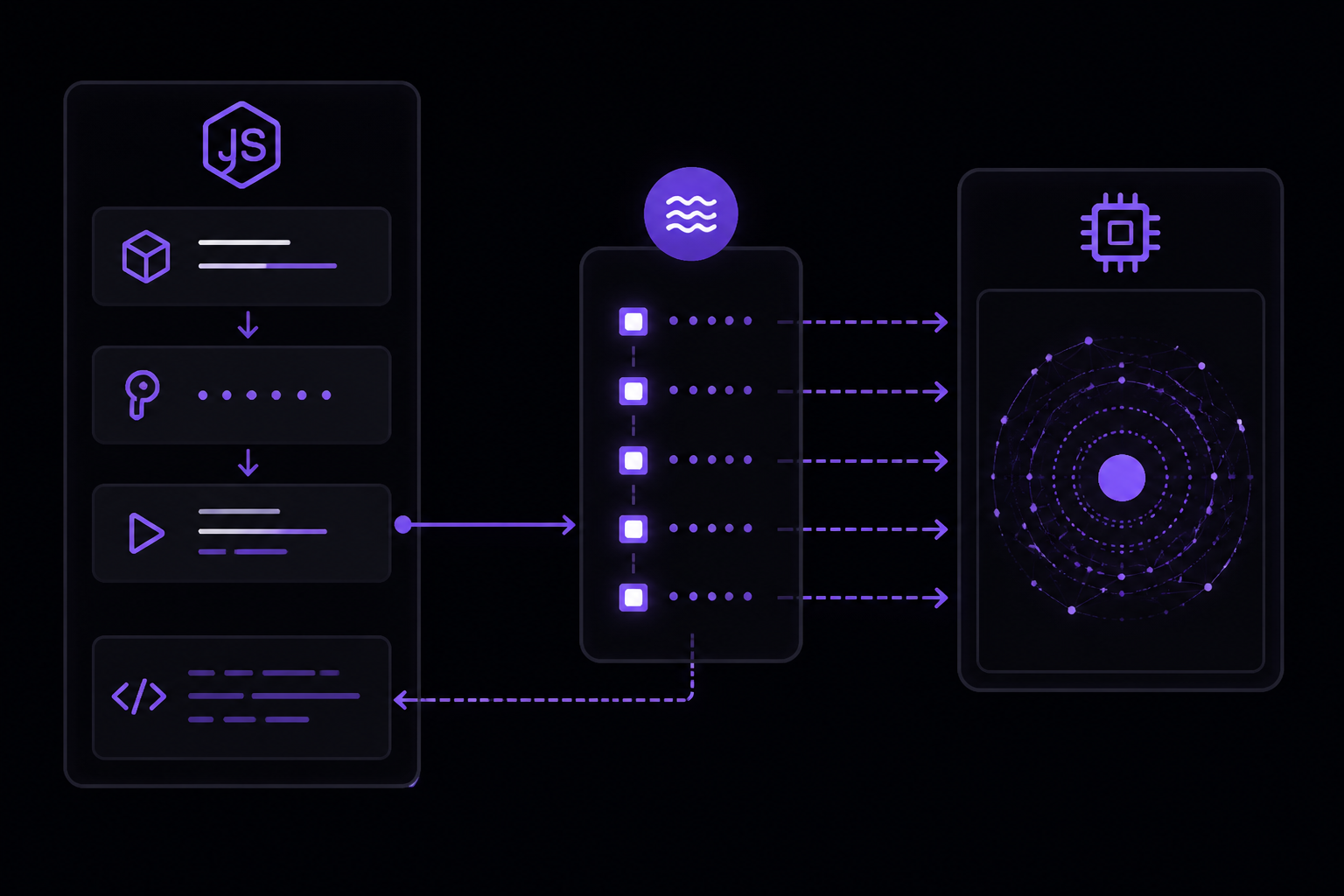
Streaming is a technique where the server sends the response data in chunks as they become available, rather than waiting for the entire response to be generated. For ChatGPT, this means you can start displaying the model's output to the user almost immediately, creating a more responsive and engaging experience.
How Streaming Works with the OpenAI API
The OpenAI API supports streaming for the Responses API and the Chat Completions API. When you make a streaming request, the API returns a stream of events. Each event contains a portion of the model's output. Your application listens to this stream and processes each event as it arrives.
Key Concepts
- Stream: A sequence of data chunks sent from the server to the client over time.
- Event: A single piece of data within the stream. For the OpenAI API, events are typically Server-Sent Events (SSE).
- Chunk: A portion of the model's output, which could be a few words, a sentence, or a partial sentence.
- End of Stream: A signal that the model has finished generating its response.
Setting Up Your Environment
Step 1: Get Your API Key
- Log in to the OpenAI platform at platform.openai.com.
- Navigate to the API keys section in your dashboard.
- Click "Create new secret key".
- Copy the key and store it in a secure location. The official documentation warns that you will not be able to see the key again after you close the dialog.
Step 2: Set the API Key as an Environment Variable
This is the recommended approach for security. The OpenAI SDKs automatically read the API key from the OPENAI_API_KEY environment variable.
macOS / Linux
Open your terminal and run:
export OPENAI_API_KEY="your_api_key_here"
To make this permanent, add the line to your shell profile file (e.g., ~/.zshrc, ~/.bashrc, or ~/.bash_profile).
Windows (PowerShell)
setx OPENAI_API_KEY "your_api_key_here"
Step 3: Install the OpenAI SDK
JavaScript (Node.js)
Create a new project directory and initialize it:
mkdir streaming-chatgpt
cd streaming-chatgpt
npm init -y
Install the OpenAI SDK:
npm install openai
Python
Create a new project directory and set up a virtual environment (recommended):
mkdir streaming-chatgpt
cd streaming-chatgpt
python -m venv venv
source venv/bin/activate  # On Windows: venv\Scripts\activate
Install the OpenAI SDK:
pip install openai
Implementing Streaming in JavaScript (Node.js)
Basic Streaming Request
The official OpenAI SDK for JavaScript and TypeScript supports streaming natively. When you set the stream parameter to true in the request, the SDK returns a stream object that you can iterate over.
Create a file named stream.js and add the following code:
import OpenAI from "openai";

const client = new OpenAI();

async function main() {
  const stream = await client.responses.create({
    model: "gpt-5.6",
    input: "Write a one-sentence bedtime story about a unicorn.",
    stream: true,
  });

  for await (const event of stream) {
    // Process each event
    console.log(event);
  }
}

main();
Explanation:
import OpenAI from "openai";imports the OpenAI SDK.const client = new OpenAI();creates a new client instance. It automatically reads the API key from theOPENAI_API_KEYenvironment variable.client.responses.create(...)makes a request to the Responses API.model: "gpt-5.6"specifies the model to use. The official documentation usesgpt-5.6in its examples.input: "..."is the user's prompt.stream: truetells the API to return a stream of events instead of a single response object.for await (const event of stream)iterates over the stream asynchronously. Eacheventis a chunk of data from the API.
Run the script:
node stream.js
You will see a series of events printed to the console. Each event has a type property that indicates what kind of data it contains.
Handling Stream Events
The stream emits different types of events. The most important ones for text generation are:
response.output_text.delta: Contains a portion of the model's text output.response.output_text.done: Indicates that a particular text output is complete.response.completed: Indicates that the entire response is complete.
Here is an example that extracts and prints only the text deltas:
import OpenAI from "openai";

const client = new OpenAI();

async function main() {
  const stream = await client.responses.create({
    model: "gpt-5.6",
    input: "Write a one-sentence bedtime story about a unicorn.",
    stream: true,
  });

  let fullText = "";

  for await (const event of stream) {
    if (event.type === "response.output_text.delta") {
      fullText += event.delta;
      process.stdout.write(event.delta); // Print as it arrives
    }
  }

  console.log("\n\nFull response:", fullText);
}

main();
Explanation:
event.type === "response.output_text.delta"checks if the event is a text delta.event.deltacontains the new text chunk.process.stdout.write(event.delta)prints the text to the console without adding a newline, so the text appears character by character.- The
fullTextvariable accumulates all deltas to get the complete response.
Streaming with Instructions
You can also use the instructions parameter to guide the model's behavior. According to the official documentation, the instructions parameter gives the model high-level instructions on how it should behave while generating a response, including tone, goals, and examples of correct responses. Any instructions provided this way will take priority over a prompt in the input parameter.
import OpenAI from "openai";

const client = new OpenAI();

async function main() {
  const stream = await client.responses.create({
    model: "gpt-5.6",
    instructions: "Talk like a pirate.",
    input: "Are semicolons optional in JavaScript?",
    stream: true,
  });

  for await (const event of stream) {
    if (event.type === "response.output_text.delta") {
      process.stdout.write(event.delta);
    }
  }
}

main();
Streaming with Message Roles
The official documentation explains that you can use message roles (developer, user, assistant) in the input array. The developer role is for instructions provided by the application developer, and it is prioritized ahead of user messages. This is equivalent to using the instructions parameter.
import OpenAI from "openai";

const client = new OpenAI();

async function main() {
  const stream = await client.responses.create({
    model: "gpt-5.6",
    input: [
      {
        role: "developer",
        content: "Talk like a pirate.",
      },
      {
        role: "user",
        content: "Are semicolons optional in JavaScript?",
      },
    ],
    stream: true,
  });

  for await (const event of stream) {
    if (event.type === "response.output_text.delta") {
      process.stdout.write(event.delta);
    }
  }
}

main();
Explanation:
- The
inputarray contains multiple messages. - The first message has
role: "developer"and contains the system instructions. - The second message has
role: "user"and contains the user's question. - The official documentation notes that the
instructionsparameter only applies to the current response generation request. If you are managing conversation state with theprevious_response_idparameter, theinstructionsused on previous turns will not be present in the context.
Implementing Streaming in Python
Basic Streaming Request
The official OpenAI SDK for Python also supports streaming. Create a file named stream.py and add the following code:
from openai import OpenAI

client = OpenAI()

stream = client.responses.create(
    model="gpt-5.6",
    input="Write a one-sentence bedtime story about a unicorn.",
    stream=True,
)

for event in stream:
    # Process each event
    print(event)
Explanation:
from openai import OpenAIimports the SDK.client = OpenAI()creates a new client instance. It reads the API key from theOPENAI_API_KEYenvironment variable.client.responses.create(...)makes a request.stream=Trueenables streaming.for event in stream:iterates over the stream. Eacheventis a chunk of data.
Run the script:
python stream.py
Handling Stream Events
Similar to the JavaScript SDK, the Python SDK emits events. Here is an example that extracts and prints only the text deltas:
from openai import OpenAI

client = OpenAI()

stream = client.responses.create(
    model="gpt-5.6",
    input="Write a one-sentence bedtime story about a unicorn.",
    stream=True,
)

full_text = ""

for event in stream:
    if event.type == "response.output_text.delta":
        full_text += event.delta
        print(event.delta, end="", flush=True)

print("\n\nFull response:", full_text)
Explanation:
event.type == "response.output_text.delta"checks if the event is a text delta.event.deltacontains the new text chunk.print(event.delta, end="", flush=True)prints the text without a newline and flushes the output buffer so it appears immediately.- The
full_textvariable accumulates all deltas.
Streaming with Instructions
from openai import OpenAI

client = OpenAI()

stream = client.responses.create(
    model="gpt-5.6",
    instructions="Talk like a pirate.",
    input="Are semicolons optional in JavaScript?",
    stream=True,
)

for event in stream:
    if event.type == "response.output_text.delta":
        print(event.delta, end="", flush=True)
Streaming with Message Roles
from openai import OpenAI

client = OpenAI()

stream = client.responses.create(
    model="gpt-5.6",
    input=[
        {
            "role": "developer",
            "content": "Talk like a pirate."
        },
        {
            "role": "user",
            "content": "Are semicolons optional in JavaScript?"
        }
    ],
    stream=True,
)

for event in stream:
    if event.type == "response.output_text.delta":
        print(event.delta, end="", flush=True)
Advanced Streaming Details
The reasoning Parameter
The official documentation shows that you can use the reasoning parameter with models that support it. For example, with gpt-5.6, you can set reasoning: { effort: "low" } to control how much reasoning the model does before generating its response. This parameter can be used in both streaming and non-streaming requests.
import OpenAI from "openai";

const client = new OpenAI();

async function main() {
  const stream = await client.responses.create({
    model: "gpt-5.6",
    reasoning: { effort: "low" },
    instructions: "Talk like a pirate.",
    input: "Are semicolons optional in JavaScript?",
    stream: true,
  });

  for await (const event of stream) {
    if (event.type === "response.output_text.delta") {
      process.stdout.write(event.delta);
    }
  }
}

main();
The output_text Property
According to the official documentation, some of the official SDKs include an output_text property on model responses for convenience, which aggregates all text outputs from the model into a single string. This may be useful as a shortcut to access text output from the model. However, in streaming mode, you should not rely on this property until the stream is complete. The documentation also warns that the output array often has more than one item in it. It can contain tool calls, data about reasoning tokens generated by reasoning models, and other items. It is not safe to assume that the model's text output is present at output[0].content[0].text.
Using Tools with Streaming
The official documentation provides examples of using built-in tools like web_search, file_search, and code_interpreter with the Responses API. These tools can also be used with streaming requests. When a tool is called, the stream will emit events related to the tool call before the text output.
Here is an example of using the web_search tool with streaming in JavaScript:
import OpenAI from "openai";

const client = new OpenAI();

async function main() {
  const stream = await client.responses.create({
    model: "gpt-5.6",
    tools: [{ type: "web_search" }],
    input: "What was a positive news story from today?",
    stream: true,
  });

  for await (const event of stream) {
    if (event.type === "response.output_text.delta") {
      process.stdout.write(event.delta);
    } else if (event.type === "response.web_search_call.in_progress") {
      console.log("\n[Searching the web...]");
    }
  }
}

main();
Managing Conversation State
The official documentation mentions the previous_response_id parameter for managing multi-turn conversations. When using streaming, you can pass the ID of the previous response to continue the conversation. The instructions parameter only applies to the current response generation request, so you need to include it in each request if you want consistent behavior across turns.
Troubleshooting
No Events Received
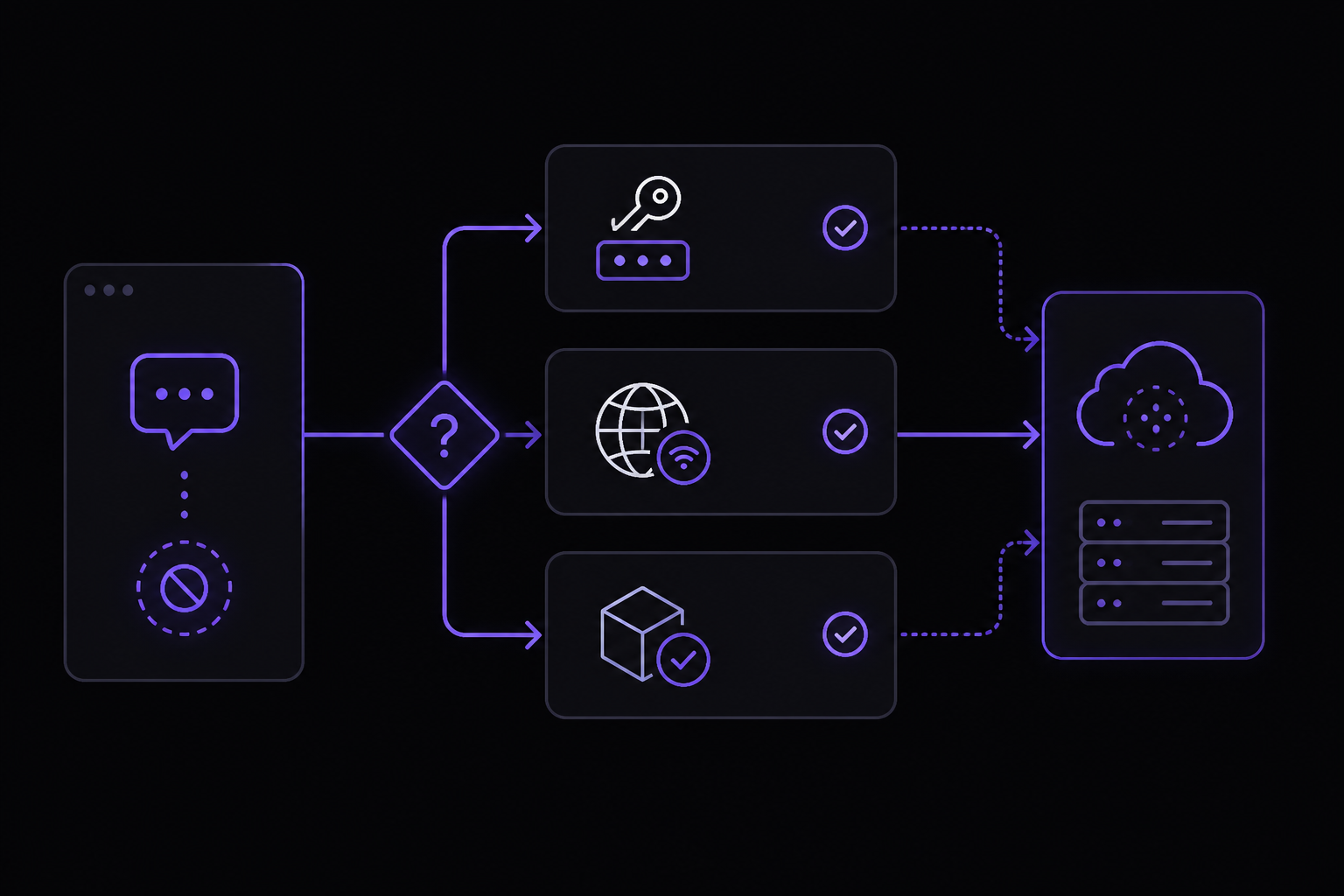
If you are not receiving any events from the stream, check the following:
- API Key: Ensure your API key is correctly set as an environment variable. The official documentation states that each OpenAI SDK automatically reads your API key from the system environment.
- Network Connectivity: Make sure your machine can reach the OpenAI API endpoints. Firewalls or proxy settings may block the connection.
- Model Availability: Verify that the model you are using (e.g.,
gpt-5.6) is available in your region and for your account tier. The official documentation usesgpt-5.6in its examples. - Stream Parameter: Confirm that you have set
stream: true(orstream=Truein Python) in your request. Without this, the API will return a single response object instead of a stream.
Incomplete or Garbled Text
If the text you receive is incomplete or garbled, consider the following:
- Event Handling: Ensure you are correctly handling all event types. The stream may emit events other than
response.output_text.delta, such asresponse.output_text.doneorresponse.completed. Ignoring these may cause you to miss the end of the stream. - Buffer Flushing: In Python, use
flush=Truein yourprintstatement to ensure text is displayed immediately. In Node.js,process.stdout.writedoes not add a newline, so the text appears as it arrives. - Concurrent Requests: If you are making multiple streaming requests simultaneously, ensure your event handling logic is not mixing up events from different streams.
Rate Limiting and Errors
If you encounter rate limit errors (HTTP 429) or other API errors, the official documentation recommends:
- Retry with Exponential Backoff: Implement a retry mechanism that waits progressively longer between attempts.
- Check Usage Limits: Monitor your usage in the OpenAI dashboard and upgrade your plan if necessary.
- Error Handling: Wrap your streaming code in try-catch blocks to handle errors gracefully. The stream may throw an error if the API request fails.
import OpenAI from "openai";

const client = new OpenAI();

async function main() {
  try {
    const stream = await client.responses.create({
      model: "gpt-5.6",
      input: "Write a one-sentence bedtime story about a unicorn.",
      stream: true,
    });

    for await (const event of stream) {
      if (event.type === "response.output_text.delta") {
        process.stdout.write(event.delta);
      }
    }
  } catch (error) {
    console.error("An error occurred:", error);
  }
}

main();
Community-Reported Issues
Community members on forums and GitHub have reported the following issues and solutions:
- Connection Drops: Some users experience intermittent connection drops during long streaming sessions. A common workaround is to implement a reconnection strategy that automatically retries the request if the stream ends unexpectedly before the
response.completedevent is received. - Memory Leaks: In long-running applications, not properly closing the stream can lead to memory leaks. Ensure you break out of the loop when you receive the
response.completedevent or when the stream ends. - SDK Version Mismatch: Using an outdated version of the OpenAI SDK can cause unexpected behavior. Always use the latest version. Check the official GitHub repository for updates.
Going Further
Now that you have implemented basic streaming, you can explore more advanced topics:
- Structured Outputs: The official documentation mentions that you can have the model return structured data in JSON format. This is called Structured Outputs. You can combine this with streaming to get real-time JSON data.
- Prompt Engineering: The official documentation provides guidance on prompt engineering techniques, such as using message roles and the
instructionsparameter. Experiment with different prompts to get the best results for your use case. - Building Agents: The official documentation mentions the Agents SDK for building, running, and observing agent workflows. You can use streaming to provide real-time feedback from your agents.
- Image and File Inputs: The official documentation shows how to send image URLs, uploaded files, or PDF documents directly to the model. You can use streaming to get real-time analysis of these inputs.
- Version Prompts in Code: The official documentation recommends storing production prompts in your application code instead of creating reusable prompt objects. This allows you to use typed inputs, code review, tests, and your normal deployment process to change model behavior.
- Pinning Model Snapshots: The official documentation strongly recommends pinning your production applications to specific model snapshots (like
gpt-5.5-2026-04-23) to ensure consistent behavior. This is especially important when using streaming, as different model versions may produce different streaming behavior.
Comments
More Guides
View all api
apiOpenAI Batch API: Cut Costs for Bulk Processing
Learn how to use the OpenAI Batch API to cut costs by 50% for bulk processing tasks. Covers setup, request formatting, job creation, monitoring, error handling, and troubleshooting.
 prompting
ChatGPT for Coding: Prompt Patterns That Produce Working Code
Learn how to write prompts for ChatGPT that reliably generate working code. Covers core concepts, setup, and specific patterns for different coding tasks.
 api
apiOpenAI Vision API: Processing Images with GPT Models
Learn how to use the OpenAI Vision API to analyze images with GPT models. Covers setup, sending images via URL, Base64, or file ID, controlling detail levels, cost calculation, and troubleshooting.
 api
apiOpenAI Embeddings for Semantic Search: A Practical Guide
Learn how to use OpenAI's text embedding models for semantic search, clustering, recommendations, and classification. This guide covers concepts, setup, API usage, dimension reduction, and practical tips from official documentation and community experience.
 api
apiHandling OpenAI API Rate Limits and Quota Errors: A Complete Guide
Learn how to handle OpenAI API rate limits (429) and quota errors. Covers error types, exponential backoff, Python library exceptions, and troubleshooting steps for production applications.
 api
apiOpenAI Structured Outputs: Guaranteed JSON Schemas with Function Calling
Learn how to use OpenAI Structured Outputs to guarantee JSON schema conformance from GPT models. Covers function tool definitions, strict mode, tool call handling, and best practices for both Chat Completions and Responses APIs.