Productivity Automation Workflows — Page 5 | Neura Market
    Neura Market
    Neura Market
    /Categories
    Marketplace
    Directories
    Resources
    Home/Categories/Productivity

    Productivity Workflows

    Task and project management

    • Automate WhatsApp Appointment Scheduling with Google Calendar Integration

      Streamline your appointment scheduling process by automating bookings through WhatsApp and integrating them directly into Google Calendar. This workflow eliminates manual coordination, reduces errors, and ensures efficient time management.

      n8n$24.99
    • Automate Travel Time Blockers in Google Calendar with Google Directions API

      This workflow automatically adds travel time blockers to your Google Calendar, ensuring you always arrive on time for appointments by calculating travel durations using the Google Directions API.

      n8n$14.99
    • Automated Daily WhatsApp Group Summary to Google Drive

      This workflow automates the collection and summarization of WhatsApp group messages, storing them in Google Sheets and generating a daily summary document in Google Drive. Ideal for busy groups needing organized daily insights.

    Marketplace

    • Prompts
    • Workflows
    • Agents Store
    • Workflow Packs
    • Categories
    • Marketplace

    Directories

    • AI Tools Directory
    • ChatGPT
    • Claude
    • Gemini
    • Cursor
    • Grok
    • DeepSeek
    • Perplexity
    • CoPilot
    • Midjourney
    • Stable Diffusion
    • MCP Servers
    • .md Directory
    • All Directories

    Free Tools

    • AI Text Humanizer
    • AI Content Detector
    • Workflow Generator
    • Model Comparison
    • AI Pricing Calculator
    • AI Benchmarks
    • ROI Calculator
    • All Free Tools

    Resources

    • AI News
    • Blog
    • AI Answers
    • Error Solutions
    • AI Tutorials
    • AI Models
    • Integrations
    • Alternatives
    • n8n vs Zapier
    • Make vs Zapier
    • n8n vs Make
    • Resource Library
    • Documentation
    • API Access to Our Data

    Community

    • AI Newsletter
    • AI Jobs
    • AI Events
    • AI Companies
    • Start Selling
    • Sell n8n Workflows
    • Sell AI Agents
    • Sell Prompts
    • Creator Guide
    • Advertise
    • Affiliates

    Company

    • About
    • Contact
    • Help
    • Careers
    • Pricing
    • Terms
    • Privacy
    • License
    • DMCA

    The #1 Newsletter in AI

    Weekly updates, news, and content that matter.

    Neura Market Logoneuramarket

    © 2026 Neura Market. All rights reserved.

    n8n$14.99
  1. Automate Digital Tasks with AI-Powered Telegram Commands

    Streamline your digital life by automating emails, calendar events, web searches, and more using AI-driven commands via Telegram.

    n8n$19.99
  2. Automate Cal.com Meeting Bookings via ElevenLabs Voice Agent

    Streamline your meeting scheduling by automating Cal.com bookings through interactions with an ElevenLabs voice agent. This workflow validates incoming data and ensures successful meeting creation.

    n8n$4.99
  3. Automate Daily Digest from Gmail, RSS, and Todoist

    Automatically compile a daily digest from Gmail, RSS feeds, and Todoist tasks, and send it via email every morning.

    n8n$4.99
  4. Automate Grocery List Updates in Asana via Telegram and AI

    This workflow allows you to update your grocery list in Asana using natural language commands via Telegram chat or voice, leveraging AI for transcription and task management.

    n8n$14.99
  5. Import Google Keep Notes to Google Sheets Using OpenAI and Google Drive

    This n8n workflow automates the import of your Google Keep notes into a structured Google Sheet, using Google Drive, OpenAI for AI-powered processing, and JSON file extraction. It's perfect for users who want to turn exported Keep notes into a searchable, filterable spreadsheet - optionally enhanced by AI summarization or transformation. ## Who is this for? - Researchers, knowledge workers, and digital minimalists who rely on Google Keep and want to better organize or analyze their notes. - Anyone who regularly exports Google Keep notes and wants a clean, automated workflow to store them in Google Sheets. - Users looking to apply AI to process, summarize, or extract insights from raw notes. ## What problem is this workflow solving? Exporting Google Keep notes via Google Takeout gives you unstructured .json files that are hard to read and manage. This workflow solves that by: - Filtering relevant .json files - Extracting note content - (Optionally) applying AI to analyze or summarize each note - Writing the result into a structured Google Sheet ## What this workflow does 1. Google Drive Search: Looks for .json files inside a specified Keep folder. 2. Loop: Processes files in batches of 10. 3. File Filtering: Filters by .json extension. 4. Download + Extract: Downloads each file and extracts note content from JSON. 5. Optional Filtering: Only keeps non-archived notes or those meeting content criteria. 6. AI Processing (optional): Uses OpenAI to summarize or transform the note content. 7. Prepare for Export: Maps note fields to be written. 8. Google Sheets: Appends or updates the target sheet with the note data. ## Setup - Export your Google Keep notes using Google Takeout: - Deselect all, then choose only Google Keep. - Choose "Send download link via email". - Unzip the downloaded archive and upload the .json files to your Google Drive. - Connect Google Drive, OpenAI, and Google Sheets in n8n. - Set the correct folder path for your notes in the “Search in ‘Keep’ folder” node. - Point the Google Sheet node to your spreadsheet ## How to customize this workflow to your needs Skip AI processing: If you don't need summaries or transformations, remove or disable the OpenAI Chat Model node. Filter criteria: Customize the Filter node to extract only recent notes, or those containing specific keywords. AI prompts: Edit the Tools Agent or Chat Model node to instruct the AI to summarize, extract tasks, categorize notes, etc. Field mapping: Adjust the “Set fields for export” node to control what gets written to the spreadsheet. Use this template to build a powerful knowledge extraction tool from your Google Keep archive - ideal for backups, audits, or data-driven insights.

    n8n$14.99
  6. Automate Telegram to Notion with AI Summaries and Transcriptions

    Seamlessly integrate Telegram messages into Notion by automatically summarizing text and transcribing audio using AI, enhancing your task management and productivity.

    n8n$14.99
  7. Automate Website Change Detection with Firecrawl, Google Sheets, and Gmail Alerts

    Automatically monitor dynamic websites for changes and receive instant email alerts. This workflow uses Firecrawl to scrape JavaScript-rendered content, logs changes in Google Sheets, and sends notifications via Gmail.

    n8n$14.99
  8. Automate Weekly Notion Journal Summaries and Task Reports to Discord

    This workflow automates the process of summarizing your weekly Notion journal entries using GPT-4.1 and posts the summary to Discord. It also calculates completed tasks and sends a congratulatory message to a Discord channel.

    n8n$14.99
  9. Analyze Browsing History and Generate Automation Suggestions with OpenRouter AI and Google Sheets

    # Browsing History Automation Analyzer - Automation Toolkit (Google Sheets + AI) This **n8n workflow** analyzes your browsing history to identify opportunities for automation. It reads history from a Google Sheet, groups visits by domain, filters out irrelevant entries, and uses AI to recommend what can be automated - including how and why. --- ## What It Does - **Reads** your browsing history from Google Sheets - **Groups** history by domain - **Filters out** common non-actionable domains (e.g., YouTube, Google) - **Uses AI** to analyze whether your activity on each site is automatable - **Provides suggestions** including what to automate, how to do it, and which tools to use - **Saves results** into a new tab in the same Google Sheet - **Searches for n8n workflow templates** related to the suggested automation --- ## Demo Sheet Input + output are handled via the following Google Sheet: **Spreadsheet**: [View on Google Sheets](https://docs.google.com/spreadsheets/d/1V26KDJLBZno6e_VxaBqhsK_JOOOn_5N6uww2apcAeoc/edit?usp=drivesdk) - **Sheet: `history`** - Input browsing history - **Sheet: `automations`** - Output AI automation suggestions --- ## AI Analysis Logic The AI agent receives each domain's browsing history and responds with: - `domain`: The website domain - `automatable`: true/false - `what_to_automate`: Specific actions that can be automated - `reason`: Why it's suitable (or not) for automation - `tool`: Suggested automation tool (e.g., n8n, Apify) - `automation_rating`: High, Medium, Low, or Not Automatable - `n8n_template`: Relevant automation template (if found) --- ## Technologies Used | Tool | Purpose | |------------------------|--------------------------------| | **n8n** | Workflow automation | | **LangChain AI Agent** | AI-based analysis | | **Google Sheets Node** | Input/output data handling | | **OpenRouter (LLM)** | Language model for intelligent reasoning | | **JavaScript Code Node** | Grouping and formatting logic | | **Filter Node** | Remove unwanted domains | | **HTTP Request Node** | Search n8n.io templates | --- ## Chrome History Export You can use this Chrome extension to export your browsing history in a format compatible with the workflow: [Export Chrome History Extension](https://chromewebstore.google.com/detail/export-chrome-history/dihloblpkeiddiaojbagoecedbfpifdj?pli=1) --- ## Want Personalized Automation Advice? If you'd like **personalized automation recommendations** based on your browsing history - just like what this workflow provides - feel free to contact me directly: > **msaidwolfltd@gmail.com** I'll help you discover what tasks you can automate to save time and boost productivity. --- ## Example Use Cases - Automate daily logins to dashboards - Auto-fill forms on repetitive websites - Schedule data exports from web portals - Trigger reminders based on recurring visits - Discover opportunities for scraping and integration --- ## License This workflow is provided as-is for educational and personal use. For commercial or customized use, contact the author. ---

    n8n$9.99
  10. Automate LINE Message Processing with Microsoft and OpenRouter Integration

    Streamline the handling of LINE messages by automating tasks such as note saving, namecard data extraction, and image organization using Microsoft and OpenRouter tools.

    n8n$19.99
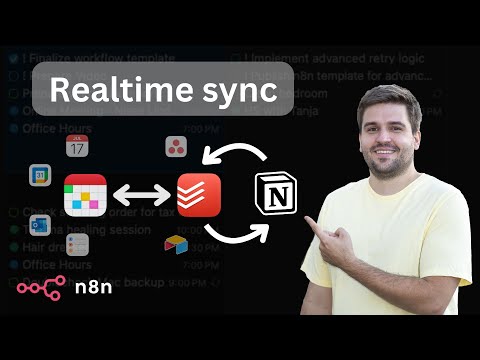
  11. Realtime Notion Todoist 2-Way Sync with Redis

    ## Purpose This solution enables you to manage all your Notion and Todoist tasks from different workspaces as well as your calendar events in a single place. All tasks can be managed in Todoist and additionally, Fantastical can be used to manage scheduled tasks & events all together. ## Demo & Explanation [![demo video](https://img.youtube.com/vi/k66j6ZspjCg/0.jpg)](https://youtu.be/k66j6ZspjCg) ## How it works - The realtime sync consists of two workflows, both triggered by a registered webhook from either Notion or Todoist. - To avoid overwrites by lately arriving webhook calls, every time the current task is retrieved from both sides. - Redis is used to prevent endless loops, since an update in one system triggers another webhook call again. Using the ID of the task, the trigger is being locked down for 15 seconds. - Depending on the detected changes, the other side is updated accordingly. Generally, Notion is treated as the main source. Using an Obsolete Status, it is guaranteed that tasks never get deleted entirely by accident. - The Todoist ID is stored in the Notion task, so they stay linked together. - An additional full sync workflow daily fixes inconsistencies, if any of them occurred, since webhooks cannot be trusted entirely. - Since Todoist requires a more complex setup, a tiny workflow helps with activating the webhook. - Another tiny workflow helps generating a global config, which is used by all workflows for mapping purposes. ## Mapping (Notion >> Todoist) - Name: Task Name - Priority: Priority (1: do first, 2: urgent, 3: important, 4: unset) - Due: Date - Status: Section (Done: completed, Obsolete: deleted) - <page_link>: Description (read-only) - Todoist ID: <task_id> ## Current limitations - Changes on the same task cannot be made simultaneously in both systems within a 15-20 second time frame. - Subtasks are not linked automatically to their parent yet. - Recurring tasks are not supported yet. - Task names do not support URLs yet. ## Prerequisites ### Notion - A database must already exist (get a basic template [here](https://steadfast-banjo-d1f.notion.site/17682b476c848086b002de766879aa71)) with the following properties (case matters!): - Text: Name - Status: Status, containing at least the options Backlog, In progress, Done, Obsolete - Select: Priority, containing the options do first, urgent, important - Date: Due - Checkbox: Focus - Text: Todoist ID ### Todoist - A project must already exist with the same sections like defined as Status in Notion (except Done and Obsolete) ### Redis - Create a [Free Redis Cloud](https://redis.io/try-free/) instance or self-host ## Setup [![setup video](https://img.youtube.com/vi/73jhyU0t4c4/0.jpg)](https://youtu.be/73jhyU0t4c4) The setup involves quite a lot of steps, yet many of them can be automated for business internal purposes. Just follow the video or do the following steps: - Setup credentials for Notion (access token), Todoist (access token), and Redis - you can also create empty credentials and populate these later during further setup. - Clone this workflow by clicking the Use workflow button and then choosing your n8n instance - otherwise, you need to map the credentials of many nodes. - Follow the instructions described within the bundle of sticky notes on the top left of the workflow. ## How to use - You can apply changes (create, update, delete) to tasks both in Notion and Todoist which then get synced over within a couple of seconds (this is handled by the differential realtime sync). - The daily running full sync resolves possible discrepancies in Todoist and sends a summary via email, if anything needed to be updated. In case that contains an unintended change, you can jump to the task from the email directly to fix it manually.
    n8n$24.99
  12. User Enablement Demo

    This workflow was originally presented at the [February 2022 n8n Meetup](https://youtu.be/jG2aCOF0ICg?t=2994). [![Enabling End-Users to Configure Workflows](https://res.cloudinary.com/marcomontalbano/image/upload/v1646311048/video_to_markdown/images/youtube--jG2aCOF0ICg-c05b58ac6eb4c4700831b2b3070cd403.jpg)](https://youtu.be/jG2aCOF0ICg?t=2994 "Enabling End-Users to Configure Workflows") ## Requirements In order to use this workflow, you will need the following in place: - A configured [Baserow](https://baserow.io/) account - A group in Baserow called *User Empowerment Demo* - A database in the *User Empowerment Demo* called *Office Shopping List* - Inside the *Office Shopping List* database, you will need two tables: - *Shopping List*: - Column 1 - Single line text column named *Item* - *Shopper*: - Column 1 - Single line text column named *Name* - Column 2 - Email column named *Email* - An email account for sending out alerts ## Customization To make this workflow work for you, please customize the following items: - All Baserow nodes will need to be updated with your own credentials, database, tables, and fields - The *Send Shopping List* node will need to be configured with your email credentials and email addresses - The *Create Shopper Form* Set node will need to have the code in the HTML *value* modified to reflect your Production URL from the *Submit Shopper* node (See [instructions below](#Changing_the_Webhook_URL_the_Webform_Posts_to)) - The Cron node will need to be modified to reflect the timing that you wish to use ## Modifying the Webform The webform is the piece that people normally want to customize but is often the most complex because it is raw HTML. Here are some quick tips for making changes to the form. ### Webform Nodes There are two nodes that control what you see in the form: - *Create Shopper Form* - displays the form and submits it to the correct webhook - *Create Response Page* - displays the results when the form is submitted ### Editing the Webform The easiest way that I have found to edit the webform is to: 1. Open up the Set node (*Create Shopper Form* or *Create Response Page*) that contains the HTML you wish to edit. 2. Copy the contents of the HTML value to your favorite HTML editor. 3. Make your changes. 4. Paste the updated HTML back into the Set node. ### Changing the Webhook URL the Webform Posts to In order for the webform to work properly, do the following: 1. Determine the Production URL for the *Submit Shopper* webhook node. 2. In the *Create Shopper Form* node, look for the following line in the HTML value: `form action=https://tephlon.app.n8n.cloud/webhook/submit-shopper method=POST` 3. Replace `https://tephlon.app.n8n.cloud/webhook/submit-shopper` with your Production URL. ### Changing the Webform Image The image that is in the webform is actually embedded in the HTML in each of the *Create Shopper Form* or *Create Response Page* Set nodes and can be modified from there using these steps: 1. Open up the appropriate Set node. 2. In the HTML value, find the line that starts with `background-image:`. It will be followed by a long string that looks like random characters. 3. Using a tool like [Image to Base64 Converter](https://codebeautify.org/image-to-base64-converter), upload your image and generate a new CSS background source. 4. Replace the original `background-image:` line (including all the random characters) with the new generated CSS background source.

    n8n$9.99
  13. Automate URL Screenshot Capture and Email Notifications via Google Sheets

    Streamline the process of capturing website screenshots from URLs listed in Google Sheets, saving them to Google Drive, and notifying stakeholders via Gmail.

    n8n$9.99
  14. Create a Notion AI Assistant with Google Gemini for Managing Tasks & Content

    **This n8n workflow template uses community nodes and is only compatible with the self-hosted version of n8n.** # Build an AI agent for Notion (with Notion official MCP server) ![Screenshot 20250610 at 15.11.56.png](fileId:1475) ## Use case This template empowers Notion power-users to build their own AI assistant, deeply integrated with their workspace. It solves the constant problem of copy-pasting and context-switching between a separate AI chat and Notion by creating a direct, conversational bridge. Now you can interact with an intelligent agent that can create, retrieve, and update your Notion databases and pages on your behalf, turning your workspace into a truly dynamic productivity hub. ![Screenshot 20250610 at 13.52.46.png](fileId:1474) ## How it works When you send a message via the chat interface, the workflow passes it to your chosen AI model. The model, connected to the official Notion tool server, analyzes your request to see if it can be fulfilled by one of its available Notion actions. If it matches a tool, the workflow executes the command using the Notion API—like creating a new page or searching a database—and the AI then confirms the action is complete back in the chat. ## Setup **Prerequisite:** This template is for **self-hosted n8n instances only**, as it requires a community node. 1. Copy this workflow into your self-hosted n8n instance. 2. Install the required community node (n8n-nodes-mcp). 3. Add your credentials for your chosen AI Model and the Notion MCP Server. 4. Test the workflow by starting chatting with your new Notion assistant. ## How to adjust it to your needs - You can use the AI model you want and even easily compare different AI models. - You can start from this template and then provide other tools to your AI agent to build more powerful workflows.

    n8n$9.99
  15. Automate Email to Notion Task Creation with AI and Multi-User Support

    This workflow transforms emails into actionable tasks in Notion using AI, supporting multiple users with individual configurations via a custom web portal.

    n8n$19.99
  16. Manually Create a New Trello Card with Custom Details

    This workflow allows you to manually trigger the creation of a new card in Trello, complete with a custom name and description.

    n8nFree
  17. Automatically Log New Calendly Bookings to Google Sheets

    This workflow captures new bookings from Calendly and logs them into a Google Sheet, ensuring all booking details are accurately recorded without manual input.

    n8n$4.99
  18. Automatically Create Daily Todoist Task List

    Automates daily Todoist task management: deletes uncompleted tasks at 5am and copies customizable template tasks to Inbox at 5:10am with due dates and recurrence.

    n8n$9.99
  19. Add Google Sheets rows for Layerise experiences

    Make will import your Layerise experiences into your Google sheets worksheet as a row. Heres the [sheet](https://docs.google.com/spreadsheets/d/1Bd3ef6vSgP-rzYHyhAqoXZSKsWzguhRGmsAAODFCtVo/edit?usp=sharing) used in this scenario.

    Make$2.99
  20. Automate Bookmarking from Android to Readeck with AI Tagging

    Streamline your bookmarking process by automatically saving links from your Android device to a self-hosted Readeck platform. Enhance organization with AI-generated tags and ensure easy access to your bookmarks.

    n8n$9.99
  21. Automate Document Processing with Google Docs and Webhooks

    This workflow streamlines the creation of documents in Google Docs using webhooks, enhancing productivity.

    n8n$13.94
  22. ← PreviousPage 5 of 51Next →

    Related categories

    Communication (2,463)AI (1,930)Business Operations & ERPs (1,540)Other (1,425)Marketing (1,146)Data & Analytics (995)File & Document Management (802)CRM - Sales (604)Notifications (580)Social Media (562)

    Need a custom productivity workflow?

    Our automation experts build tailored workflows for your exact stack and process.

    Request a Custom Workflow