
Back to Blog googleworkspace
 gemma
gemma community
 ai
ai ai
ai githubactions
 ai
ai
Google Workspace Studio Tutorial: Building an AI Meeting Prep Agent
Aryan Irani March 30, 2026
0 views
We've all been there, where you have 60 seconds before your next meeting starts. You're searching...
We've all been there, where you have 60 seconds before your next meeting starts. You're searching your inbox for that one PDF a client sent three days ago, or trying to remember what was discussed in last week's thread.
In the past, you needed a human Chief of Staff or a complex web of Python scripts to solve this. Today, you just need Google Workspace Studio.
In this tutorial, we are going to build a Meeting Prep Agent. This AI agent will automatically wake up 15 minutes before any meeting on your calendar, scan your recent emails and documents for context, and send a concise Google Doc directly to your Google Chat.
If you haven't read my previous tutorial on building your first AI agent in Workspace Studio, start there for the basics. Prefer to watch instead of read? Check out the video version of that guide here.
Prefer to watch instead of read? Check out the video version of the guide here.
{% embed https://youtu.be/onNH6yJNtMs?si=8-h_8fMjkAdYa0TV %}
What Is Google Workspace Studio? (Quick Recap)
Google Workspace Studio is a no-code AI agent builder launched in December 2025. It lets anyone describe a workflow in plain English, and Gemini builds the automation flow for you.
Agents run securely inside your Google Workspace, respecting all your organization's permissions and data policies. No Apps Script, no third-party tools - just natural language and seamless integration with Calendar, Gmail, Drive, and Chat.
Key Features Relevant Here:
- Based on a meeting starter - triggers relative to calendar events (e.g., 15 minutes before)
- Powerful Gemini AI steps for summarization and reasoning
- Variables that automatically pull meeting title, attendees, description, and more
- Actions like creating Docs, sharing files, and sending Chat messages
Prerequisites
- A Google Workspace Business, Enterprise, or Education plan with Gemini enabled
- Access to Google Workspace Studio at studio.workspace.google.com
- Make sure your admin has turned on the necessary features if you don't see Studio
The Workflow Logic
To build this, we'll use a specific four-part logic within the Workspace Studio editor:
- The Starter: Triggered by a Calendar event (15 minutes before start).
- The Research: Gemini scans your Workspace (Emails/Docs) for the meeting's participants and topic.
- The Synthesis: Gemini summarizes the Latest State of Play.
- The Delivery: The briefing is sent to you via Google Chat and saved as a Google Doc for your notes.
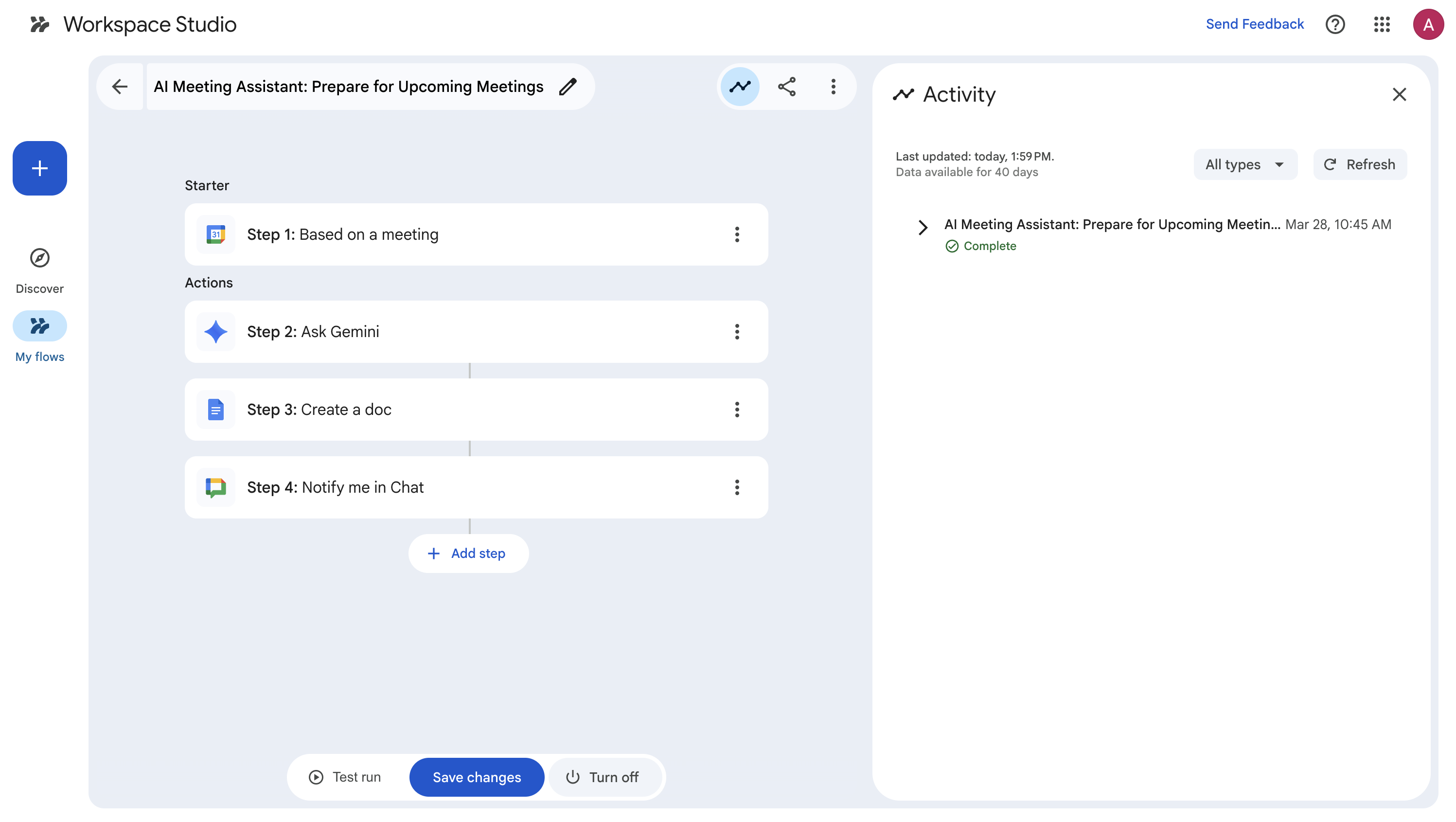
Step 1: Setting the Meeting Starter
Navigate to studio.workspace.google.com and create a new flow. Instead of using the Describe to Design box, we'll build this manually to ensure precision.
Click on Choose a Starter and select Based on a meeting.
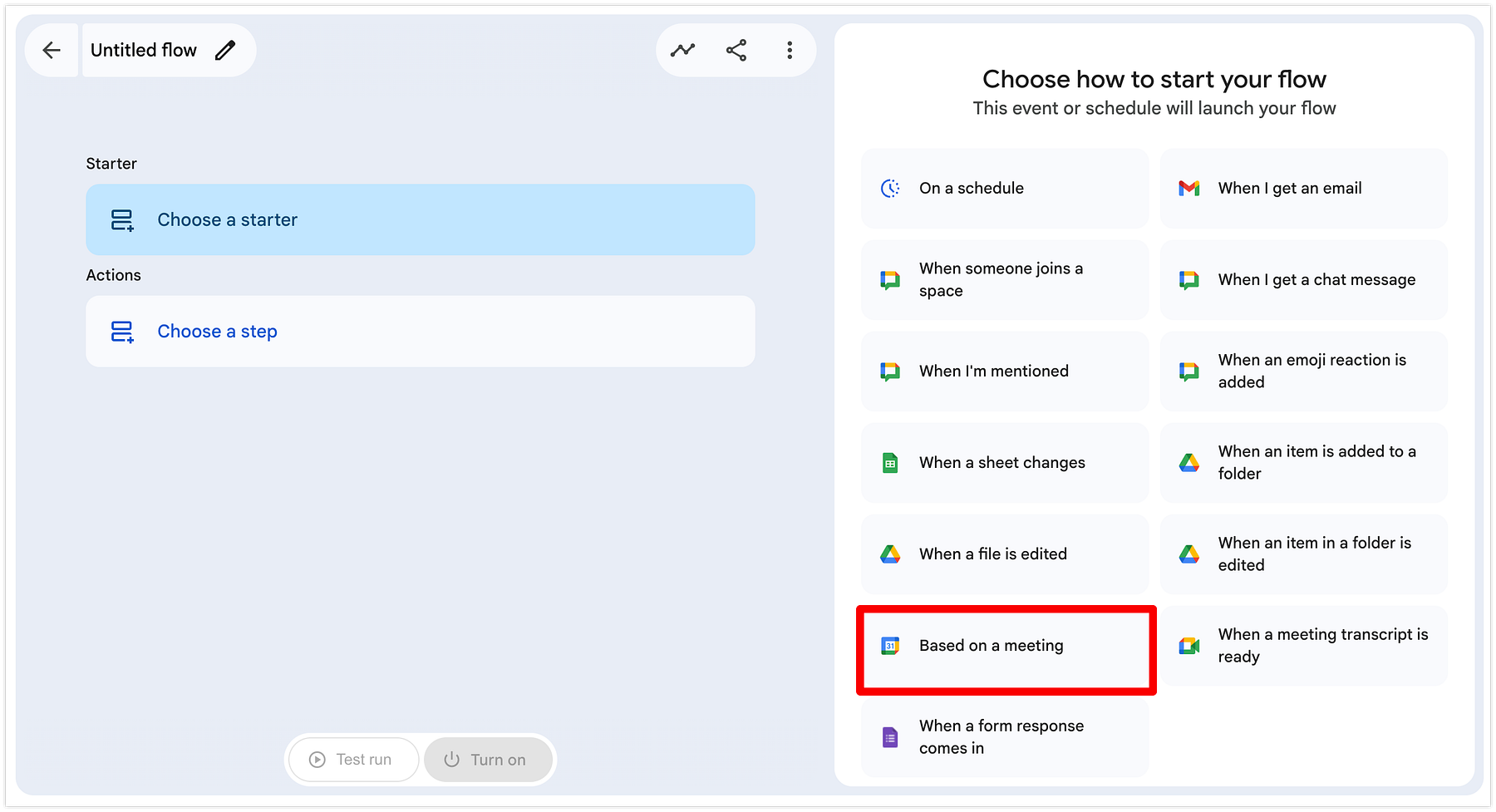
- You can always select a specific meeting, but for this case go ahead and select Every meeting.
- Timing: Set this to 15 minutes before.
- Start: You have the option to select Before and After meeting. Since the user needs to prepare for an upcoming meeting we are selecting Before meeting.
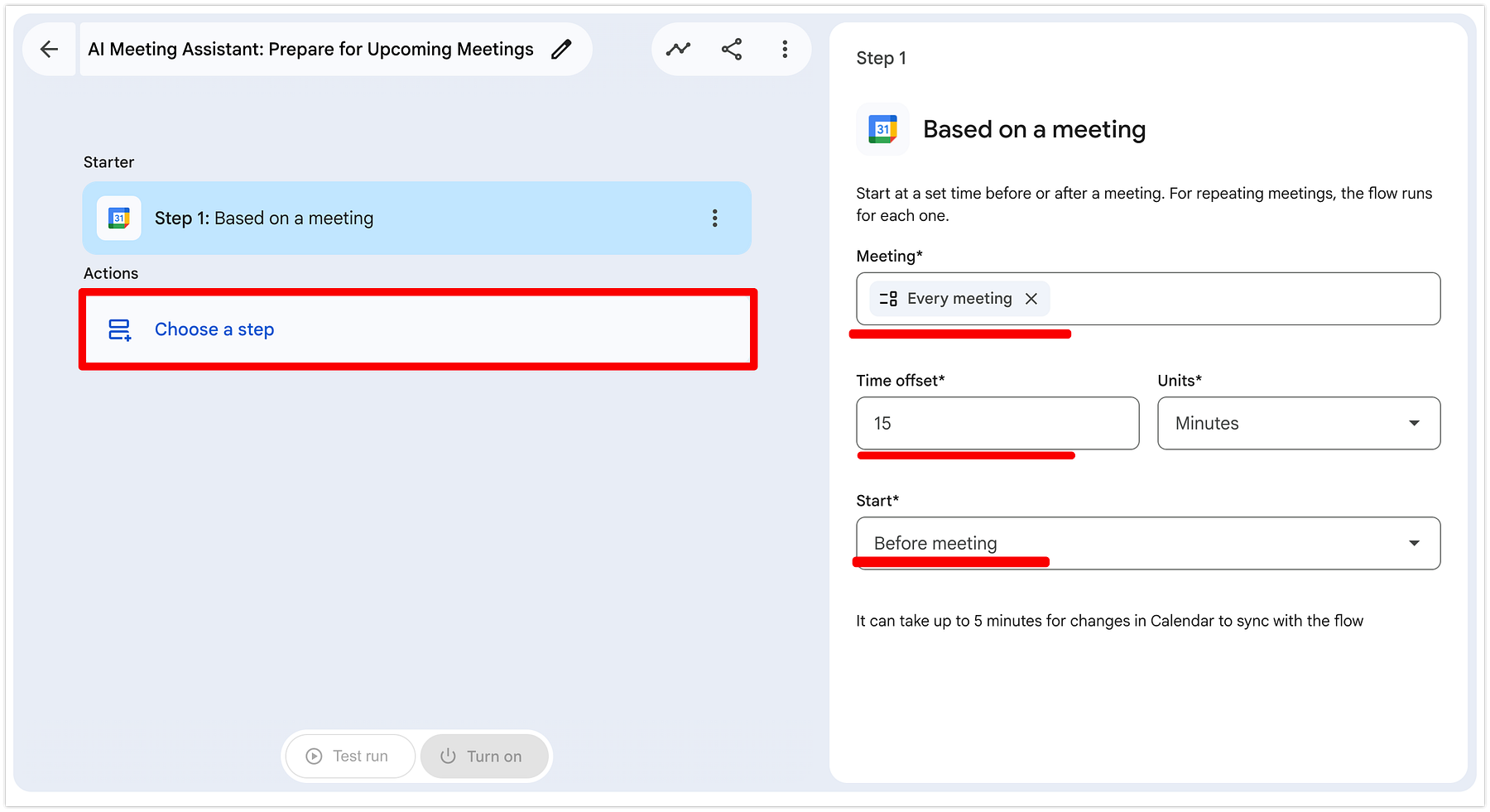
Once done, go ahead and click on Choose a step.
Step 2: Adding the Research Step
Now we need the agent to find the context. Add a new step and select Ask Gemini.
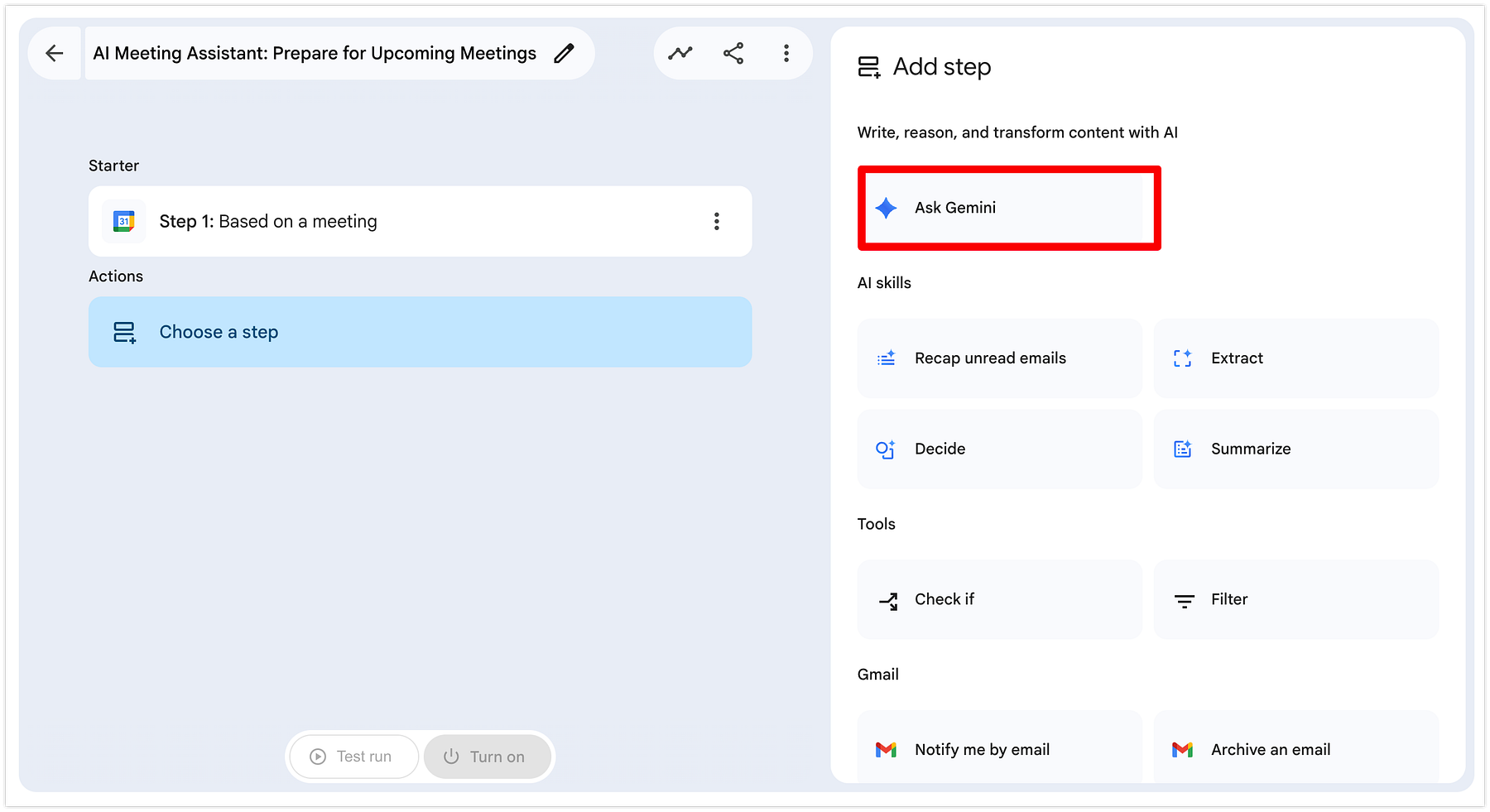
This opens the configuration window where you can talk to the AI in natural language. This is where you tell Gemini exactly what to look for. Because this agent is grounded in your Workspace, it can read your history to prepare you.
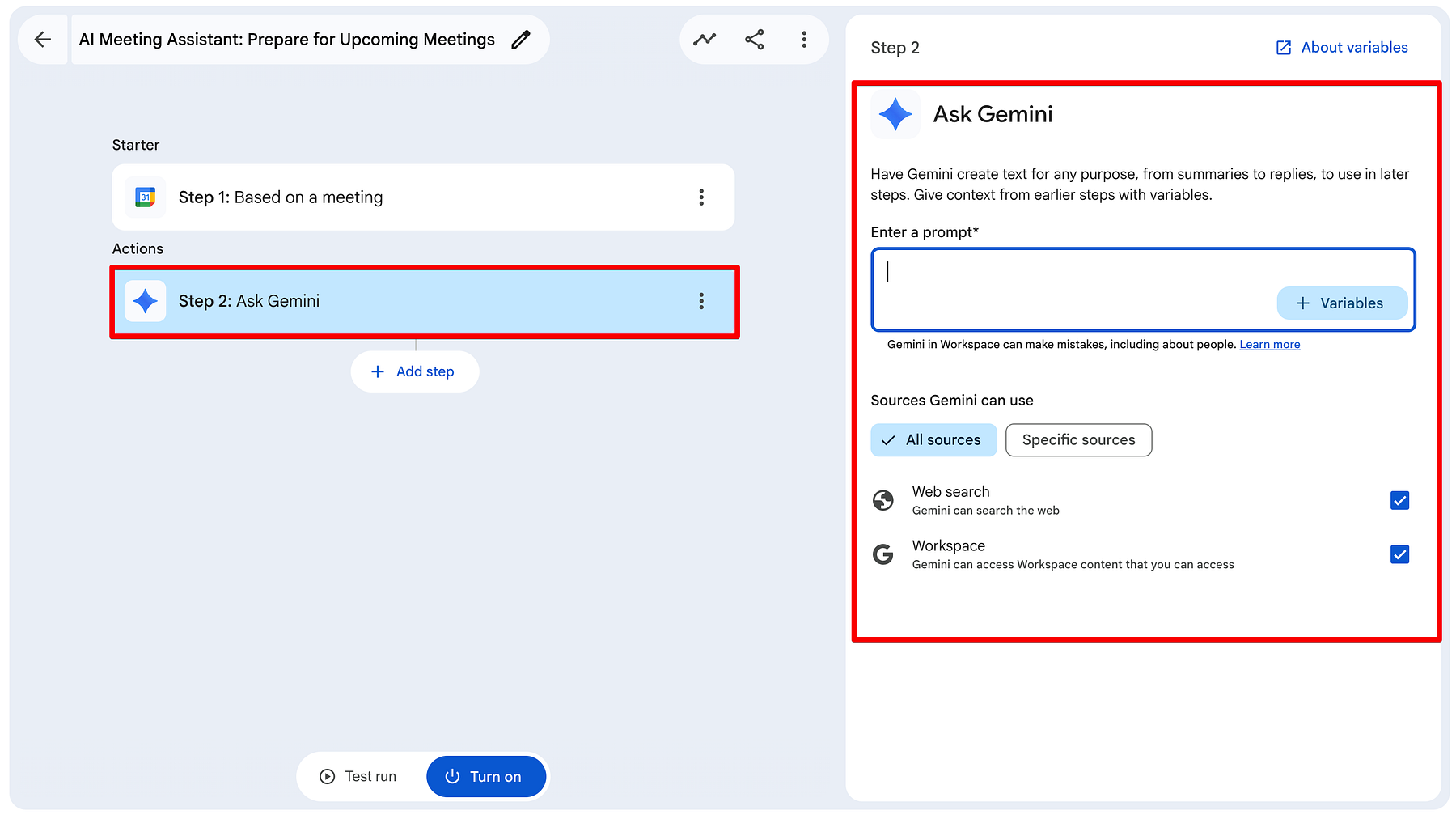
In the Enter a prompt box, copy and paste this structure:
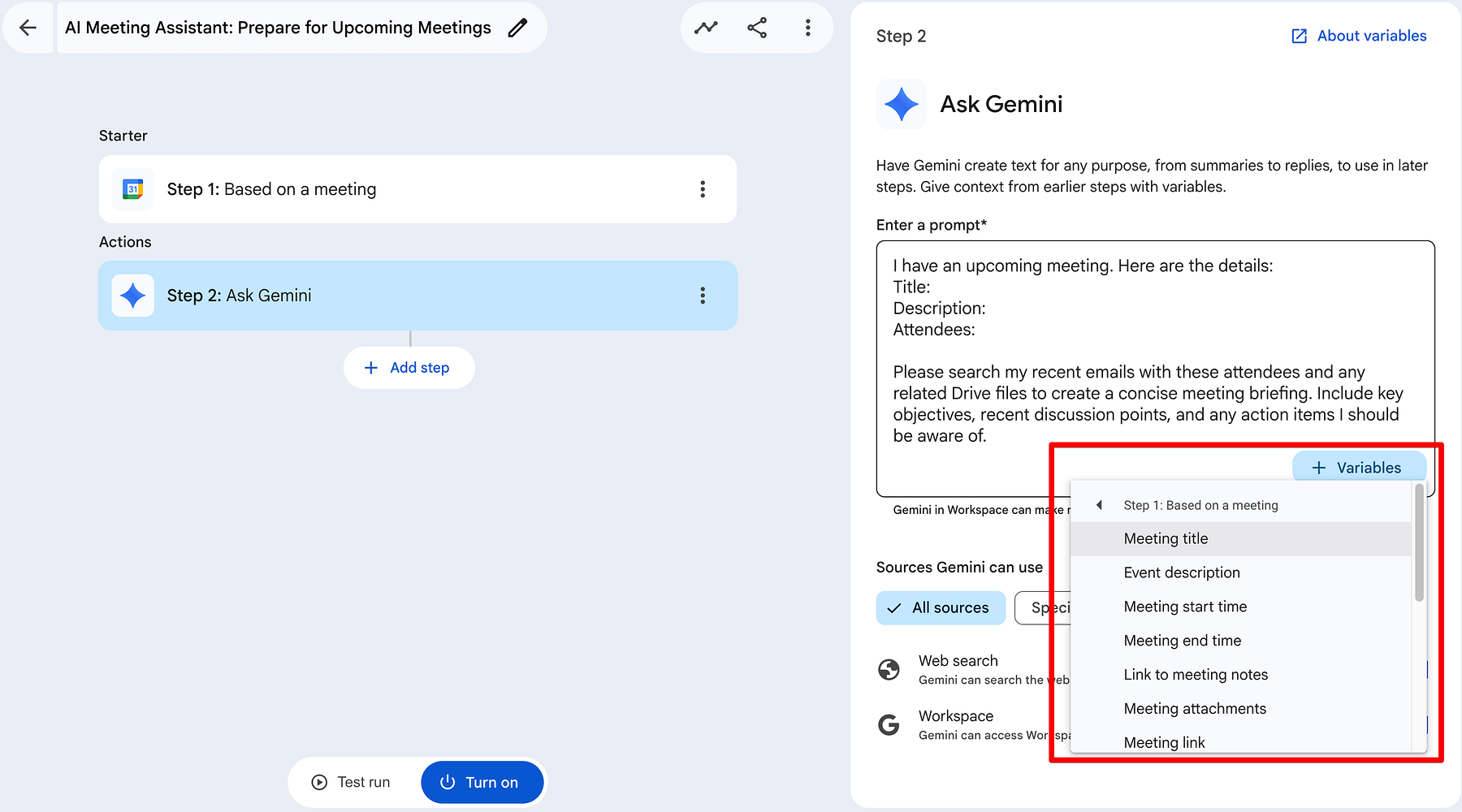
I have an upcoming meeting. Here are the details: Title: [Step 1: Meeting title] Description: [Step 1: Event description] Attendees: [Step 1: All guest full names] Please search my recent emails with these attendees and any related Drive files to create a concise meeting briefing. Include key objectives, recent discussion points, and any action items I should be aware of.
Don't just type the bracketed text! Click the + Variables button in the bottom right of the prompt box. This allows you to select the Blue Chips from Step 1.
By mapping the Meeting Title, Description, and Attendee Names, you are giving Gemini the specific search terms it needs to scan your history.
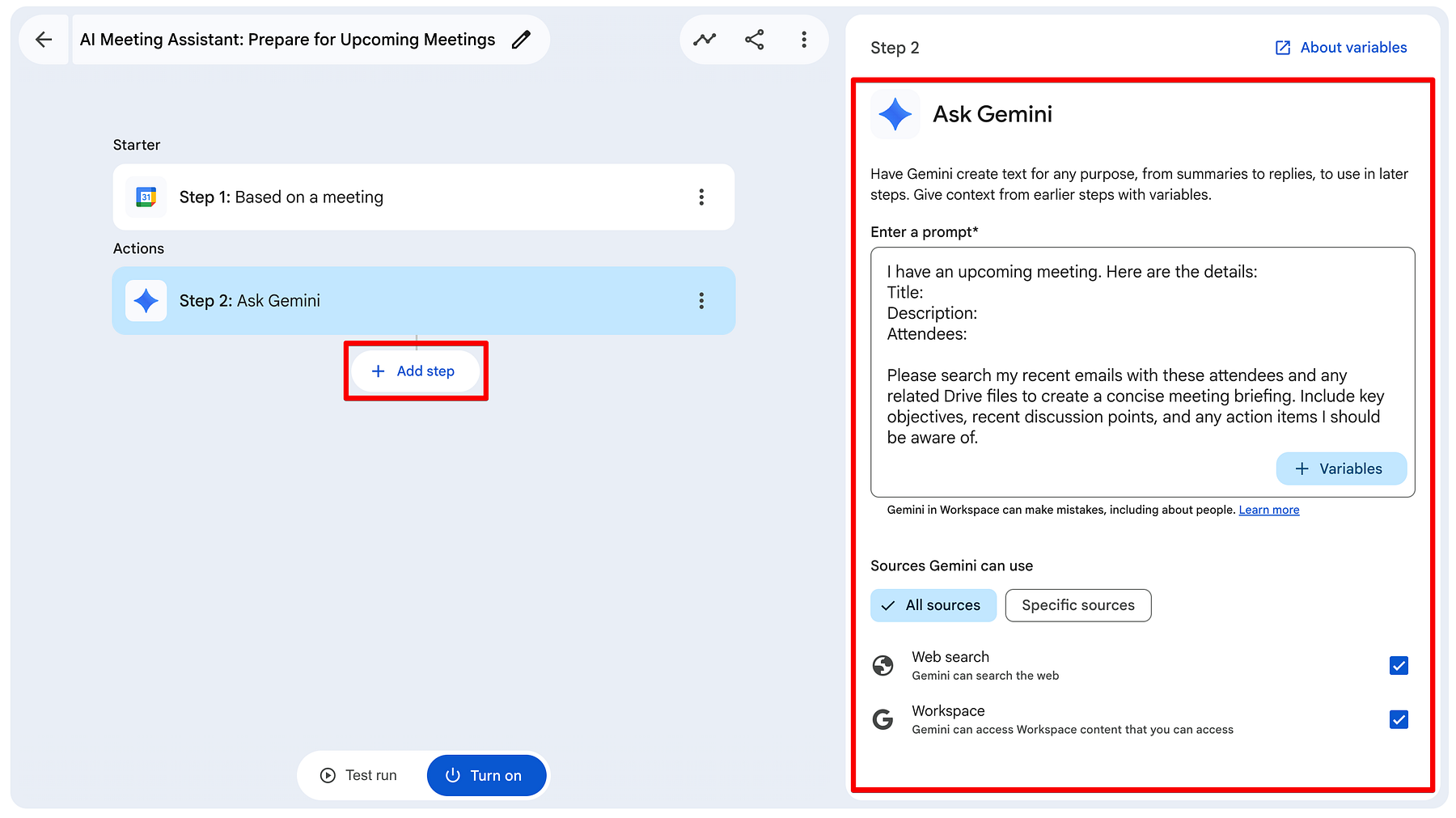
Look at the bottom of the Ask Gemini panel. Under Sources Gemini can use, ensure All sources is selected.
-
Web Search: This allows Gemini to look up recent public news about the attendees or their companies.
-
Workspace: This is the magic part - it allows Gemini to securely read your internal emails and Drive files to find those specific action items mentioned in the prompt.
Step 3: Generating the Permanent Record (Create a Doc)
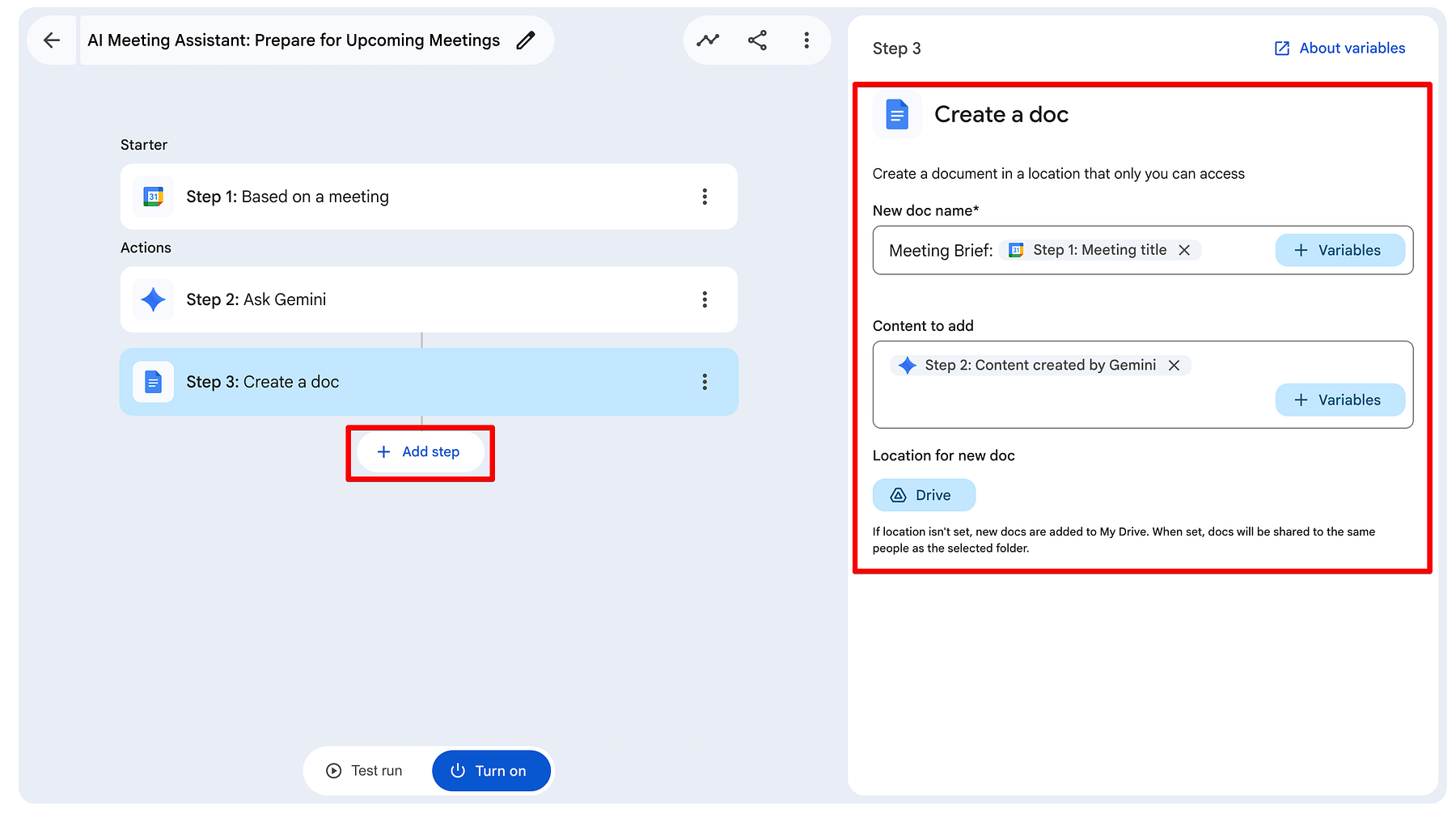
Once Gemini has finished its research, we want that information saved somewhere accessible. We'll use the Create a doc action to generate a dedicated briefing file in Google Drive.
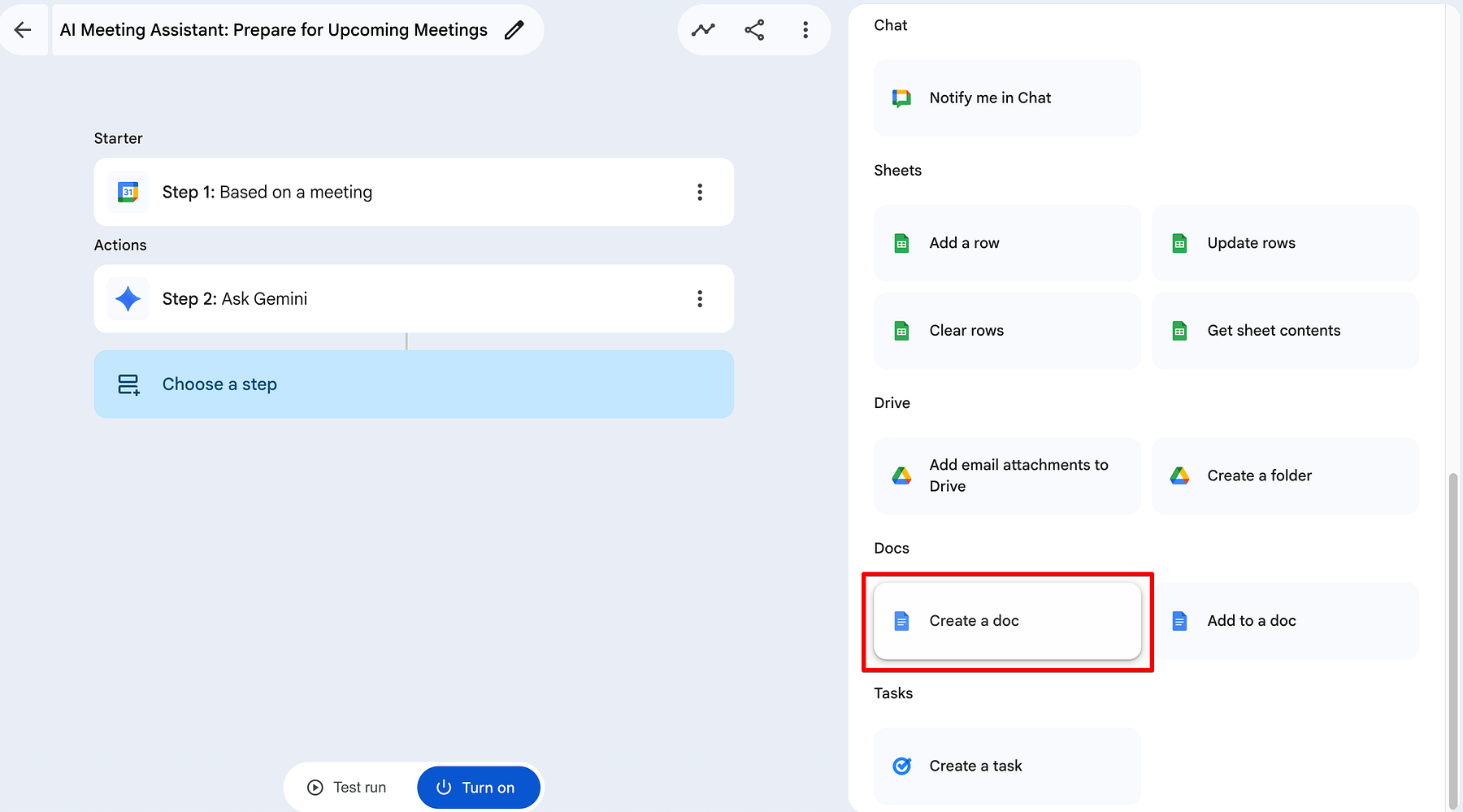
- Dynamic Naming: In the New doc name field, type Meeting Brief: and then use the + Variables button to insert the [Step 1: Meeting title] chip. This ensures every doc is perfectly organized and searchable in your Drive.
- Populating Content: In the Content to add field, we don't want the raw meeting description; we want the intelligence Gemini just gathered. Insert the variable [Step 2: Content created by Gemini].
- Location: : By default, your file will be saved in your My Drive root folder. However, if you want to choose a custom location, you can click on the Drive button to launch the Drive Picker.
Step 4: The Final Push (Notify me in Chat)
The last step is the delivery. Since you're likely on the move or prepping between calls, a Google Chat notification is the fastest way to get your briefing.
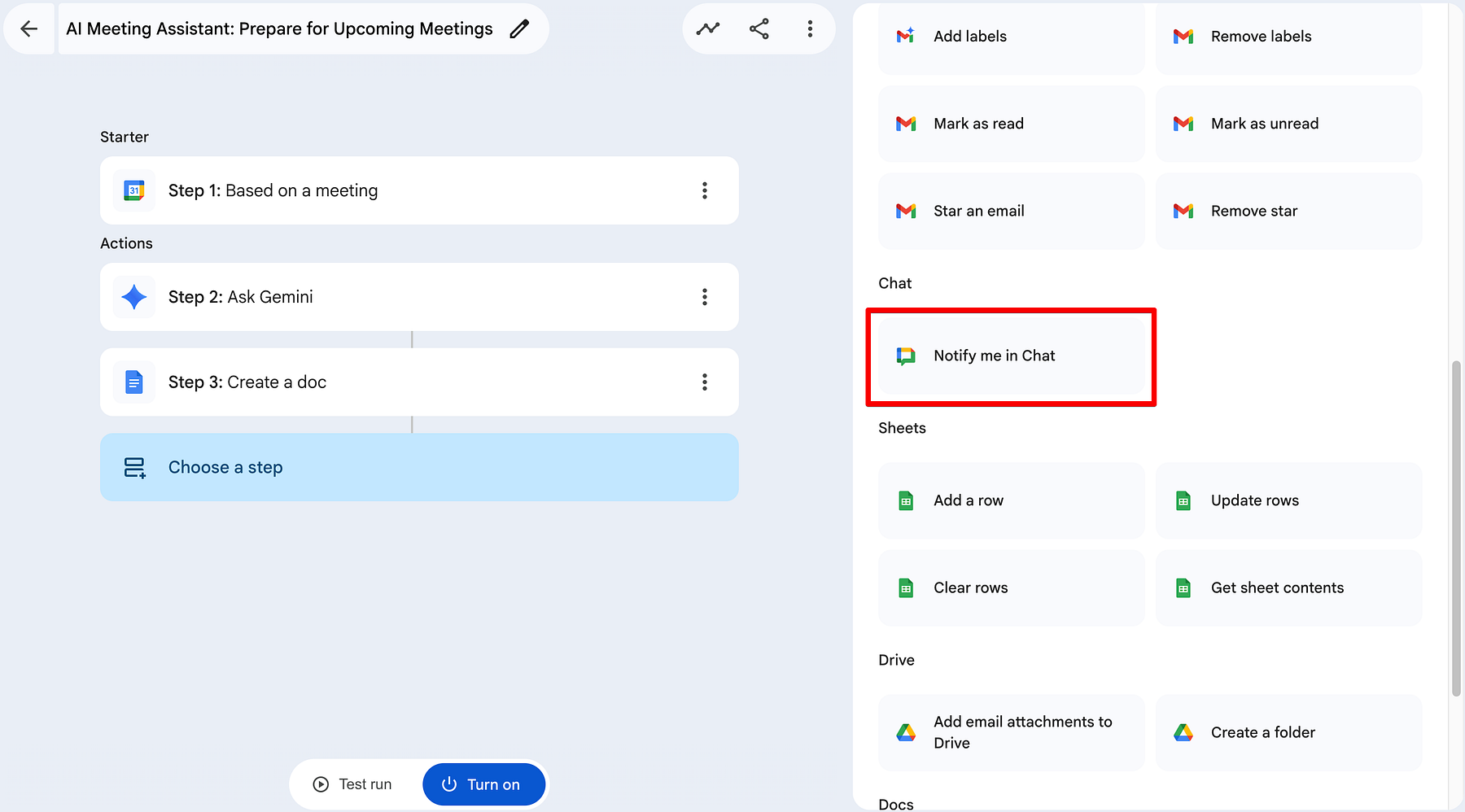
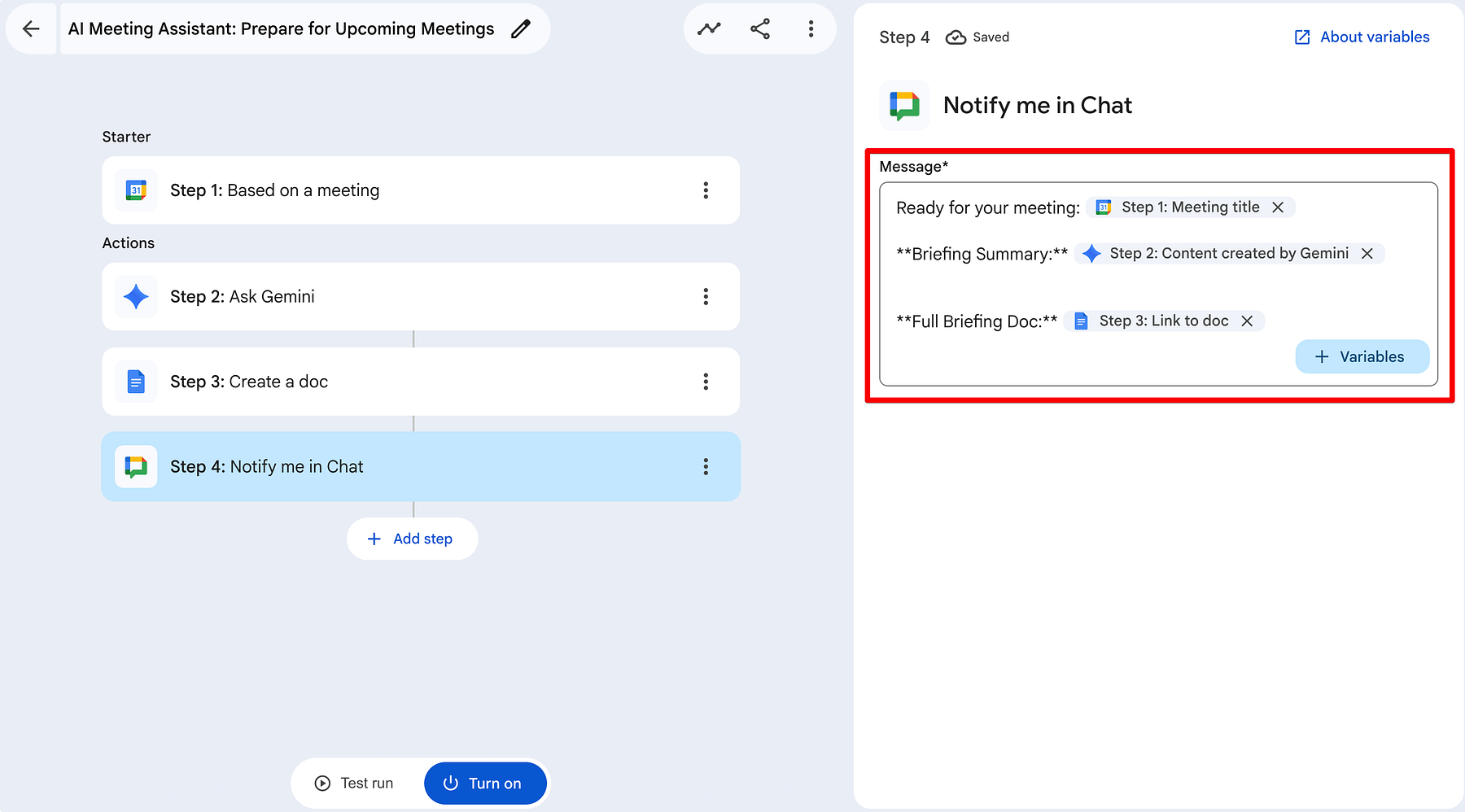
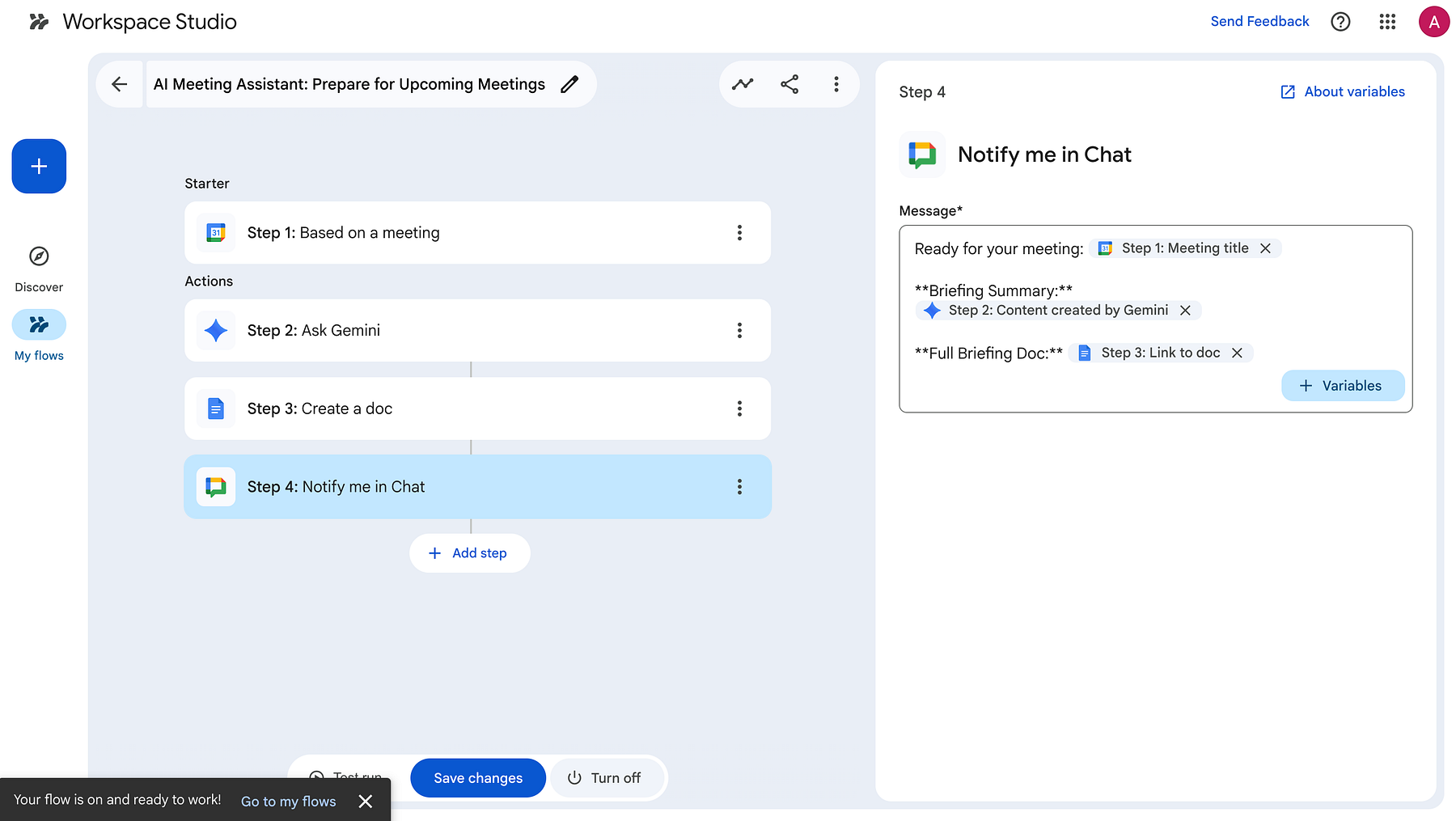
In the Message box, we are going to combine text with variables from all three previous steps to create a high-value notification:
- The Header: Type Ready for your meeting: and insert [Step 1: Meeting title].
- The Summary: Add a header for Briefing Summary: and insert [Step 2: Content created by Gemini]. This gives you the TL;DR right inside the chat app.
- The Deep Dive: Add Full Briefing Doc: and insert [Step 3: Link to doc].
By including the link from Step 3, you can jump from your Chat app directly into the formatted Google Doc if you need more details during the meeting.
Step 5: Testing and Activation
With your logic built, it's time to move from Design to Deployment. Google Workspace Studio offers a powerful way to verify your agent before it goes live.
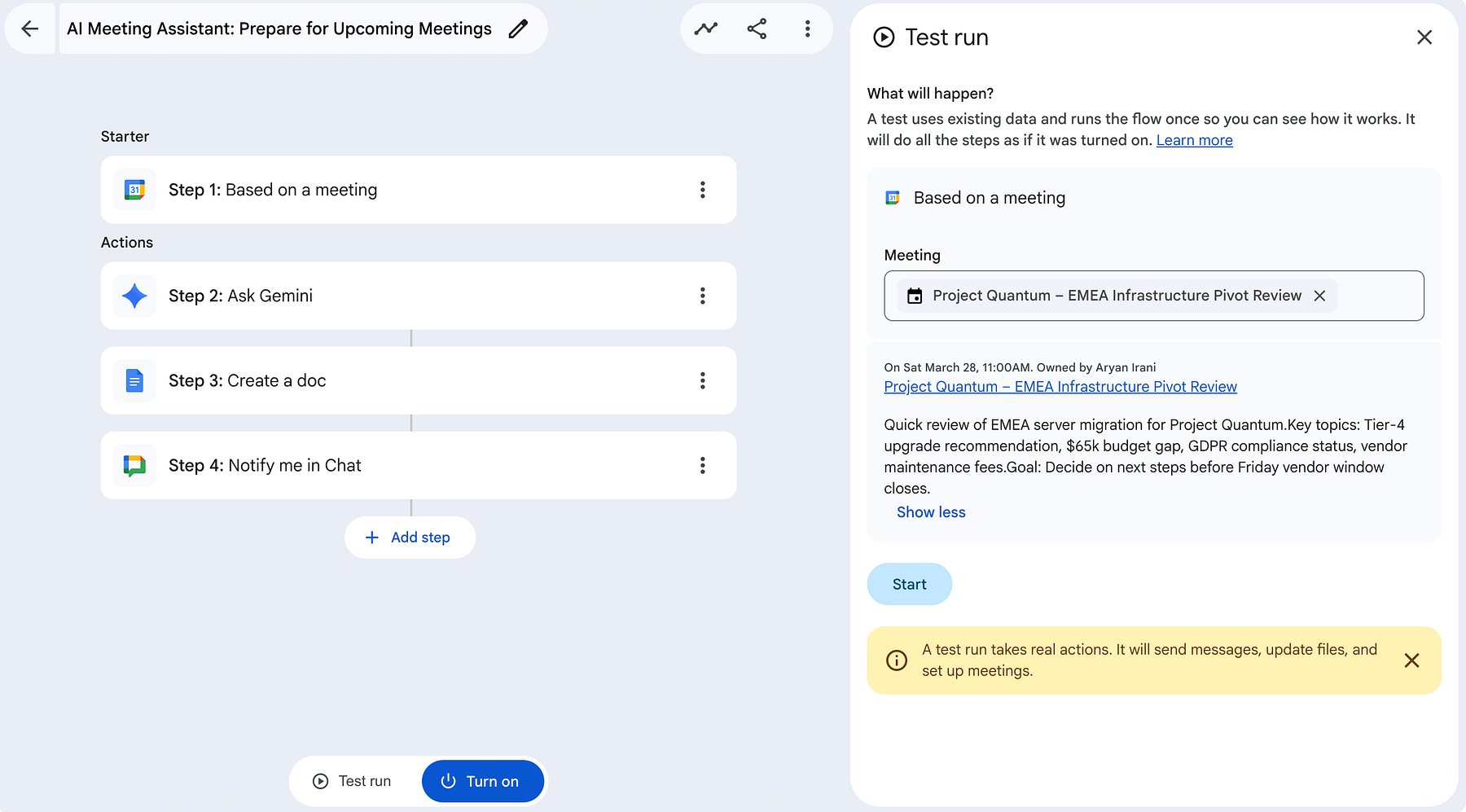
The Test Run (Verification) Before you commit to the automation, click the Test run button at the bottom of the editor. This opens a configuration panel on the right.
- Select a Meeting: In the Meeting dropdown, select an actual upcoming event from your calendar.
- Execute: Click Start.
- Important Note: A test run takes real actions. It will actually create the Google Doc in your Drive and send the message to your Google Chat. Use this to verify that the Gemini summary looks exactly how you want it.
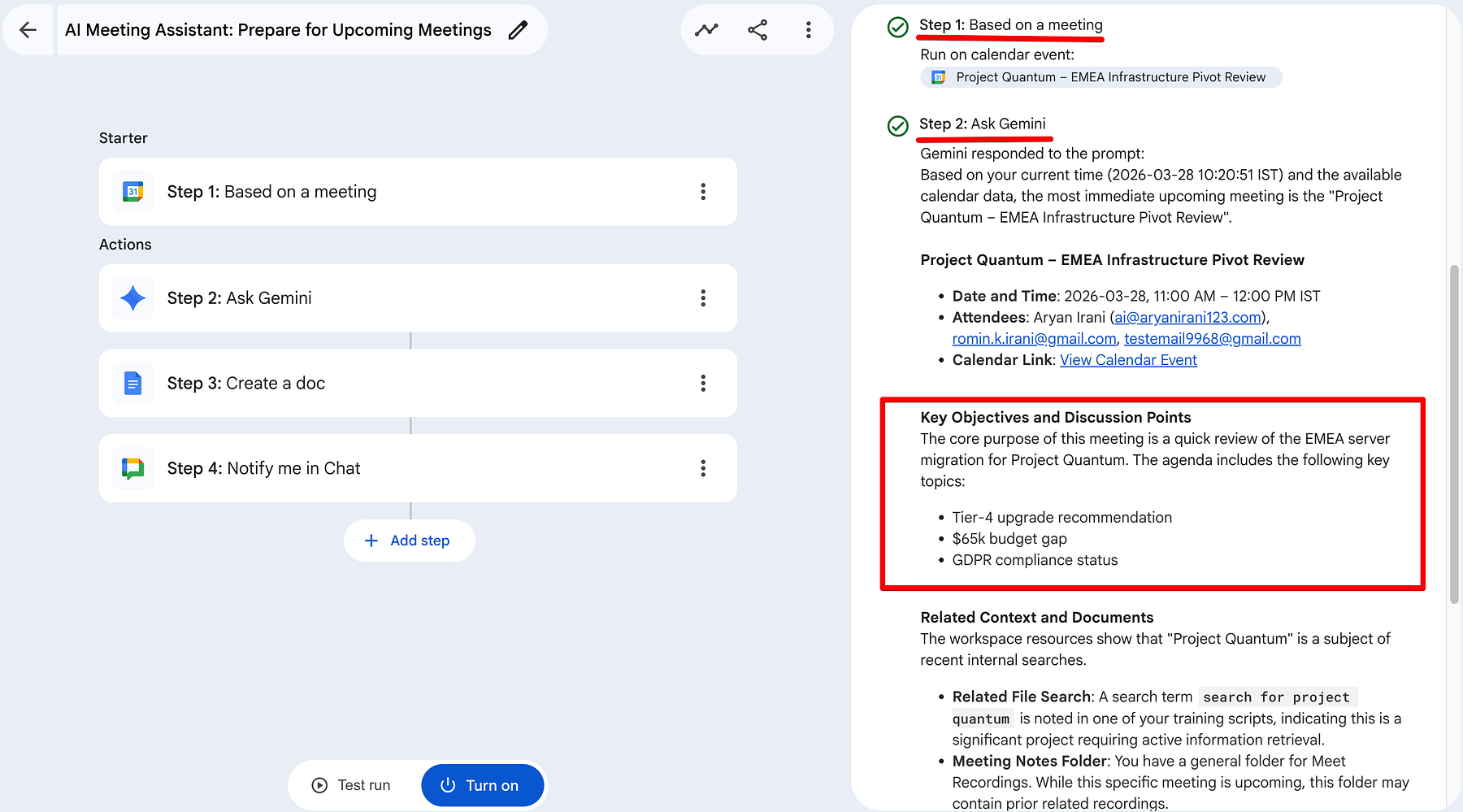
Workspace Studio provides real-time feedback. As the agent runs, you'll see green checkmarks appear next to each step.
- Step 1 & 2: Gemini immediately identifies the attendees, extracts the key objectives (server migration, budget gaps, GDPR compliance), and - most impressively - performs a Related File Search. It finds training scripts and meeting note folders related to Project Quantum inside your Drive.
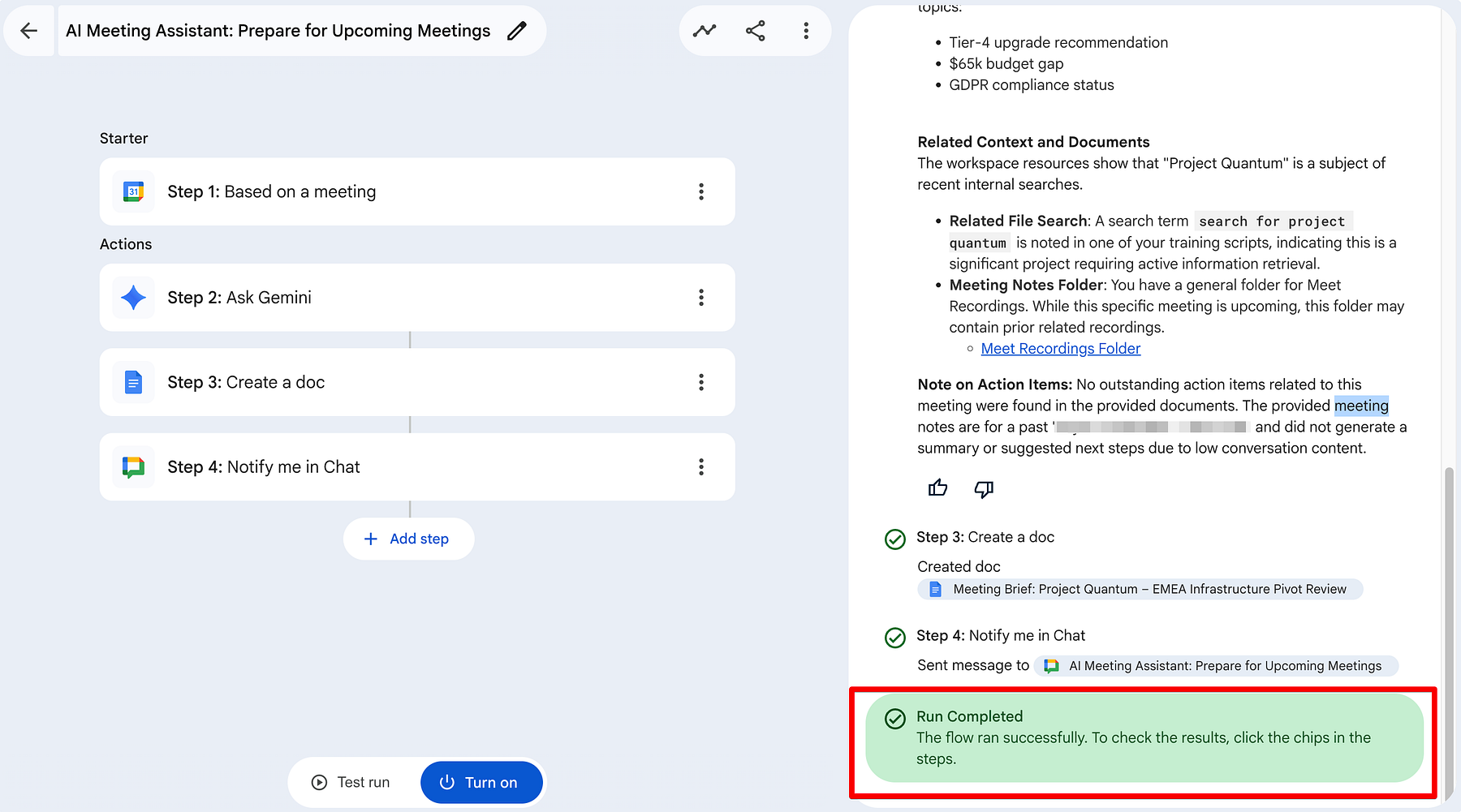
- Completion: Once you see the green Run Completed banner, the flow has successfully traversed from your calendar to your inbox, through Gemini's brain, and out to your productivity tools.
Going Live (Turn On) Once you are happy with the test results, click the blue Turn on button. Within a few seconds, you'll see a confirmation snackbar at the bottom left:
Your flow is on and ready to work!
Your AI Meeting Assistant is now officially on duty. It will sit silently in the background and trigger automatically 15 minutes before every meeting on your calendar.
The true power of this agent is visible in the output it creates for you. Within seconds of the trigger, two things happen:
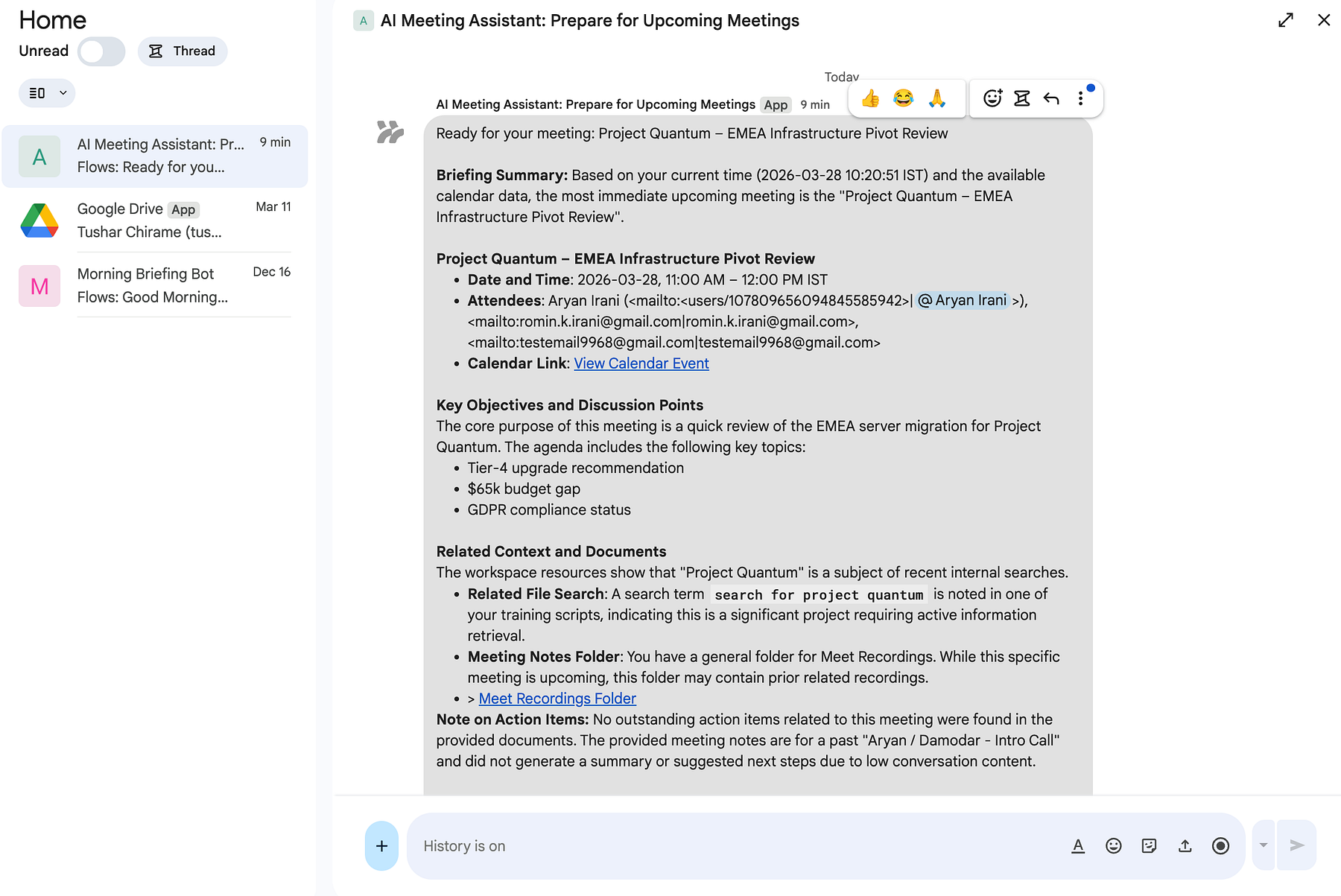
1. The Google Chat Briefing
You receive a notification from the AI Meeting Assistant app. It's not just a reminder; it's a full executive summary. It lists the date, time, attendees with their email links, and the core purpose of the meeting. It even includes a Note on Action Items - even if none were found, it gives you the peace of mind that it actually checked.
2. The Professional Briefing Doc
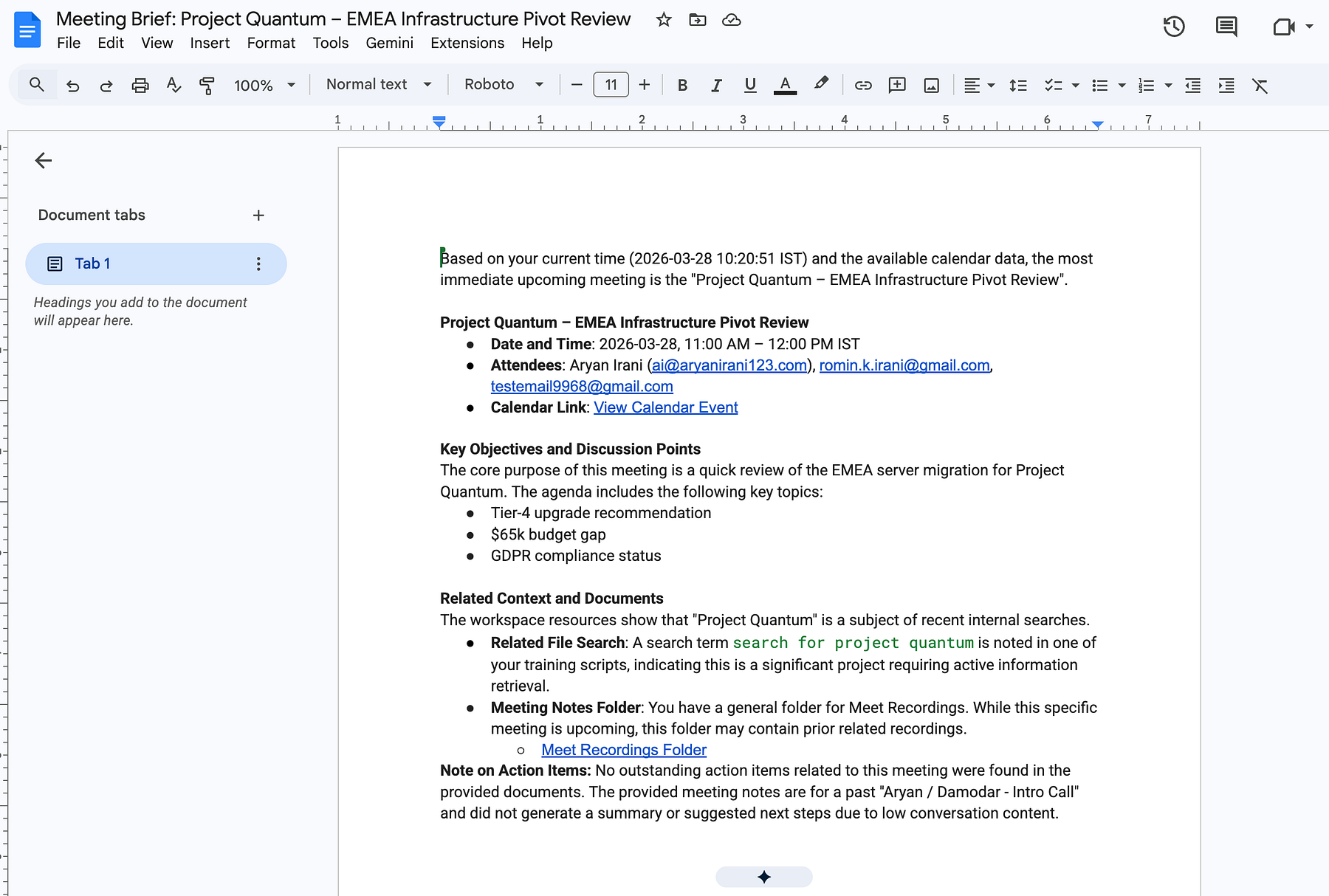
Simultaneously, a new document titled Meeting Brief: Project Quantum - EMEA Infrastructure Pivot Review is created in your Drive. This is a perfectly formatted document containing all the context Gemini gathered. You can open this doc during your call to take notes, knowing your background research is already done and documented.
Conclusion
By building this Meeting Prep Agent, you've done more than just automate a few clicks; you've fundamentally changed your relationship with your calendar. Instead of spending your day searching for context, you are now spending your day acting on it.
This workflow is a Force Multiplier. While you are focused on your current task, your AI agent is already working 15 minutes into the future, ensuring you walk into your next conversation with total confidence.
What will you build next?
The "Meeting Prep" agent is just the beginning. You can now take these same principles - Starters, Variables, and Actions - and apply them to every corner of your work.
Ready to dive deeper?
- 📺 Watch the Video: If you prefer a click-by-click walkthrough of this build, check out the video version in my Google Workspace Studio YouTube Playlist.
- 🚀 Master the Basics: If you're just starting out, read my previous deep-dive on Datcamp's Blog, to learn about different starters and logic flows.
- 💼 Custom Solutions: Looking to deploy these AI agents across your entire organization? Feel free to reach out via my website for a custom consultation.
Comments
More Blog
View allgemmaFive Gemma-4 models, one accelerator: what porting E2B 31B to AWS Inferentia2 taught me
I ported the whole Gemma-4 family — E2B, E4B, 12B, 31B, and the 26B-A4B MoE — to run on...
X
xbillcommunityHey DEV, I'm Tobore. Let's actually connect.
Hey DEV, I'm Tobore. Let's actually connect. I've been on here for a while now, mostly writing and...
L
Laurina AyarahaiI burned through thousands of AI tokens. Then a friend did it for free
(yep, kinda clickbait, just for the funsies 😊) At the beginning of the year, I relaunched my...
P
Paulo HenriqueaiClaude might be saturating your machine
My laptop was sitting idle with the fan at full tilt. Nothing was running that I knew of. The culprit...
S
Sidhant PandagithubactionsAutomated GitHub Code Reviews Using Google Gemini
I Built a Thing! TL;DR — Google Gemini-based Pull Request reviews and Issue Triaging for...
D
Darren "Dazbo" LesteraiWhat is an "agentic harness," actually?
I've been hearing the word "harness" thrown around a lot lately. I assumed it just meant "the IDE" or...
T
Tilde A. ThuriumReady-made automations for this
Workflows from the Neura Market marketplace related to this DeepSeek resource
- Automate Meeting Notes into Actionable Tasks with Google Workspace and AIn8n · $9.99 · Related topic
- Automate Employee Onboarding with Slack, Jira, and Google Workspace Integrationn8n · $24.99 · Related topic
- AI Resume Screening & Evaluation for HR with GPT-4 & Google Workspacen8n · $14.99 · Related topic
- Automated AI-Powered Workflow Maintenance with Google Workspace Integrationn8n · $24.99 · Related topic