

Huddles
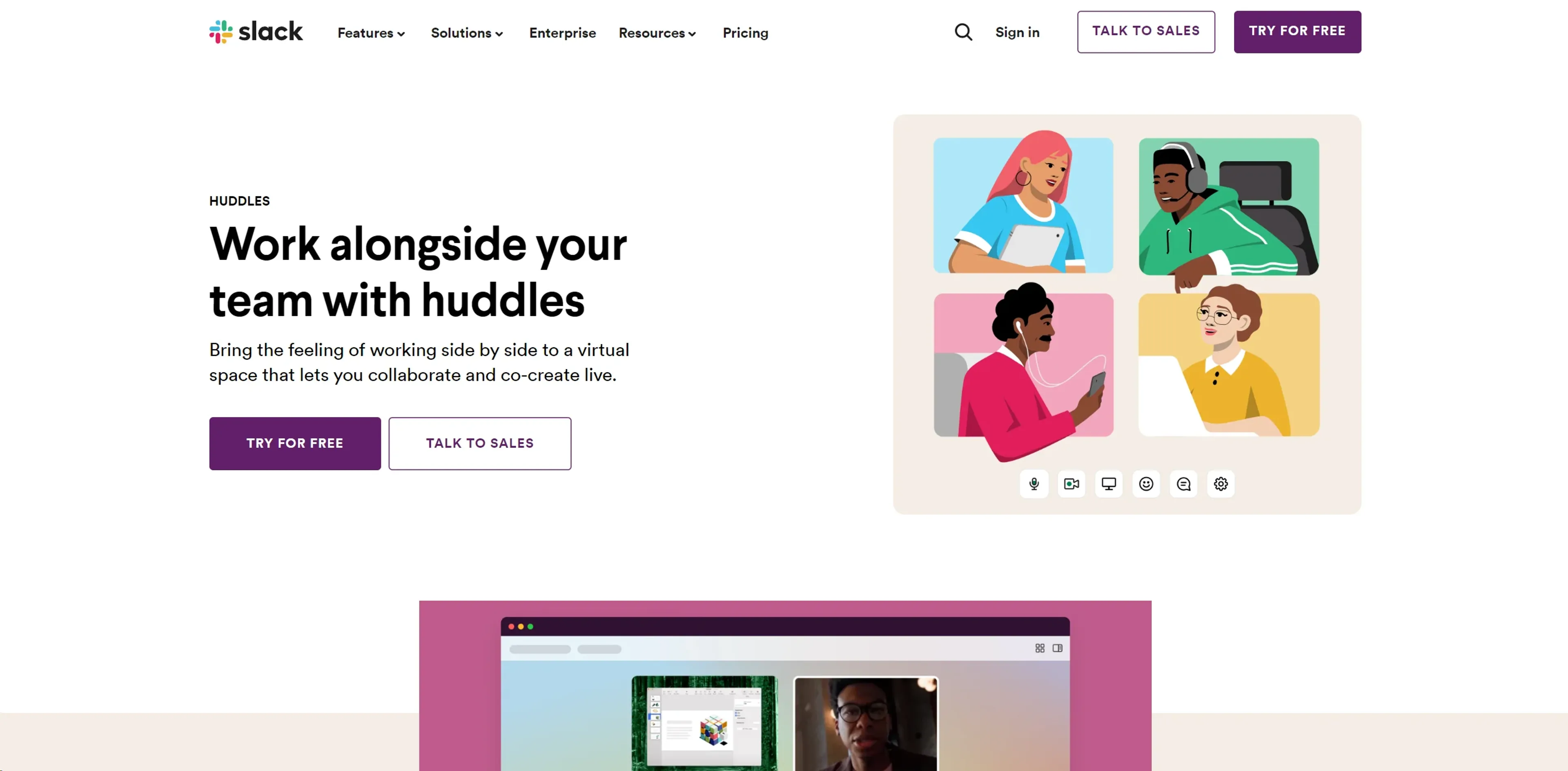
FreemiumEnhance team collaboration with integrated audio, video, and screen sharing.
About Huddles
Huddles is a feature within the popular communication platform Slack, designed to enhance team collaboration by providing a virtual space for audio and video meetings, and screen sharing. As a seasoned reviewer, I've seen how tools like Huddles can transform the dynamics of remote and hybrid teams. It's a nifty solution for those spontaneous discussions or planned collaborations, offering a more interactive and engaging way to communicate compared to traditional text-based chats.
Key Features
- Audio and Video Connectivity: Initiate swift and efficient communication with team members through voice or video calls directly within Slack.
- Screen Sharing: Share your screen with others to collaborate in real-time on documents, presentations, or during troubleshooting sessions.
- Emoji Reactions and Effects: Add a touch of personality to your meetings with emoji reactions and delightful visual effects, making the virtual meeting space more lively.
- Content Preservation: Links, documents, and messages shared during a Huddle are saved for easy reference once the session ends.
Pros
- Increased Productivity: Users report a significant boost in productivity, with teams using Huddles effectively.
- Ease of Use: Starting a Huddle is as simple as clicking an icon, and it's integrated where you're already working—no need to switch apps or contexts.
- Versatility: Whether it's a quick check-in, a brainstorming session, or a collaborative work effort, Huddles adapts to various team needs.
- Accessibility: Available on desktop, mobile, and iPad, Huddles can be accessed from virtually anywhere.
Cons
- Participant Limitation: The free version of Slack limits Huddles to two participants, which may not suit larger teams.
- Potential Overuse: With the ease of starting Huddles, there's a risk of over-relying on them, potentially interrupting deep work.
- Requires Slack Adoption: As a feature within Slack, full utilization of Huddles depends on the adoption of Slack as the primary communication platform.
Use Cases
- Remote Teams: For those who work from various locations, Huddles brings a sense of proximity and immediacy to team interactions.
- Project Managers: Keeping projects on track through quick sync-ups without the need for formal meetings.
- Developers: Collaborating on code reviews or problem-solving sessions in a real-time, interactive environment.
- Customer Support Teams: Discussing complex cases or sharing updates on customer queries.
- Uncommon Use Cases: Non-profits using Huddles for organizing volunteer activities; Book clubs discussing the latest read in a more personal and interactive format.
Pricing
Free Tier: Huddles is available with Slack's free version, albeit with a two-person limit. Paid Plans: Full Huddle functionality is included in Slack's paid subscriptions, allowing up to 50 participants. Disclaimer: For the most accurate and current pricing details, please refer to the official Slack website.
What Makes It Unique
Huddles stands out as an integrated feature within Slack, eliminating the need for separate meeting software. Its seamless integration into the workspace where teams are already communicating sets it apart, offering a blend of spontaneity and structure to team interactions.
Ratings
Accuracy and Reliability: 4.5/5 Ease of Use: 4.8/5 Functionality and Features: 4.6/5 Performance and Speed: 4.7/5 Customization and Flexibility: 4.3/5 Data Privacy and Security: 4.5/5 Support and Resources: 4.7/5 Cost-Efficiency: 4.4/5 Integration Capabilities: 4.7/5 Overall Score: 4.6/5
Key Features
Pros & Cons
- Increased Productivity: Users report a significant boost in productivity, with teams using Huddles effectively.
- Ease of Use: Starting a Huddle is as simple as clicking an icon, and it's integrated where you're already working—no need to switch apps or contexts.
- Versatility: Whether it's a quick check-in, a brainstorming session, or a collaborative work effort, Huddles adapts to various team needs.
- Accessibility: Available on desktop, mobile, and iPad, Huddles can be accessed from virtually anywhere.
- Participant Limitation: The free version of Slack limits Huddles to two participants, which may not suit larger teams.
- Potential Overuse: With the ease of starting Huddles, there's a risk of over-relying on them, potentially interrupting deep work.
- Requires Slack Adoption: As a feature within Slack, full utilization of Huddles depends on the adoption of Slack as the primary communication platform.
Best For
Alternatives to Huddles
VocAI
Monitor sentiment, visualize feedback, and filter customer preferences for actionable insights.
ParentMate
Personalized, evidence-based parenting guidance—built on child psychology and tailored to your family.
User Evaluation
Gain unparalleled customer insights with User Evaluation's AI-powered tools.
Automatic Chat
Streamline Customer Service with AI-Powered Chatbots from automatic.chat
Freshdesk
Cloud-based customer support
ChatMaxima
Centralize Your Business Communications with ChatMaxima