
The Complete OpenClaw Guide: Setup, Skills, and Running in Production
This guide covers everything you need to go from a fresh install to a fully configured, production-ready OpenClaw agent setup. It is written for developers and power users who want to deploy a persistent, autonomous AI assistant on their own hardware, connect it to messaging channels, and run it 24/7. You will learn the architecture, installation steps, model configuration, memory management, security hardening, and real-world production patterns drawn from official documentation and community experience.
What You Need
Before starting, gather these prerequisites. They are drawn from the official documentation and community guides.
- A computer running macOS, Linux, or Windows with WSL2. OpenClaw does not require a Mac Mini despite the social media trend. The official documentation states minimum requirements as 2GB RAM and 2 CPU cores for basic chat, or 4GB RAM if you want browser automation. A $5/month VPS handles this fine. Community members report success on old laptops, Raspberry Pi-class hardware, and cloud VPS instances from DigitalOcean, Hostinger, Hetzner, and AWS.
- An internet connection for downloading packages and making API calls to AI providers.
- An AI provider account with at least one API key. The most commonly recommended provider is Anthropic (for Claude models). OpenAI (GPT) and Google Gemini are also supported. You can also use local models via Ollama or LM Studio if you have the hardware.
- Node.js 20 or newer (Node 22+ is recommended by the official docs). Check with
node --version. If missing or outdated, install it via Homebrew on macOS or the NodeSource PPA on Linux. - A terminal (Terminal.app on macOS, Ctrl+Alt+T on Linux, WSL2 terminal on Windows). All commands in this guide run inside the terminal.
- A Telegram account (recommended as the easiest messaging channel to start with).
Understanding OpenClaw Architecture
OpenClaw is not a chatbot framework that added agent features. It was designed from the ground up as a runtime for persistent, autonomous agents. The official documentation describes it as an operating system for AI agents: it handles messaging, memory, tool use, scheduling, browser automation, and multi-agent coordination.
The Gateway
At the heart of OpenClaw is the Gateway, a single long-lived Node.js process. When you run openclaw gateway, you start this process. It contains five subsystems:
- Channel adapters (one per platform: Baileys for WhatsApp, grammY for Telegram, etc.). They normalize inbound messages into a common format and serialize replies back out.
- Session manager which resolves sender identity and conversation context. Direct messages collapse into a main session; group chats get their own.
- Queue which serializes runs per session. If a message arrives mid-run, it holds, injects, or collects it for a follow-up turn.
- Agent runtime which assembles context (AGENTS.md, SOUL.md, TOOLS.md, MEMORY.md, daily log, conversation history) and runs the agent loop: call model, execute tool calls, feed results back, repeat until done.
- Control plane which provides a WebSocket API on port 18789. The CLI, macOS app, web UI, and iOS/Android nodes all connect here.
The model is an external API call that may or may not run locally. Everything else (routing, tools, memory, state) lives inside that one process on your machine.
Memory System
OpenClaw uses a file-based memory system. Every agent session starts fresh with no inherent memory. The system solves this with Markdown files stored in the workspace:
- SOUL.md defines who the agent is: personality, tone, rules, and boundaries. Think of it as the agent's identity document.
- AGENTS.md is the operational playbook: how to handle sessions, when to speak, safety rules, and workflow instructions.
- MEMORY.md is long-term curated memory: the distilled essence of what the agent has learned over weeks and months.
- Daily memory files (
memory/YYYY-MM-DD.md) are raw logs of each day's events, decisions, and context.
At the start of every session, the agent reads these files. It wakes up with full context of who it is, what it has been doing, and what matters.
Skills and ClawHub
Skills are modular capability packages. Each skill comes with a SKILL.md file that teaches the agent how to use it. Skills can include tool definitions, configuration files, and even sub-agents. Skills are installed from ClawHub, OpenClaw's marketplace. The system is extensible: you can write your own skills and publish them.
Heartbeat and Cron Jobs
Two mechanisms keep your agent proactive. Cron jobs execute at precise times (for example, "every Monday at 9 AM, check the analytics dashboard and post a summary"). They run in isolated sessions with their own model configuration. Heartbeats are periodic polls (typically every 30 minutes) where the agent checks a HEARTBEAT.md file for pending tasks. Multiple checks get batched together (check email, review calendar, monitor a service) in one turn. Heartbeats are cheaper and more flexible than cron jobs but less precise in timing.
Step 1: Install and Initialize OpenClaw
Install the CLI
On macOS or Linux, run:
curl -fsSL --proto '=https' --tlsv1.2 https://openclaw.ai/install.sh | bash
On Windows (PowerShell), run:
iwr -useb https://openclaw.ai/install.ps1 | iex
Alternatively, you can install via npm:
npm install -g openclaw
Initialize Your Environment
Run the setup command. This creates your ~/.openclaw/openclaw.json config file and your agent workspace:
openclaw setup
You can specify a custom workspace path:
openclaw setup --workspace ~/.openclaw/workspace
Or use a guided walkthrough:
openclaw setup --wizard
Run the Onboarding Wizard
The onboarding wizard asks you a series of questions (which AI provider to use, your API key, whether to install the gateway as a background service) and configures everything based on your answers:
openclaw onboard
For scripting (for example, on a server), use the non-interactive version:
openclaw onboard --non-interactive \
  --mode local \
  --auth-choice apiKey \
  --anthropic-api-key "$ANTHROPIC_API_KEY" \
  --gateway-port 18789 \
  --gateway-bind loopback \
  --install-daemon \
  --daemon-runtime node \
  --skip-skills
Start the Gateway
The gateway is the background process that keeps your agent running. First, check if it is already running:
openclaw health
If you see a healthy response, the gateway is already active. If not, start it:
openclaw gateway
If you want to run the gateway in the foreground (useful for debugging):
openclaw gateway --port 18789
For persistent operation as a daemon:
openclaw gateway start
Confirm everything is working:
openclaw doctor
openclaw health
A clean doctor output looks like:
✓ Gateway running on port 18789
✓ Model authenticated: anthropic/claude-sonnet-4-20250514
✓ Workspace: ~/.openclaw/workspace
All checks passed.
If doctor finds problems, it lists them with suggestions. For config errors, try openclaw doctor --fix which can auto-repair common issues like invalid keys or malformed JSON.
Open the Dashboard
openclaw dashboard
This opens the Control UI at http://127.0.0.1:18789/. You can start chatting with your agent here with no channel setup needed.
Step 2: Configure Models and Fallbacks
Your agent needs an AI model to think with. You configure providers in openclaw.json, and the Gateway routes accordingly with auth profile rotation and a fallback chain that uses exponential backoff when a provider goes down.
Model Choice
The official documentation recommends Claude Opus 4.6 or Codex 5.4 (or whichever model is most powerful at the time of reading). Community members report good results with Claude Sonnet for cron jobs and lighter tasks, reserving Opus for complex reasoning. OpenClaw works with OpenAI, Google Gemini, Mistral, and local models via Ollama.
API Key Authentication
You have two options for using paid models:
- Use an existing subscription by logging in to your Claude or ChatGPT account. Note: there are some rumors that Anthropic is banning people who reuse their Claude accounts for OpenClaw. When using any third-party account with OpenClaw, review the terms of service and proceed at your own discretion.
- Use an API key by setting up a developer account at Claude or OpenAI. This is the recommended path.
Model Routing and Failover
Configure a primary model and one or more backups. The official documentation explains that OpenClaw assembles large prompts (system instructions, conversation history, tool schemas, skills, and memory). That context load is why most deployments use a frontier model as the primary orchestrator, with cheaper models handling heartbeats and sub-agent tasks.
Cloud vs. Local Trade-offs
From the Gateway's perspective, cloud and local models look identical (both are OpenAI-compatible endpoints). Cloud models (Anthropic, OpenAI, Google) offer strong reasoning, large context windows, and reliable tool use. Cost scales with usage: light users spend $5-20 per month, active agents with frequent heartbeats and large prompts typically run $50-150 per month, and unoptimized power users have reported bills in the thousands.
Local models via Ollama or other OpenAI-compatible servers eliminate per-token cost but require hardware. OpenClaw needs at least 64K tokens of context, which narrows viable options. At 14B parameters, models can handle simple automations but are marginal for multi-step agent tasks. Community experience puts the reliable threshold at 32B+, needing at least 24GB of VRAM.
Step 3: Personalize Your Agent
Set Up Identity and Memory
Navigate to your OpenClaw workspace directory (typically ~/.openclaw/ or wherever you initialized it) and create two files.
SOUL.md defines your agent's personality:
# Soul

You are Aria, a professional but warm AI assistant for a marketing agency. You write in a clear, direct style. You are proactive about suggesting improvements. You never use corporate jargon or buzzwords.
AGENTS.md defines operational rules. OpenClaw ships with a comprehensive default, but customize it for your needs: which channels to be active in, when to stay quiet, what to check during heartbeats.
Configure Agent Workspace Files
Community members recommend organizing your workspace with these files:
workspace/
├── HABITS.md        # Daily habit tracking
├── MEMORY.md        # Long-term notes and context
├── NOTES.md         # Notes and important links categorized and stored
├── PROJECTS.md      # Active projects and tasks (to dos)
├── PROFILE.md       # Personal preferences (your bible that agent can ref)
├── USER.md          # Quick-reference identity card (pass every time)
└── drafts/          # Article drafts, ideas, etc.
These are plain Markdown files. Read them in GitHub, VS Code, Obsidian, or cat from the terminal. No vendor lock-in. Every change can be a git commit.
Step 4: Connect Communication Channels
Telegram (Recommended for Beginners)
The official documentation recommends Telegram as the best beginner-friendly channel. OpenClaw can walk you through the setup steps, including messaging the @BotFather to create a bot token. Once connected, you can message your bot on Telegram and it works immediately as a capable assistant.
WhatsApp integration uses the Baileys library. The official documentation notes that you need to set up an allowlist to restrict interaction to specific contacts. Community members report success using a Tello eSIM to give the agent its own phone number.
Other Channels
OpenClaw supports over 20 messaging channels out of the box: Discord, Signal, iMessage, Slack, IRC, Microsoft Teams, LINE, Matrix, Nostr, and more. Each channel is configured in the channels section of openclaw.json.
Step 5: Set Up Persistent Memory
GitHub Sync
Community members recommend syncing your workspace to a private GitHub repository. Every night at 11 PM, a cron job pushes everything to the repo. Every time the agent updates a file during the day, it commits and pushes too. This gives you version control, diff capability, and portability.
Memory in Practice
One community member reports that their agent's MEMORY.md grew into a genuine knowledge base containing preferred approaches, learned pitfalls (like LinkedIn's per-post identity switching), account credentials references, and project context. Daily memory files capture every significant decision and interaction. When the agent starts a new session, it reads yesterday's and today's notes plus its long-term memory. The result is that conversations feel continuous even though every session is technically fresh.
Step 6: Activate the Heartbeat
The heartbeat is a periodic poll (typically every 30 minutes) where the agent checks a HEARTBEAT.md file for pending tasks. Multiple checks get batched together (check email, review calendar, monitor a service) in one turn. Heartbeats are cheaper and more flexible than cron jobs but less precise in timing.
To configure the heartbeat interval, edit the heartbeat section in openclaw.json. The official documentation notes that with Anthropic OAuth, the default interval is every hour.
Step 7: Schedule Tasks with Cron Jobs
Cron jobs execute at precise times. They run in isolated sessions with their own model configuration. To list scheduled cron jobs:
openclaw cron list
To add a cron job, edit the cron section in openclaw.json. Each cron job specifies a schedule (using standard cron syntax), a task description, and optionally a different model to use.
Step 8: Lock Down Security
Essential Security (10 minutes)
The official documentation provides these essential security steps:
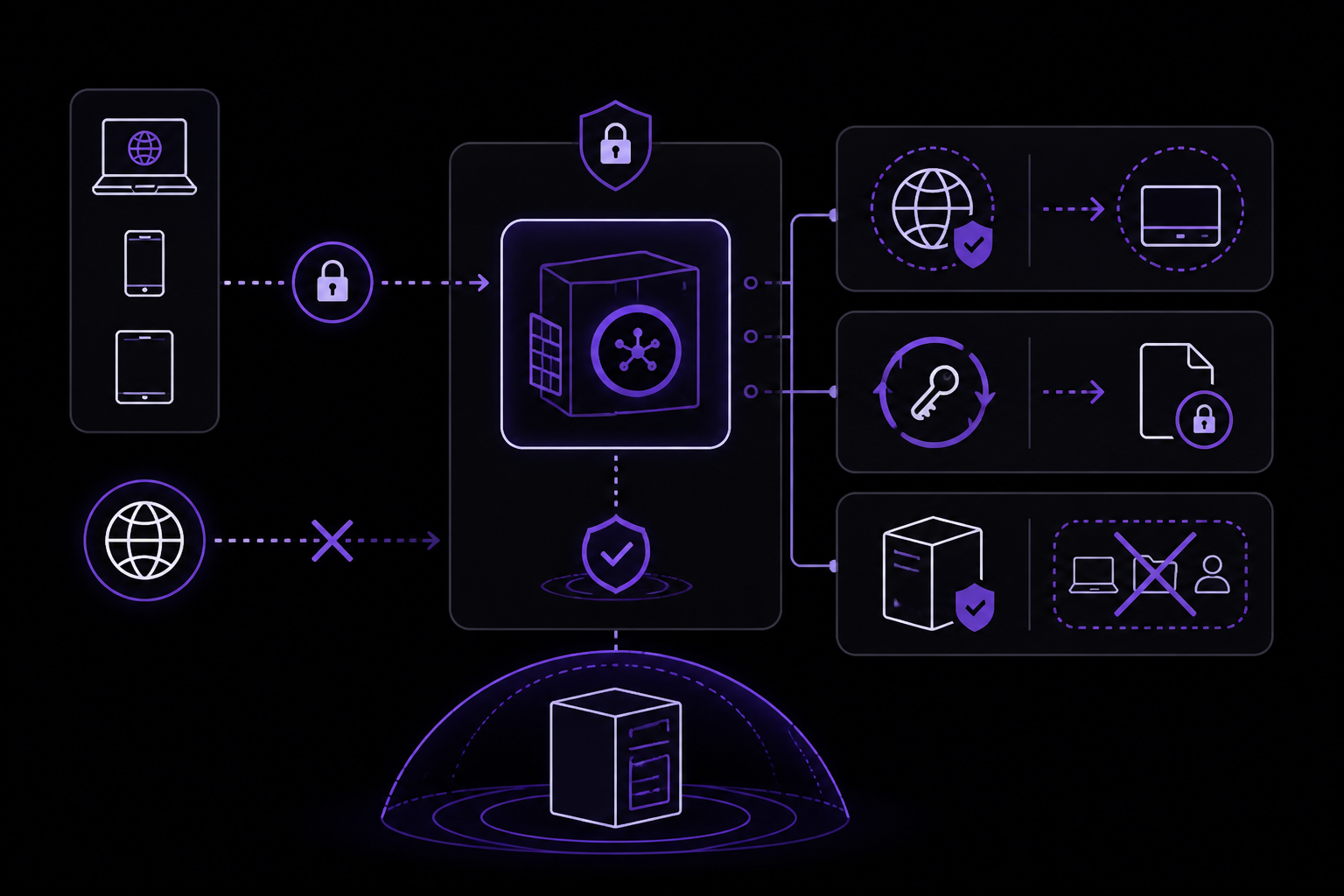
- Lock down the Gateway. Bind it to localhost only. Never expose it to the open internet. Use SSH tunneling to access it remotely. The command for SSH tunneling is:
ssh -L 18789:127.0.0.1:18789 user@your-vps
-
Rotate your gateway auth token. Use a strong random string. Store it in your
.envfile, not hardcoded in config. -
Run on a dedicated computer. Do not install OpenClaw on a work or personal computer that is actively in use. OpenClaw can technically have access to all files on the computer it runs on. The community recommends using an isolated box: a dedicated Mac Mini, a VPS, or an old laptop.
-
Give the agent its own credentials. Create a dedicated Gmail address for your agent. Give it read access to your main account and write access to select files only.
-
Never share your bot with anyone else. Do not add it to group chats or websites. Restrict interaction to yourself via an allowlist.
Advanced Security (Optional)
Docker-based sandboxing. The official documentation and community guides recommend running OpenClaw in Docker for additional isolation. Here is a production Docker Compose configuration from the community:
services:
  openclaw:
    image: ghcr.io/hostinger/hvps-openclaw:latest
    init: true
    entrypoint:
      - /bin/bash
      - -c
      - |
        find /data/.openclaw/browser -name SingletonLock -delete 2>/dev/null
        (
          sleep 15 \
          && GOLDEN_CFG=/data/.openclaw/config-backups/openclaw.json.golden \
          && [ -f "$$GOLDEN_CFG" ] \
          && cp "$$GOLDEN_CFG" /data/.openclaw/openclaw.json \
          && echo '[config-guard] Restored golden config after startup'
        ) &
        exec /entrypoint.sh node /server.cjs
    ports:
      - "127.0.0.1:${PORT}:${PORT}"
    env_file:
      - .env
    restart: unless-stopped
    volumes:
      - ./data:/data
      - ./data/linuxbrew:/home/linuxbrew
      - /dev/shm:/dev/shm
    shm_size: '2gb'
    cap_add:
      - SYS_ADMIN
    security_opt:
      - seccomp:unconfined
This configuration does several things. It deletes stale Chrome SingletonLock files before start (Chromium leaves these behind on unclean shutdown, which blocks the managed browser from launching). It restores a golden config after startup (OpenClaw rewrites openclaw.json on startup and can strip custom settings). It binds to localhost only (external access is via SSH tunnel or Tailscale). It sets shared memory to 2GB (required for Chromium in Docker; without this, Chrome tabs crash with out-of-memory errors). It adds SYS_ADMIN capability (required for Chromium's sandboxing within Docker) and disables seccomp filtering (Chromium uses syscalls that Docker's default seccomp profile blocks).
Config guard script. Community members have created a config guard script that validates openclaw.json has all required custom settings after startup. This catches regressions where OpenClaw silently drops settings during startup, doctor runs, or wizard runs.
Environment variables are visible. If you are running a multi-agent setup and one agent has shell access, it can read your environment variables (API keys, passwords, everything). Never assume a prompt (system instructions) is a security wall. Use hard tool restrictions to prevent agents from reading each other's .env files.
Three Tiers of Deployment
Community members categorize deployments into three tiers:
- Tier 1 (Personal use, single machine): Never give the agent
sudoaccess or expose it to the open internet without a tunnel. - Tier 2 (Multi-agent, shared machine): Never assume a prompt is a security wall. Use hard tool restrictions to prevent agents from reading each other's
.envfiles. - Tier 3 (Production, business use): Never link personal tools (Calendar/Email). Treat this agent as a stranger with a script.
Step 9: Enable Web Search and External Tools
Web Search
During onboarding, you can set up web search. This gives your agent access to the internet. You can skip this and set it up later when you need it.
Browser Automation
OpenClaw includes a built-in browser control server that lets your agent operate a real Chrome browser via CDP (Chrome DevTools Protocol). It can navigate pages, click buttons, fill forms, take screenshots, and extract content. This is not a headless scraper. It is a full browser that can handle JavaScript-heavy sites, login sessions, and multi-step workflows.
MCP Tool Integration
The Model Context Protocol (MCP) lets your agent connect to external tool servers. One community member reports running 134 MCP tools through their setup, covering CMS management, image generation, social media publishing, and more. MCP tools are defined by external servers, and OpenClaw discovers and connects to them automatically.
Step 10: Build Your Use Cases
Personal Assistant
Start with a personal assistant. Share your name, role, and common admin challenges (scheduling, remembering tasks, coordination with family). The agent writes this down in its workspace files and uses it to build its identity and operating system.
Daily Content Pipeline
One community member's agent publishes blog posts in four languages daily. The workflow includes research, writing, translation, SEO keyword generation, CMS publishing, image generation, URL verification, Google Search Console submission, and social media posting. This entire pipeline runs with a single instruction.
Social Media Automation
Agents can handle social media presence across X, LinkedIn, and Facebook. Using browser automation, agents can log into LinkedIn, navigate to relevant posts, and engage as a company page (liking, commenting, building visibility).
Video Shorts Pipeline
One complex workflow turns blog posts into short-form video content using Veo 3.1 for scene generation, ElevenLabs for voice synthesis, automated captioning, lip sync via Sync Labs, and final assembly with crossfade, reverb, and ambient audio. The agent orchestrates 20+ MCP tools to make this happen.
Proactive Monitoring
Via heartbeats, agents periodically check infrastructure: are websites up? Any urgent emails? Upcoming calendar events? The agent logs check timestamps and only alerts when something needs attention.
Troubleshooting
Gateway Fails to Start
If you see Gateway failed to start: gateway already running and Port 18789 is already in use, the gateway is already running as a systemd service. Do not try to start a second instance. Use openclaw health to confirm it is working, or openclaw gateway restart if you need to pick up config changes.
Browser Crashes in Docker
If you are running the browser inside Docker and it crashes silently or behaves erratically, you need shm_size: '2gb' and /dev/shm mounted. This is not optional. It is a hard requirement.
Stale Chrome SingletonLock Files
If your agent cannot launch the browser after a restart, Chrome left SingletonLock files from an unclean shutdown. Add a cleanup step to your Docker entrypoint:
find /data/.openclaw/browser -name SingletonLock -delete 2>/dev/null
Config Gets Overwritten on Startup
OpenClaw rewrites openclaw.json on startup, during openclaw doctor, and when the wizard runs. Each time, it can silently drop settings it does not own (particularly the number from channels.whatsapp.allowFrom, agent bindings, and token values). The community solution is a config guard script that validates the config after startup and restores a known-good golden copy if needed.
Token Limits and Agent Loops
Debugging token limits, agent loops, corrupted configs, and permission issues can burn time and money. The official documentation recommends creating a dedicated Claude or ChatGPT project pre-loaded with OpenClaw's docs. When something breaks, copy the full error output (5-10 lines of context) and paste it into the project along with what you were doing and the relevant section of openclaw.json.
Going Further
Once your agent is running, explore these next steps drawn from the source material:
- Install skills from ClawHub. Run
openclaw skill installto browse the marketplace. The official documentation recommends starting with thegogskill (for Gmail, Google Calendar, and Docs access) and thesummarizeskill. - Enable hooks. These are tools that keep your setup optimized. Session memory is the most important. The others help when you want to debug or optimize your agent.
- Explore multi-agent routing. OpenClaw supports multiple agents in one installation. You can route messages to different agents based on the channel, the user, or the content. Agents can also spawn sub-agents for specific tasks.
- Build custom skills. The skill format is portable and compatible with Claude Code and Cursor conventions. If a skill does not exist, you can describe the task to your agent and have it draft one.
- Set up voice replies. Ask your agent for options. One community member found free voices in Microsoft's Edge TTS service and gave their agent a British voice.
- Join the community. The official documentation points to the GitHub repository, ClawHub, and community forums for ongoing learning and support.
The #1 AI Newsletter
The most important ai updates, guides, and fixes — one weekly email.
No spam, unsubscribe anytime. Privacy policy